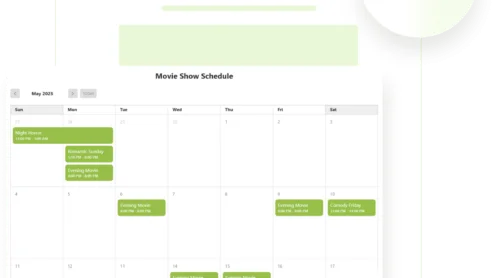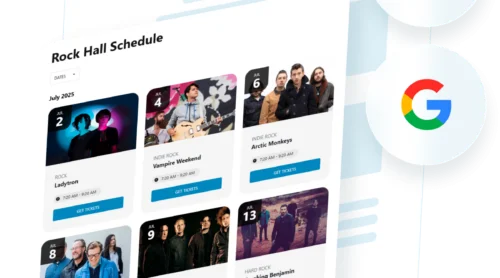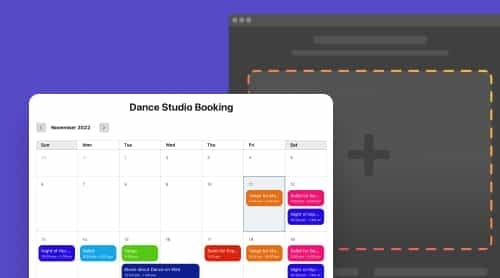
Many HTML calendar tutorials focus on the basics: a static monthly grid built with simple markup and styling. But for a live website calendar, you’ll usually want features like navigation, responsiveness, and event support so visitors can actually interact with it and stay up to date.
This article covers four approaches to adding an HTML calendar to your website: building a static month display with CSS Grid, adding JavaScript for dynamic navigation, embedding Google Calendar as an iframe, and using a no-code calendar widget. Each method fits a different situation, and the decision framework at the end helps you match the right one to yours.
- Copy-paste-ready HTML calendar code using CSS Grid — static and dynamic versions
- How to add month navigation and today-highlighting with vanilla JavaScript
- Google Calendar embed setup, including its limitations on mobile
- No-code calendar widget setup with event management and filtering
- A decision framework matching calendar methods to specific use cases
Methods Compared
Before committing to an approach, a quick comparison helps narrow down your options. The four methods differ in what they can do, how much setup they require, and who they’re built for:
| Method | Best for | Difficulty | Customization | Dynamic events | Cost |
|---|---|---|---|---|---|
| Static HTML/CSS | Display-only month grid | Basic (copy-paste) | Full (your CSS) | No | Free |
| Dynamic JS calendar | Navigable month calendar | Intermediate | Full (your code) | Month navigation | Free |
| Google Calendar embed | Organizations using Google Calendar | Easy (iframe) | Very limited | Yes (syncs with Google) | Free |
| No-code widget | Event listings, filtering, RSVP links | Easy (no code) | Full (visual editor) | Yes (manual + Google sync) | Free–paid |
Takeaway: A static HTML/CSS calendar works well for simple visual layouts, such as portfolios, schedules, or design elements. Adding JavaScript enables month navigation and automatic date rendering. A Google Calendar embed is a good fit if you already manage events in Google and want a quick, low-maintenance display. A no-code HTML calendar widget adds more flexibility, including event management, recurring events, filtering, and visual customization without coding.
Method 1: Static HTML/CSS Calendar
This is the simplest HTML calendar code you can build — a single-month display using CSS Grid. It’s the foundation that Method 2 builds on, and it works as a standalone template if all you need is a visual month layout.
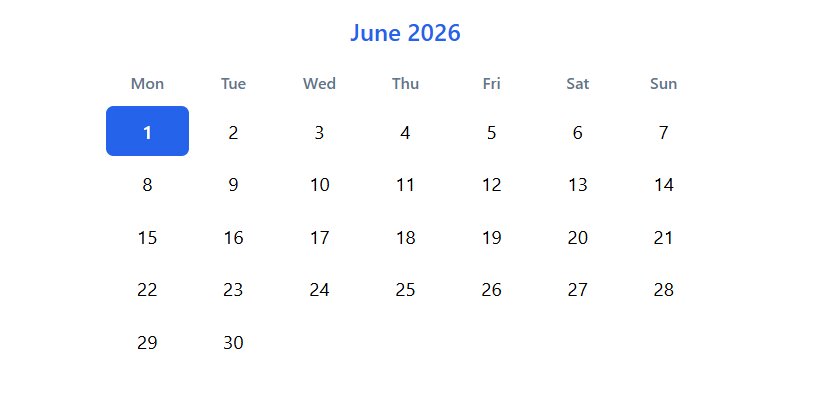
The code uses CSS Grid with repeat(7, 1fr) for the seven-column day layout. Grid has roughly 95% global browser support, so compatibility isn’t a concern. Unlike older workflows that use HTML tables with deprecated attributes like cellspacing and bgcolor, Grid gives you a responsive layout with clean, modern markup.
Copy the code below and paste it into any HTML file or CMS code block. It renders a June 2026 calendar — change the month heading and day numbers to display a different month.
<!DOCTYPE html>
<html lang="en">
<head>
<meta charset="UTF-8">
<meta name="viewport" content="width=device-width, initial-scale=1.0">
<title>Static HTML Calendar</title>
<style>
  .calendar {
    --accent: #2563eb;          /* change this to match your brand */
    max-width: 480px;
    margin: 0 auto;
    font-family: system-ui, sans-serif;
  }
  .calendar-header {
    display: flex;
    justify-content: center;
    align-items: center;
    padding: 0.75rem 0;
    font-size: 1.2rem;
    font-weight: 600;
    color: var(--accent);
  }
  .calendar-grid {
    display: grid;
    grid-template-columns: repeat(7, 1fr);  /* 7 equal columns */
    gap: 2px;
    text-align: center;
  }
  .day-name {
    padding: 0.5rem 0;
    font-size: 0.8rem;
    font-weight: 600;
    color: #64748b;
  }
  .day {
    padding: 0.6rem 0;
    font-size: 0.95rem;
    border-radius: 6px;
  }
  .day:hover { background: #f1f5f9; }
  .today {
    background: var(--accent);
    color: #fff;
    font-weight: 600;
  }
  .today:hover { background: var(--accent); }
</style>
</head>
<body>

<div class="calendar">
  <div class="calendar-header">June 2026</div>
  <div class="calendar-grid">
    <span class="day-name">Mon</span>
    <span class="day-name">Tue</span>
    <span class="day-name">Wed</span>
    <span class="day-name">Thu</span>
    <span class="day-name">Fri</span>
    <span class="day-name">Sat</span>
    <span class="day-name">Sun</span>
    <!-- June 2026 starts on Monday — no offset needed -->
    <span class="day today">1</span>
    <span class="day">2</span><span class="day">3</span><span class="day">4</span>
    <span class="day">5</span><span class="day">6</span><span class="day">7</span>
    <span class="day">8</span><span class="day">9</span><span class="day">10</span>
    <span class="day">11</span><span class="day">12</span><span class="day">13</span>
    <span class="day">14</span><span class="day">15</span><span class="day">16</span>
    <span class="day">17</span><span class="day">18</span><span class="day">19</span>
    <span class="day">20</span><span class="day">21</span><span class="day">22</span>
    <span class="day">23</span><span class="day">24</span><span class="day">25</span>
    <span class="day">26</span><span class="day">27</span><span class="day">28</span>
    <span class="day">29</span><span class="day">30</span>
  </div>
</div>

</body>
</html>
The --accent CSS custom property at the top controls the highlight color — change it once, and the header and today-marker both update. The layout is responsive by default because 1fr units divide available space equally rather than using fixed pixel widths. On smaller screens, the cells shrink proportionally without breaking.
If the month you’re displaying doesn’t start on Monday, use grid-column-start on the first day cell to push it to the correct column. For example, if the month starts on Wednesday, add style="grid-column-start: 3" to the first <span class="day">. This positions the first day in the third column without requiring empty placeholder cells — one of the advantages of CSS Grid over a table-based layout.
Method 2: Dynamic JavaScript Calendar
The static version works as a snapshot, but most practical use cases need month navigation and an automatically rendered current date. This version builds on the same CSS Grid structure and adds roughly 50 lines of vanilla JavaScript for dynamic rendering.
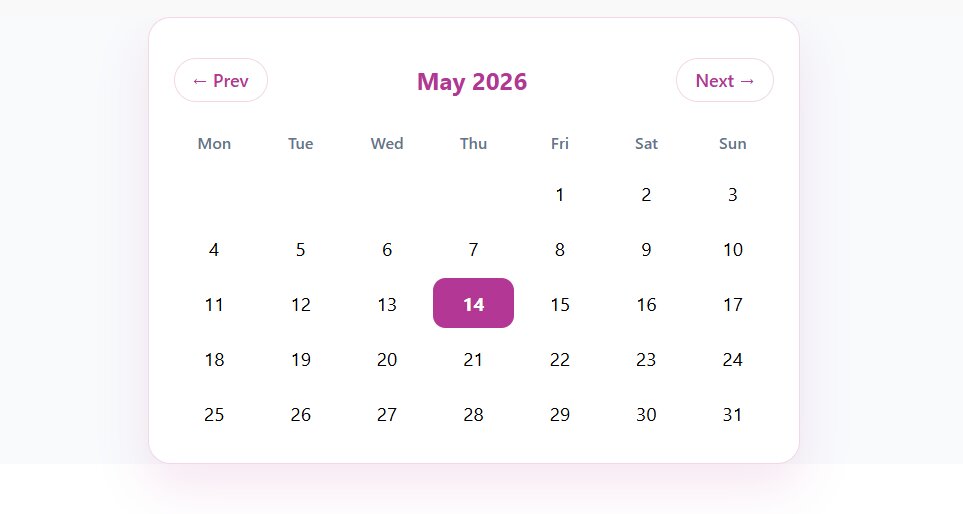
The calendar HTML code below detects the current month and year, renders the correct number of days, positions the first day in the right column, highlights today, and lets visitors navigate forward and backward between months. Year rollover (December to January, or January back to December) is handled automatically.
<!DOCTYPE html>
<html lang="en">
<head>
<meta charset="UTF-8">
<meta name="viewport" content="width=device-width, initial-scale=1.0">
<title>Dynamic HTML Calendar</title>
<style>
.calendar {
--accent: #2563eb;
max-width: 480px;
margin: 0 auto;
font-family: system-ui, sans-serif;
}
.calendar-header {
display: flex;
justify-content: space-between;
align-items: center;
padding: 0.75rem 0;
}
.calendar-header button {
background: none;
border: 1px solid #e2e8f0;
border-radius: 6px;
padding: 0.4rem 0.8rem;
cursor: pointer;
font-size: 0.9rem;
}
.calendar-header button:hover { background: #f1f5f9; }
.month-year {
font-size: 1.2rem;
font-weight: 600;
color: var(--accent);
}
.calendar-grid {
display: grid;
grid-template-columns: repeat(7, 1fr);
gap: 2px;
text-align: center;
}
.day-name {
padding: 0.5rem 0;
font-size: 0.8rem;
font-weight: 600;
color: #64748b;
}
.day {
padding: 0.6rem 0;
font-size: 0.95rem;
border-radius: 6px;
}
.day:hover { background: #f1f5f9; }
.today {
background: var(--accent);
color: #fff;
font-weight: 600;
}
.today:hover { background: var(--accent); }
</style>
</head>
<body>
<div class="calendar">
<div class="calendar-header">
<button id="prev">← Prev</button>
<span class="month-year" id="monthYear"></span>
<button id="next">Next →</button>
</div>
<div class="calendar-grid" id="grid">
<span class="day-name">Mon</span>
<span class="day-name">Tue</span>
<span class="day-name">Wed</span>
<span class="day-name">Thu</span>
<span class="day-name">Fri</span>
<span class="day-name">Sat</span>
<span class="day-name">Sun</span>
</div>
</div>
<script>
const grid = document.getElementById("grid");
const monthYear = document.getElementById("monthYear");
const now = new Date();
let currentMonth = now.getMonth(); // 0-based: 0 = January
let currentYear = now.getFullYear();
const monthNames = [
"January","February","March","April","May","June",
"July","August","September","October","November","December"
];
function renderCalendar() {
// Clear previous day cells, keep the 7 day-name headers
grid.querySelectorAll(".day").forEach(d => d.remove());
monthYear.textContent = monthNames[currentMonth] + " " + currentYear;
// Day of week for the 1st (0=Sun). Convert to Mon-start: Mon=0 … Sun=6
let firstDay = new Date(currentYear, currentMonth, 1).getDay();
firstDay = (firstDay + 6) % 7;
const daysInMonth = new Date(currentYear, currentMonth + 1, 0).getDate();
const today = new Date();
// Blank cells before the first day
for (let i = 0; i < firstDay; i++) {
const blank = document.createElement("span");
blank.className = "day";
grid.appendChild(blank);
}
// Day cells
for (let d = 1; d <= daysInMonth; d++) {
const cell = document.createElement("span");
cell.className = "day";
cell.textContent = d;
if (
d === today.getDate() &&
currentMonth === today.getMonth() &&
currentYear === today.getFullYear()
) {
cell.classList.add("today");
}
grid.appendChild(cell);
}
}
document.getElementById("prev").addEventListener("click", () => {
currentMonth--;
if (currentMonth < 0) { currentMonth = 11; currentYear--; }
renderCalendar();
});
document.getElementById("next").addEventListener("click", () => {
currentMonth++;
if (currentMonth > 11) { currentMonth = 0; currentYear++; }
renderCalendar();
});
renderCalendar();
</script>
</body>
</html>Two JavaScript details worth noting. First, new Date(year, month, 1).getDay() returns the weekday of the first day, but JavaScript uses Sunday as 0. The (firstDay + 6) % 7 conversion shifts the index so Monday is 0 and Sunday is 6, matching the grid’s Monday-start layout. Second, new Date(year, month + 1, 0).getDate() is a shorthand for getting the number of days in any month — day 0 of the next month returns the last day of the current one.
A common mistake in calendar JavaScript is forgetting that months are 0-based. January is 0, not 1. If your calendar shows the wrong month, this is almost always the reason. The navigation handlers also need to handle year rollover explicitly — decrementing past January should set the month to December and subtract a year.
Method 3: Google Calendar Embed
If your organization already manages its schedule in Google Calendar, embedding it as an iframe skips the coding step entirely. The result is a live HTML event calendar that updates automatically whenever you add or change events in Google Calendar.
Setup process
- Make the calendar public. In Google Calendar, open Settings for the calendar you want to embed. Under “Access permissions for events,” check “Make available to public.” Only public calendars display in an embed — private or shared calendars won’t render.
- Open the embed settings. In the same settings panel, scroll to “Integrate calendar.” Click the “Customize” button to open the customization tool.
- Configure the display. The customization tool lets you set the title, default view (Month, Week, or Agenda), width and height in pixels, start date, timezone, and toggle individual elements like navigation buttons, the date header, print icon, and calendar tabs. You can also combine multiple public calendars into a single embed.
- Copy the iframe code. Click “Copy” to get the <iframe> embed code. It looks like this:
<iframe src="https://calendar.google.com/calendar/embed?src=..." width="800" height="600"></iframe> - Paste into your website. Add the iframe to any HTML page or CMS Custom HTML block. For a more detailed walkthrough, including platform-specific paste instructions, see this guide to adding Google Calendar to any website.
Tradeoffs
A Google Calendar embed works well for a quick, free calendar display, but it has limitations. The iframe uses fixed dimensions and isn’t fully responsive, which can make mobile viewing awkward.
Since it loads from Google’s domain, you can’t fully customize the design with your own CSS or JavaScript, so it will always look like an embedded Google product. Visitors can view events and open details, but interaction is limited to viewing rather than booking or RSVPing directly.
Method 4: No-Code Calendar Widget
When you need event management, visual customization, and responsive design without writing code, a dedicated calendar widget bridges the gap between a basic HTML calendar and a full calendar application. The Elfsight Event Calendar is one option in this category – and it only takes 5 minutes to set up. Here’s the process at a glance:
- Open the Calendar editor and select a template.
- Add your Events and configure the style.
- Click “Add to website” and copy the embed code.
- Paste the code into your website backend and publish.
Create your own Calendar right here in the interactive visual editor ↓
Standout features
Everything below is functionality that a hand-coded HTML/JS calendar doesn’t provide out of the box — and that would take significant development time to build from scratch.
- Seven layout types — List, Grid, Masonry, Slider, and calendar views for Month, Week, and Day. A single widget can display different layouts on different pages.
- Three event sources — add events manually through a visual editor, import in bulk via CSV, or sync one-way from Google Calendar (with support of venue, host, tags, event type, etc.).
- Recurring events — daily, weekly, monthly, yearly, and custom frequencies with exception handling for individual occurrences.
- Event popups — visitors click an event to see full details, a location map, CTA button, and an “Add to Calendar” option that generates a universal .ics file.
- Five filters + search — date, event type, venue, host, and tags, plus a keyword search bar. Filters display inline or in a dropdown.
- Visitor timezone adjustment — event times automatically adapt to each visitor’s local timezone, which matters for virtual or cross-timezone events.
It works on WordPress, Shopify, Squarespace, Wix, Webflow, and any platform that supports a Custom HTML block. For the full step-by-step setup process, the guide to creating an event calendar for your website covers it in detail.
Which Method Fits Your Situation
The right method depends on what your calendar needs to do, not how technical you are. The table below maps common scenarios to the approach that best fits each one.
| Situation | Best method | Why |
|---|---|---|
| Portfolio or personal website needing a month display | Static HTML/CSS | Full design control, no dependencies, minimal code |
| Website that needs a navigable calendar without events | Dynamic JS calendar | Month navigation and today-highlighting without a backend |
| Organization already using Google Calendar for scheduling | Google Calendar embed | Syncs automatically, zero code, zero maintenance |
| Event venue, gym, school, or church publishing event listings | No-code widget | Event management, filtering, recurring events, CTA buttons |
| Developer building a custom calendar application | JS library (FullCalendar, etc.) | Drag-and-drop, recurring event rules, API support |
| E-commerce website showing sale or launch dates | Static HTML/CSS or countdown widget | A full calendar is often overkill — a simple date display works |
| Freelancer or consultant displaying availability | No-code widget or booking tool | Availability display needs scheduling logic, not just a grid |
The dividing line between coding a calendar and using a tool usually comes down to event management. A basic JavaScript calendar with month navigation is relatively straightforward, but features like recurring events, Google Calendar sync, timezone handling, filtering, or RSVP links quickly expand the scope. At that point, a widget or calendar library is often the more practical and time-efficient option.
Explore 30+ Event Calendar templates


JavaScript Calendar Libraries
If vanilla JavaScript isn’t enough but a no-code widget doesn’t fit your development stack, a handful of open-source libraries sit in the middle. These give you pre-built calendar components with event support, and you control the integration.
| Library | Key strength | Size / adoption | License |
|---|---|---|---|
| FullCalendar | Full event management, drag-and-drop, plugin system | 19k+ GitHub stars, 1M+ npm weekly downloads | MIT (Standard) |
| TUI Calendar | Multi-calendar support, strong Asian localization | 8.2k GitHub stars | MIT |
| Vanilla Calendar Pro | Lightweight, zero dependencies, built-in accessibility | Lightweight / growing | MIT |
| Event Calendar (vkurko) | FullCalendar-like API at 37kb compressed | Svelte-based, framework-agnostic | MIT |
FullCalendar is the default recommendation for developers who need a production-ready calendar API with event handling, recurring events, and framework support (React, Vue, Angular). For simpler needs, Vanilla Calendar Pro provides built-in ARIA labels, keyboard navigation, and a smaller footprint.
Accessibility and Mobile Tips
Most guides on how to create a calendar in HTML skip accessibility entirely. Adding a few attributes to your calendar code makes it usable for screen readers and keyboard-only visitors, and the effort is minimal compared to the impact.
For the code-based calendars in Methods 1 and 2, these additions cover the fundamentals:
- Add aria-label=”June 2026″ (or the current month/year) to the calendar grid container so screen readers announce what the calendar displays
- Use the abbr attribute on day-name headers: <span class=”day-name” abbr=”Wednesday”>Wed</span>. Screen readers can then announce the full day name instead of the abbreviation
- For the interactive JavaScript calendar, add role=”grid” to the grid container and role=”gridcell” to each day cell. The W3C APG date picker pattern defines the full interaction model, including arrow-key navigation between days and Page Up/Down for month changes
- Mark the current date with aria-current=”date” in addition to the visual .today class
ARIA disclaimer
One caution with ARIA: only add attributes you understand. Analysis of the top million web pages found that pages using ARIA averaged 59.1 detectable accessibility errors, compared to 42 on pages without it. Incorrect ARIA markup creates more barriers than no ARIA at all.
If you’re building a display-only calendar, a native HTML <table> with proper <th> headers is the most accessible option by default — the “first rule of ARIA” is to prefer native HTML semantics when they exist.
CSS Grid for mobile
For mobile, the CSS Grid code in both methods is responsive by default because fr units divide available space proportionally. On very small screens (under 360px), two adjustments help: abbreviate day names to single letters (M, T, W, T, F, S, S) and reduce cell padding to 0.35rem. Test on a real device before publishing — emulators don’t always reflect how touch targets feel at small sizes.
Frequently Asked Questions
Can I build an HTML calendar without JavaScript?
Is CSS Grid or an HTML table better for a calendar layout?
How do I make an HTML calendar responsive on mobile?
Can I add events to an HTML calendar without a backend?
What's the difference between an HTML calendar and a calendar widget?
Where to Start
The right approach depends on what your calendar needs to do. A display-only month grid takes 30 minutes with the code in this article. A navigable calendar with today-highlighting takes slightly longer. An event calendar with filtering, recurring events, and RSVP links takes a different kind of tool entirely — and recognizing that boundary early saves more time than any amount of code optimization.
Start with the simplest method that covers your actual requirements. If you outgrow it, the next step is clear: a calendar widget you can embed without rebuilding from scratch, or a JavaScript library if you need full programmatic control. Either way, you’re building on a foundation that fits the job — not forcing a simple HTML calendar to do something it was never designed for.