
Did you know? YouTube Shorts surpassed 200 billion daily views in 2025, watched by over 2 billion signed-in users every month. – YouTube CEO Neal Mohan.
YouTube Shorts are pulling serious numbers on the platform, and if you’re already creating them — product demos, tutorials, behind-the-scenes clips — you can put that same content to work across your website. A 30-second demo on the product page, a customer reaction Short in testimonials, a tutorial Short in a blog post — could all land where it’s relevant to the visitor’s decision.
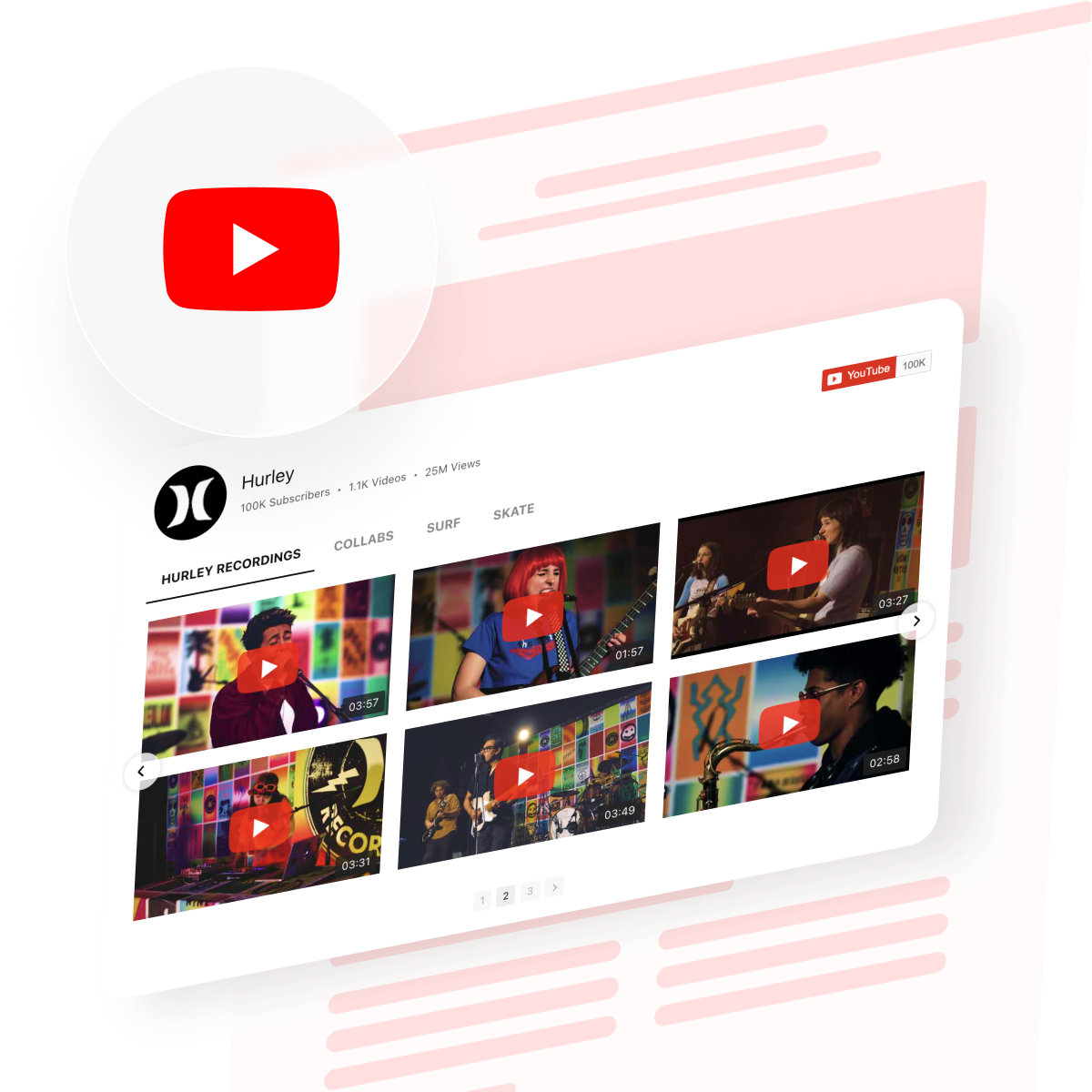
The YouTube Gallery widget is one way to do this: it displays a Shorts-only feed that auto-updates as you publish and includes built-in layout and design controls. You can also embed individual Shorts manually using an iframe or build a custom integration from scratch with the YouTube Data API. Below, we provide an overview of all three methods so you can pick the one that fits your setup.
- 4 steps to display a Shorts-only feed on your website
- The iframe workaround and custom API approach
- Best layout for your YouTube content type
- Practical tips for leveraging Shorts engagement on your site
Embed Shorts on Your Website in 4 Steps
Here’s the fastest path to a working Shorts gallery on your website:
- Open the YouTube Gallery editor and select a template.
- Add your Shorts playlist link as the content source.
- Click “Add to Website” to get the embed code.
- Paste the code into a Custom HTML block and publish.
Build your YouTube Shorts widget in the interactive editor below ↓
Best Ways to Embed YouTube Shorts
Not every method works the same way, and the right choice depends on whether you need to embed a single Short or an entire feed, as well as how much control you want over the design.
| Method | What it embeds | Difficulty | Customization | Auto-updates | Cost |
|---|---|---|---|---|---|
| Elfsight YouTube Gallery widget | Feed / gallery of Shorts | No code | High (layouts, colors, navigation, grid) | Yes (every 24 hours) | Free plan / paid |
| YouTube iframe embed code | Single Short | Basic HTML | Minimal (width, height, autoplay params) | No | Free |
| YouTube Data API (custom build) | Feed or single Short | Developer-level | Full (you build the front end) | Yes (real-time) | Free (API quota limits apply) |
The Elfsight widget is the easiest way to create an auto-updating YouTube Shorts gallery without coding. iframe embeds are free and simple for individual Shorts, but require manual updates for every new video. The YouTube Data API offers full flexibility, but also means maintaining the entire integration yourself — including data fetching, rendering, pagination, and caching.
Single Shorts vs. a Full Feed
The right embed setup depends on what your business does with Shorts and where on the website they’d have the most impact.
| Business type | Embed setup | Example |
|---|---|---|
| E-commerce store | Single Shorts on product pages + curated gallery on homepage | A 20-second demo Short embedded on each product page; a “see it in action” gallery of your best-performing Shorts on the homepage |
| Agency or freelancer portfolio | Auto-updating gallery from channel | A Shorts feed on your portfolio page that stays current as you post new project walkthroughs and results |
| Restaurant or hospitality | Curated playlist gallery | A “behind the kitchen” playlist of food prep and plating Shorts on the About or Menu page |
| SaaS or tech company | Single Shorts in blog posts and docs | A 30-second feature walkthrough Short embedded in the relevant help article or product update post |
| Real estate or rental | Single Shorts on listing pages | A property tour Short on each listing page — visitors get a feel for the space without leaving the website |
| Fitness, coaching, education | Playlist gallery on a dedicated page | A “free workouts” or “quick lessons” section with a curated playlist of tutorial Shorts |
Some businesses benefit from both: individual Shorts where a specific video supports a specific page, and a gallery section where visitors browse multiple Shorts at once.
Step-by-Step: Setting Up Your YouTube Shorts Widget
Let’s walk through the Elfsight YouTube Gallery method — the most flexible way to embed an auto-updating Shorts feed with layout control.
Step 1: Open the editor and pick a starting template
Head to the editor and browse the available presets. Each template comes with a pre-configured layout, color scheme, and grid setup — pick the one closest to what you want, then customize from there.
Step 2: Add your Shorts source
This step determines whether your widget shows Shorts, regular videos, or both. In the Source tab, you’ll set up where the widget pulls content from.
Option A — Shorts playlist
If you already have a YouTube playlist containing all or specific Shorts, paste the playlist URL directly into the Source field. The widget will display those Shorts in the same order they appear in your YouTube playlist.
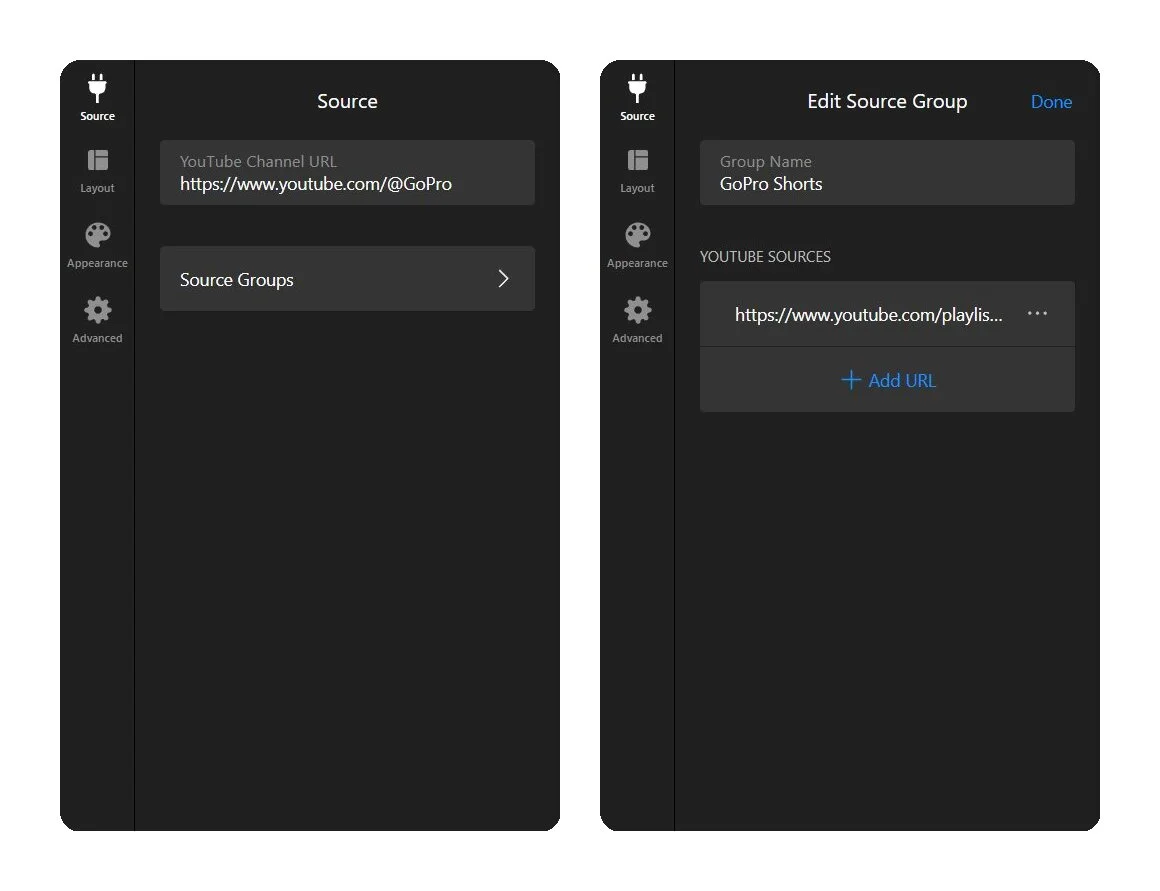
Option B — Channel ID modification
This automatically pulls all Shorts from your channel, without you having to maintain a playlist.
- Go to your YouTube channel and click the Share button to find your channel ID (it starts with UC)
- Replace UC at the beginning of your ID with UUSH
- Construct a playlist URL:
https://www.youtube.com/playlist?list=UUSH9LQwHZoucFT94I2h6JOcjw - In the widget editor, go to Source Groups and paste this URL as a playlist source.
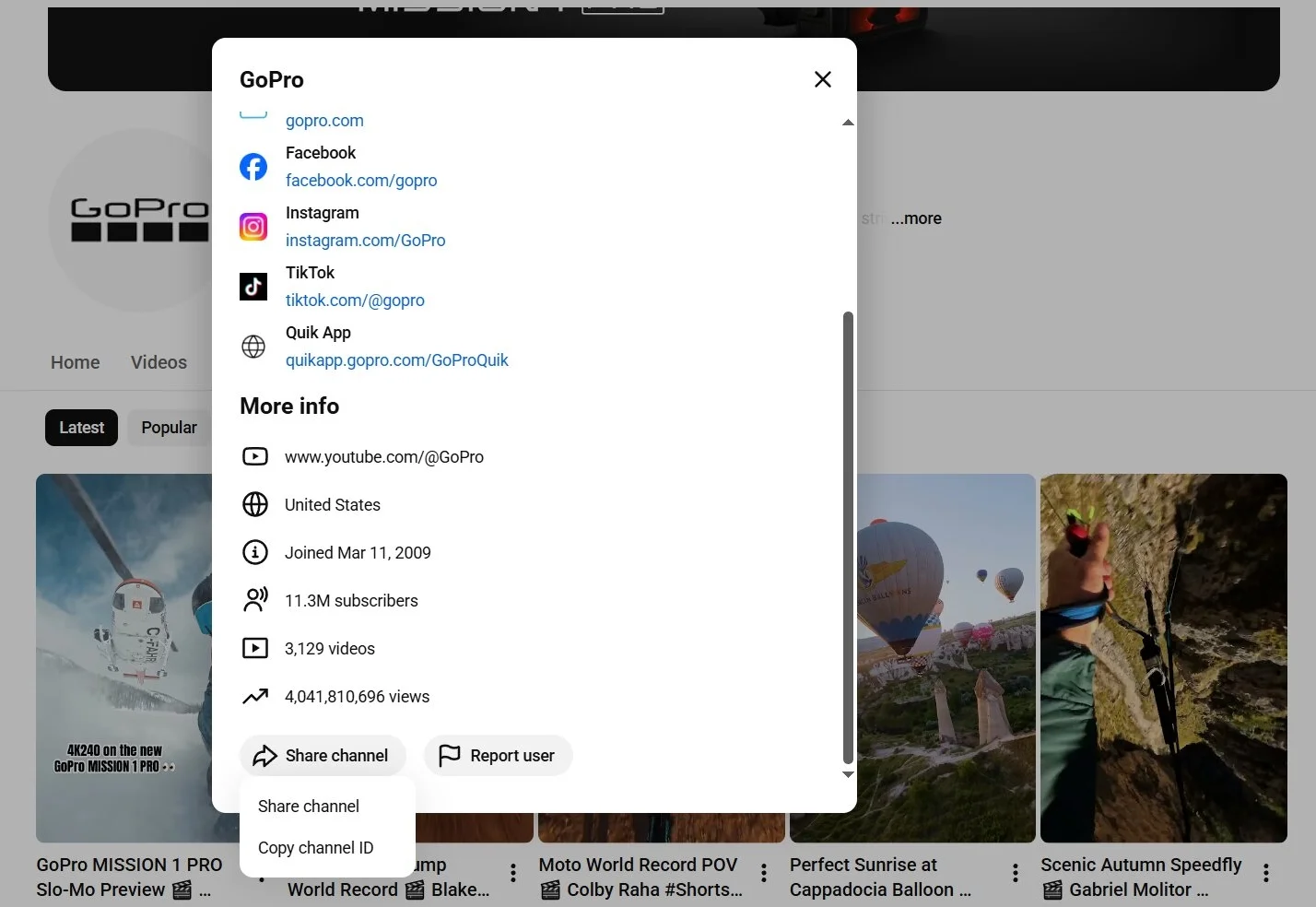
For example, if your channel ID looks like this: UCqhnX4jA0A5paNd1v-zEysw, the Shorts-only ID becomes UUSHqhnX4jA0A5paNd1v-zEysw.
Option C — Individual Short URLs
If you only want a few specific Shorts — not your whole channel — add them one by one as single video sources in Source Groups. Paste each Short’s full YouTube URL as a separate source. This gives you complete control over exactly which Shorts appear.
Step 3: Configure Source Groups
Source Groups give you granular control over what appears in the widget and how it’s organized. If you’ve added your Shorts playlist or UUSH link, you’ll see it listed here. Each Source Group gets its own tab in the widget, so visitors can switch between groups if you have more than one.
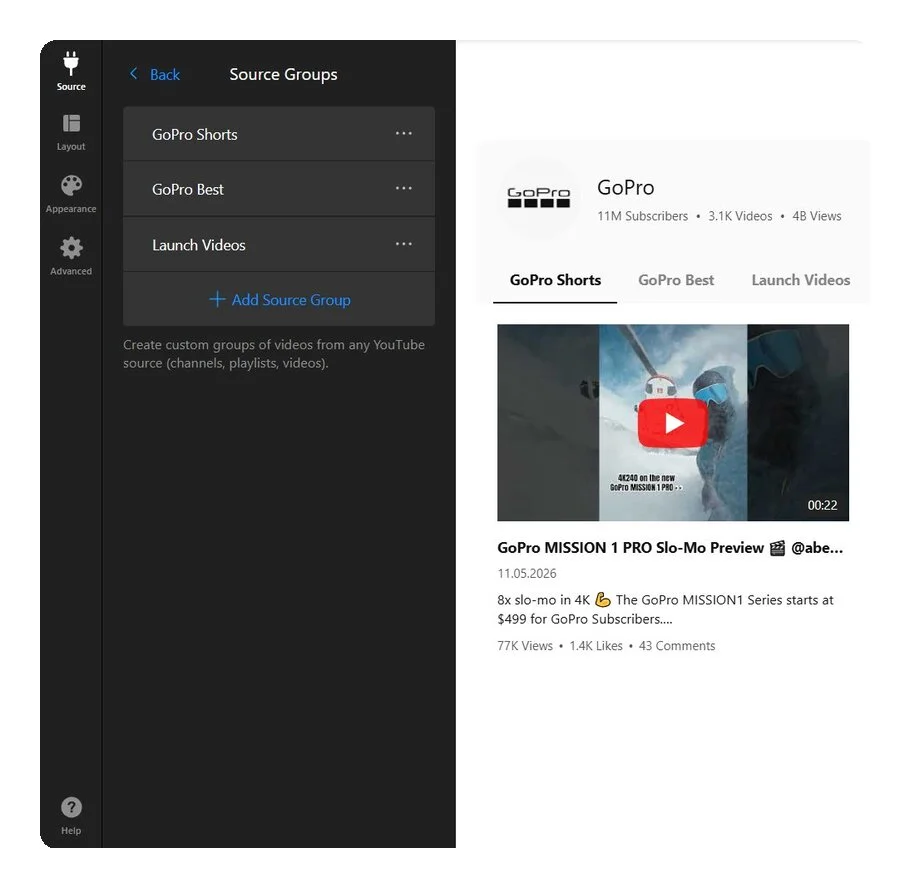
A few things to set up here:
- Group name — Give the group a clear label (e.g., “Product Demos,” “Behind the Scenes,” “Tutorials”). This appears as a tab in the widget.
- Multiple groups — You can create separate groups for different Shorts playlists or mix Shorts with regular videos in different tabs. Channels, playlists, and individual videos can all live in one widget.
- Single group? — If you only have one source group, hide the group tabs in the Layout settings to keep the interface clean.
Keep in mind that content added to Source Groups overrides the main channel URL. If you set a channel in the primary source field and then add Source Groups, only the Source Groups content will display.
Step 4: Choose your layout
The Layout tab controls how your Shorts appear on the page:
- Header — the channel banner, logo, name, and counters that sit above your videos.
- Columns & Rows — the grid shape: how many videos show at once, spacing, and width.
- Video — how each thumbnail looks (Classic/Horizontal/Cinema) and what happens when it’s clicked.
- Popup — what shows inside the video player that opens on click (title, stats, description, comments).
- Slider Settings — how visitors move through videos: arrows, drag, pagination, and autoplay.
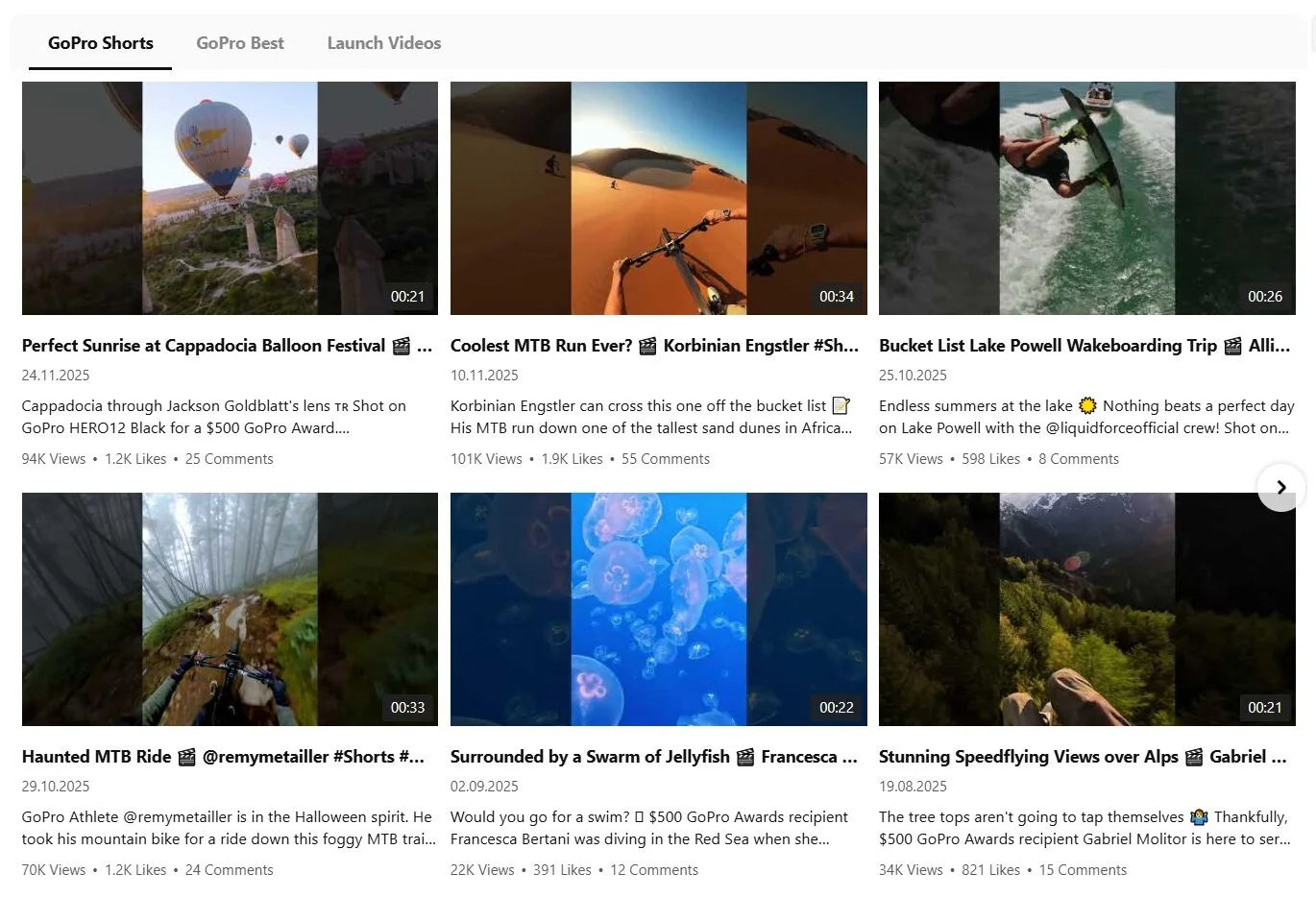
Classic
A standard grid of video thumbnails. Works well for a dedicated Shorts section or content hub. You control the number of columns and rows, so a 3×2 grid shows six Shorts at once.
Cinema
A large featured video player with a thumbnail strip below. Good for highlighting one Short while letting visitors browse others. Works best when you have a clear “hero” Short to lead with.
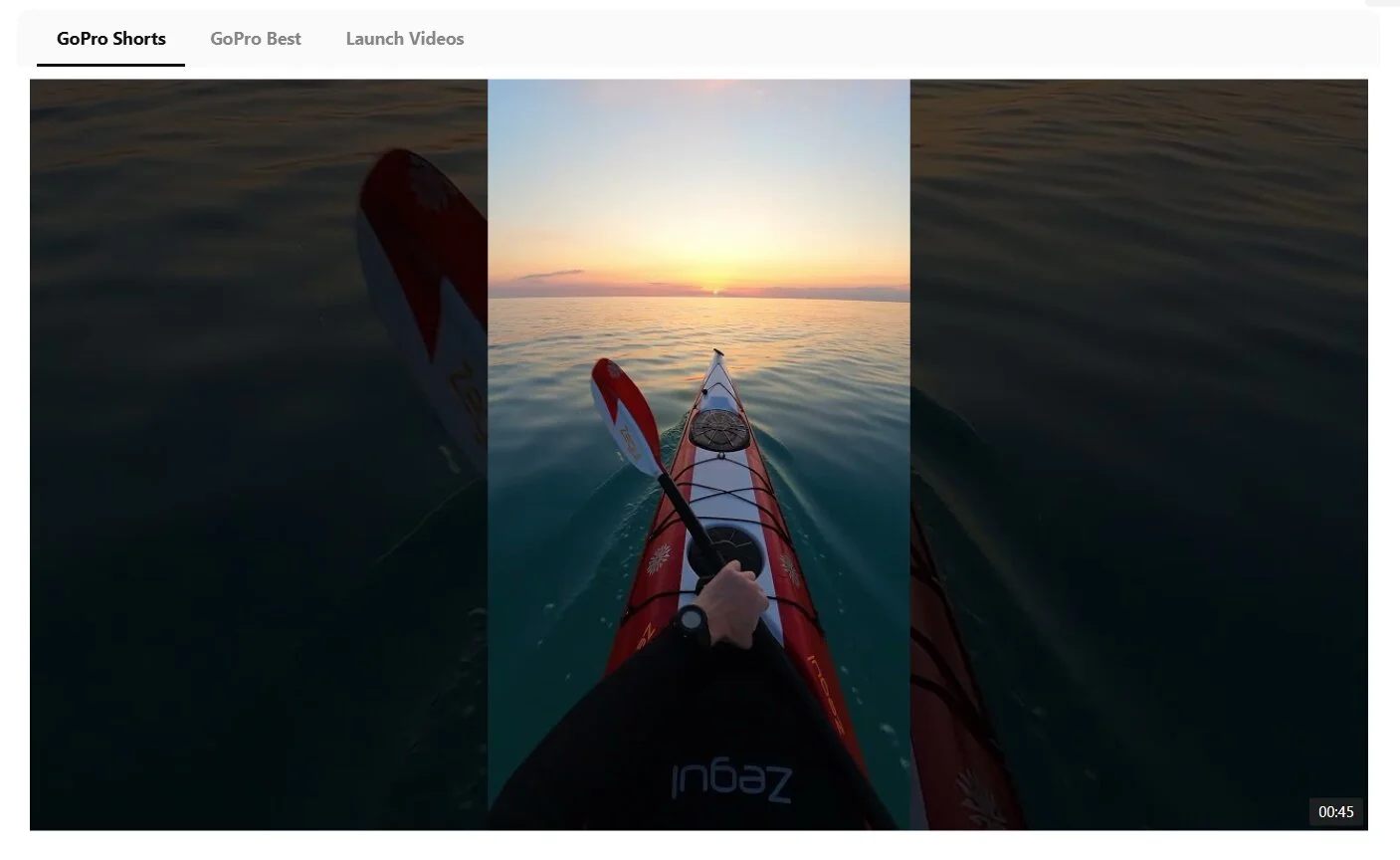
Horizontal
A scrolling strip of thumbnails. Ideal for embedding Shorts as a content band between other page sections — similar to how YouTube itself shows Shorts in a horizontal row.
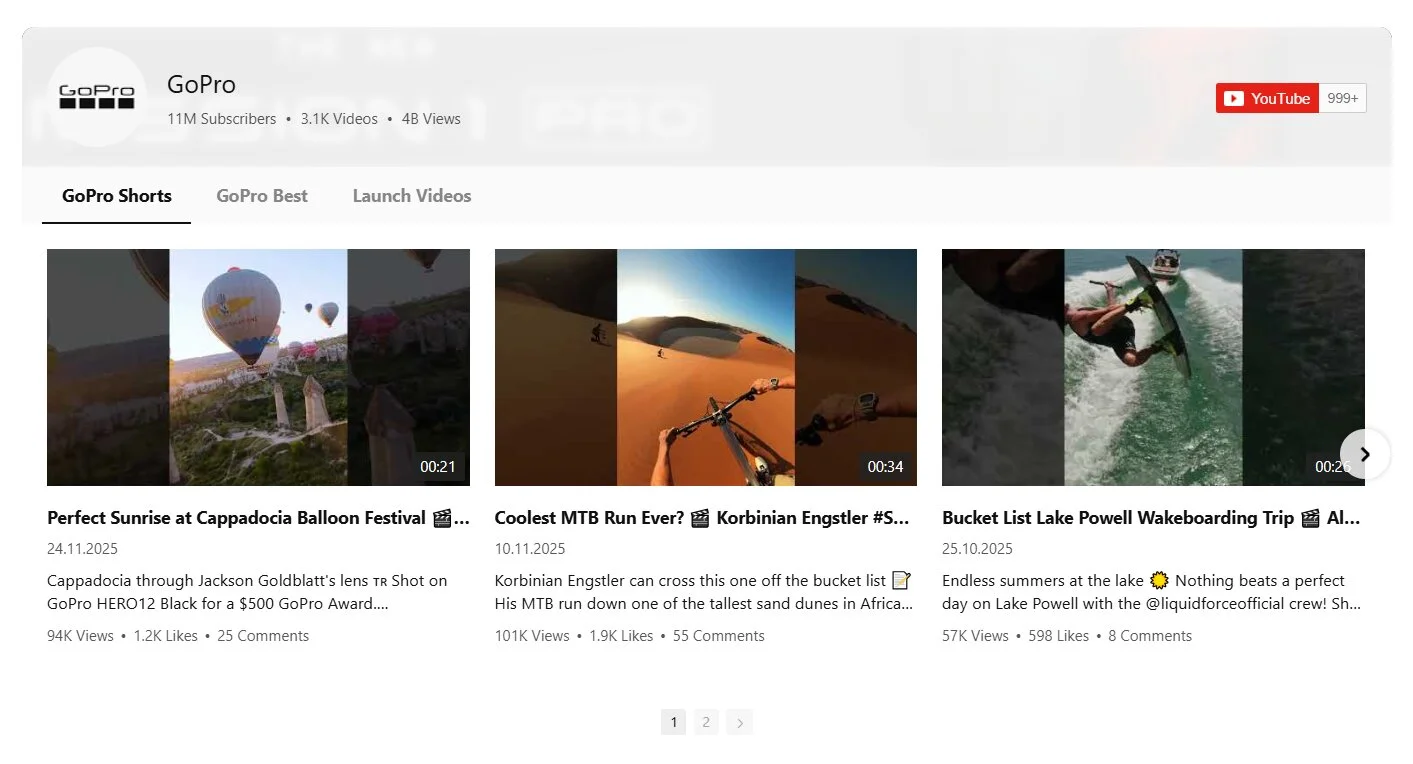
For a Shorts-specific gallery, Classic with 3–4 columns tends to work best on desktop — it gives each thumbnail enough space to be recognizable. On narrower screens, the widget automatically adapts the column count. You can also set separate column configurations for desktop and mobile under the grid settings.
Step 5: Set playback and popup options
Next, decide what happens when a visitor clicks a Short. Three play modes are available:
- Popup player — Opens the Short in a lightbox overlay on the same page. The popup has 12 toggleable elements (title, description, likes, views, comments, share options, and more) — show or hide each one individually to keep the experience clean.
- New YouTube window — Opens the Short on YouTube in a new tab. Useful if you want to drive traffic to your YouTube channel, but it does send visitors away from your website.
- Inline preview — Plays the Short directly in the thumbnail area without any overlay. Compact and unobtrusive.
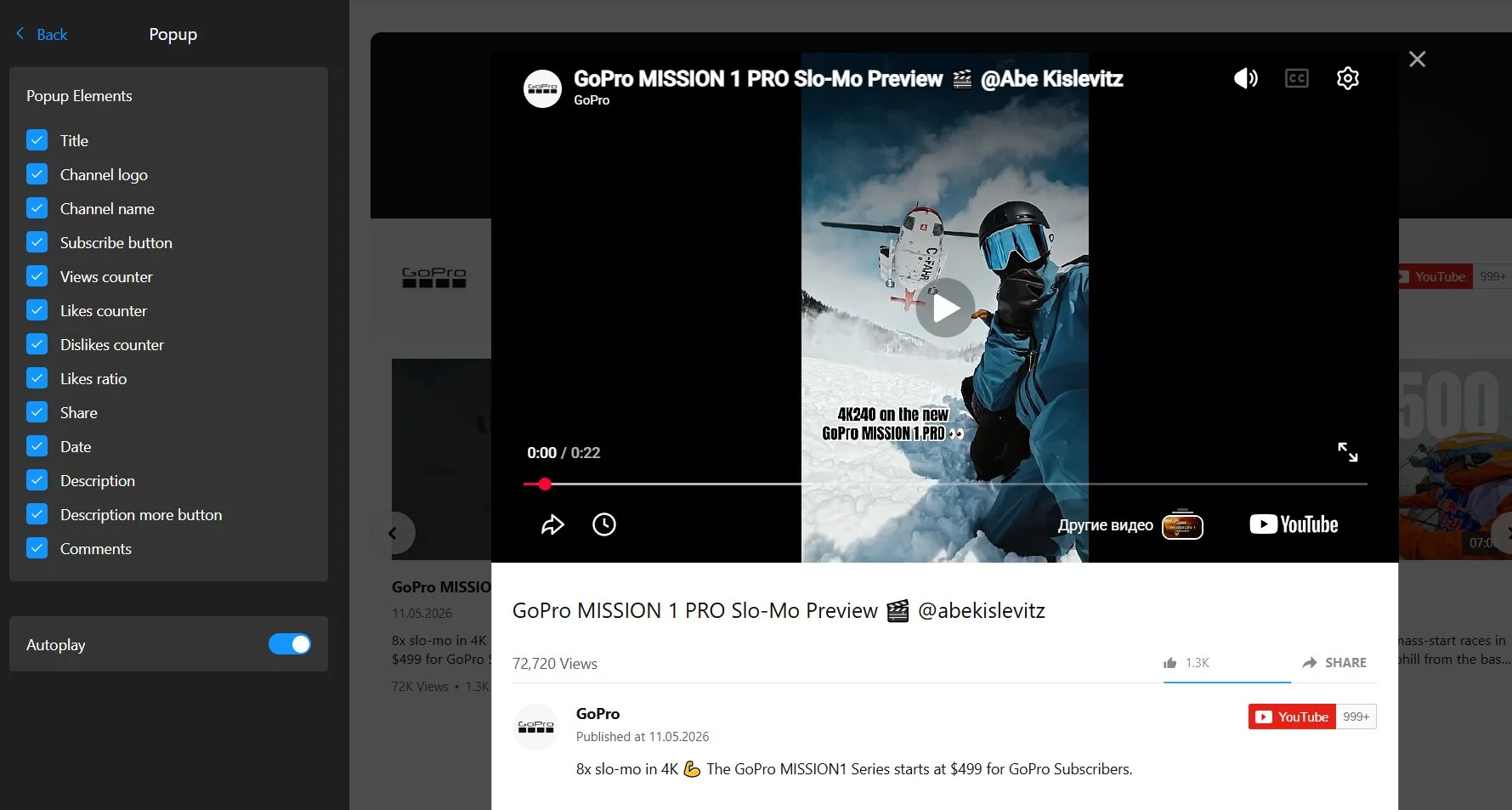
For most Shorts use cases, the popup player strikes the best balance — it keeps visitors on your website while giving the video enough screen space to be engaging. If you’re embedding Shorts as social proof (customer reactions, testimonials), the popup also lets you show the like count and comments as trust signals.
Step 6: Customize the design
The appearance settings let you match the widget to your website’s visual identity. You don’t have to touch all of these, but here’s what’s available:
- Color Scheme — the overall palette preset (Default, Dark, Red, Deep blue, or Custom) that colors the whole widget at once.
- Menu — colors for the group/tab bar: link, hover, and active-tab states.
- Video — colors for thumbnails and their elements: background, overlay, play icon, title, date, counters.
- Popup — colors for the click-to-open player: overlay, title, channel info, counters, links.
- Slider — colors for the navigation: content background and the arrows (default and hover states).
Step 7: Adjust navigation and display settings
The Advanced tab houses a few settings that are easy to skip but worth knowing about — especially if you’re on a high-traffic website or care about visitor privacy.
Privacy-Enhanced Mode — loads videos through youtube-nocookie.com instead of the standard YouTube domain, which avoids setting tracking cookies until a visitor actually plays a video. It also disables the Subscribe button in the header and popup. Worth keeping on if your website needs to comply with GDPR or similar privacy regulations.
Language — Set the widget’s interface language from a dropdown of 18+ options. Match this to your website’s primary language so button labels and UI text feel native.
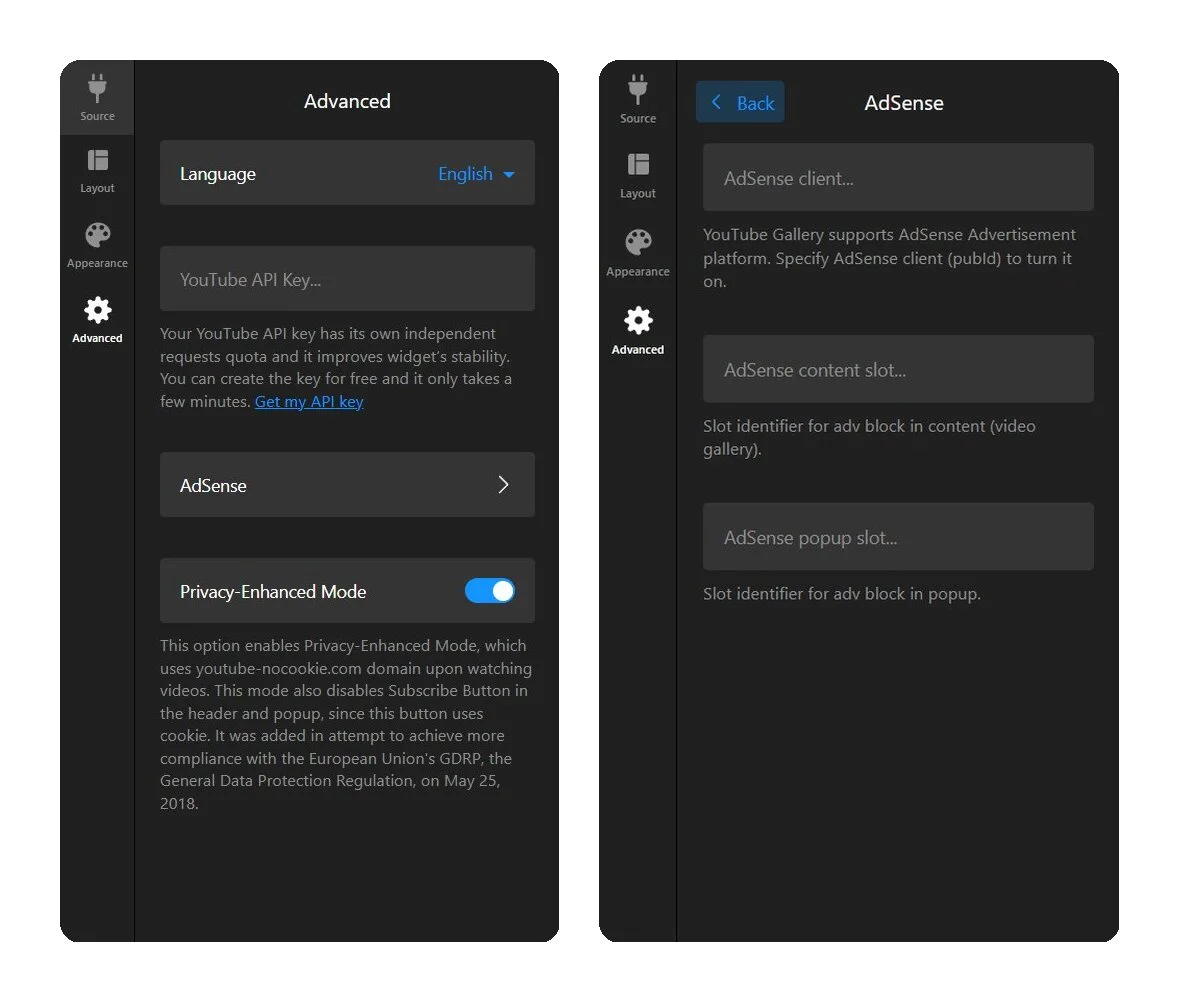
YouTube API Key — The widget uses a shared Elfsight API key by default, which works fine for most websites. If your website gets heavy traffic and the gallery stops updating, you can plug in your own YouTube API key here to avoid shared quota limits.
AdSense — If you run Google AdSense, you can integrate it directly with the gallery by entering your AdSense client ID and slot identifiers. Ads can appear in the content area (video grid) and in the popup player.
Step 8: Embed the widget on your website
Once you’re happy with the setup, click “Add to Website” in the editor to get your embed code. It’s a short HTML snippet — a script tag plus a div — that you paste into your website’s backend.
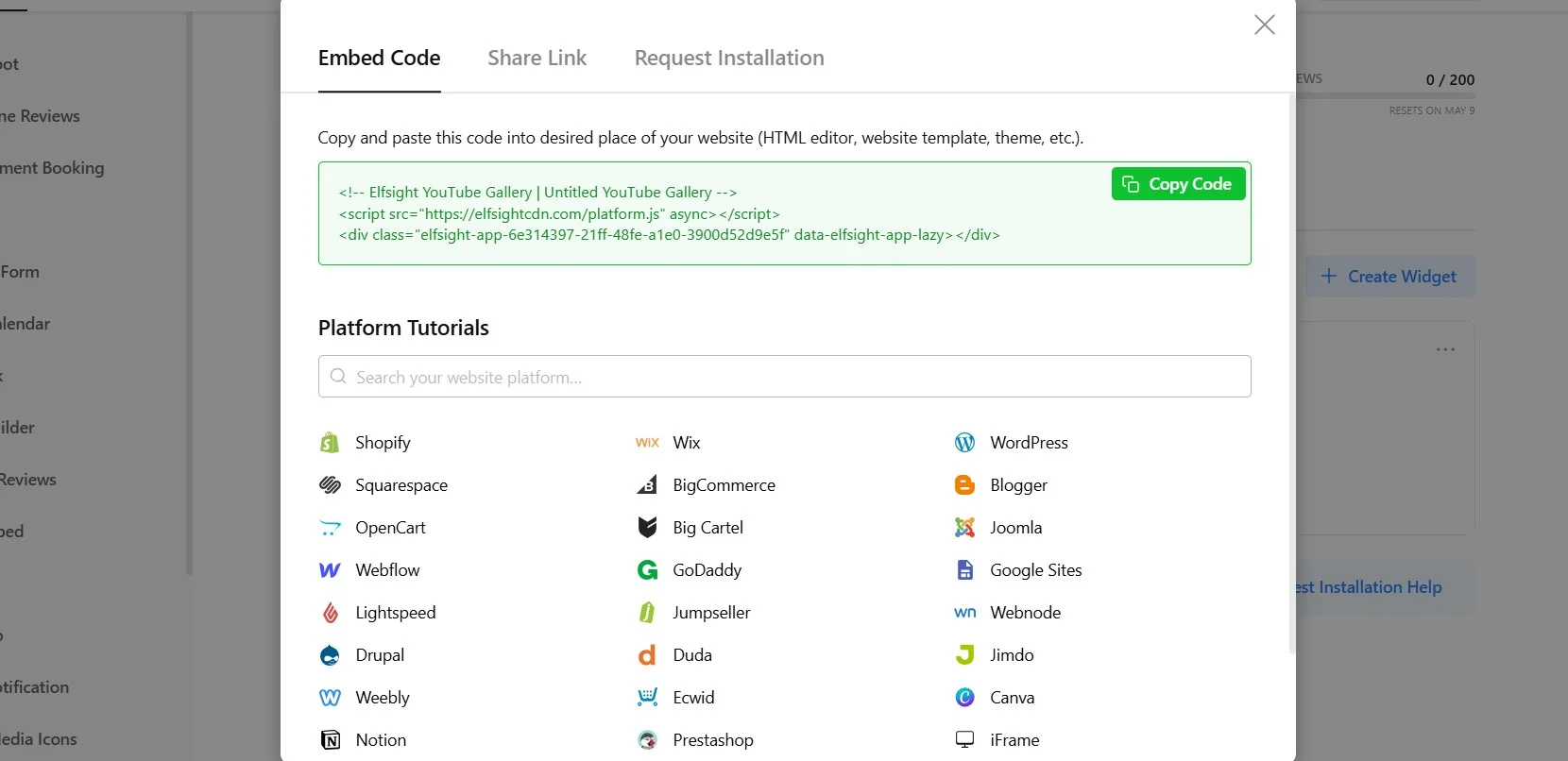
The YouTube Shorts embed code works on any platform that accepts custom HTML, including WordPress, Shopify, Squarespace, Wix, Webflow, and plain HTML websites. Setup steps may vary slightly per platform — follow the links for CMS-specific guides.
Troubleshooting quick check
- Shorts not appearing: If you’re using Source Groups, make sure the main channel URL field is empty — Source Groups override it, and a conflict can prevent content from loading.
- Only regular videos showing (no Shorts): Verify you used the UUSH channel ID prefix or a Shorts-specific playlist URL, not your regular channel URL.
- Widget not loading at all: Check that the embed code is in a Custom HTML block (not a Paragraph or Text block). Some caching plugins may also delay the first render — clear your website cache after installation.
- Videos not updating: The widget caches content and refreshes every 24 hours. New Shorts won’t appear instantly. If content is still stale after 24 hours, check the troubleshooting guide for API quota issues.
Other Methods to Embed YouTube Shorts in Your Website
If you only need to embed a single Short — or want a zero-dependency approach — these methods work without any third-party tools.
Option 1: YouTube iframe embed code (any website)
YouTube doesn’t offer a dedicated embed option for Shorts the way it does for regular videos. But you can construct an iframe manually by modifying the Short’s URL. This method works on any website that accepts HTML.
- Open the YouTube Short you want to embed and copy its URL. It will look like
https://www.youtube.com/shorts/VIDEO_ID - Replace /shorts/ with /embed/ in the URL. The result:
https://www.youtube.com/embed/VIDEO_ID - Wrap the URL in an iframe tag. For a vertical (9:16) Short, use width=”315″ and height=”560″:
<iframe width="315" height="560" src="https://www.youtube.com/embed/VIDEO_ID" title="YouTube Short" frameborder="0" allow="accelerometer; autoplay; clipboard-write; encrypted-media; gyroscope" allowfullscreen></iframe> - Paste this iframe code into a Custom HTML block on your website and publish.
You can add URL parameters like &autoplay=1 (auto-start, muted in most browsers), &loop=1 (repeat), or &controls=0 (hide player buttons) for a cleaner look. Adding loading=”lazy” to the iframe tag delays loading until the video scrolls into view, which helps page speed.
WordPress shortcut
If you need to embed YouTube Shorts in WordPress, replace /shorts/ with /watch?v= in the URL and paste it directly into the Block Editor — WordPress auto-embeds it via oEmbed. The downside: it renders in a 16:9 landscape player (not vertical), and you get zero design control.
Option 2: YouTube Data API (custom integration)
For teams with development resources who need full control over how Shorts are fetched, filtered, and displayed, the YouTube Data API v3 lets you build a custom integration from scratch. This is the most flexible option, but also the most involved.
- Create a project in the Google Cloud Console and enable the YouTube Data API v3.
- Generate an API key (or set up OAuth if you need access to private data).
- Use the playlistItems.list endpoint to fetch videos from a channel’s uploads playlist — or from a Shorts-specific playlist using the UUSH channel ID prefix described earlier.
- Build a front-end player and layout to render the fetched Shorts on your website.
- Handle caching, pagination, and API quota management on your end.
Pro Tips for Your YouTube Shorts Widget
Your Shorts are embedded — now let’s make them work harder. These tips apply whether you’re using a widget gallery or individual iframe embeds.
- Place Shorts where intent is highest. A Shorts gallery on your homepage grabs attention, but product-page placements drive decisions. Put product demo Shorts directly on the relevant product page, not buried in a generic video section three clicks deep.
- Keep Source Groups focused. If your Shorts cover different topics (tutorials, customer reactions, product launches), split them into separate Source Groups with clear tab names. Visitors find what they need faster, and you avoid a chaotic everything-at-once feed.
- Hide the header for inline placements. When embedding a Shorts widget inside a section that already has its own heading and context, the widget’s channel header becomes redundant. Turn it off for a cleaner integration — the Shorts speak for themselves.
- Use a 1-column grid for a vertical scroll experience. If you want a TikTok-style browsing feel — one Short at a time, scrolling down — configure the grid with 1 column. Pair it with the Cinema layout for a large featured player with a thumbnail strip alongside.
Frequently Asked Questions
Can I embed YouTube Shorts on my website without showing regular videos?
Does the YouTube Shorts embed code work on WordPress?
Will the YouTube Shorts widget auto-update when I post new content?
How do embedded YouTube Shorts display on mobile devices?
Can I customize the appearance of the embedded YouTube Shorts?
Conclusion
You now have three working methods for embedding YouTube Shorts on your website — from a quick iframe for a single video to a fully customizable, auto-updating gallery through the Elfsight widget. The right approach depends on whether you need a one-off embed or an ongoing content feed, and how much design control matters for your layout.
If you’re regularly publishing Shorts and want them to show up on your website automatically, try the YouTube Gallery editor — set your source, pick a layout, and the widget handles the rest. For a unified overview of your social content across different platforms, check out the Social Feed widget instead.