Did you know? 82% of video marketers say that including video on a website helps keep visitors on their web pages and increase sales, making it one of the most effective content formats for influencing decisions.
If you’re building a Wix website, adding video content can dramatically improve how visitors interact with your pages. A single YouTube video can explain your product, showcase results, or answer questions faster than text ever could. However, simply linking to YouTube isn’t enough. When users leave your website to watch a video, you lose control over their experience – and often their attention.
The Elfsight YouTube Gallery app lets you embed YouTube video directly on your Wix website, keeping visitors engaged while giving you full control over layout, design, and content.
- How to embed a YouTube video in Wix quickly without coding;
- How to customize video layouts and presentation;
- Alternative embedding methods and their limitations;
- Best practices to increase video performance on your website.
Let’s start with the fastest way to get your video live.
Quick Start: Embed YouTube Video in Wix
If you want to quickly add a YouTube video to your Wix website, here’s the simplest way:
- Open the YouTube Gallery app editor and select a template.
- Add your YouTube video, playlist, or channel.
- Click “Add to website for free” to generate your embed code.
- Paste the code into your Wix website using the Embed element.
Create your YouTube video app now in the live editor!
Why Add YouTube Video to Wix Website
Embedding videos directly into your Wix pages changes how visitors interact with your content. Instead of relying only on text and images, you give users a more dynamic way to understand what you offer and decide whether to take action.
🎥 Keep visitors on your website
When you embed YouTube videos on your pages, viewers can watch content without leaving your website. This keeps them inside your environment instead of sending them to YouTube, where they might get distracted by other videos. As a result, you maintain control over their experience and keep their attention focused on your content.
📈 Increase time on page
Video naturally encourages visitors to stay longer. Instead of quickly scanning text and leaving, users are more likely to watch a video from start to finish. This extended time on page increases the chances they’ll explore other sections of your website and engage more deeply with your content.
💬 Explain complex ideas faster
Some ideas are simply easier to show than explain. Whether it’s a product demo, a walkthrough, or a service overview, video allows you to communicate more clearly in less time. This reduces confusion and helps visitors quickly understand the value you provide.
⭐ Build trust with visual proof
Seeing real people, real products, or real results builds credibility in a way text alone cannot. Customer testimonials, case studies, and demonstrations provide visual confirmation that your business delivers what it promises, which helps reduce hesitation and builds confidence.
📱 Improve mobile experience
A large portion of Wix traffic comes from mobile devices, where long text blocks are harder to consume. Video offers a more convenient alternative, allowing users to engage with your content quickly and comfortably on smaller screens. This makes your website more accessible and easier to navigate across all devices.
Core Features of YouTube Gallery App
Before embedding videos, it helps to understand what the gallery actually enables and how it improves the way video content is presented on your Wix website.
Below is a breakdown of its key capabilities and how each feature translates into practical use.
| Feature | Practical Use |
| Multiple video sources | Add single videos, playlists, or full channels |
| Auto-sync | Automatically updates when new videos are published on YouTube |
| Layout options | Display videos as grid, slider, or gallery |
| Popup player | Let visitors watch videos in a lightbox without leaving your website |
| Custom styling | Adjust colors, fonts, and layout to align with your Wix design and branding |
| Responsive design | Works across desktop, tablet, and mobile devices |
| Content grouping | Organize videos into categories or tabs for easier navigation |
These features make it possible to move beyond a simple video embed and create a structured, scalable video section that fits naturally into your website design. For the complete feature breakdown, visit the app features page.
Now let’s move on to the full setup process and see how to implement everything.
Step-by-Step: How to Add YouTube Video to Wix
Let’s go through the full process of how to add a YouTube video to your Wix website and place it exactly where it fits best within your layout and content.
Step 1: Choose a Template
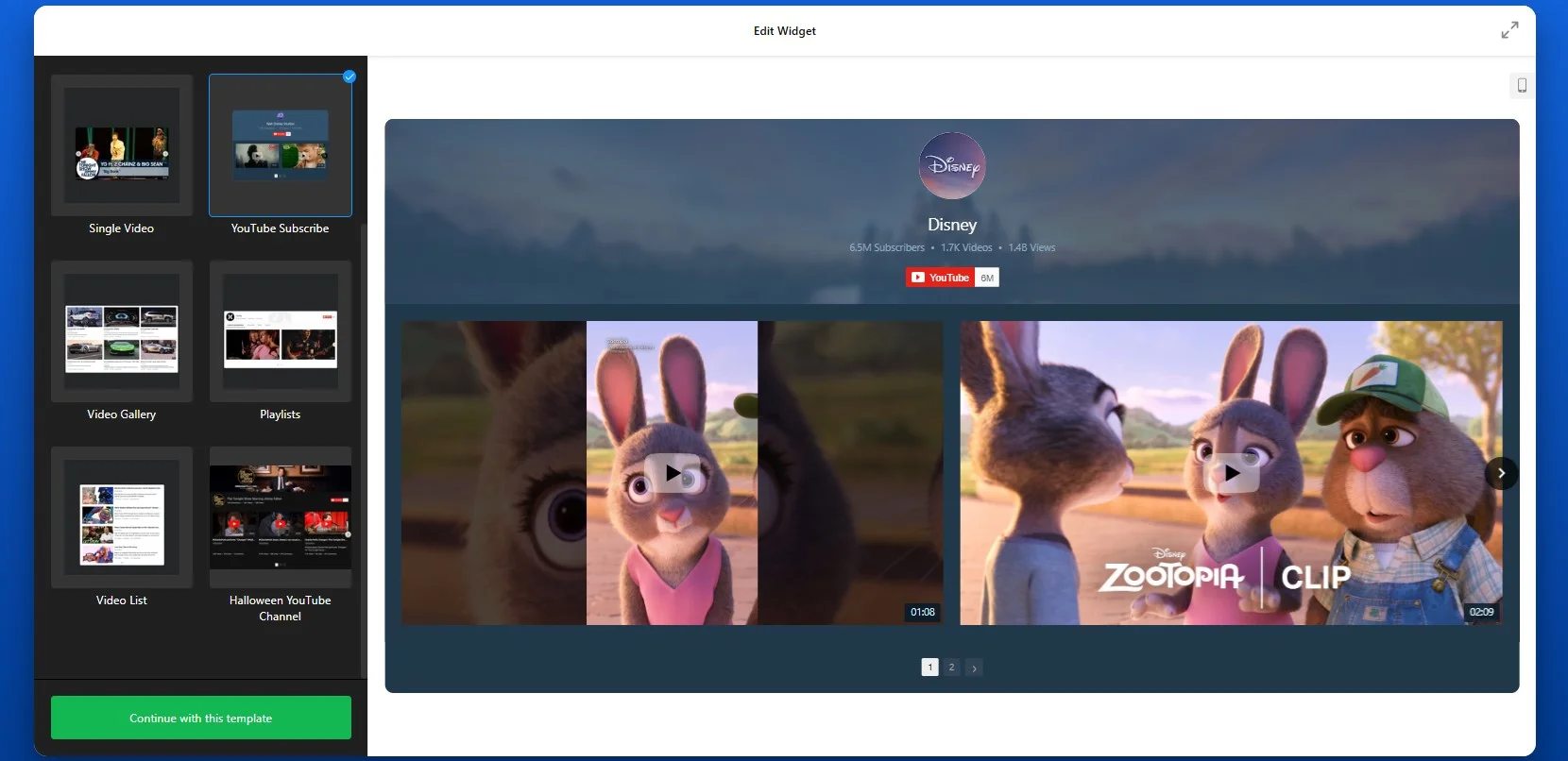
Start by opening the YouTube Gallery editor and selecting a template that matches your page structure and content goals. The editor offers different layout options, including grids for showcasing multiple videos, sliders for compact sections, and single-video layouts for focused presentation.
Choosing the right layout at this stage helps you visualize how the video will fit into your Wix page, but you can always adjust it later.
Step 2: Add Your YouTube Source
Once the layout is selected, connect your YouTube content by pasting a video link, playlist URL, or full channel link into the source field. Elfsight will automatically pull in your videos and display them in the preview area. This allows you to instantly see how your content will appear without additional setup.
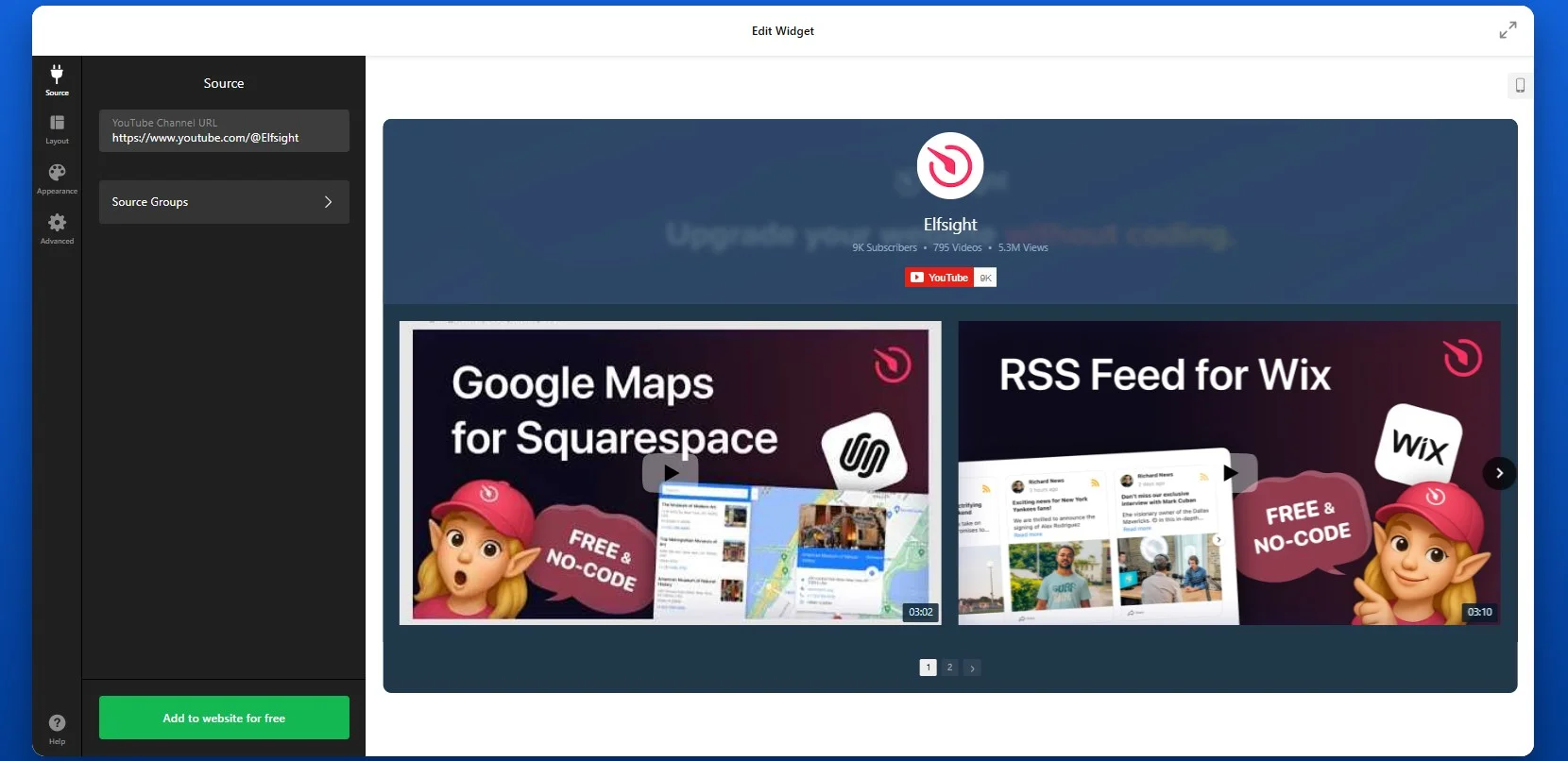
If you’re adding a full channel, make sure to use the full desktop YouTube URL format, such as youtube.com/channel/… or youtube.com/@YourHandle. Shortened links like youtu.be/… won’t work correctly, so always use the full version.
If you want to display a playlist, copy the playlist URL directly from YouTube. Elfsight will automatically show videos in the same order as they appear in that playlist. If you need to change the order, you’ll need to do it inside YouTube itself, as the app reflects that structure.
For more control, you can also add individual video links one by one. This approach is useful when you want to create a curated selection rather than display an entire channel or playlist.
You’re not limited to a single source. You can combine multiple sources within one widget – for example, adding your main channel along with a separate playlist for tutorials or reviews. The app will automatically organize them into tabs, making it easier for visitors to navigate your content.
Step 3: Customize Layout
Once your videos are added, move to the Layout tab to control how they appear on your Wix website. This step is where you shape the overall viewing experience and decide how visitors will interact with your content.
Here, you can choose whether to display the channel header. The header includes your channel name, description, subscriber count, and a “Subscribe” button. Keeping it visible helps drive subscribers directly from your website, while hiding it creates a cleaner, more minimal video section.
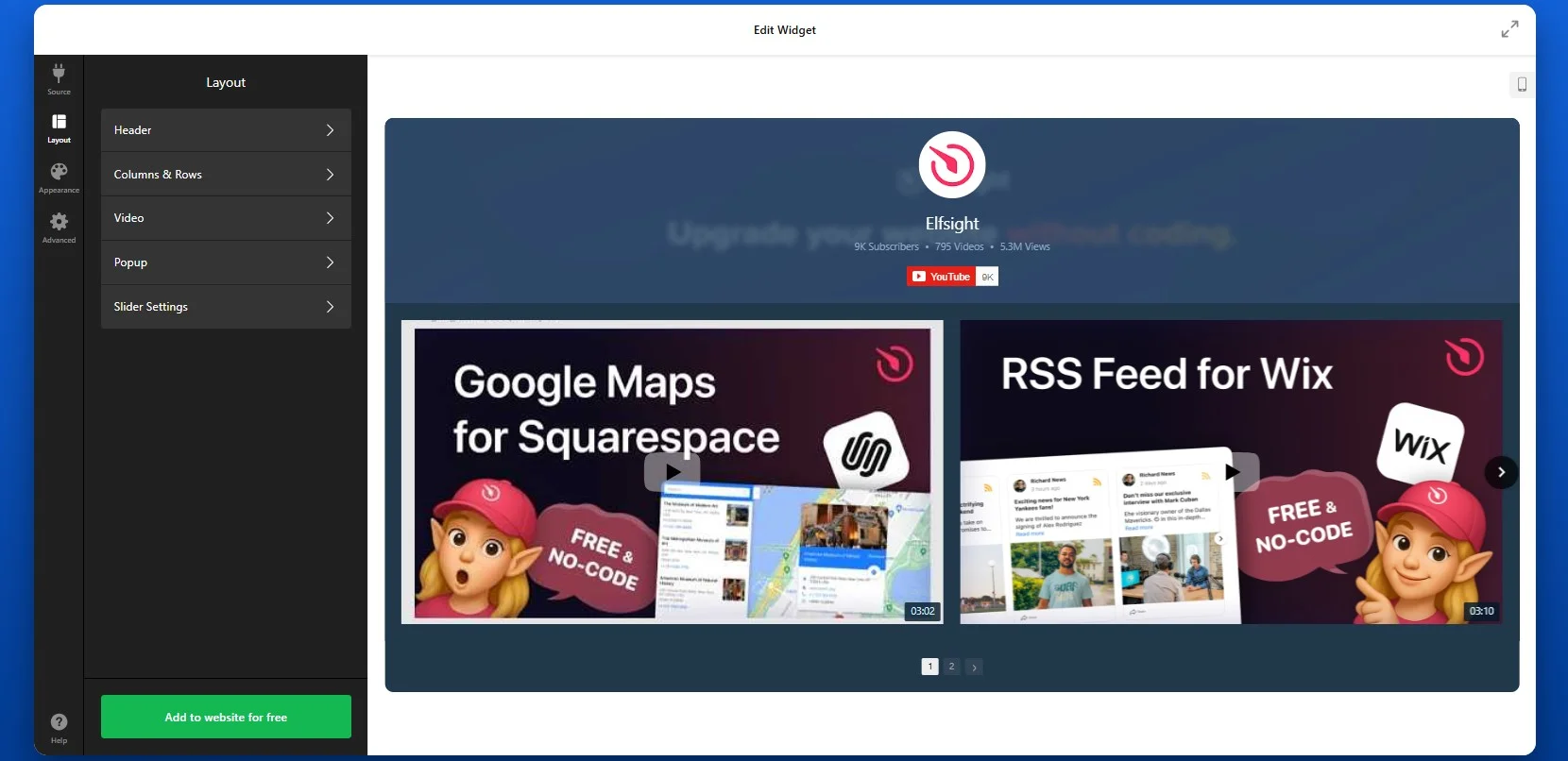
You can adjust how many videos are shown at once, define spacing between elements to match your Wix page design.
Depending on your goal, you can display videos in a classic grid that works best when you want to display multiple videos in a structured way. A cinema-style layout highlights one main video with smaller thumbnails below, which is useful for featured content. A horizontal layout creates a scrolling strip of videos, ideal for compact sections or side placements.
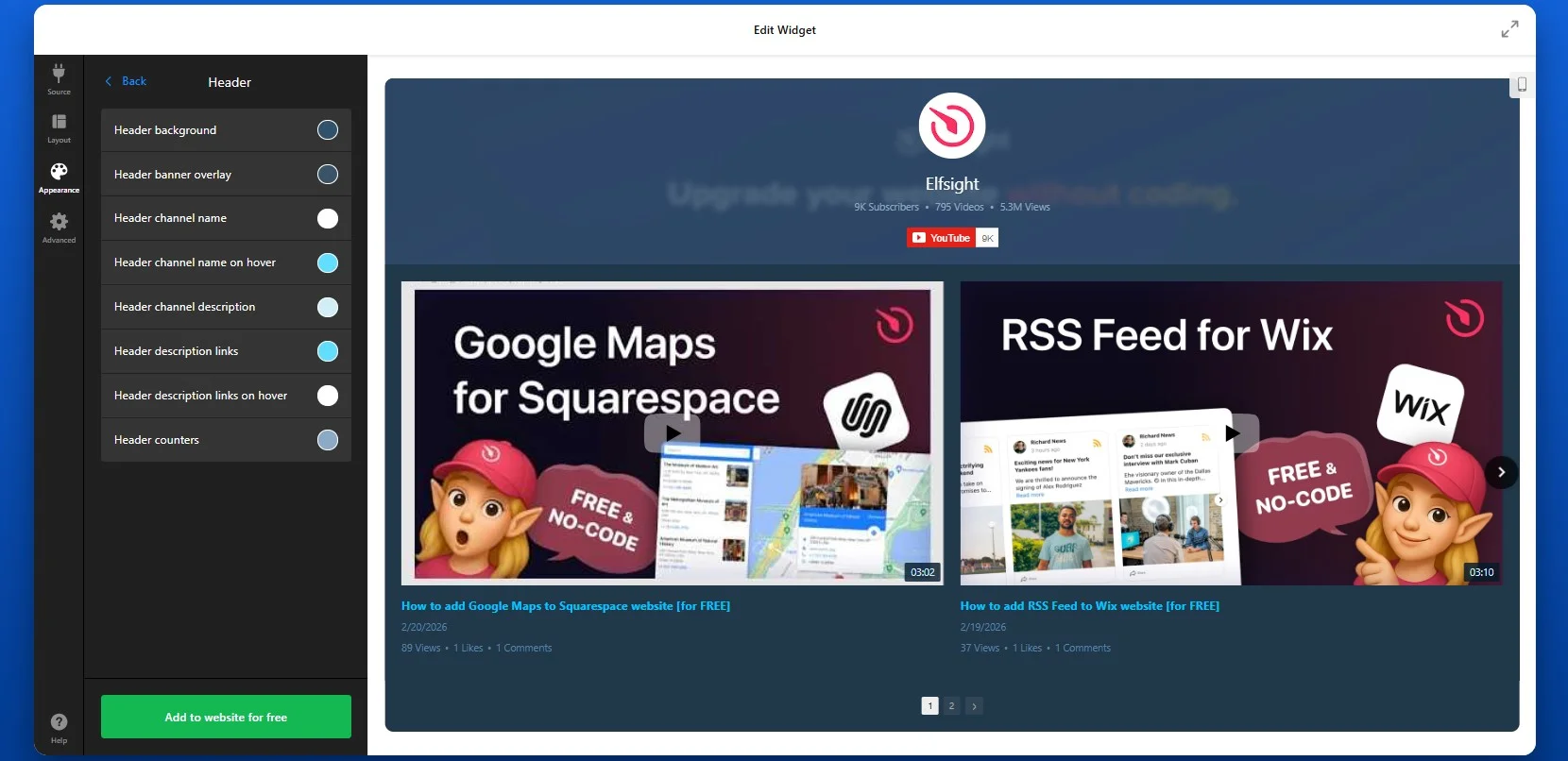
Step 4: Customize Design
Next, adapt the visual style of the widget so it blends seamlessly with your Wix website. This is where you align the widget with your branding.
You can adjust colors, fonts, and visual elements such as backgrounds and hover effects. A consistent design helps the video section feel like part of your website rather than an external element.
Step 5: Generate Embed Code
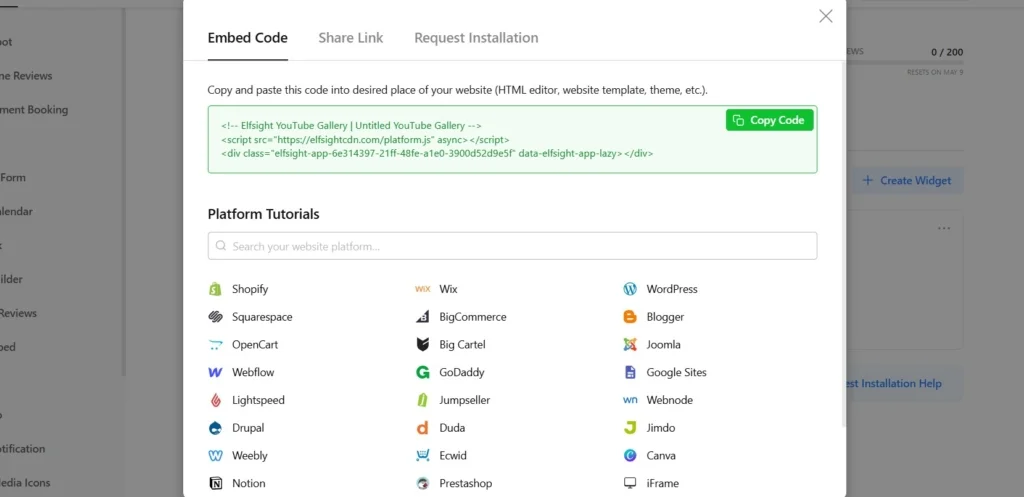
When your setup is complete, click “Add to website for free” to generate the embed code.
This code contains everything needed to display your video or gallery on your Wix website. Make sure to copy the entire snippet to ensure proper functionality.
Step 6: Embed YouTube Video in Wix
To embed your YouTube videos in Wix, open your Wix editor and navigate to the page where you want the video to appear. Add an Embed element (such as “Embed HTML”), then paste the code into the provided field.
Once you publish your website, the video will be displayed exactly in that location and will function immediately without further adjustments.
- If the video doesn’t appear, confirm that the embed code was pasted into the correct Embed element in Wix.
- If the layout looks compressed or misaligned, check the width of the container where the app is placed.
- If videos fail to load, verify that your YouTube links are valid and publicly accessible.
Alternative YouTube Embedding Solutions: Comparing Options
There are several ways to add YouTube videos to Wix, but each approach offers a different level of flexibility, control, and long-term usability. While some methods are quick to set up, they often lack the features needed to scale or maintain a polished design across your website.
Wix Native Video Element
Wix provides a built-in video element that allows you to add YouTube videos directly to your page. You simply drag the video element into your layout and paste your YouTube URL.
This method works well for basic use cases where you only need to display a single video quickly. It integrates smoothly with the Wix editor and doesn’t require additional tools. However, as soon as you want to scale beyond a basic embed – such as displaying multiple videos, organizing content, or matching your design more precisely – you may start to encounter limitations.
- Limited layout flexibility, with no advanced gallery or grid options
- No built-in way to organize multiple videos into categories or sections
- Lacks automatic updates from channels or playlists
- Minimal control over styling compared to custom solutions
- Not suitable for content-heavy video sections or scalable setups.
YouTube Iframe Embed
Another option is to use YouTube’s native embed code. You can copy the iframe code from YouTube and paste it into a Wix Embed HTML element.
This approach gives you a bit more control over placement, but it still focuses on individual videos. If you want to display multiple videos, you’ll need to repeat the process for each one, which quickly becomes inefficient.
- Designed for single videos, with no built-in way to organize multiple videos into a gallery or feed
- Requires manual updates – every new video must be embedded individually
- Limited customization options for layout and styling
- No automatic syncing with your YouTube channel or playlist
- Becomes difficult to scale as your video content grows
Before choosing a method, it helps to compare them based on what matters most for your website – flexibility, automation, and ease of seyup and management.
| Feature | Elfsight YouTube Gallery | Wix Native | Iframe |
| Multiple videos | Yes | Limited | No |
| Playlist & channel support | Yes | Limited | No |
| Automatic updates | Yes | No | No |
| Custom design | High | Medium | Low |
| Advanced features (search, filters) | Yes | No | No |
| Ease of setup | Easy | Easy | Medium |
A simple embed might work for a single video, but as soon as you need more control, better design integration, or automatic updates, a more flexible solution like Elfsight becomes important.
Optimization Tips for Your YouTube Video
Once your video is live, small adjustments in placement, structure, and presentation can significantly improve how visitors interact with it.
- Place videos where users notice them first: Position videos near the top of your page or close to key sections like product descriptions or CTAs so they immediately capture attention and guide user behavior.
- Make thumbnails visually clear and relevant: A strong thumbnail helps users instantly understand what the video offers. Use clear visuals and avoid clutter to increase the likelihood of clicks.
- Keep videos focused and concise: Shorter, well-structured videos are more likely to be watched fully. Aim to deliver your main message quickly to maintain attention and reduce drop-off.
- Use multiple videos strategically: Group related videos into playlists or galleries to encourage continuous viewing. This keeps users engaged longer and helps them explore your content without leaving the page.
- Ensure smooth mobile playback: Test how videos display on smaller screens. Make sure controls are easy to use and layouts adapt properly to touch interactions.
- Monitor how users interact with videos: Track performance using analytics to see which videos get the most views and engagement. Use these insights to refine placement, content, and overall strategy.
Real-World Example: Tourism Website Uses Video to Drive Engagement
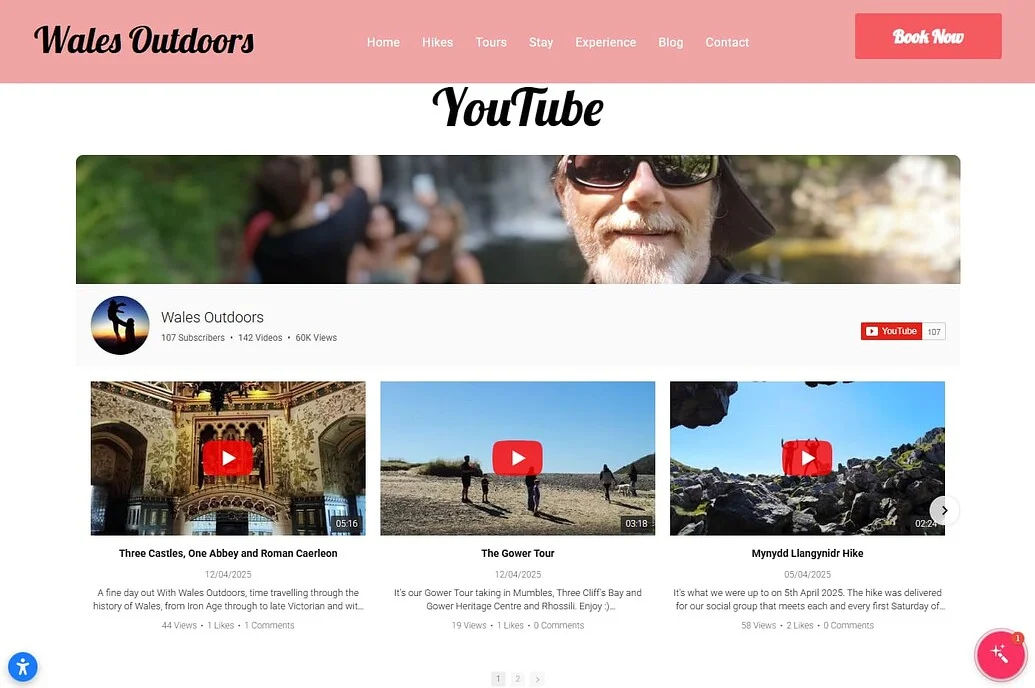
Andrew Lamb runs Wales Outdoors, a tourism website focused on outdoor experiences across Wales. For this type of business, showing real locations, activities, and experiences is essential – visitors want to see what they’re booking before making a decision.
Before using Elfsight
Lack of visually appealing ways to showcase content in an engaging and structured way.
Challenges keeping visitors engaged long enough to explore offerings.
Limited options to effectively present products to boost sales.
With the YouTube Gallery widget
“Elfsight has been a game changer with widgets that work, work well, and are visually attractive.” – Andrew Lamb
By adding a dedicated YouTube section powered by the YouTube Gallery app, Andrew made his tour videos easily accessible directly on the website. Instead of sending visitors to YouTube, the videos are displayed in an organized gallery where users can browse and watch without leaving the page.
This setup allows potential customers to explore real tour experiences, understand what to expect, and feel more confident about booking.
The result: a more interactive and visually engaging website, longer visitor sessions, and a clearer presentation of tour experiences that helps convert interest into bookings.
Frequently Asked Questions
Can I display multiple YouTube videos, playlists, or channels in one widget?
How can I control which videos appear in my gallery?
Does the YouTube Gallery update automatically when I upload new videos?
Will embedded YouTube videos slow down my Wix website?
Can I customize how YouTube videos look on Wix?
Conclusion
Embedding YouTube videos in your Wix website helps you keep visitors engaged, explain your content more effectively, and increase time spent on your pages. Instead of sending users away to YouTube, you bring that content directly into your website experience – where it supports your goals.
If you want a flexible way to embed YouTube videos on Wix, try the Elfsight YouTube Gallery app and add video content in minutes. With Elfsight, you can display entire channels, playlists, or curated collections in a fully customizable layout. Your content updates automatically, your design stays consistent, and your visitors can browse and watch without ever leaving your website. Create a scalable, organized, and visually integrated video experience for your visitors without adding complexity to your workflow.