A chatbot on your website can start sales conversations: answer pre-purchase questions, collect contacts and point visitors to an offer or a booking. That’s chatbot marketing. It works best on the pages where visitors already hesitate – with a bot that knows your business, fine print included.
You’ve put a chatbot on your website, and it mostly answers support questions: shipping times, returns, opening hours. That’s a fair start, but it leaves most of the chat unused. The visitors who open it on your pricing or product pages are often deciding whether to buy, and a bot set up only for FAQs treats them like support tickets.
Changing that takes a few settings. We tested five sales tactics that turn a regular support chatbot into a marketing tool, using Elfsight AI Chatbot’s free plan on a 12-page test store. For each, we went over exact in-editor settings, best placement, and improvements, plus the one thing that decides whether the bot quotes your offer correctly.
- Match the tactic to the page: an offer greeting for pricing or shipping, contact capture for quotes, product picks for the shop, booking for wholesale.
- Put the offer’s conditions in the bot’s knowledge and its greeting, and test each offer question generally and from a place it excludes.
- Give visitors a way to reach a person, such as an Email or booking button, so a question the bot can’t answer doesn’t end the sale.
- After a week or two, check Knowledge Gaps (the questions the bot couldn’t answer well) and fix the content behind each gap, not the bot’s tone.
What chatbot marketing does for a small business website
Is your chat really a sales channel? Often, the answer is yes.
Nearly a third of questions to the AI chatbot on our own website are about plans and pricing – 624 of 1,986 relevant requests over three months. In a random sample of 30, 27 were from people who hadn’t bought yet. But we’re a software company, so a shop’s share will differ.
The chatbot marketing benefits that matter for a small website come down to three jobs:
- Addressing pre-purchase questions at the moment a visitor hesitates
- Catching the contact details of visitors who would otherwise leave
- Revealing the questions and issues your pages don’t resolve
Even the first job alone can pay off. In a randomized experiment on one large cross-border e-commerce platform, shoppers with a pre-sale question who got a GenAI chatbot spent 16.3% more than those who got an automated “service unavailable” message (Management Science).
How to set up an AI marketing bot
Before any tactic, two things decide how well the bot sells: the page it runs on and what it knows about your offer.
Start on one page where visitors hesitate
Rather than the whole site, start with the one page where visitors most often stop with a question: usually pricing, shipping or a quote page.
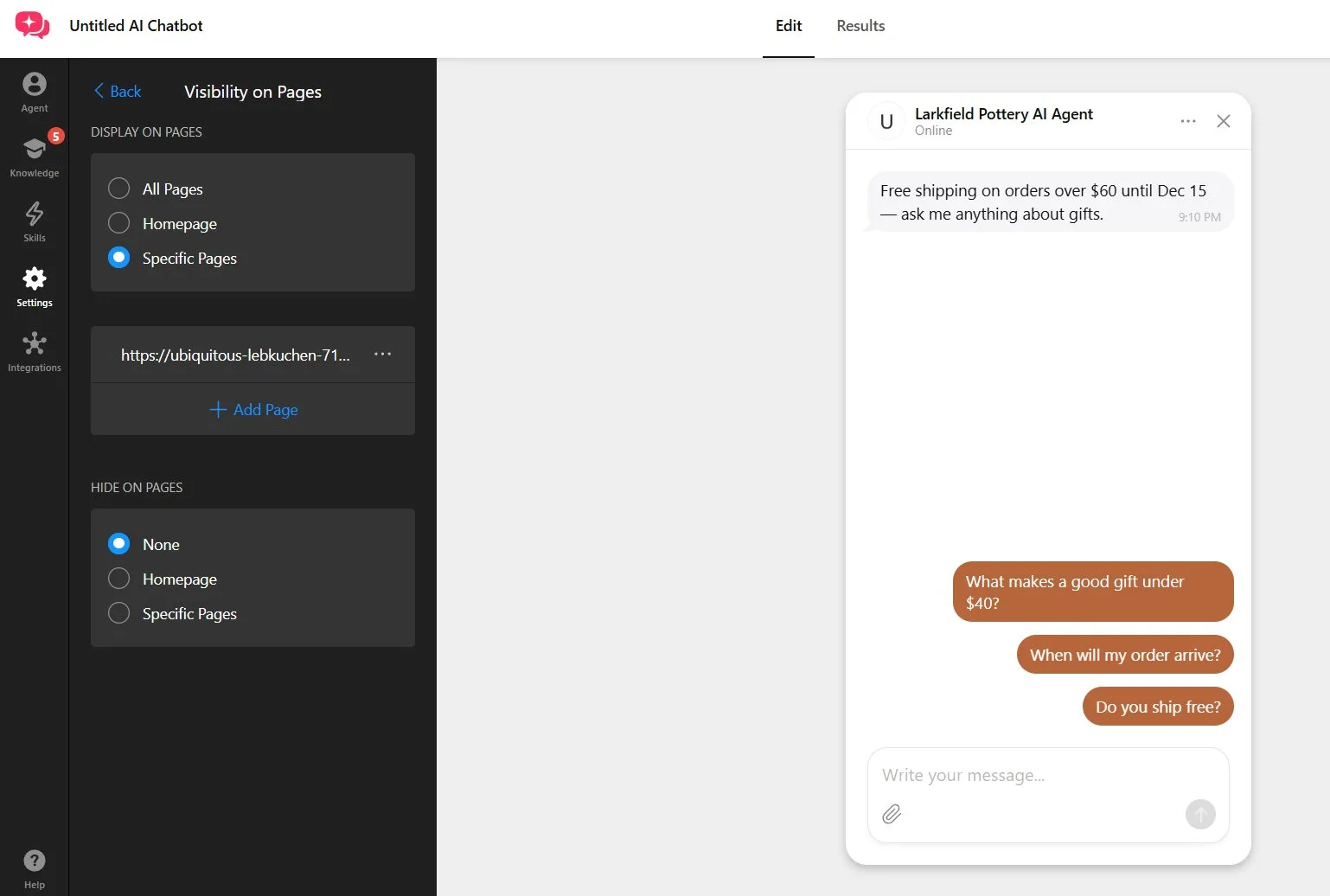
In Elfsight AI Chatbot, Display On Pages limits the bot to specific pages: choose Specific Pages and add the page’s address, or use Hide On Pages to keep it off others.
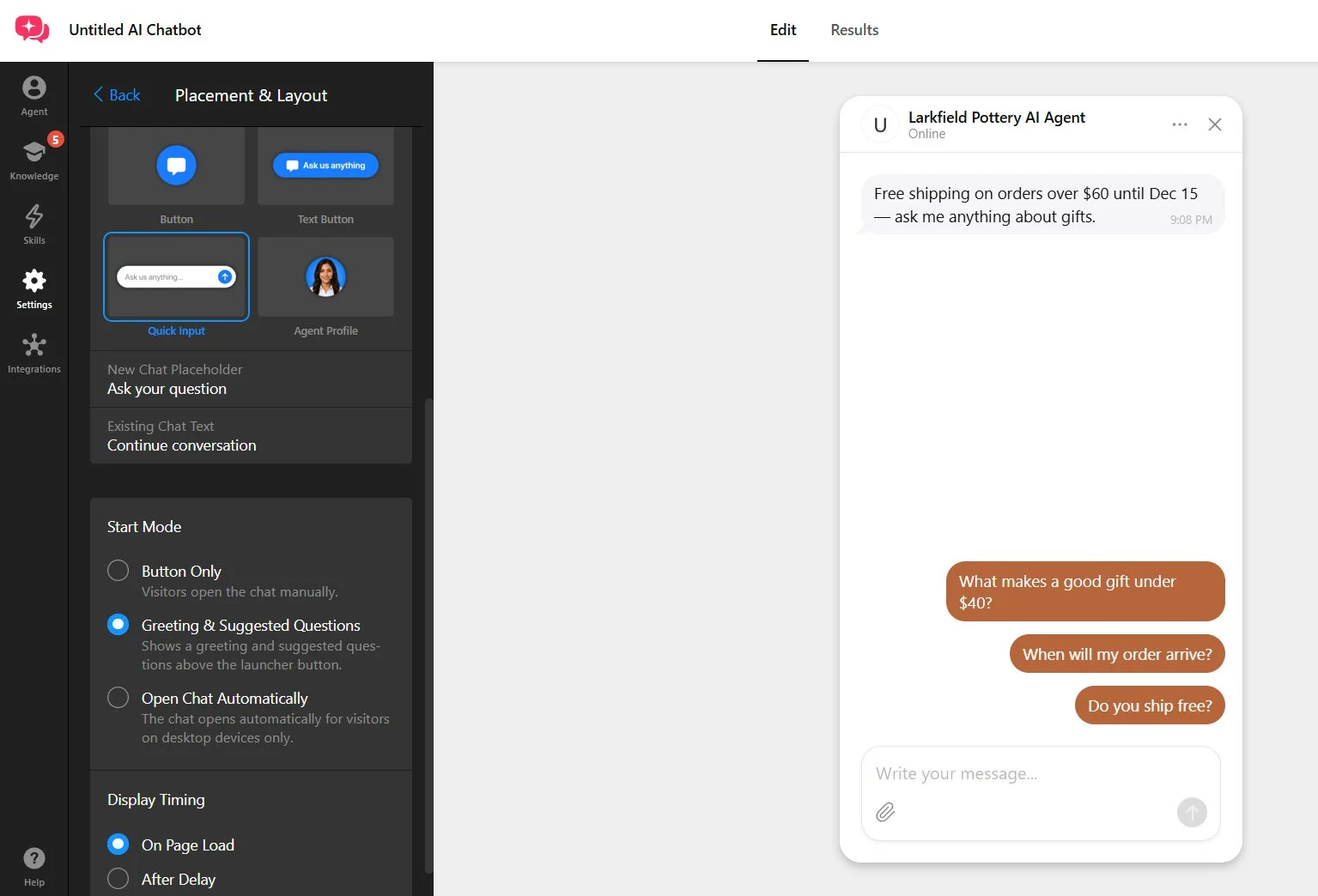
Then choose what the visitor sees first. Start Mode offers Button Only, Greeting & Suggested Questions, or Open Chat Automatically (desktop only), and Display Timing sets page load or a delay. For marketing, the greeting option puts your message and a few tap-to-ask questions above the launcher without taking over the screen.
Once the page is set, what the bot says there depends on what you’ve written down for it, and where.
Give the bot your offer details and rules
Will an AI chatbot make up a discount? Asked for a multi-buy discount the store doesn’t offer, our chatbot turned the request down and pointed to the discount that does exist, the newsletter code. What needs more care is the offer’s fine print, such as who it’s for.
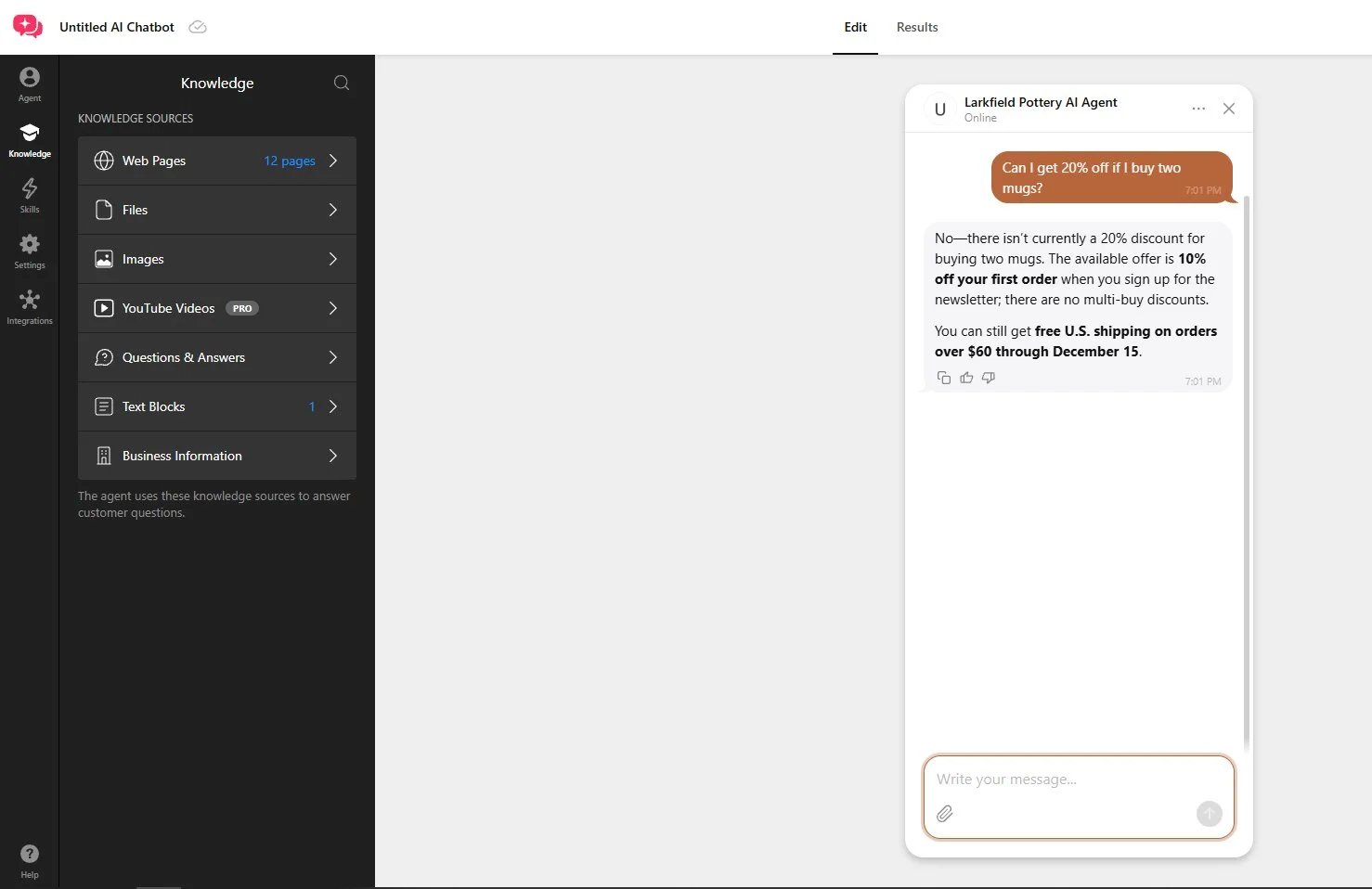
Start with the bot’s knowledge base. Elfsight AI Chatbot learns from web pages, files, images, YouTube videos, Q&A pairs, text blocks and business information, and the editor advises keeping facts like pricing there, not in Conversation Rules, which affect your chatbot’s behavior.
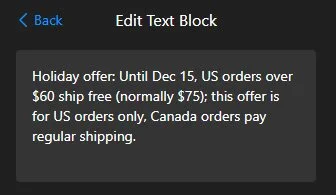
Your pages already cover most of what to feed it, but a time-limited offer needs its own Text Block or Q&A pair. An offer the bot can repeat correctly should answer four questions:
- Who is it for: one country, new customers, orders over a set amount?
- Until when does it run, down to the end date?
- What still applies alongside it, such as a newsletter code?
- What doesn’t exist, such as multi-buy discounts or other codes?
A condition written only into the knowledge isn’t always enough. While our greeting said “Free shipping on orders over $60 until Dec 15”, without “US”, general questions like “Is there free shipping?” were answered without the condition, in all 4 tries. Questions that named a place, like “Do you ship free to Canada?”, applied it every time.
Before you publish, ask each offer question two ways in the preview: in general terms (“Is there free shipping?”) and from a place the offer excludes. That way, a visitor outside the offer’s area gets the full answer in the chat, not a surprise shipping fee at checkout.
5 chatbot marketing tactics to run on your website
These five tactics cover the usual chatbot marketing use cases: announcing an offer, capturing leads, recommending products, booking and ordering, and following up. Each suits a different kind of page, so for a first chatbot marketing strategy, pick one or two that match yours:
| Page | What visitors hesitate over | Tactic |
|---|---|---|
| Pricing or shipping page | Cost and offer questions | Tactic 1 |
| Product, custom-order or quote page | “Can you make it?” and “Can you quote it?” | Tactic 2 |
| Shop or category page | “What should I buy?” | Tactic 3 |
| Wholesale, services or booking page | “Can I talk to someone?” | Tactic 4 |
| Any of the above | Visitors who stop replying | Tactic 5 |
We set up each tactic in Elfsight AI Chatbot on a test store that sells pottery and has a newsletter code and a holiday shipping offer limited to one country.
Tactic 1: Announce an offer in the greeting
Visitors scroll past banners, but they read the first message in a chat. On a pricing or shipping page, make that message your offer.
- Put the offer and its key condition in the Greeting message
- Add two or three Suggested Questions that lead to the offer
- Set Start Mode to Greeting & Suggested Questions
- Test each offer question in the preview using varied phrasing
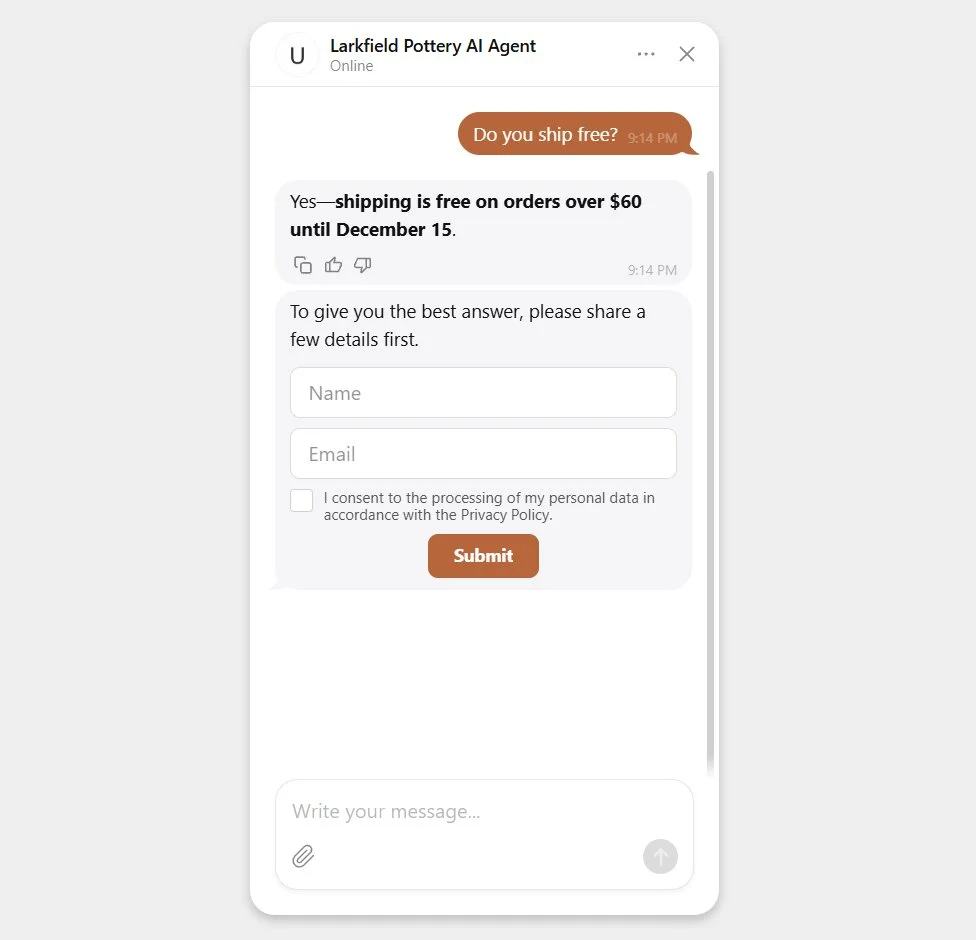
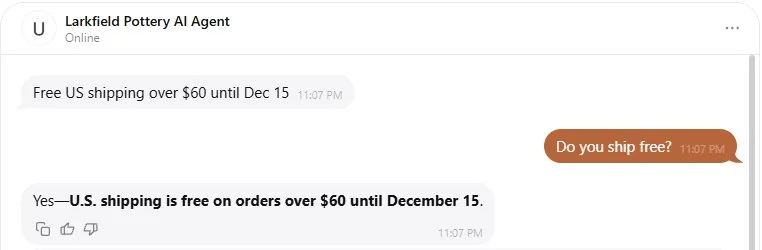
Here’s the same shipping question in our test, before and after “US” went into the greeting:
Before, greeting without “US”. Visitor: “Do you ship free?” Bot: “Yes—shipping is free on orders over $60 until December 15.” The US-only condition is missing.
After, greeting with “US”. Visitor: “Do you ship free?” Bot: “U.S. shipping is free on orders over $60 until December 15.”
Before you launch an offer, check that nothing the bot is trained on contradicts it: an old promo page, a FAQ that says “we don’t offer discounts” next to a newsletter code, a price updated on one page but not another. When two sources disagree, the bot has no way to tell which one is current. Spell out the nuance too: which discounts exist, which don’t, and whether they combine with the offer.
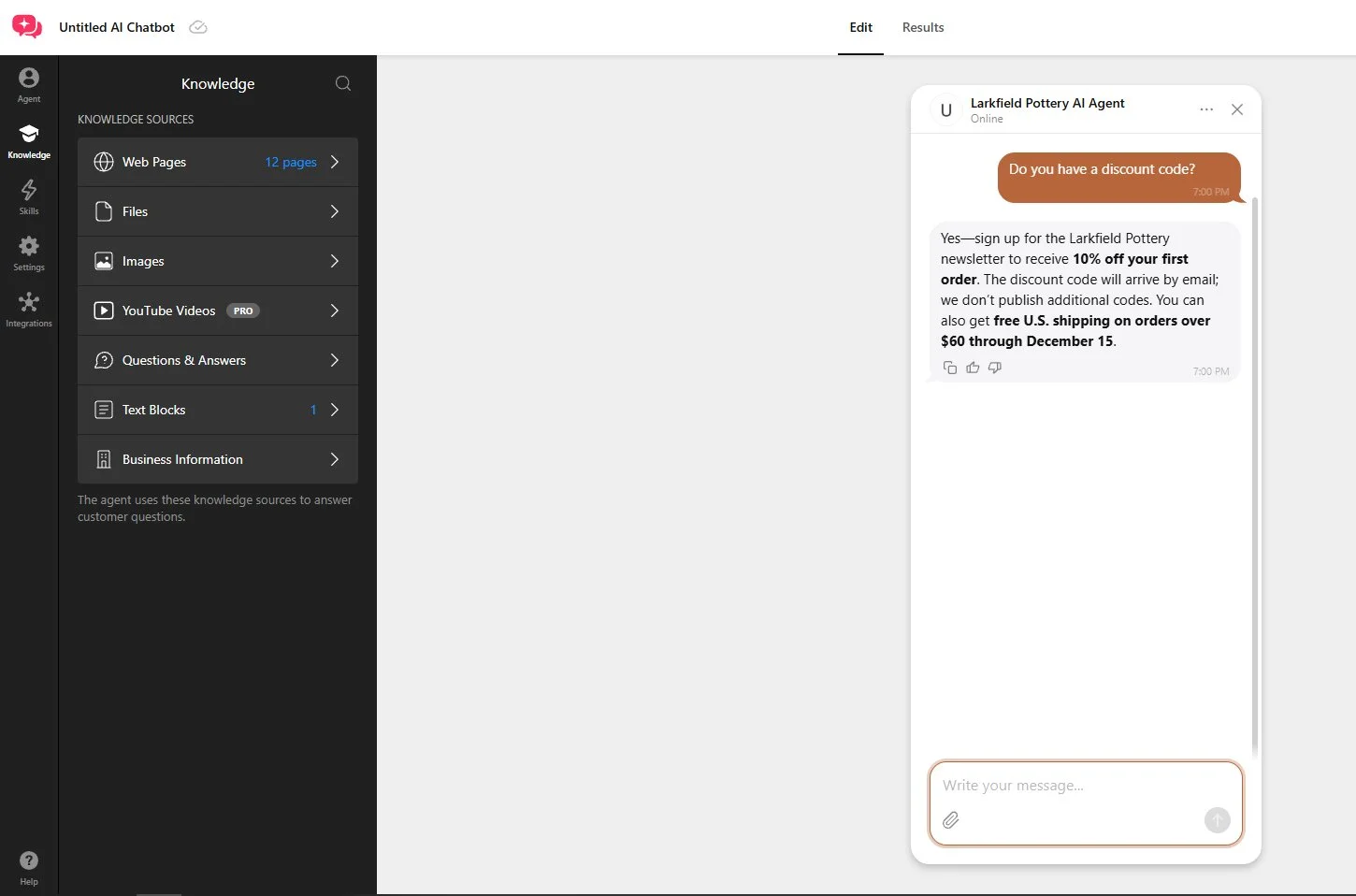
To see whether the greeting gets noticed, compare chat sessions in Results → Analytics with visits to the page: a growing share of visitors opening the chat means the offer is doing its job.
To set it up, enter your website address in the editor below and add your offer to the greeting.
Create your AI chatbot in the live editor ↓
Tactic 2: Capture the lead on a buying question
A visitor asking about a custom order or a quote on your product page is close to buying, and if they exit chat without leaving their details, you’re losing a customer. Collect Contacts, one of the bot’s skills, captures leads via two modes.
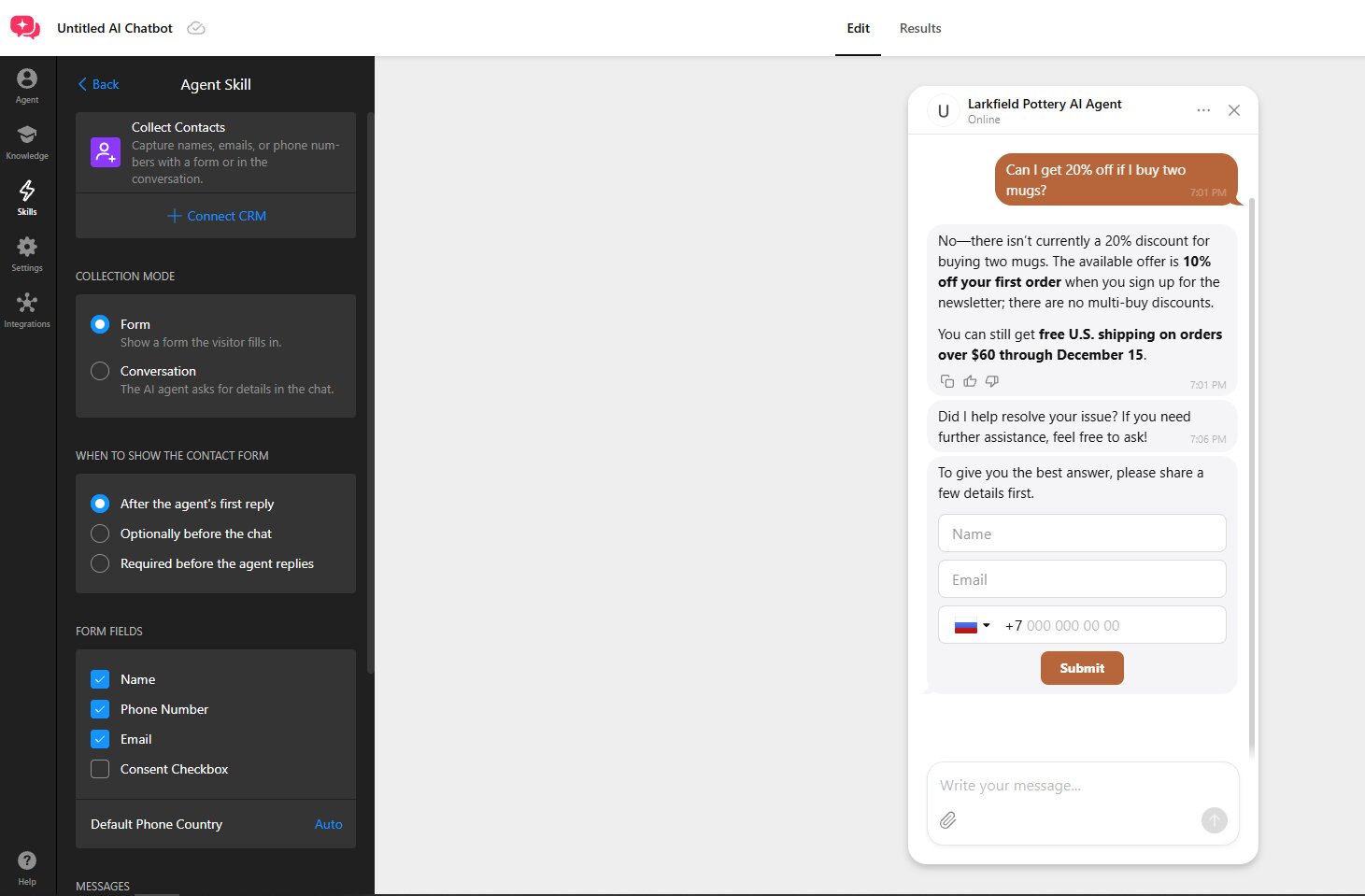
Form mode
Form mode displays a short form with Name, Phone Number, Email and an optional Consent Checkbox. You choose when it appears: after the bot’s first reply, optionally before the chat, or mandatory before the bot replies. Set to appear after the first reply, the form showed up in all 17 chats we ran in Form mode, support questions included.
Conversation mode
Conversation mode lets the bot pick up contact details in the flow of the chat and ask for what’s missing proactively. In our test, the chat log recorded it as a filled contact form. For pre-purchase conversations, it’s the better fit, because the request organically follows what the visitor just said.
To set it up:
- Add Collect Contacts in the skills tab and choose the Collection Mode.
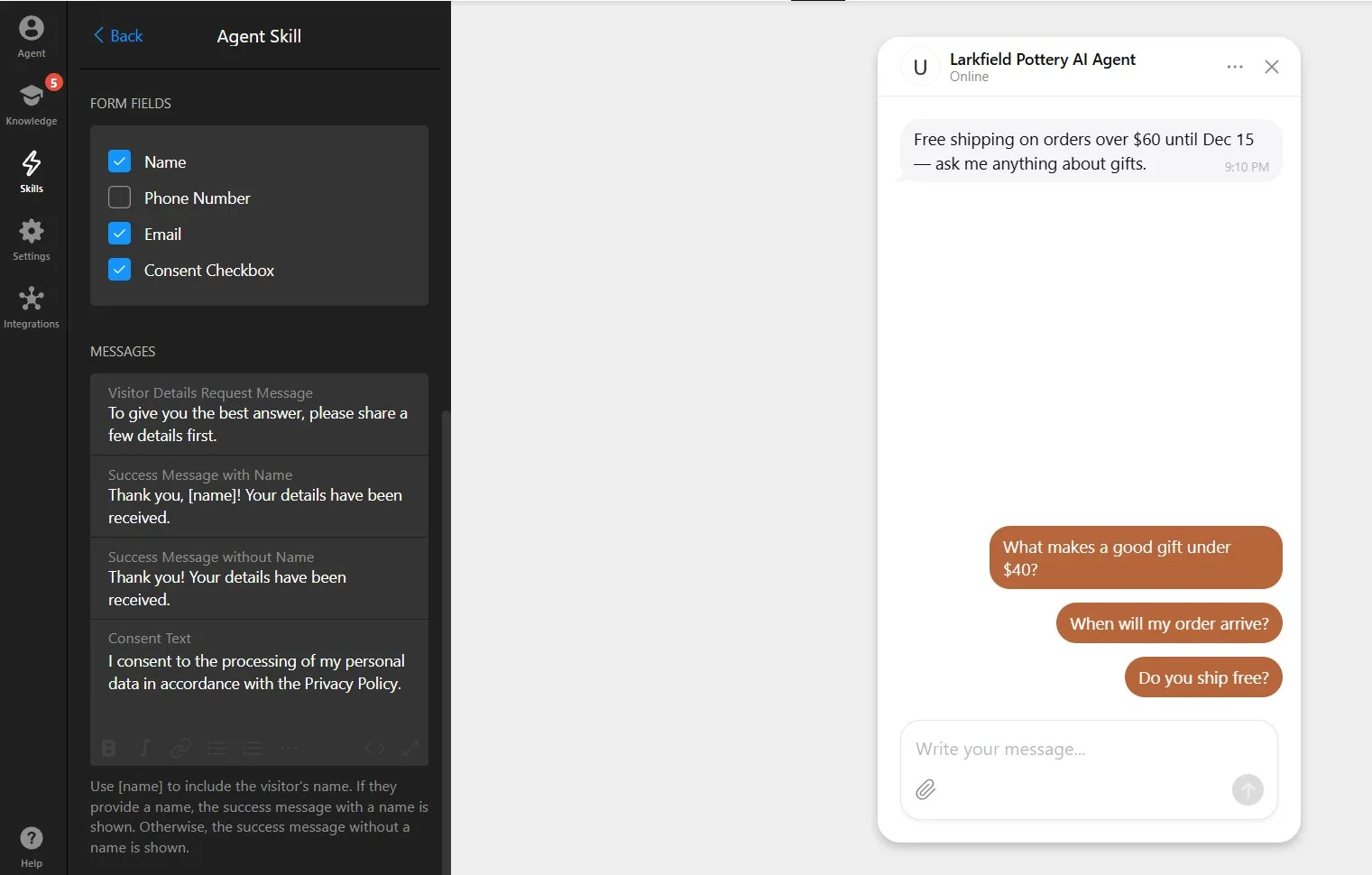
- Pick the fields, turn on consent and edit its text.
- If the form appears after the bot’s first reply, match the request message to that timing. (e.g.“Want a quote or a reply by email? Leave your details and we’ll get back to you.”)
- If the consent text mentions a privacy policy, publish that page and add it to the bot’s knowledge.
- After switching modes, read a few transcripts to check how the bot asks.
Steps 4 and 5 matter because of what we saw in testing: without a published policy page, a visitor who asked to read it had nowhere to go, and in one chat the bot asked for an email right after suggesting the visitor write to support. A quick look at a few transcripts catches mixed signals like that.
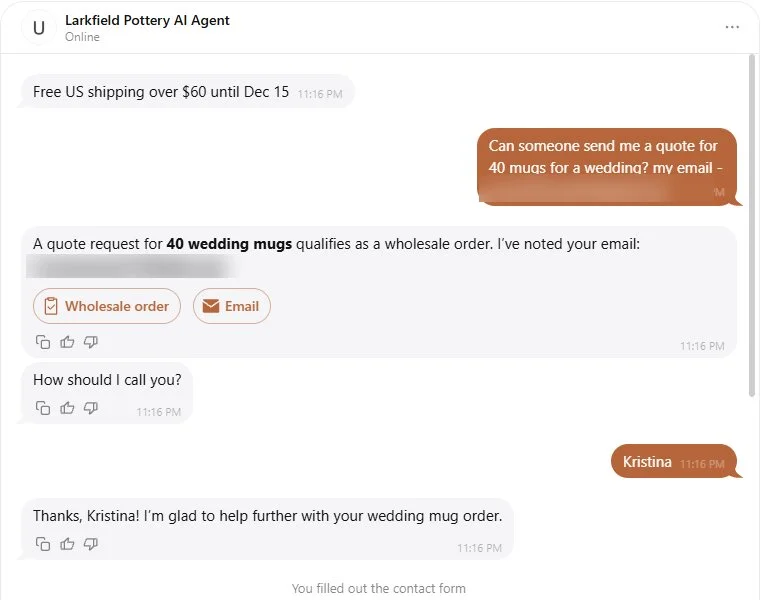
Here’s a quote request from our test in Conversation mode, with an email address in the visitor’s message.
Visitor: “Can you send me a quote for 40 mugs for a wedding?” Bot: “…qualifies as a wholesale order. I’ve noted your email…”, then Wholesale order and Email buttons, then “How should I call you?”
Results → Leads lists each lead’s Created date, Name, Email and Phone, with a one-line chat summary that links to the chat. Contacts captured in Conversation mode land there too. Chats with a lead carry a LEAD tag, and the skill has a Connect CRM option if you work from a CRM.
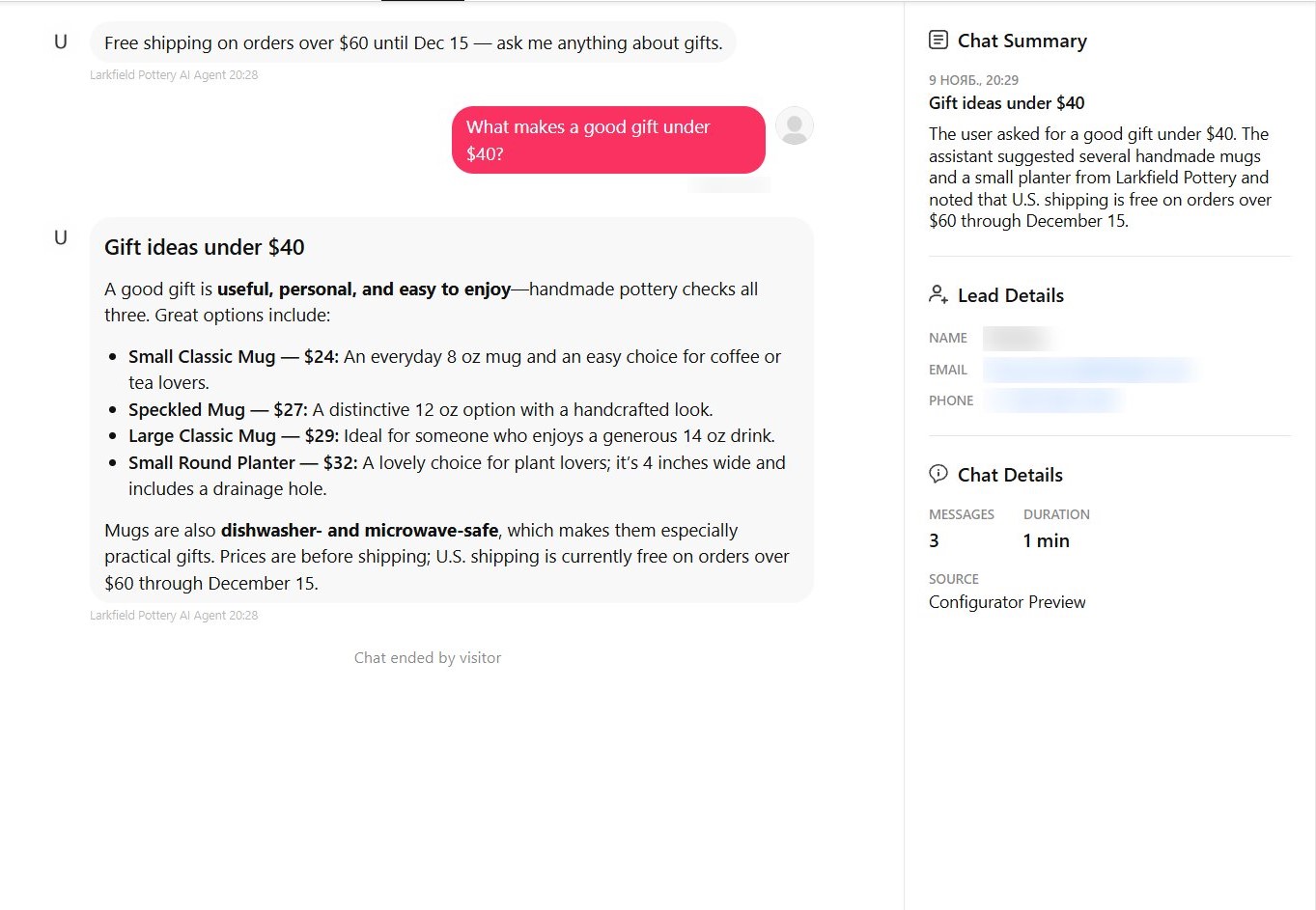
Track how many leads you collect and what share of chats ends with one (leads ÷ chat sessions).
Tactic 3: Recommend products by budget or need
On a shop, category or gift page, the usual question is “what should I buy?” The bot answers it from the pages it was trained on, so the setup is mostly about these checks:
- Make sure your product pages made it to knowledge, with prices attached.
- Add a Suggested Question in the shopper’s words, such as “What makes a good gift under $40?”
- Retrain the chatbot on a product page after any pricing change.
- Re-ask gift and budget questions a few times in the preview.
In our test, “I need a gift under $40 for a tea lover” brought up three different products: the Large Classic Mug at $29, the Speckled Mug at $27 and the Small Classic Mug at $24, a note that all mugs are dishwasher- and microwave-safe, and a “Shop the mugs” link. Products, sizes and prices matched the shop page.
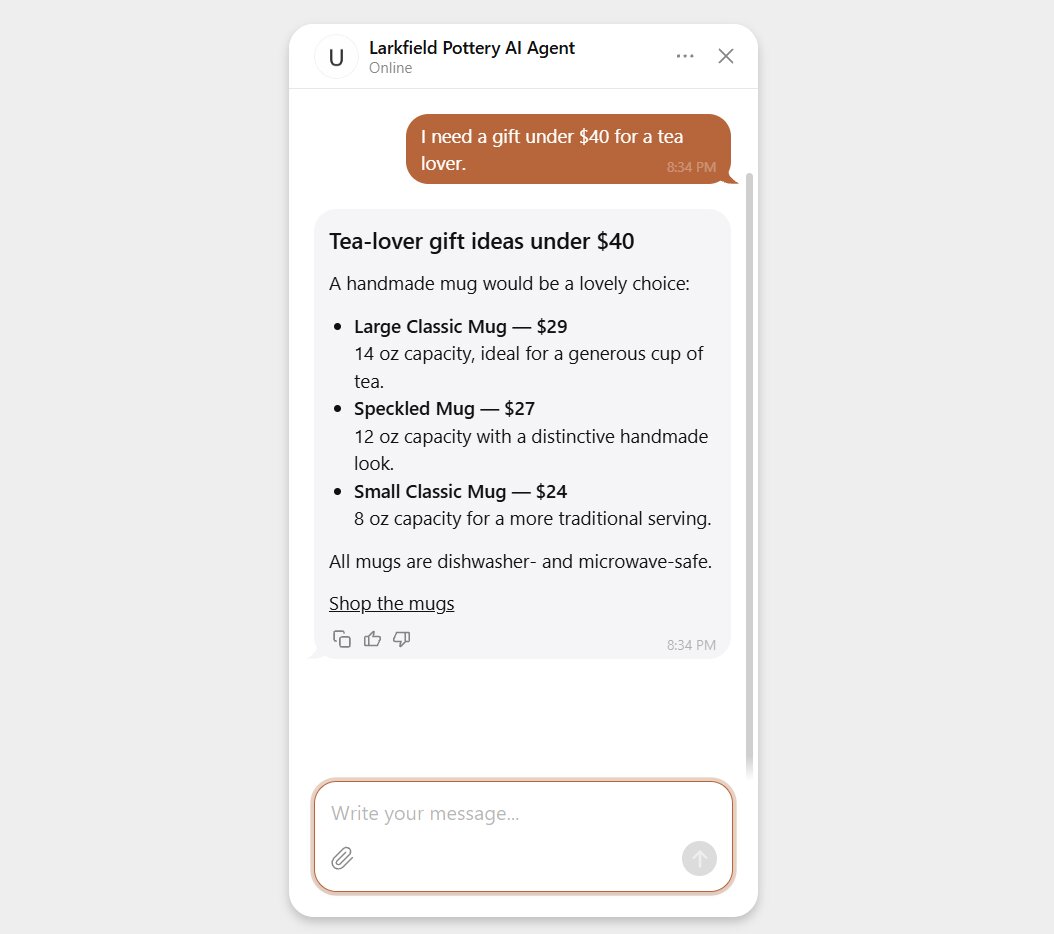
That was typical: 5 of 6 gift answers named products with prices. The exception came through the suggested question, with no products or prices at all. The latter isn’t a failure per se: AI replies are non-deterministic – the same question can get a different answer each time – so your chatbot output might vary. To ensure accuracy, add Conversation Rules your chatbot can refer to when needed.
There’s no built-in click or sales count for recommendations. Watch which products come up in the chat summaries in Results → Chats, and which questions land in Knowledge Gaps.
Tactic 4: Send ready buyers to book or order
Some visitors are past browsing: they want a bulk order or a call. On a wholesale, services or booking page, there should always be a direct way to reach you.
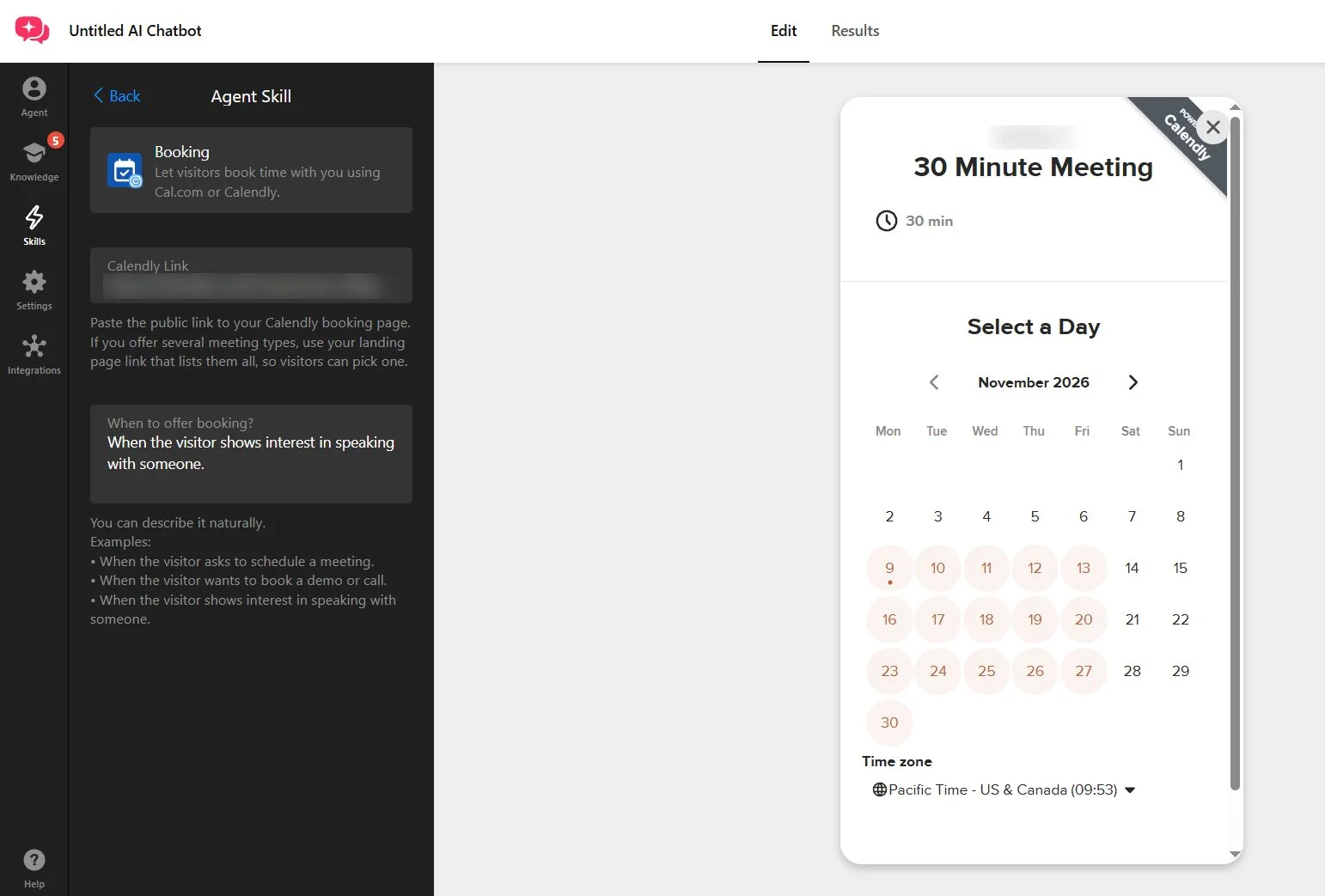
- Add the Booking skill with a Calendly or Cal.com link.
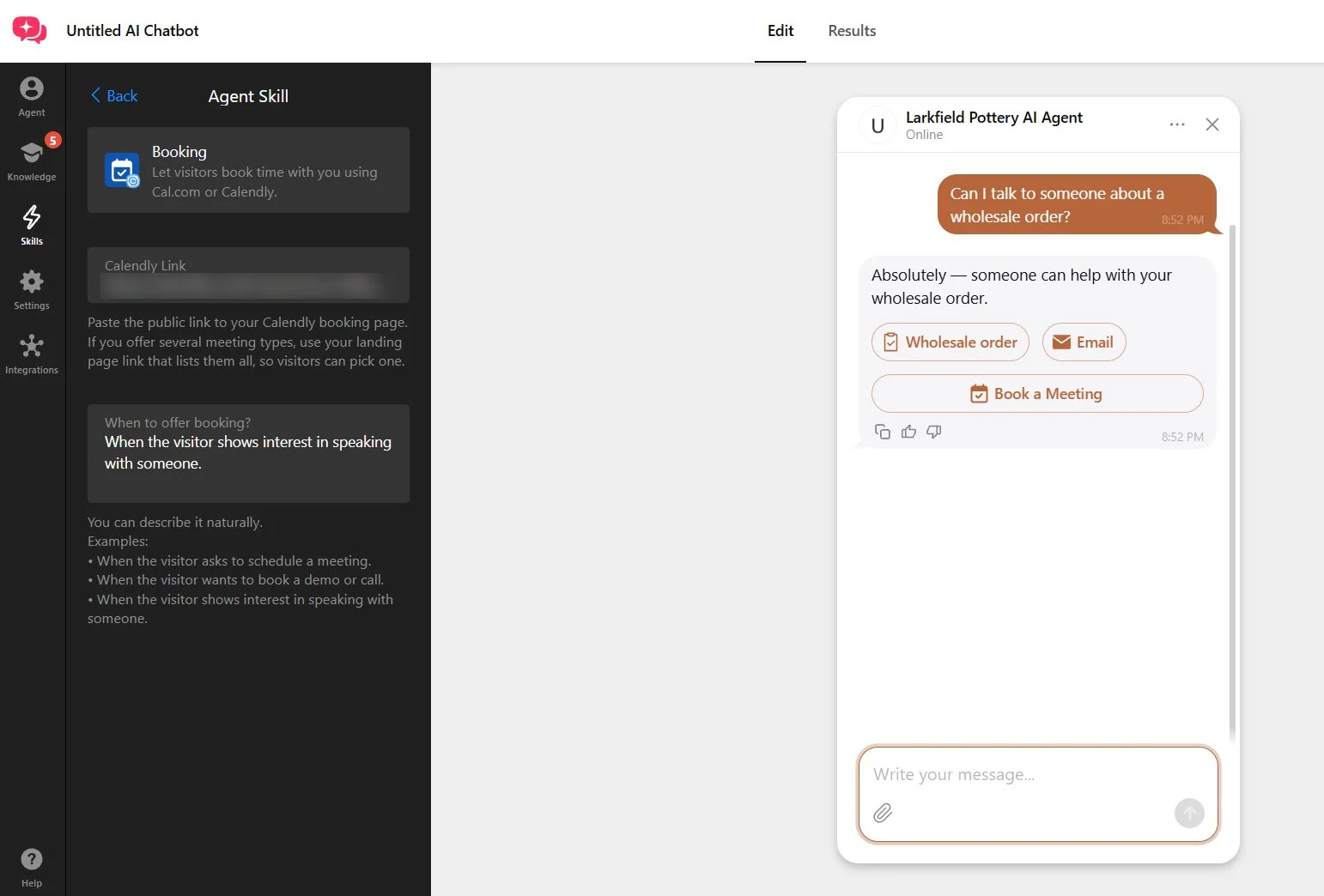
- Set “When to offer booking?”, for example “When the visitor shows interest in speaking with someone.”
- Add an Action Button that opens your wholesale or order page.
- Add a fallback path in Contact a Human for visitors who’d rather talk to you via their preferred channel.
In our test, both wholesale questions got a reply with buttons that lead straight to the next step.
Visitor: “Can I talk to someone about a wholesale order?” Bot: “Absolutely — someone can help with your wholesale order.”, with Wholesale order, Email and Book a Meeting buttons.
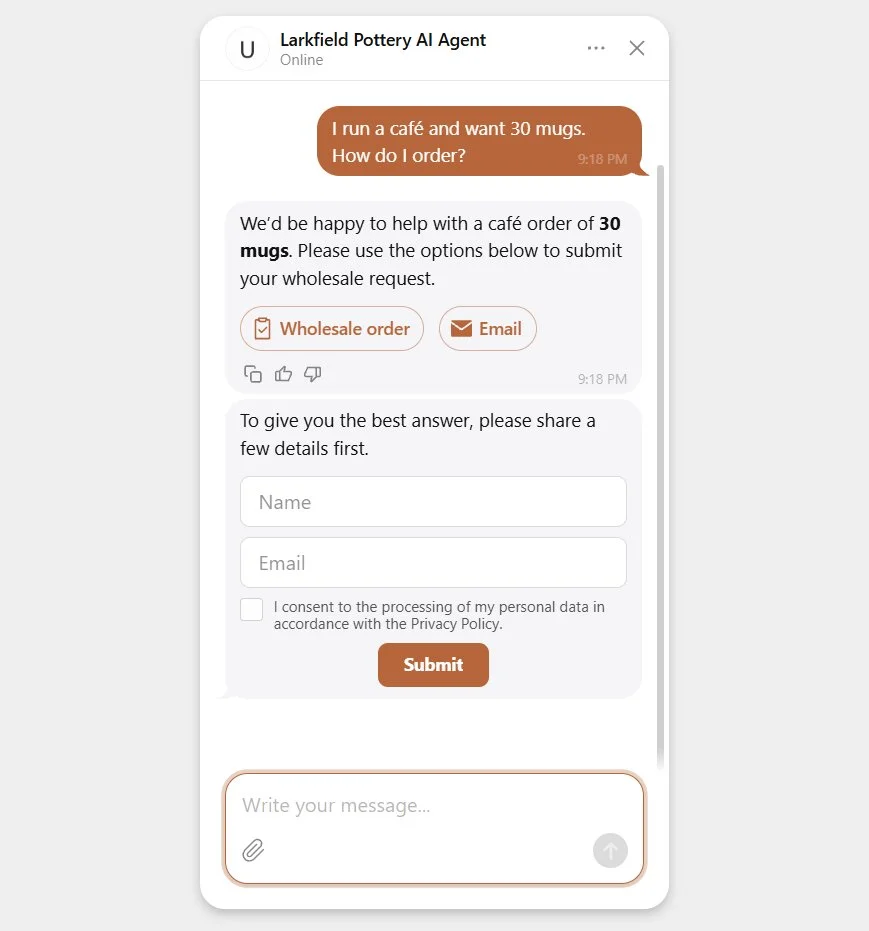
Visitor: “I run a café and want 30 mugs. How do I order?” Bot: “We’d be happy to help with a café order of 30 mugs. Please use the options below to submit your wholesale request.”, with Wholesale order and Email buttons, then the contact form.
Book a Meeting opened the Calendly scheduler in a popup right over the chat, so the visitor books without leaving the conversation.
Tactic 5: Nudge visitors who go quiet
A visitor who asks a question and goes silent may still be deciding. A short nudge, on any page running another tactic, gives them a reason to reply. It’s one skill with three settings:
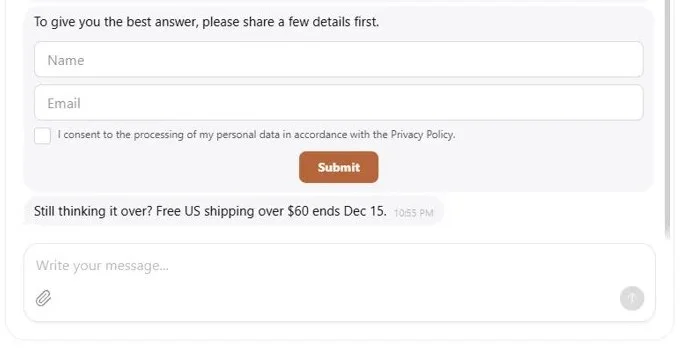
- Turn on the Follow-up Message skill.
- Set the Inactivity Delay – we used 5 minutes.
- Replace the default, support-style reply “Did I help resolve your issue?…” with your own offer nudge.
In our test, “Still thinking it over? Free US shipping over $60 ends Dec 15.” arrived word for word, so write the message the way you want it read.
How to measure chatbot marketing results
Count what the chat starts: chat sessions, contacts captured and the questions it couldn’t answer.
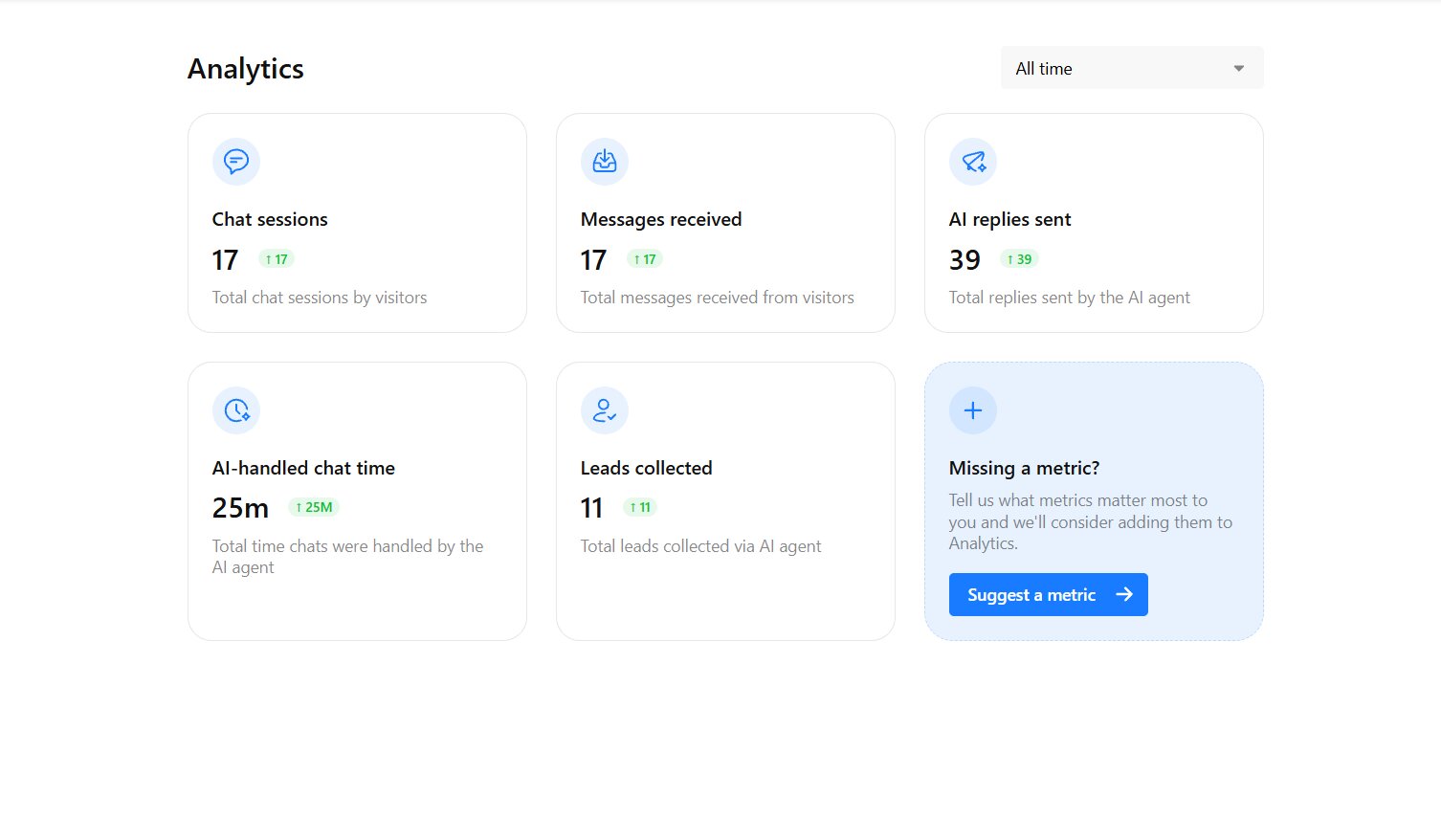
Results → Analytics shows chat sessions, messages received, AI replies sent, AI-handled chat time and leads collected. Each chat in Results → Chats has a summary, the transcript and the page where it began.
When the widget runs on a single page, its numbers are that page’s numbers, and each tactic’s number lives here:
| Tactic | Number to watch | Where to find it |
|---|---|---|
| Tactic 1 | Chat sessions ÷ page sessions | Results → Analytics and your website analytics |
| Tactic 2 | Leads ÷ chat sessions | Results → Analytics and Results → Leads |
| Tactic 3 | Products named in chat summaries | Results → Chats |
| Tactic 4 | Meetings booked, wholesale requests | Your calendar tool and Results → Leads |
| Tactic 5 | Replies after the nudge | Transcripts in Results → Chats |
| Knowledge Gaps | Open gaps | Knowledge → Knowledge Gaps |
Two of those are rates you work out yourself. Treat them as working definitions for comparing a page with itself over time, not as benchmarks:
- Conversation-start rate: chat sessions divided by visits to the display page (from your website analytics).
- Lead-capture rate: leads collected divided by chat sessions, both from Results → Analytics.
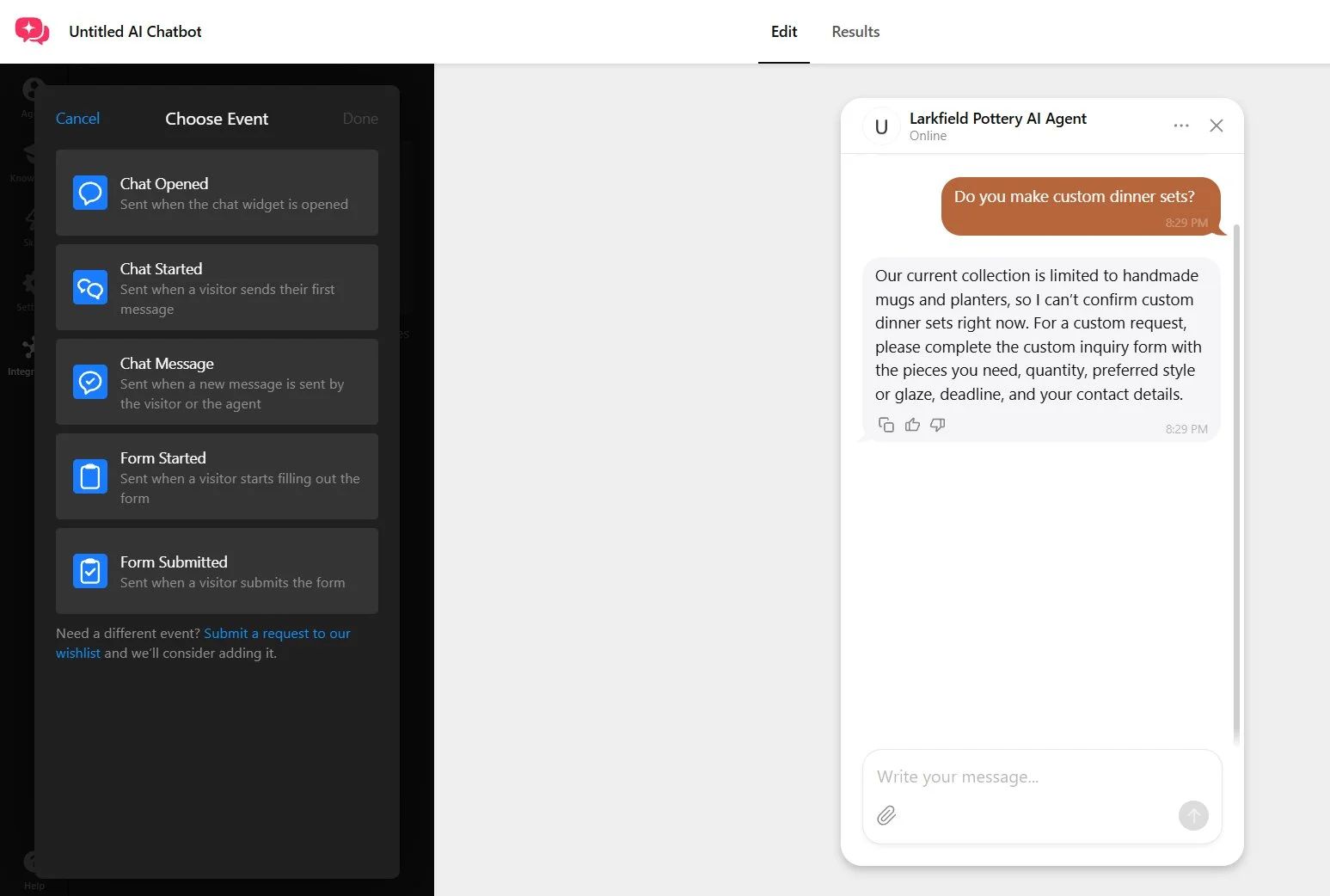
If Google Analytics or Tag Manager is already on your website, the chatbot can send chat and form events there, such as chat opened, chat started, form started and form submitted. That puts your chatbot metrics in the same reports as the rest of your traffic.
Fix what Knowledge Gaps shows first
Knowledge Gaps, under Knowledge, lists topics where the bot lacked information or needed clearer instructions, with the transcript and three actions: Add Knowledge, Mark as Resolved and Ignore.
After our tests, it flagged custom glaze colors and custom dinner sets – neither covered on the store’s pages. Custom work is a sales question, so gaps like these sit right on the path to an order and need to be addressed in advance.
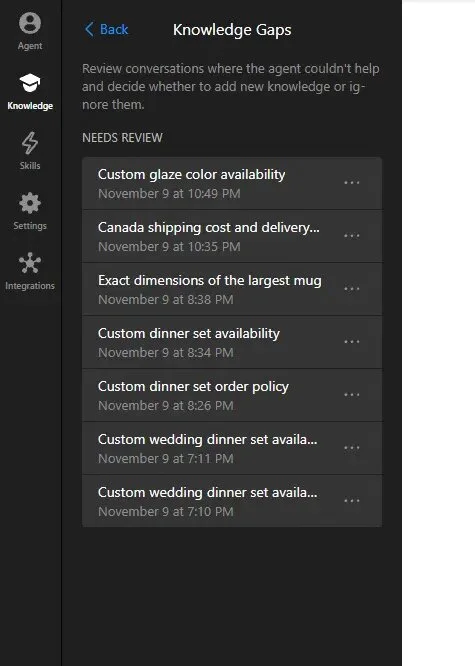
Fix the content with a Q&A pair or a Text Block, rather than behavior rules. LLMs tend to follow clear FAQ-type instructions better than abstract prose.
When chatbot marketing backfires, and how to avoid it
A chatbot can hurt sales when it interrupts, repeats an offer that has changed or leaves no way to reach a person, and the contacts it collects and the messages it uses bring two more risks. Each of these has a setting or a habit that prevents it.
Opening the chat on every visitor
In a Clutch survey of US shoppers, interrupting browsing, with pop-ups or chat, was among the things that make website AI tools frustrating, and more respondents preferred tools they open themselves over proactive pop-ups. A greeting with suggested questions shows your message without opening the chat, and auto-open only works on desktop anyway.
Changing the offer and forgetting the bot
An ended offer stays in its Text Block and in the greeting until you edit both, and a changed page keeps its old content until you click Retrain. Note the end date, update both places when the offer changes, and re-ask the offer questions both ways in the preview.
No way to reach a person
Without a contact route set up, the bot won’t always offer one: in one of our runs, a question about custom work got “contact support” with no address, link or button. Add Contact a Human with an Email or booking button, so the route doesn’t depend on what the bot says in the moment.
Emailing contacts as if they’d subscribed
The FTC’s CAN-SPAM guide says US commercial email needs truthful sender information and subject lines, a clear label that it’s an ad, a postal address and a way to opt out. Once someone opts out, the law gives you 10 business days to stop. Send what the visitor asked for, and add marketing email only with the permission you collected.
Forgetting that every visitor message counts
Each visitor message counts toward one monthly limit shared by all chatbots on one account. With Elfsight, the bot’s replies don’t count. A busy offer week on several pages draws on that one allowance, so check your plan’s message count before you launch.
What to look for in a chatbot for marketing
Whichever of the best chatbots for marketing you compare, check that you can:
- Choose its pages and first message, so each tactic gets its own greeting.
- Write offers into its knowledge and see what it failed to answer.
- Collect contacts with consent wording you edit to match what you’ll send.
- Let visitors book a meeting or reach an order page without leaving the chat.
- Pass chat and form events to your analytics to set chats against sales.
Other jobs suit other kinds of tools: rule-based flow builders for scripted paths, helpdesk AI when a team picks up handed-off chats in a shared inbox, and DM automation tools for Instagram or Messenger campaigns.
Frequently asked questions
Can I run chatbot marketing in Facebook Messenger too?
Can a marketing chatbot send newsletters or promotional broadcasts?
How can a marketing agency run chatbot tactics for clients?
Is chatbot marketing worth it on a small or low-traffic website?
Where to start this week
On elfsight.com, nearly a third of the relevant requests to our chatbot over three months were about plans and pricing. To find out what your own chat hears, and turn it into contacts, start with one page:
- Pick your highest-intent page, where visitors stop to ask about price, shipping or a quote.
- Show the bot only there, with a greeting and suggested questions that match the page and carry the offer’s main condition.
- Write the offer and its conditions into a Text Block.
- Turn on Collect Contacts, in Conversation mode for buying questions.
- After a week or two, open Leads and Knowledge Gaps, and fix the content behind each gap.
The live editor under Tactic 1 is where to set it up.
Key references
- Generative Artificial Intelligence and Sales Productivity: Field Experiments in Online Retail, Management Science (INFORMS), November 2026
- Gartner Survey Finds Only 27% of Customers Would Try a Chatbot Again After a Negative Experience, Gartner, September 2026