MDN: The Video Embed element ↗
developer.mozilla.org/en-US/docs/Web/HTML/Reference/Elements/videoMDN: The Video Embed element ↗
Use <video> with an MP4 (H.264/AAC) source; add WebM first if you want smaller files.
Add controls, a poster and preload="metadata" — autoplay only when muted and inline.
Reserve space with aspect-ratio and use object-fit to fit any layout.
Add captions with <track> for accessibility.
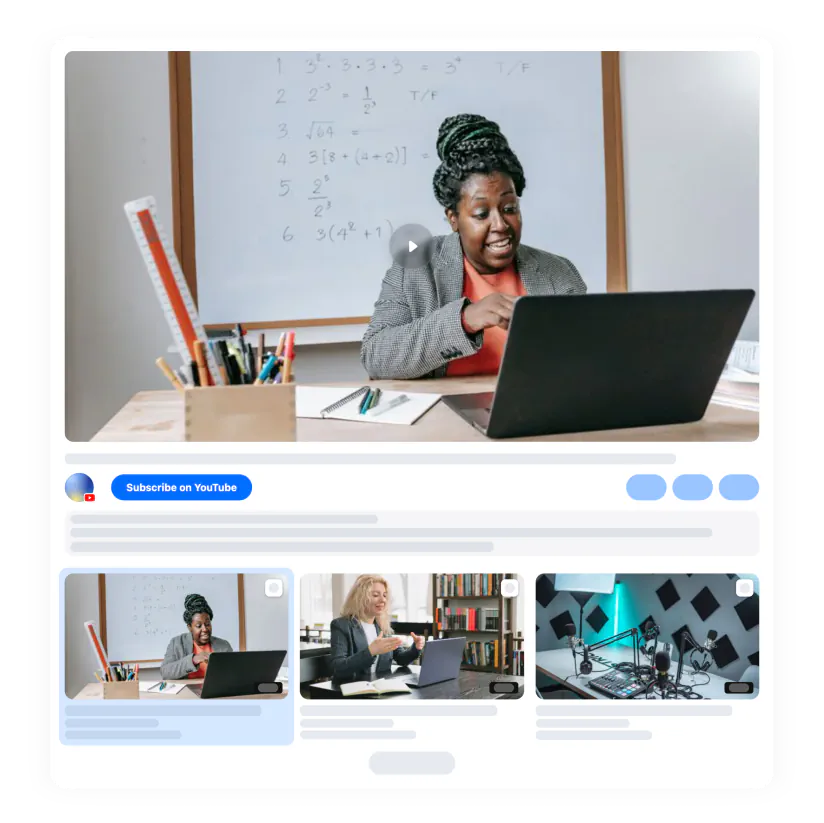
For YouTube or Vimeo use their iframe players; for many videos use a gallery.
<video controls width="640" poster="poster.jpg">
  <source src="movie.webm" type="video/webm">
  <source src="movie.mp4" type="video/mp4">
  Your browser does not support HTML5 video.
</video>controls
What it does
autoplay
What it does
muted
What it does
loop
What it does
playsinline
What it does
poster
What it does
preload
What it does
width / height
What it does
video{width:100%;height:auto;aspect-ratio:16/9}<video controls>
<source src="movie.mp4" type="video/mp4">
<track kind="captions" src="captions.vtt" srclang="en" label="English" default>
</video>YouTube and Vimeo videos can’t be played with <video>; use their iframe players — see our YouTube embed code generator.
MP4 (H.264 + AAC)
Support
Use it for
WebM (VP9 / AV1)
Support
Use it for
HLS (.m3u8)
Support
Use it for
const v = document.querySelector("video");
v.play();            // returns a Promise
v.pause();
v.currentTime = 30;  // seek to 0:30
v.muted = true;
v.addEventListener("ended", () => console.log("done"));
v.addEventListener("timeupdate", () => console.log(v.currentTime));
Handle the Promise from play() — it rejects when the browser blocks playback.
preload="none" or "metadata" keeps the initial page light.
A poster image shows instantly.
Use loading="lazy" on iframes; for <video>, set the src when it scrolls into view.
Reserve space with aspect-ratio to avoid layout shift.
Add captions with <track kind="captions">.
Keep controls unless you provide your own accessible controls.
Never autoplay with sound.
Provide a transcript for important videos.
Video doesn’t play on iPhone Add playsinline and muted for autoplay; check the codec is H.264.
Black screen before play Add a poster image.
Wrong size on mobile Use width:100%; height:auto; aspect-ratio.
Large file loads slowly Compress it or stream it from a video platform.
The browser reads the <source> elements from top to bottom and plays the first one it supports. That’s why you list the smaller, more modern format first (WebM) and the universally supported one (MP4) second. The type attribute lets the browser skip files it can’t play without downloading them — always include it. Text placed inside <video> after the sources is shown only by browsers that don’t support video at all.
<video controls preload="metadata" poster="poster.jpg">
  <source src="clip.webm" type='video/webm; codecs="vp9, opus"'>
  <source src="clip.mp4"  type='video/mp4; codecs="avc1.42E01E, mp4a.40.2"'>
  <a href="clip.mp4">Download the video</a>
</video>Use CSS to control how the video fills its box. object-fit: cover fills the area and crops the edges — ideal for hero sections. object-fit: contain shows the whole frame with bars. Combine it with aspect-ratio to reserve space before the file loads and prevent layout shift.
.video-box{aspect-ratio:16/9;width:100%}
.video-box video{width:100%;height:100%;object-fit:cover}

/* vertical clips */
.video-vertical{aspect-ratio:9/16;max-width:360px}Modern browsers let you move a video into a floating window or fullscreen from JavaScript — both need a user gesture such as a click.
const v = document.querySelector("video");

pipButton.onclick = async () => {
  if (document.pictureInPictureElement) await document.exitPictureInPicture();
  else await v.requestPictureInPicture();
};

fullButton.onclick = () => v.requestFullscreen();
Add disablepictureinpicture to the element if you don’t want the browser’s own PiP button.
The video element fires events you can send to your analytics tool. Track starts, completions and progress milestones — not every timeupdate, which fires several times per second.
const v = document.querySelector("video");
const sent = new Set();
const track = (name) => window.gtag && gtag("event", name, { video_title: v.dataset.title });

v.addEventListener("play", () => track("video_start"), { once: true });
v.addEventListener("ended", () => track("video_complete"));
v.addEventListener("timeupdate", () => {
  const p = Math.floor((v.currentTime / v.duration) * 4) * 25; // 25, 50, 75
  if (p && p < 100 && !sent.has(p)) { sent.add(p); track("video_progress_" + p); }
});The video tag is the right tool for your own short files: product loops, hero backgrounds, short explainers you host on a CDN. For videos on YouTube or Vimeo, use their iframe players — they handle streaming, quality switching and captions. When you need many videos, feeds that update themselves, or a mix of platforms, a gallery widget saves you from building playlists, popups and layouts by hand.
On this page