
Overview
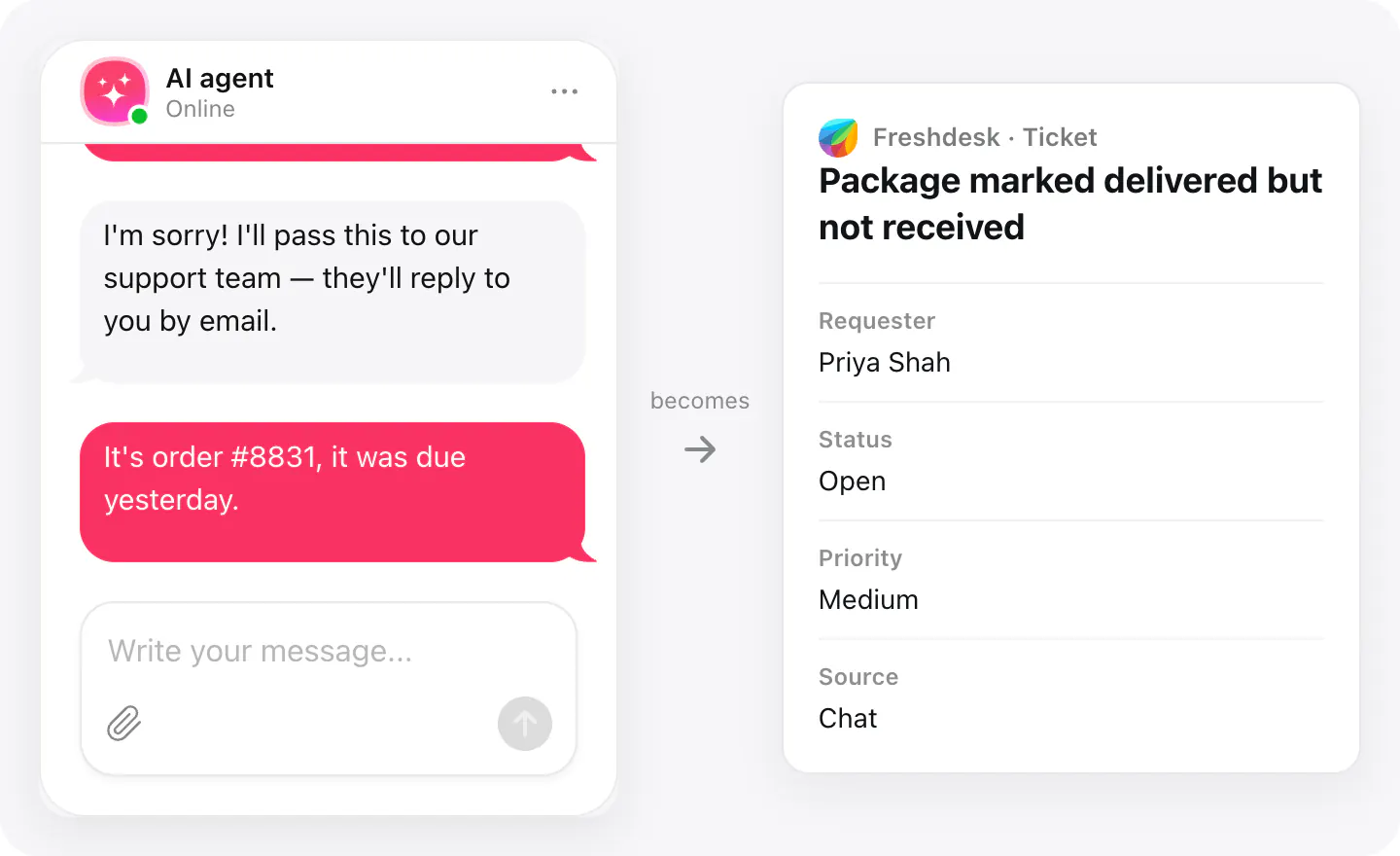
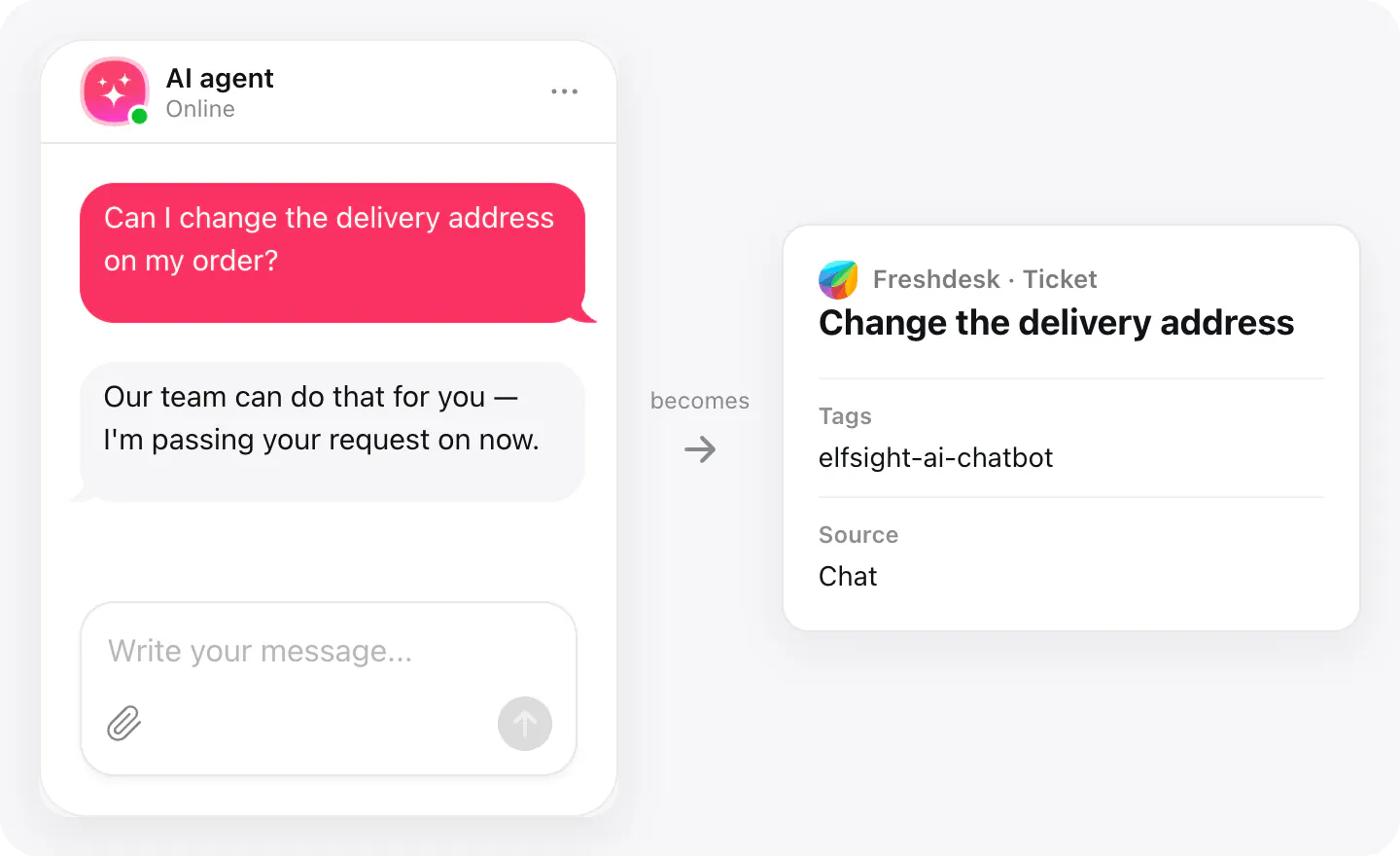
AI Chatbot answers visitors on your website. When a question needs a person, the visitor fills in the chat's ticket form and the request becomes a Freshdesk ticket — open, medium priority, with Chat as its source — in the queue your agents already work.
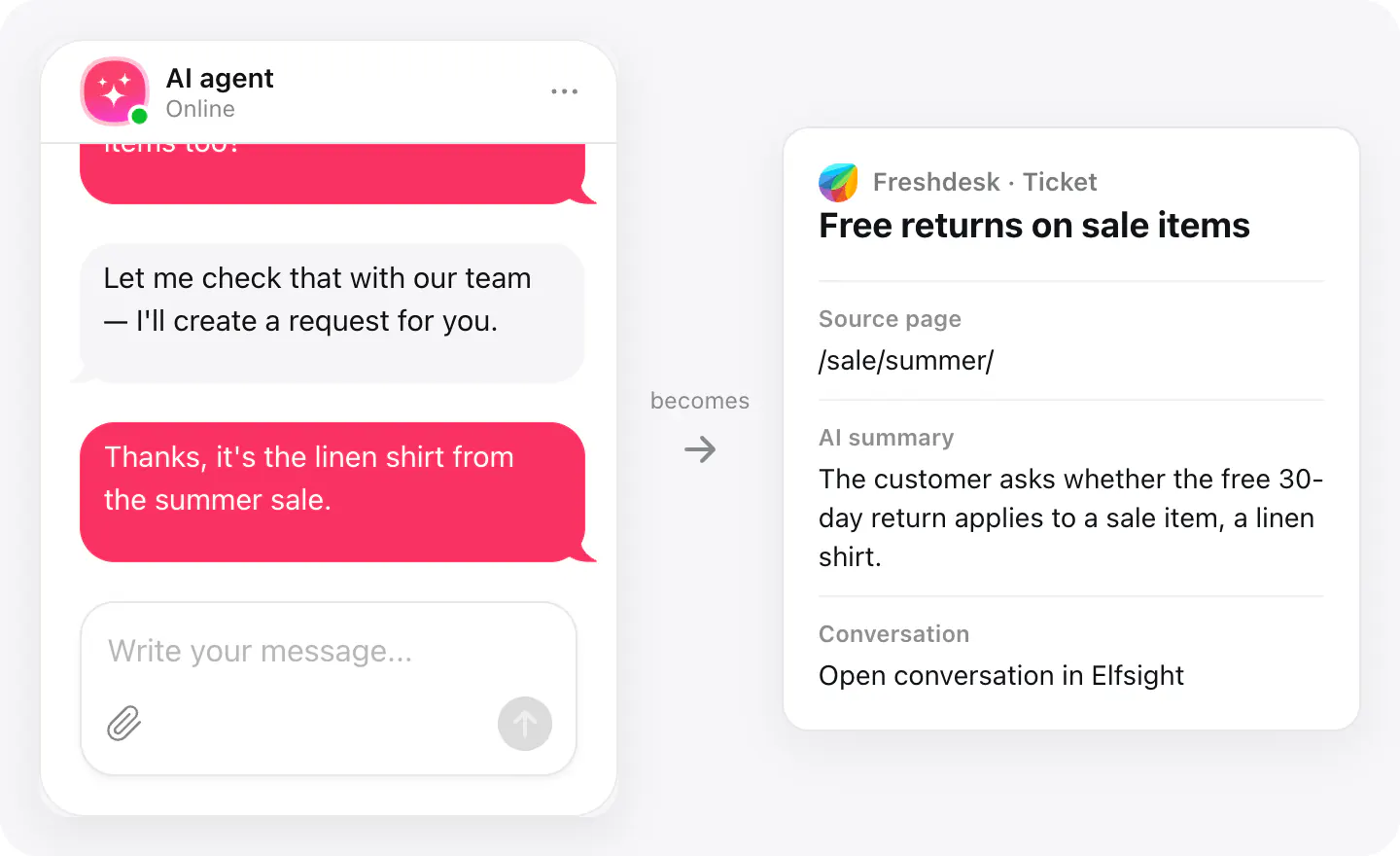
The ticket comes with what the agent needs to start: the visitor's request, an AI summary and the page the chat started on. The Elfsight app in the ticket sidebar shows that page and opens the full conversation, so nobody has to ask the visitor to repeat themselves.
The Freshdesk app
AI Chatbot creates a ticket in Freshdesk when it cannot answer the question itself.
In the ticket sidebar, the agent sees the page the visitor came from, and an Open conversation in Elfsight button that opens the full dialogue.
What you can do
These are the jobs the integration is built for.
Turn requests into tickets
The visitor's request becomes an open Freshdesk ticket with the chat topic as its subject and the visitor as the requester.
See where the visitor came from
The Elfsight app in the ticket sidebar shows the page the conversation started on, and Open conversation in Elfsight opens the whole dialogue.
Find every chat ticket
Tickets from the chat carry the elfsight-ai-chatbot tag, so a filtered view shows them all in one place.
Set up
Set up starts in your AI Chatbot widget. The app in Freshdesk is installed after the skill is connected.
- Create an AI Chatbot widget in Elfsight.
- In the widget, open Integrations → Freshdesk → Add Skill.
- Enter your Freshdesk domain and API key.
- Set the form fields, when to offer a ticket and whether to attach the conversation.
- Install the app in Freshdesk and open a ticket.
- If the ticket form has custom fields that are required for agents, make them optional (Admin → Workflows → Ticket Fields).
Connected apps and their status are listed in Integrations in your widget, where you can disconnect access at any time.
Requirements
- An AI Chatbot widget.
- A Freshdesk account, with its domain and an API key.
- An email field in the chat's ticket form: Freshdesk needs the visitor's email to create a ticket.
Support
Email support@elfsight.com with questions about this app.
What gets sent
What the integration passes on.
The visitor's email and name (the requester)
The visitor's request, in their words
Chat topic (the ticket's subject)
AI summary of the conversation
The page the chat started on
A link to the chat in your dashboard (not with White Label)
The full transcript, when you turn it on
Status Open, priority Medium, source Chat
The elfsight-ai-chatbot tag (not with White Label)
If nothing arrives
- Check the visitor's email. Freshdesk creates a ticket only with the requester's email. Keep the email field in the chat's ticket form.
- Check the API key. If the API key was reset or its agent removed, Freshdesk refuses the connection. Connect again with a current key.
- Check required ticket fields. Custom ticket fields that are required for agents can block new tickets; make them optional in Admin → Workflows → Ticket Fields.
How businesses use it
The same connection, set up for different kinds of business.
- Online storesDelivery, return and refund questions the agent can't settle become tickets with the order details the customer gave.
- SaaS & softwareBug reports and account issues reach your support queue with the page the user was on.
- Local & small businessA small team keeps every request from the website in one Freshdesk queue instead of a chat log.
- Hotels & rentalsRequests about bookings, changes and special arrangements become tickets your front office answers by email.