













Why people love Elfsight
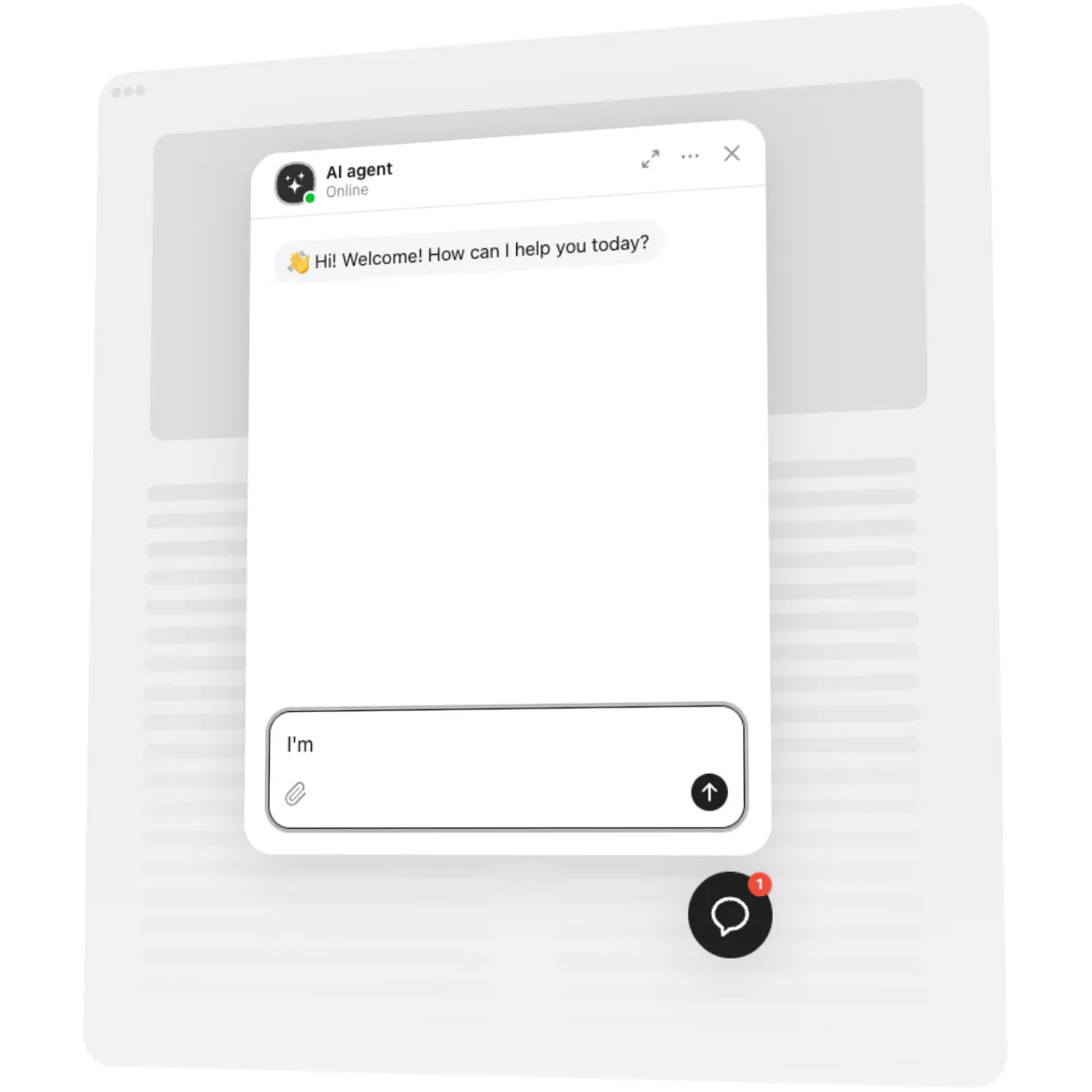
Our AI Chatbot for Cursor projects is a support agent you don’t have to code. Cursor helps you write the app; the chatbot welcomes visitors, answers common questions, and guides people to the next step. No chat UI to build, no API keys or model to manage, no conversation storage – the agent runs on Elfsight, and your codebase only carries a short embed code.
Add it to a landing page or a docs page, and it answers “Is there a free plan?” or “How do I get started?” while you keep shipping. Fewer support emails, more conversations that turn into leads.
Did you know?
According to Salesforce, 69% of consumers prefer chatbots for quick communication with brands – a solid cue to make answers instant and helpful.
Try it now – give your visitors instant clarity and win back precious time.
Key features of the AI Chatbot
24/7 answers – From pricing questions to onboarding steps, visitors get help any hour, not just when you’re online.
Answers from your content – Upload documents, add Q&A entries, or connect page URLs so replies stay accurate and on-brand.
Voice that matches your brand – Describe the tone you want – professional, playful, minimalist – and the agent follows it.
Learns from your replies – When the agent doesn’t know an answer, it asks you, and learns from what you tell it.
Leads inside the chat – Collect emails and messages in context; chats and leads wait for you in the dashboard.
Transcripts by email – Get every chat’s transcript with its lead data in your inbox, plus analytics reports.
Floating or embedded – Show a chat bubble across your whole site, or place the chat inside one page.
No backend to build – The agent, its knowledge and its chats live in Elfsight; your project only carries the embed code.
Open the live editor and try a template – see your chatbot working in minutes.
How to add the AI Chatbot to a Cursor project
Whatever stack you build with in Cursor – Next.js, React, or plain HTML – the setup takes three steps:
Create and customize the widget.
Visit the AI Chatbot product page and click “Create widget.” Pick a template, train the agent on your content, and adjust its behavior and look.Copy the embed code.
Save your changes, click “Add to website for free,” and copy the code. Choose the floating layout for a bubble on every page, or the embedded one for a single page.Paste the code into your project and deploy.
Paste the code into your root layout or main HTML file for a chat on every page, or into one page or component where it should appear. You can also paste it into Cursor’s chat and ask the agent to add it. Then deploy your project as usual – the chatbot goes live.
Need a hand? Start with our Help Center, explore the features page, connect with peers in our Community Forum, share ideas in the Wishlist, and follow releases in the Changelog.