

Overview
A lead that stays in a chat log is easy to lose. With HubSpot connected, the moment a visitor sends their name, email or phone in the chat they become a HubSpot contact, where sales already work — no export, no copying.
When a visitor needs a person, the conversation becomes a HubSpot ticket in the pipeline and stage you choose, linked to the contact: what they asked, an AI summary, the page they were on and, if you like, the whole transcript.
What you can do
These are the jobs the integration is built for.
Collect contacts
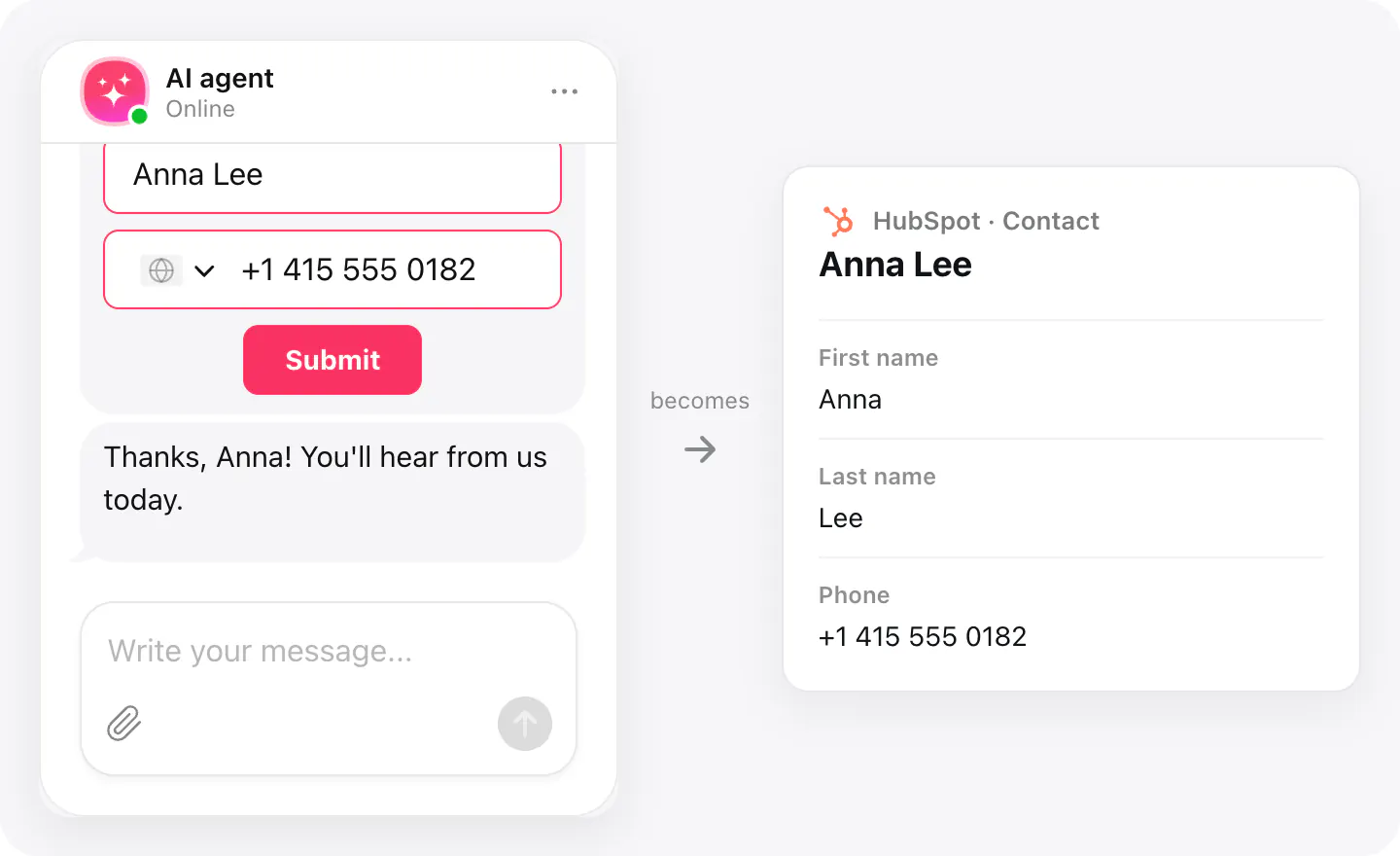
When a visitor sends their details in the chat's contact form, they appear in HubSpot as a contact right away — first and last name, email and phone.
Create tickets
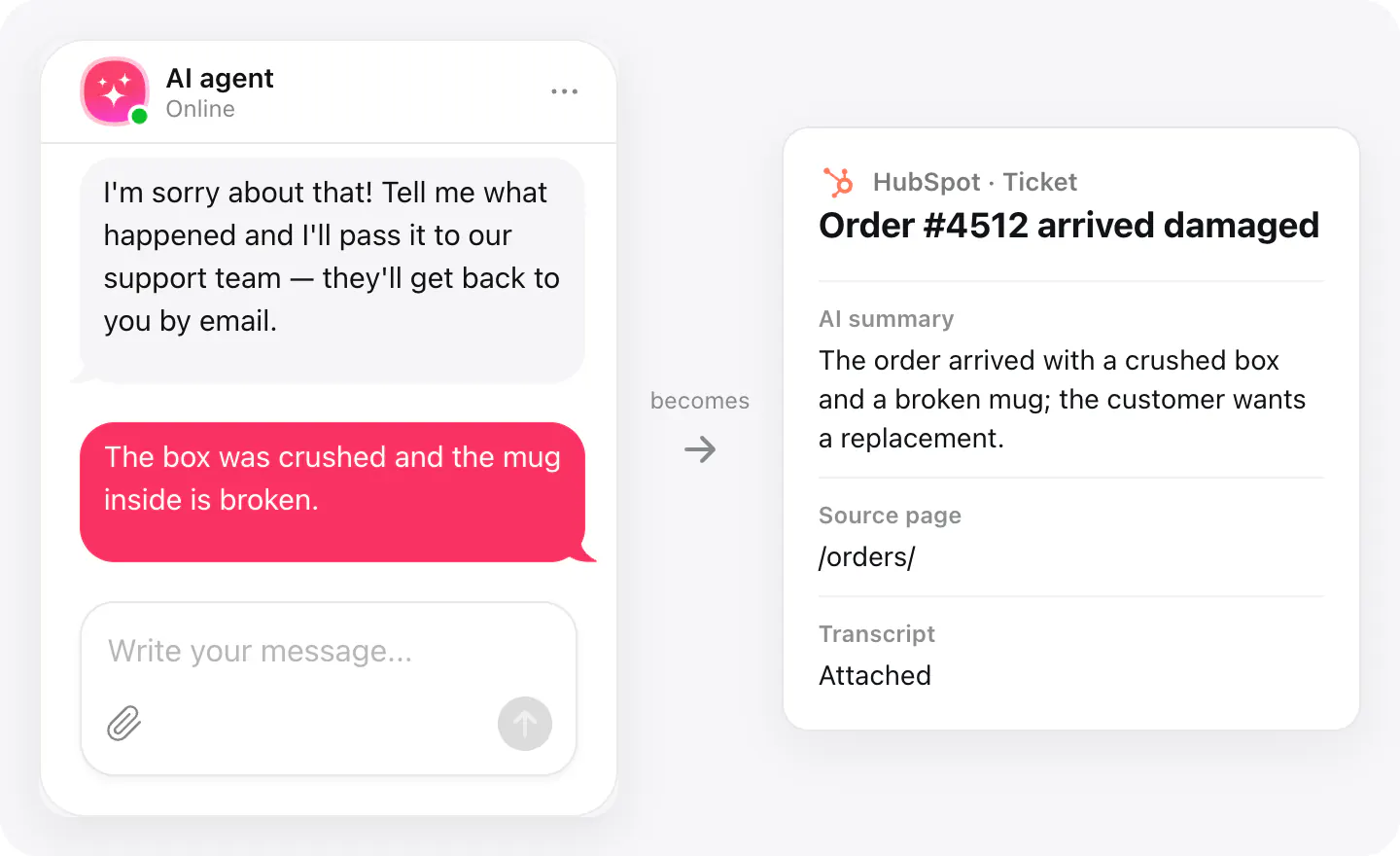
When a visitor needs your team, their request becomes a HubSpot ticket in the pipeline and stage you choose, with an AI summary, the page they were on and a link to the chat.
No duplicate contacts
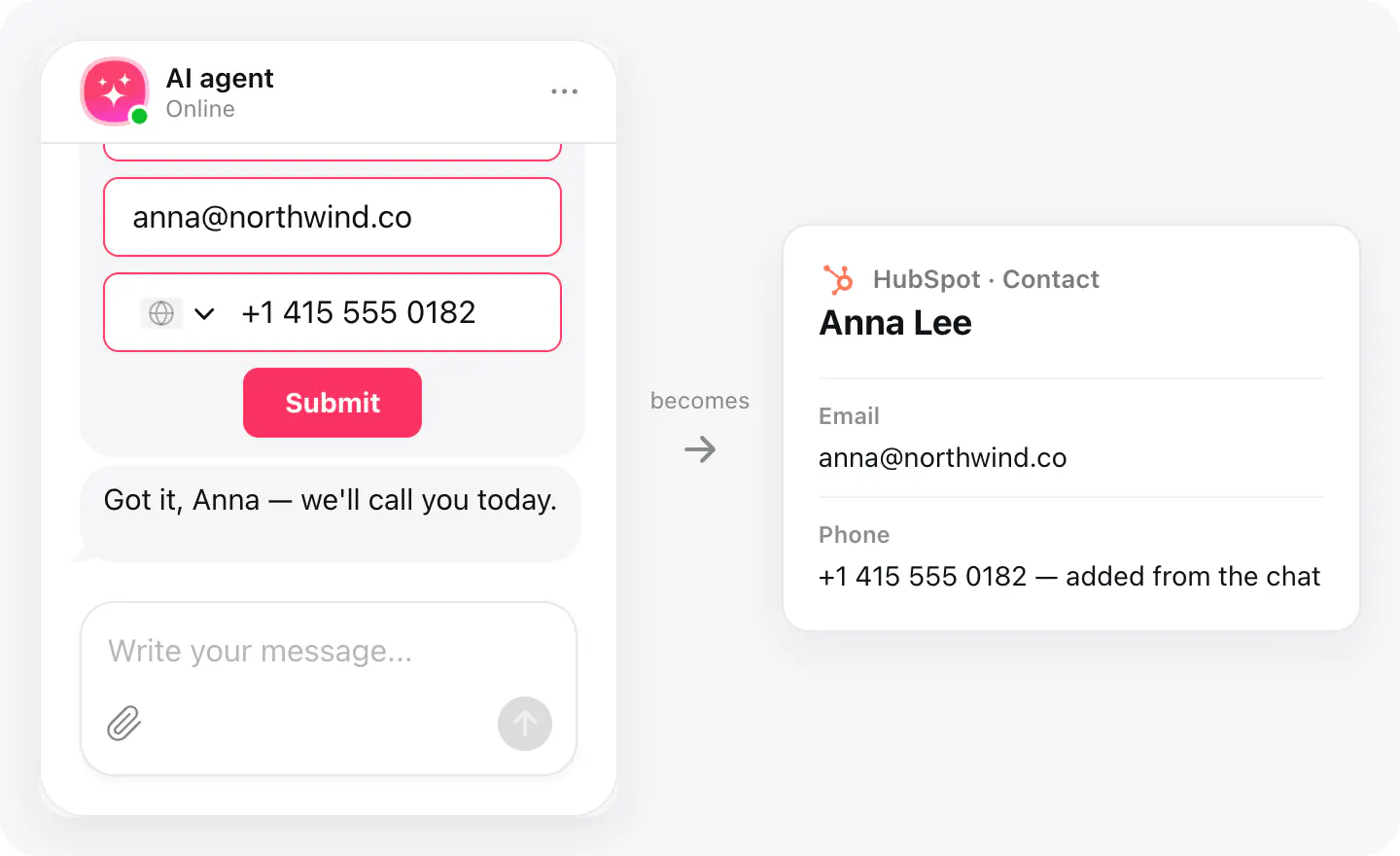
A visitor who is already in HubSpot is matched by email: the contact gets the details it was missing, and nothing you entered is overwritten.
Set up
Connect HubSpot in your widget's Integrations, then choose it in the skills that should use it: Collect contacts and Create ticket.
- Open your AI Chatbot widget, go to Integrations, choose HubSpot and connect your account.
- In Agent skills, turn on Collect contacts and pick HubSpot as where contacts go.
- Turn on Create ticket, pick HubSpot, then the pipeline and stage for new tickets — and whether to attach the conversation.
Connected apps and their status are listed in Integrations in your widget, where you can disconnect access at any time.
Requirements
- An AI Chatbot widget published on your site.
- A HubSpot account with permission to create contacts and tickets.
What gets sent
What the integration passes on.
| What gets sent | Contact | Ticket |
|---|---|---|
| First and last name | ||
| Phone | ||
| The visitor's request, in their words | ||
| Chat topic (the ticket's subject) | ||
| AI summary of the conversation | ||
| The page the chat started on | ||
| A link to the chat in your dashboard (not with White Label) | ||
| The full transcript, when you turn it on |
If nothing arrives
- Check the connection's permissions. The HubSpot account you connected needs permission to create contacts and tickets.
- Check the skills. Collect contacts and Create ticket each need HubSpot picked in the skill itself.
- Check the pipeline. A ticket goes to an open stage of an active pipeline; if the one you picked was archived, the first open pipeline is used.
How businesses use it
The same connection, set up for different kinds of business.
- Real estateVisitors who ask about a listing and leave their phone become HubSpot contacts your agents call back.
- SaaS & softwareDemo and pricing questions turn into contacts for sales; support requests into tickets.
- Online storesOrder problems become tickets for your support team, with the summary and the conversation.