
Overview
Not every business needs a CRM to follow up on leads. With Google Sheets connected, each finished conversation becomes one row in a spreadsheet: when it started, how long it lasted, the page it began on, the topic, an AI summary, the visitor's name, email and phone, and the full transcript.
The spreadsheet is created in your own Google Drive when you connect, with the column headers added on the first chat. Sort it, filter it, share it with whoever calls the leads back — it is an ordinary Google Sheet.
What you can do
These are the jobs the integration is built for.
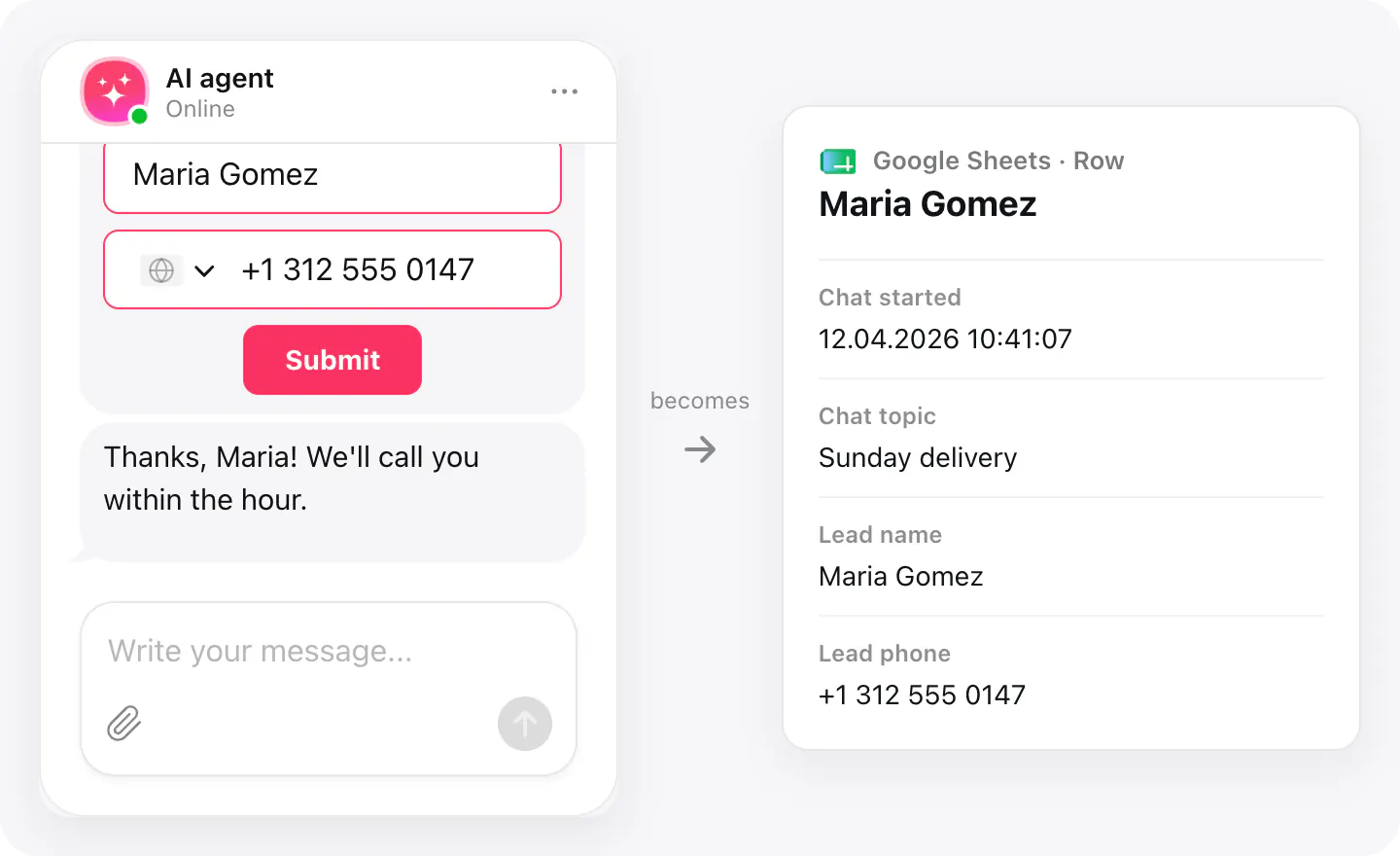
A lead list that fills itself
A visitor who leaves their details in the chat appears in the sheet with their name, email and phone, next to the topic of the chat and when it happened.
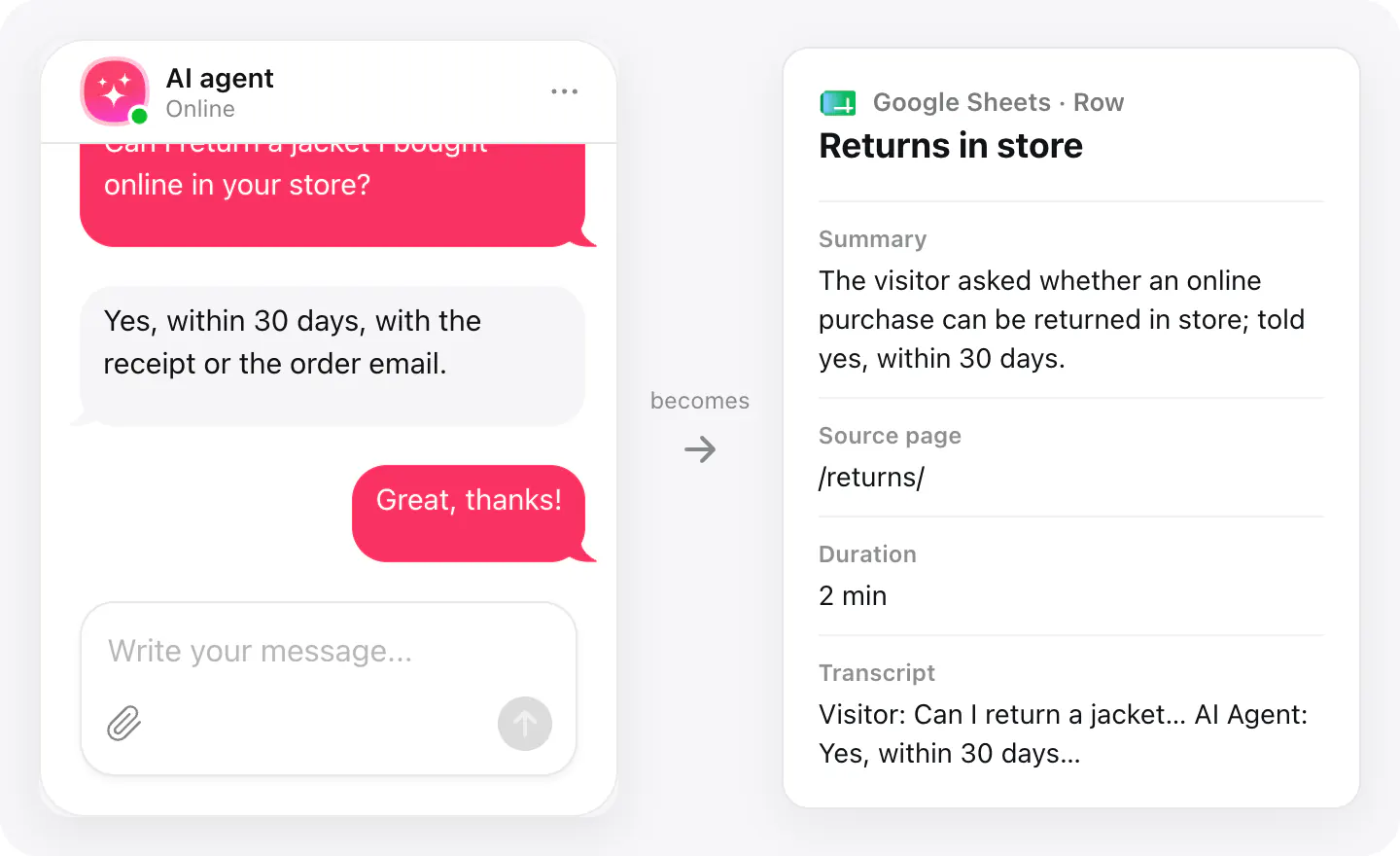
Read any chat without logging in
Each row carries an AI summary and the whole transcript, with files, ratings and the chat's forms marked inline, so anyone with the sheet can see what was said.
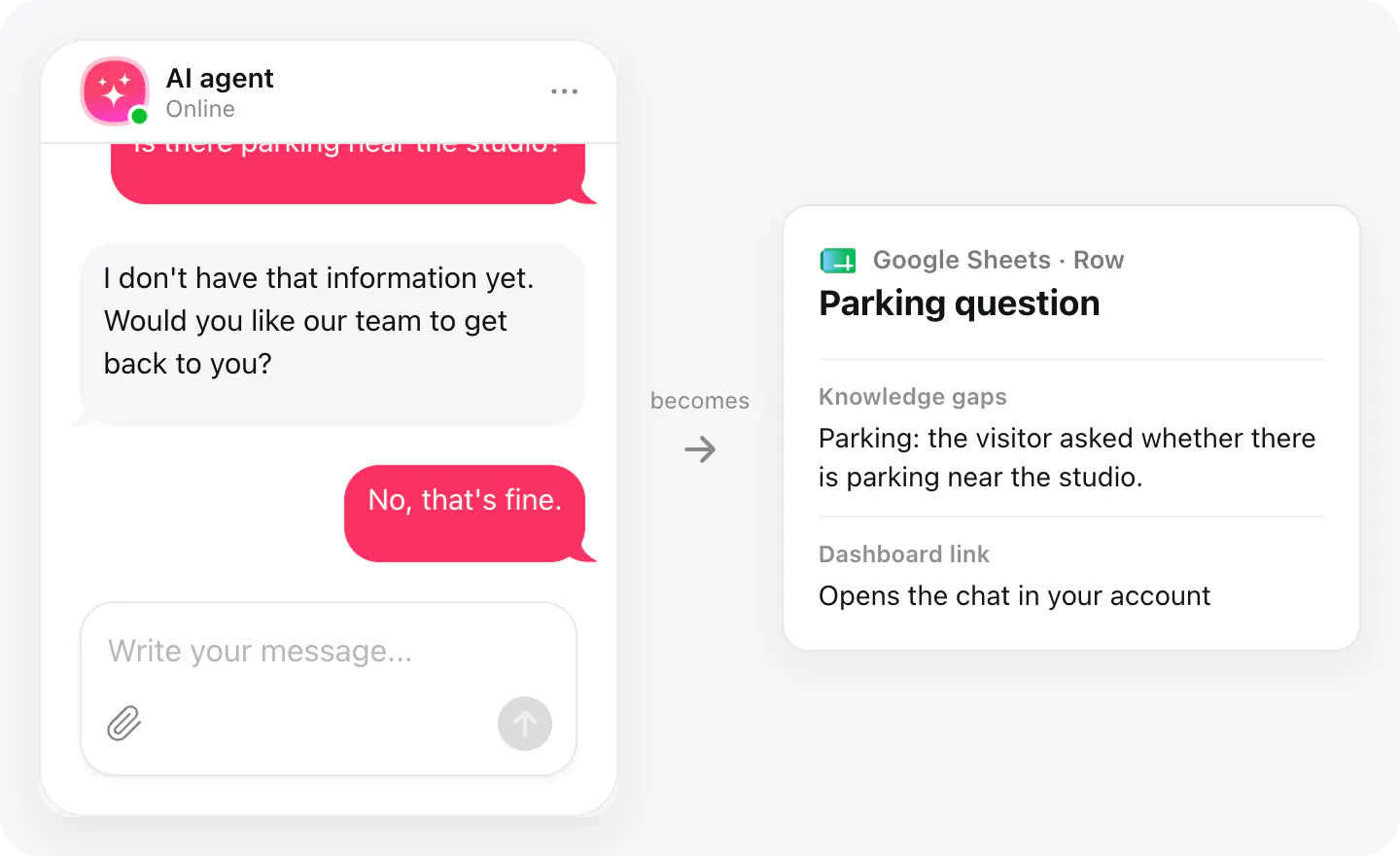
See what the chatbot couldn't answer
When the chatbot had no answer, the row lists the gap in its own column, with a link to the chat in your dashboard, so you know what to add to its knowledge.
Set up
Connect your Google account in your widget's Integrations: AI Chatbot creates the spreadsheet in your Drive and starts filling it.
- Open your AI Chatbot widget, go to Integrations and choose Google Sheets.
- Sign in with Google and allow access. A new spreadsheet is created in your Google Drive — named «Elfsight AI Chatbot - Conversations» unless you give it another name.
- Every chat that ends from now on adds a row; the column headers are added with the first one.
Connected apps and their status are listed in Integrations in your widget, where you can disconnect access at any time.
Requirements
- An AI Chatbot widget published on your site.
- A Google account with Google Drive.
What gets sent
What the integration passes on.
When the chat started, in your chatbot's time zone
How long it lasted
The page the chat started on
Chat topic
AI summary of the conversation
The full transcript, with files, ratings and forms marked
The visitor's name, email and phone, when they left them
Questions the chatbot couldn't answer
A link to the chat in your dashboard
If nothing arrives
- Wait for the chat to end. A row is added when the chat ends — the visitor closes it, or the session times out after the inactivity period set in your widget — not while it is going on.
- Keep the first tab first. Rows go to the first tab of the spreadsheet. If you added a tab in front of it, move the chatbot's tab back.
- Check Google's access. If you removed Elfsight's access in your Google account settings, rows stop arriving: connect Google Sheets again from the widget.
How businesses use it
The same connection, set up for different kinds of business.
- Local & small businessA shared sheet of every enquiry stands in for a CRM until the business needs one.
- Restaurants & cafésBooking and catering requests land in one list the manager checks before each shift.
- Real estateAgents sort viewing requests by date and source page, and call back the ones with a phone.