
Overview
AI Chatbot answers visitors on your website. This Slack app posts a message to your team when that conversation ends, so a hot lead or an unhappy customer doesn't wait until someone opens the dashboard.
It does not chat with people inside Slack, and it does not read your workspace. It only posts to the one channel you choose.
What you see in Slack
Each finished chat is one message, posted as soon as the chat ends, with its labels in your chatbot's language. Nothing goes to #general unless you pick that channel, and the message does not use @channel or @everyone. It shows:
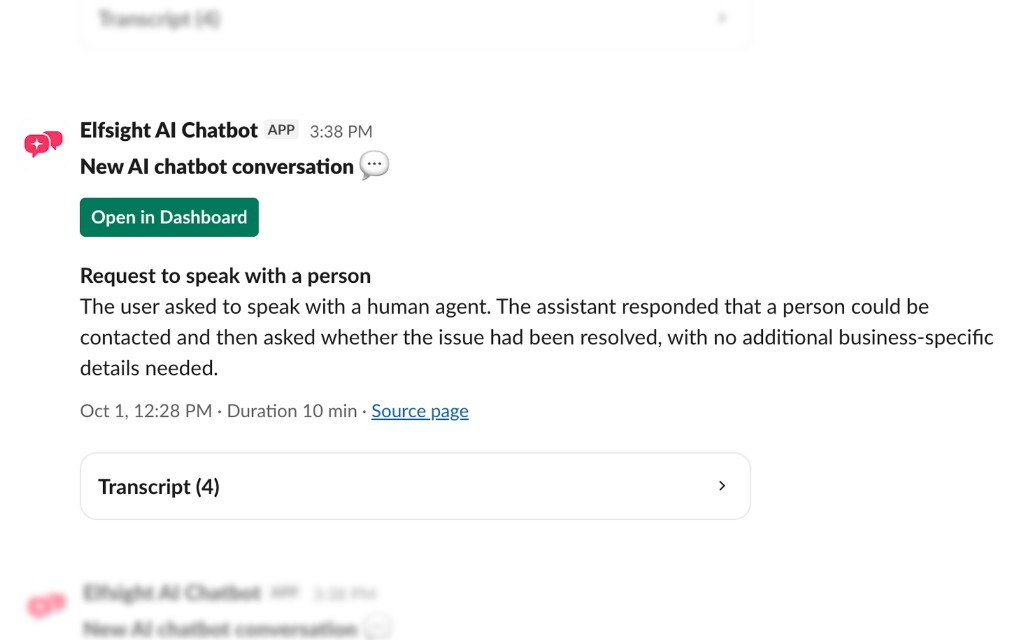
- A short summary of the conversation.
- The visitor's name, email, or phone, when they left them.
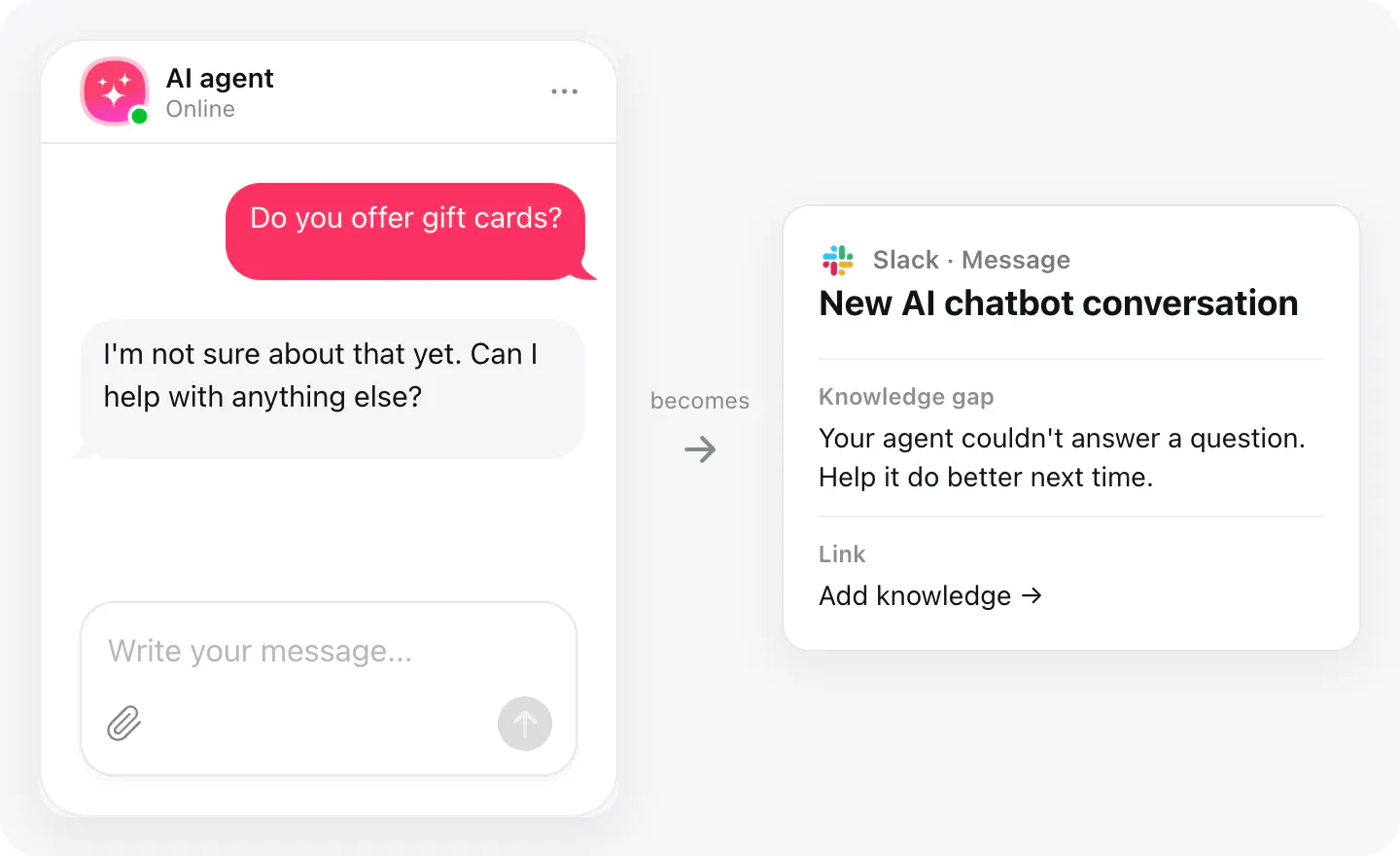
- A link to add the missing answer, when the chatbot could not answer something.
- How many messages were in the chat, and how long it lasted.
- A link to the page the chat happened on. A chat started in the widget preview links to that chatbot in your account.
- An Open in Dashboard button that opens the conversation in your account.
- The transcript, folded until you open it.
What you can do
These are the jobs the integration is built for.
Call a lead back while they're still warm
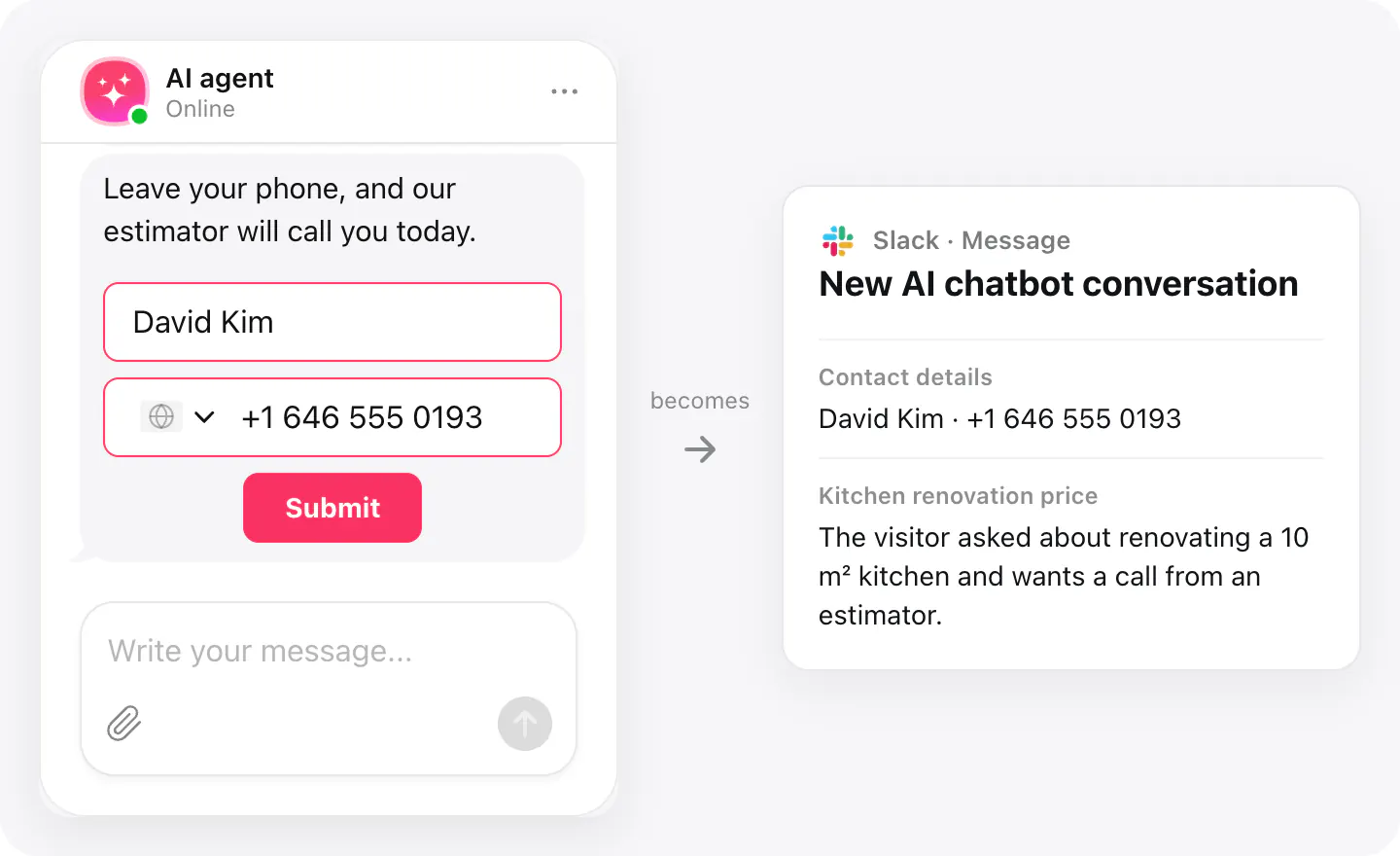
The visitor's email and phone come as links: one tap opens your mail app or dials the number, straight from the message.
Know what happened without opening the chat
The topic and an AI summary come first; the whole conversation is folded underneath, and Open in Dashboard takes you to it in your account.
Spot what the chatbot doesn't know
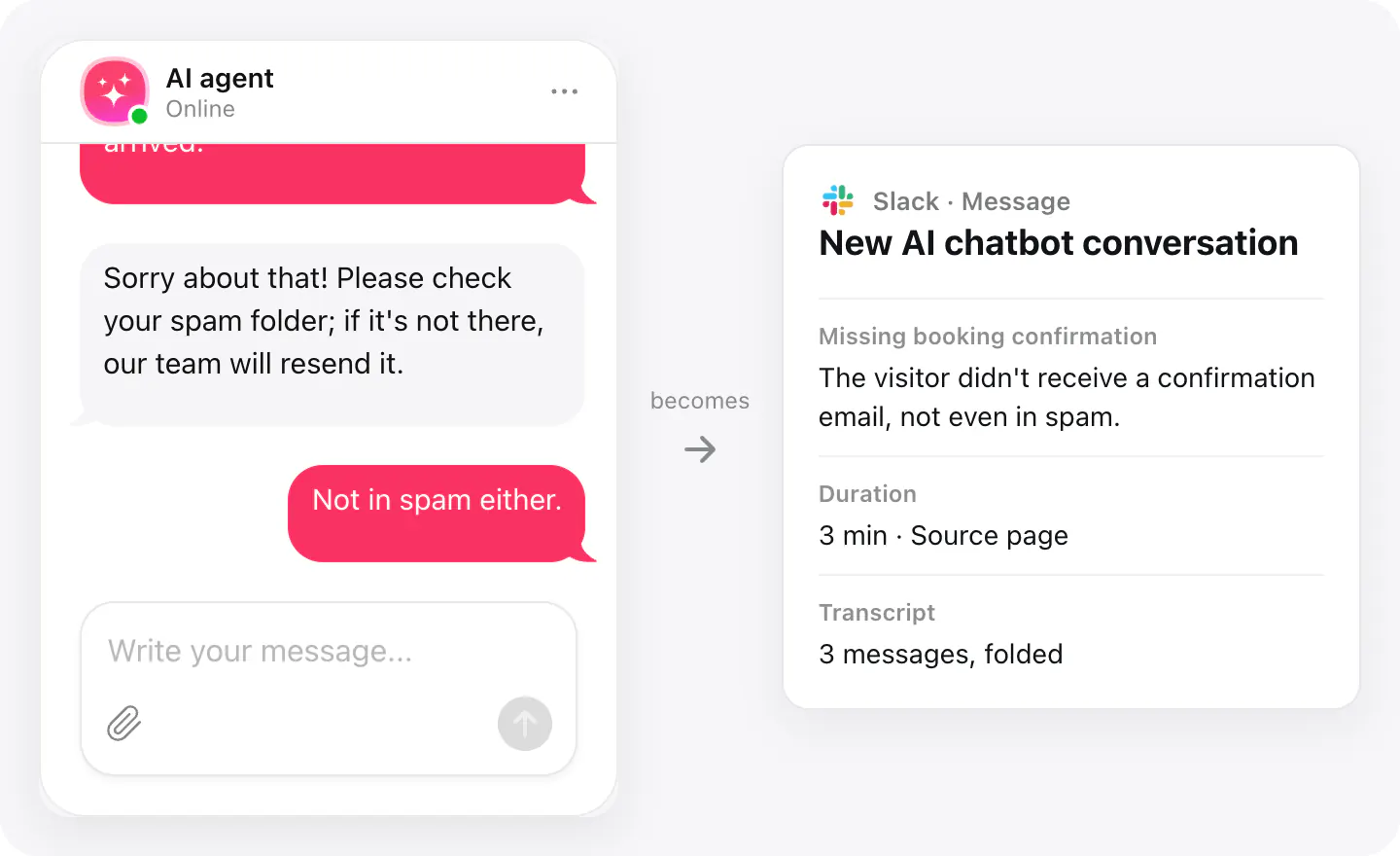
When the chatbot couldn't answer something, the message says so and links to the place in your account where you add the answer.
Set up
Slack's install screen opens from the widget, so the app knows which chatbot to post from.
- Create an AI Chatbot and publish the widget on your site.
- In the widget, open Integrations and choose Slack.
- Click Connect to Slack. In Slack's window, allow the app and pick the channel for messages. That approval is Add to Slack.
- The window closes and the widget shows the workspace and channel. Finished chats post there. Turn it off or disconnect from the same screen.
Connected apps and their status are listed in Integrations in your widget, where you can disconnect access at any time.
Requirements
- An AI Chatbot widget published on your site.
- A Slack workspace where you can add apps and post to the channel you choose.
Privacy
Privacy policy explains what data is collected, how it is used and stored, and how to request access or deletion.
What gets sent
What the integration passes on.
Chat topic and an AI summary
The visitor's name, email and phone, when they left them
When the chat started and how long it lasted
A link to the page the chat started on
A note and a link when the chatbot couldn't answer
An Open in Dashboard button
The full transcript, folded
If nothing arrives
- Wait for the chat to end. A message is posted when the chat ends — the visitor closes it, or the session times out after the inactivity period set in your widget.
- Check the channel. If the channel was archived or the app removed from it, connect Slack again from the widget and pick a channel.
- Check that it's turned on. In the widget's Integrations, Slack must be connected and on; each chatbot posts to one channel.
How businesses use it
The same connection, set up for different kinds of business.
- Hotels & rentalsThe front office gets every booking question in one channel, with the guest's contacts.
- Car dealershipsTest-drive and trade-in requests reach the sales team with the visitor's phone one tap away.