
Overview
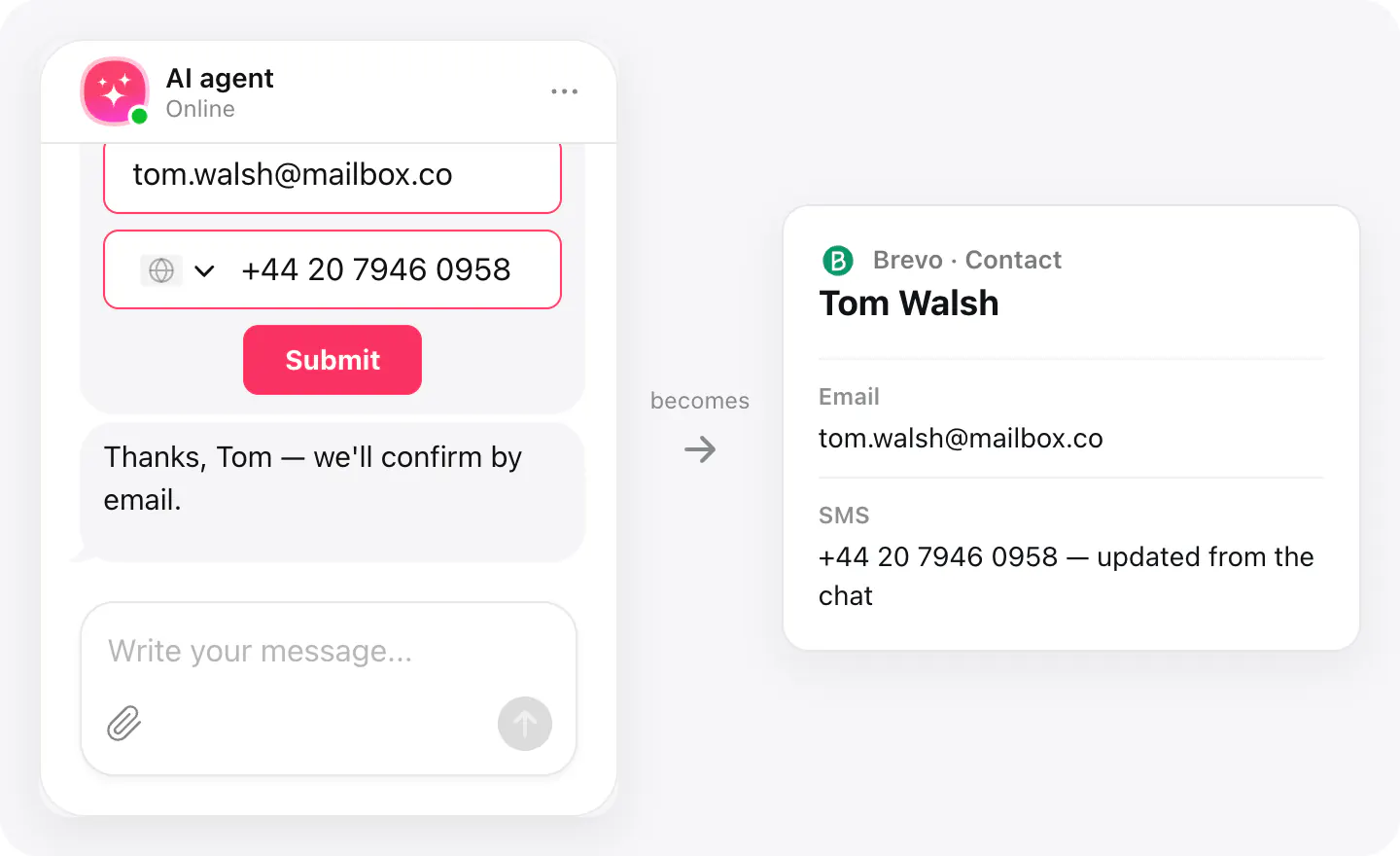
No exports, no CSV imports: with Brevo connected, each visitor who leaves their email in the chat becomes a Brevo contact right away, with their first and last name and their phone in the SMS field.
A visitor who is already in Brevo is matched by email, and their contact is updated, not duplicated. Contacts aren't added to lists or campaigns — where they go next is yours to decide, under your own consent rules.
What you can do
These are the jobs the integration is built for.
Collect contacts
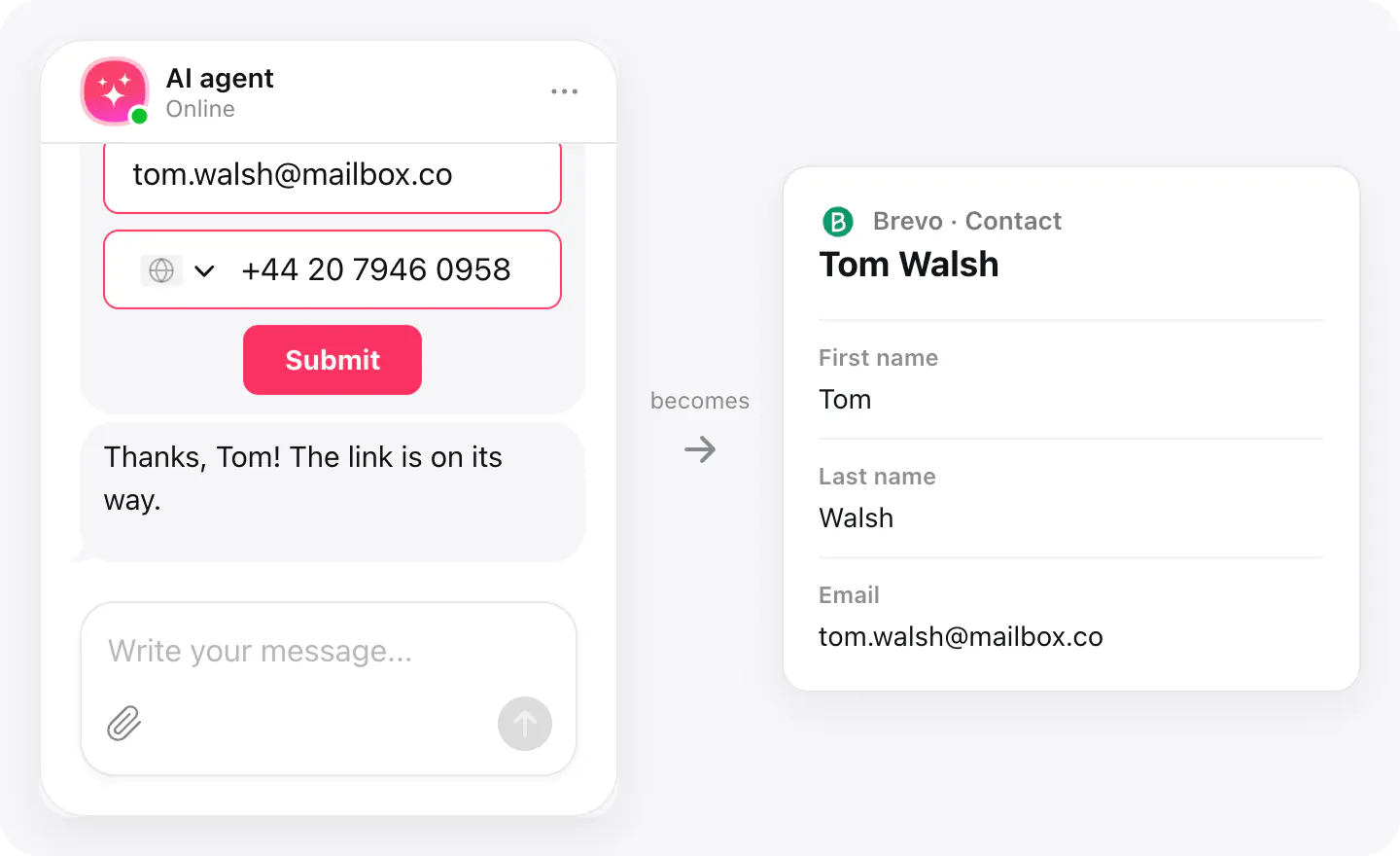
When a visitor sends their details with an email in the chat, a Brevo contact appears with their first name, last name and phone.
Phone saved for SMS
The visitor's phone goes into Brevo's SMS field when it includes the country code; otherwise the contact is saved without it.
No duplicate contacts
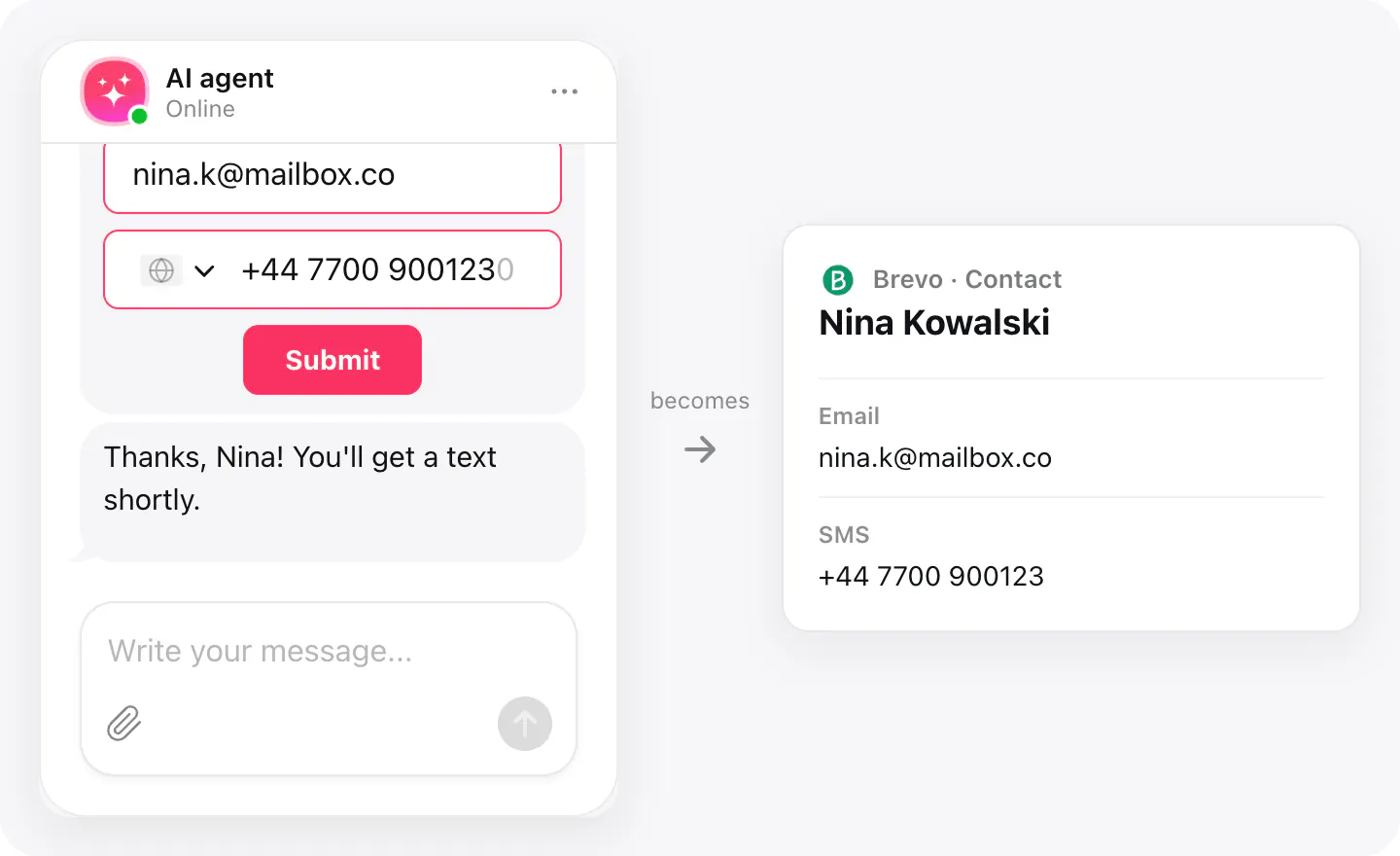
A visitor who is already in Brevo is matched by email, and their contact is updated with the name and phone from the chat.
Set up
Connect Brevo in your widget's Integrations with an API key; from then on, every contact the chat collects with an email goes there.
- In Brevo, create an API key. If you limit its permissions, give it Contacts: All and Account: Read.
- Open your AI Chatbot widget, go to Integrations, choose Brevo and paste the key.
- In Agent skills, turn on Collect contacts and make sure the form asks for an email.
Connected apps and their status are listed in Integrations in your widget, where you can disconnect access at any time.
Requirements
- An AI Chatbot widget published on your site.
- A Brevo account and an API key.
What gets sent
What the integration passes on.
Email (required — a contact without one isn't sent)
First name (FIRSTNAME)
Last name (LASTNAME)
Phone, in the SMS field, when it includes the country code
If nothing arrives
- Check the email. Only visitors who leave an email are sent to Brevo; a phone number alone isn't enough.
- Check the key's permissions. A key with limited permissions needs Contacts set to All and Account set to Read.
- Check Authorised IPs. If Authorised IPs is turned on in your Brevo account, it can block the connection: turn it off while you connect, or ask Elfsight support which addresses to allow.
How businesses use it
The same connection, set up for different kinds of business.
- Hotels & rentalsGuests asking about rooms and dates become contacts for booking links and seasonal offers.
- Online storesShoppers who ask about orders and products join your contacts for newsletters and promotions.