

Overview
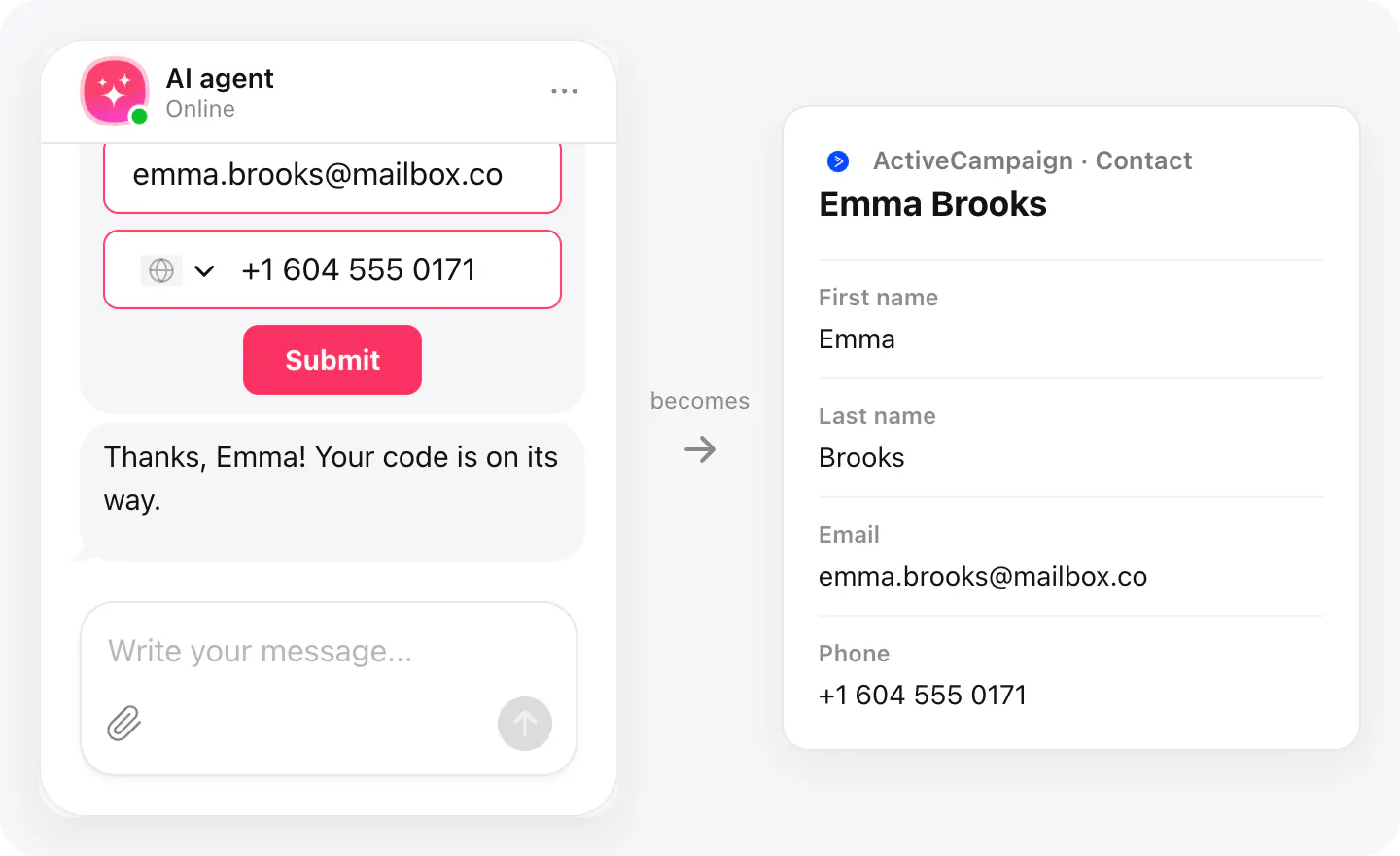
Visitors who give their email in a chat are some of your warmest contacts. With ActiveCampaign connected, each one becomes an ActiveCampaign contact the moment they send their details — first and last name, email and phone.
Add a tag when you connect, and every contact from the chat gets it, so you can find them in a segment or use the tag in your automations. A visitor who is already in your account is matched by email: their contact is updated with the details from the chat, not duplicated.
What you can do
These are the jobs the integration is built for.
Collect contacts
When a visitor sends their details with an email in the chat, they appear in ActiveCampaign as a contact with their first and last name, email and phone.
Tag every chat contact
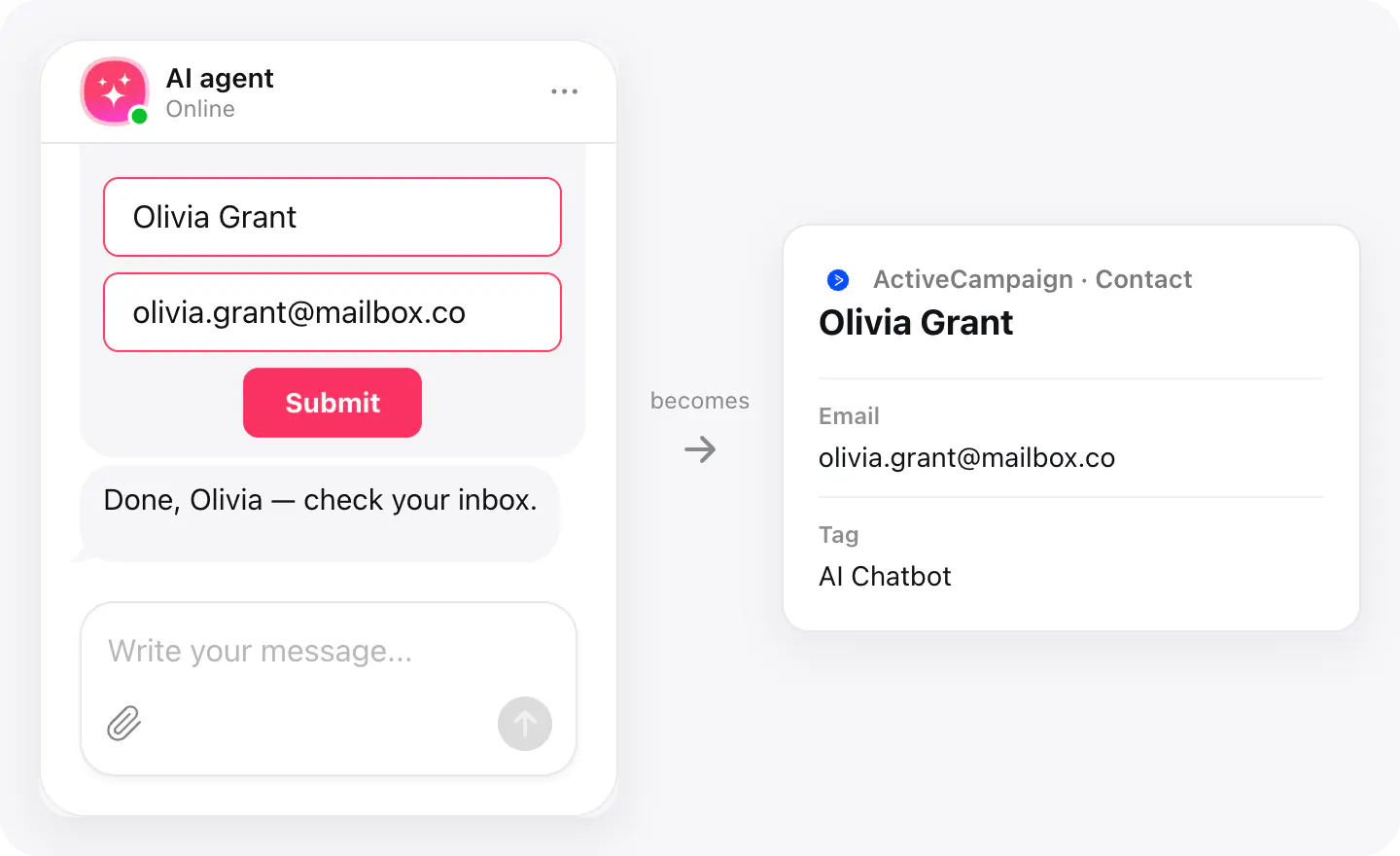
Choose a tag when you connect — say «AI Chatbot» — and every contact from the chat gets it. If the tag doesn't exist yet, it's created.
No duplicate contacts
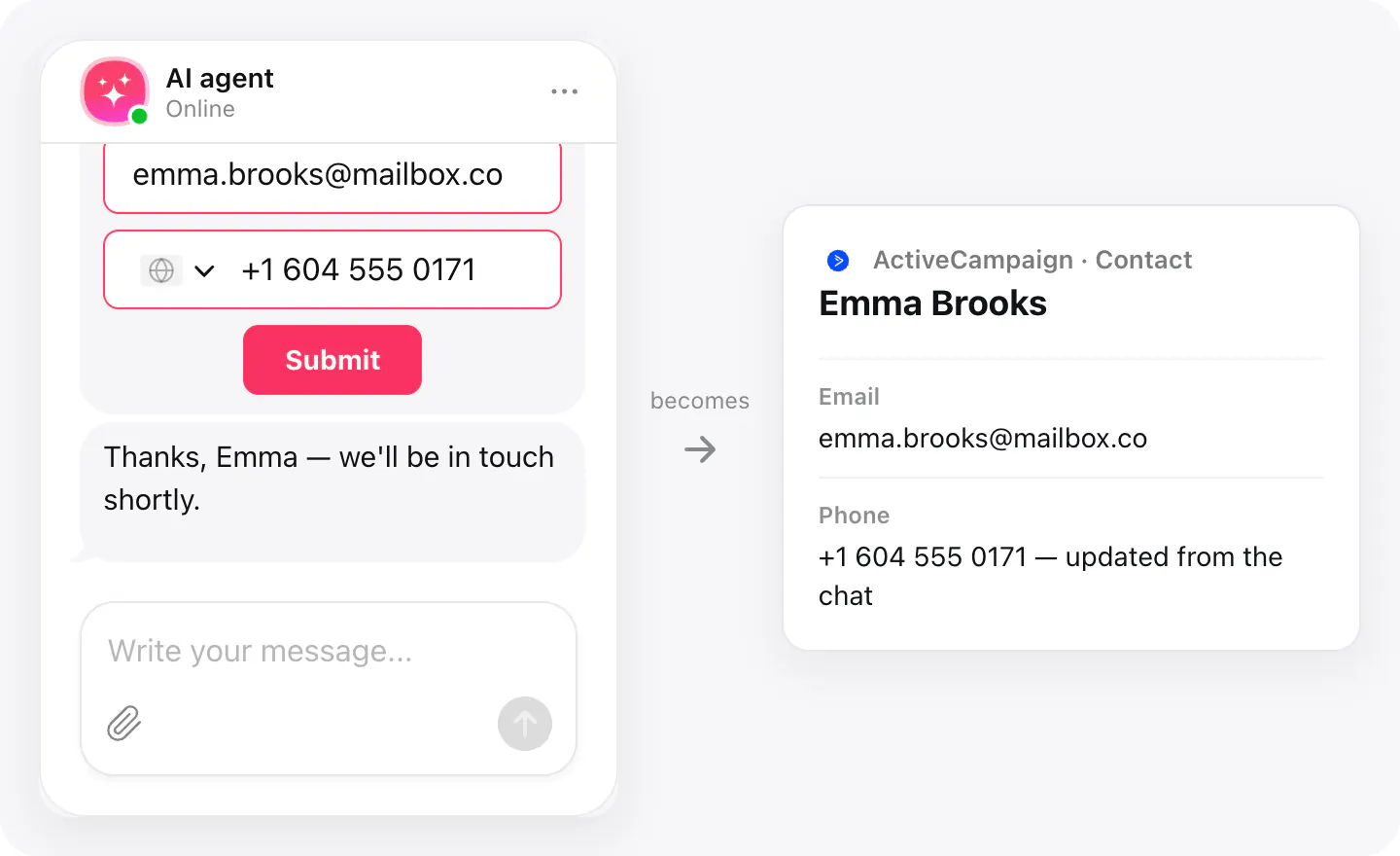
A visitor who is already in ActiveCampaign is matched by email, and their contact is updated with the name and phone from the chat.
Set up
Connect ActiveCampaign in your widget's Integrations with your API URL and key; from then on, every contact the chat collects with an email goes there.
- In ActiveCampaign, open Settings → Developer and copy your API URL and key.
- Open your AI Chatbot widget, go to Integrations, choose ActiveCampaign, paste the URL and key and, if you like, a tag for chat contacts.
- In Agent skills, turn on Collect contacts and make sure the form asks for an email.
Connected apps and their status are listed in Integrations in your widget, where you can disconnect access at any time.
Requirements
- An AI Chatbot widget published on your site.
- An ActiveCampaign account, with its API URL and key.
What gets sent
What the integration passes on.
Email (required — a contact without one isn't sent)
First name
Last name
Phone
Your tag, if you set one
If nothing arrives
- Check the email. Only visitors who leave an email are sent to ActiveCampaign; a phone number alone isn't enough.
- Check the API URL and key. The URL looks like https://yourname.api-us1.com. If the key was changed in ActiveCampaign, connect again with the new one.
- Check the tag. A tag is up to 250 characters, with no commas, line breaks, HTML or emoji.
How businesses use it
The same connection, set up for different kinds of business.
- Online storesShoppers who ask about shipping or sizes join your contacts, tagged, ready for your welcome emails.
- Gyms & fitnessPeople asking about classes and memberships become contacts you can send the schedule and offers to.
- Salons & spasClients asking about treatments become contacts for your reminders and seasonal offers.