
WordPress Instagram Feed plugin

Create your Instagram Feed plugin
Screenshots




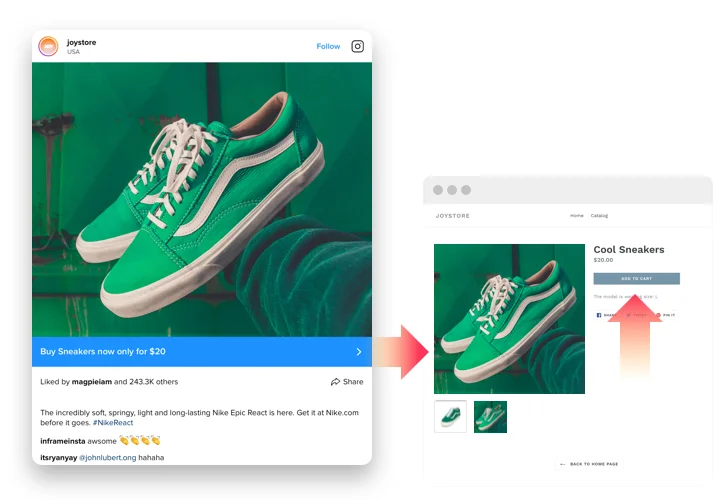


Instagram Feed Integration for WordPress
Looking to showcase vibrant social media content on your website? The Instagram Feed plugin makes it simple. Designed for seamless integration with WordPress, this plugin will bring your site to life. Effortlessly share posts, profiles, or feeds by user or hashtag – no coding required. With powerful features and advanced customization options, you can easily tailor the plugin to match your website’s unique style.
Increase your social proof and boost engagement with WordPress Instagram Feed plugin by Elfsight!
Instagram Feed Plugin Features
- Filters and moderation. Control your feed by including or excluding specific hashtags and users. This feature allows you to manage both the content and visual appeal of your Instagram collection.
- Advanced design and customization. Easily modify layouts, switch color schemes, and use custom colors. Plus, enable or disable various elements to suit your preferences.
- CTA buttons for posts. Add customizable call-to-action buttons to each post in your feed, linking to product pages, blogs, or other media.
- Responsive design. The WordPress Instagram Feed plugin adapts perfectly to any device, ensuring flawless display and functionality across all screen sizes.
- Real-time updates. Enjoy automatic content updates without needing to refresh the page, ensuring your feed is always up-to-date and engaging.
How to Embed Instagram Feed to WordPress
Here’s a simple way to set up the plugin on your WordPress website. It takes just a few minutes and requires no coding:
- Create your custom Instagram Feed plugin
Start with any template in the editor, connect your Instagram profile or desired hashtags, and customize the plugin to your preferred style and settings. - Receive the personal code to embed the plugin
Once you’ve built your plugin, you’ll receive a unique HTML code. Copy this code, it includes all your settings. - Display the plugin on your WordPress website
Choose the sections of your website where you want to display the plugin, and paste the code there. Save your changes.
That’s it! Now, you can see how the plugin performs on your website.
If you still have any questions about adding the plugin to your website, check out our article onhow to embed an Instagram feed plugin to WordPress.