

Overview
If your team already automates with Pabbly Connect, the chatbot fits into the same workflows. Each chat that ends reaches your workflow with everything from it — the visitor's name, email and phone, the topic, an AI summary, the page and the full transcript.
The connection is one webhook address: start a workflow with Pabbly's Webhook trigger, paste its URL into your widget, and map the fields into any app Pabbly Connect reaches.
What you can do
These are the jobs the integration is built for.
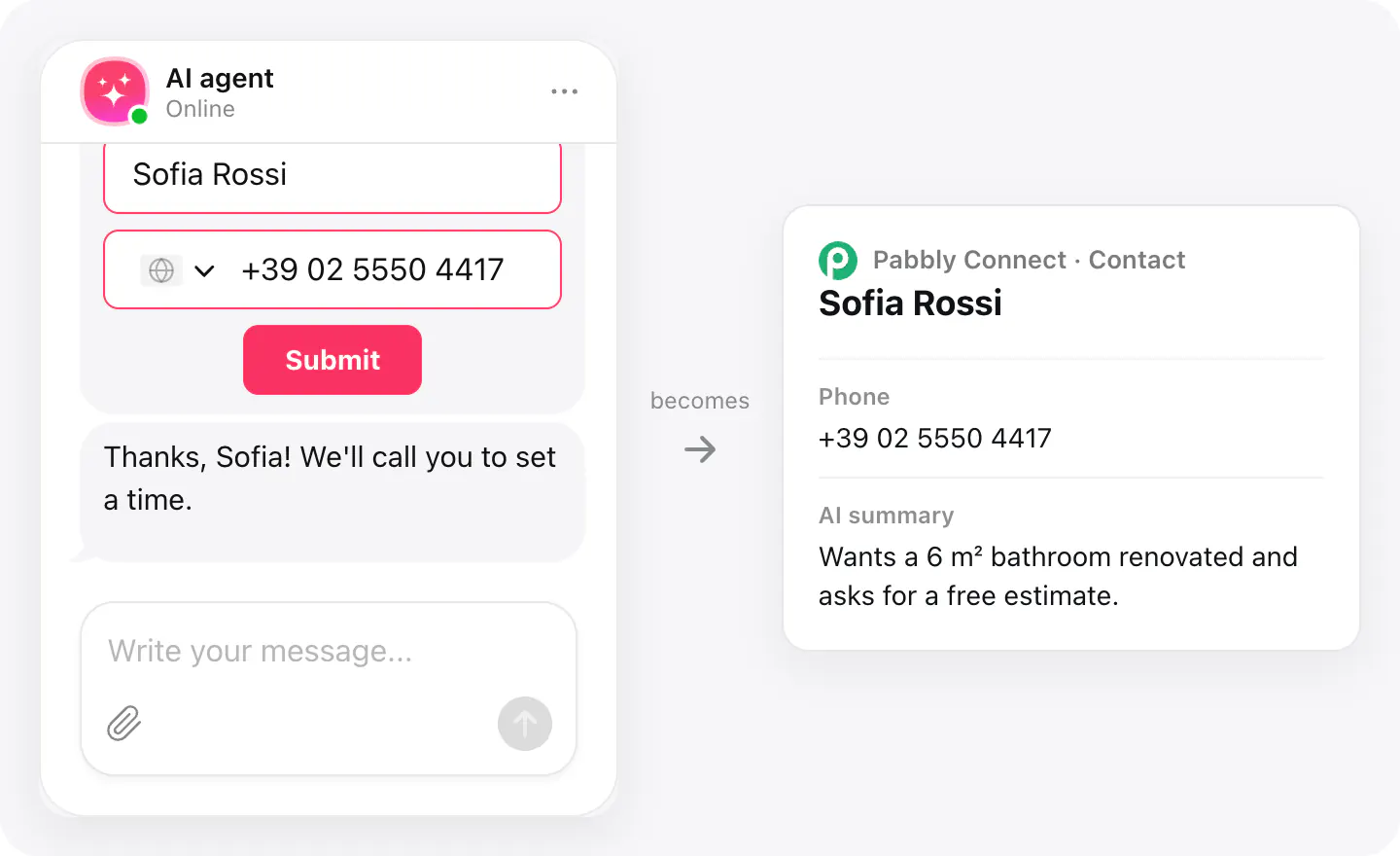
Add leads to your CRM
A visitor who leaves their details becomes a contact in your CRM, with the topic of the chat and an AI summary.
Alert your team right away
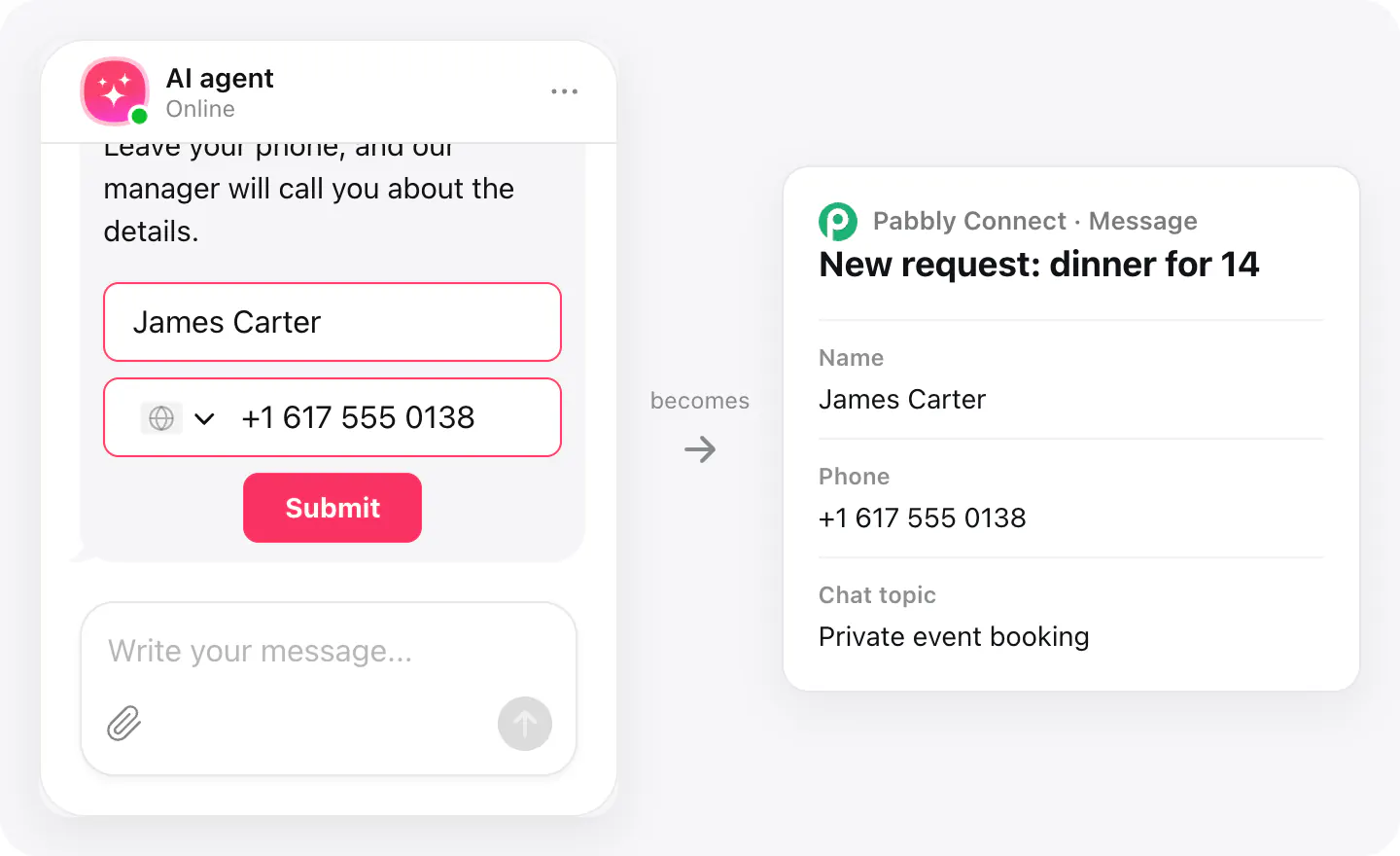
Send the manager a message when a chat ends, with the visitor's phone and what they asked for.
Track questions the agent missed
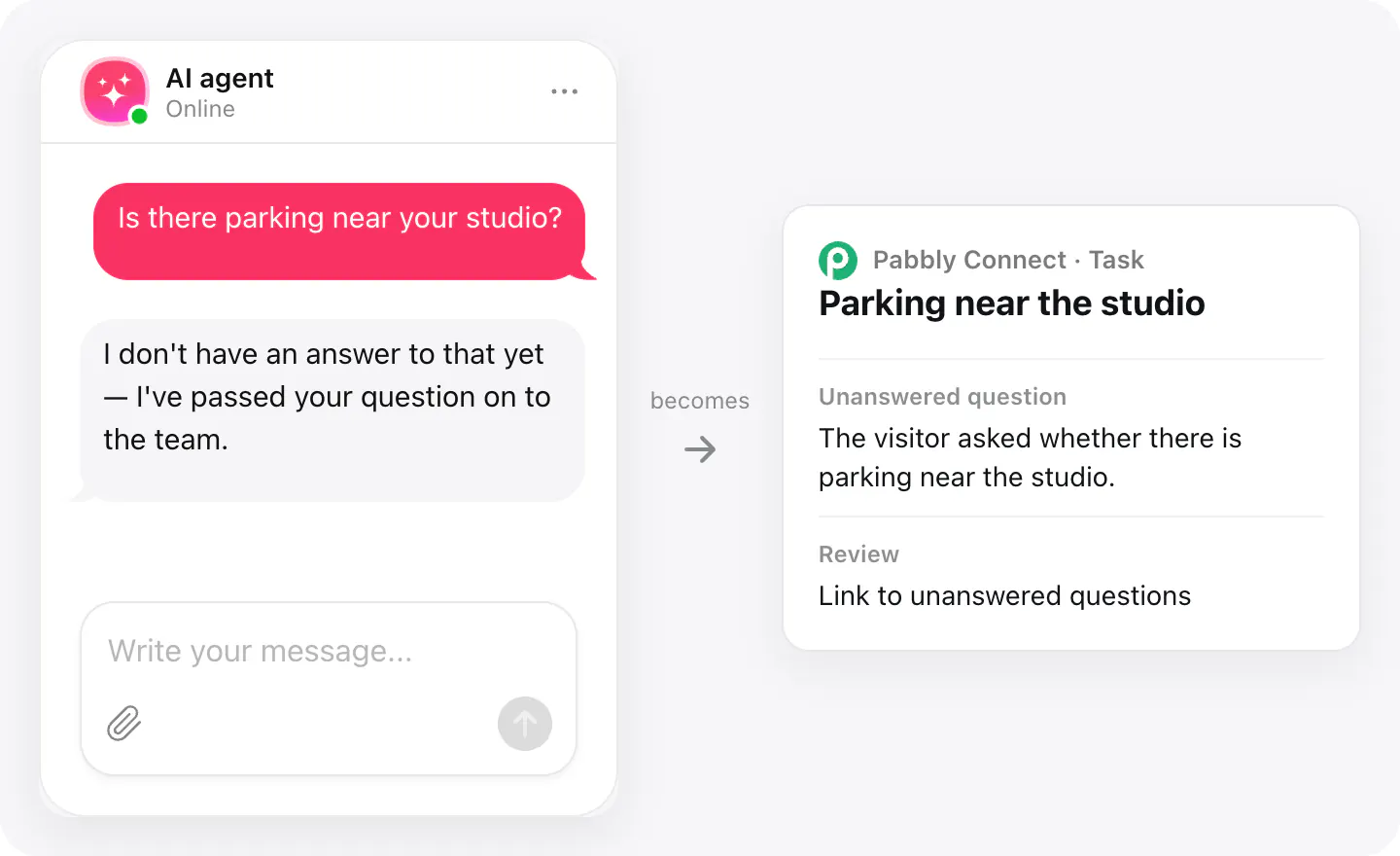
Each chat brings the questions the agent couldn't answer. Add them to a task list, so someone writes the answer.
Set up
The connection starts in Pabbly Connect, then finishes in your AI Chatbot widget. Chat data goes out when a conversation ends.
- In Pabbly Connect, create a workflow with a Webhook trigger and copy the webhook URL.
- Open your AI Chatbot widget, go to Integrations, choose Pabbly and paste the webhook URL.
- Finish a test chat on your site, then map its fields in the workflow's next steps.
Connected apps and their status are listed in Integrations in your widget, where you can disconnect access at any time.
Requirements
- An AI Chatbot widget published on your site.
- A Pabbly Connect account.
What gets sent
What the integration passes on.
Name, email and phone, if the visitor left them
The visitor's consent, if you ask for it: the text and when it was given
Chat topic and an AI summary of the conversation
The page the chat started on
When the chat started and how long it lasted
The full transcript: who said what and when, with files the visitor attached
Questions the agent couldn't answer in this chat
Links to the chat and to unanswered questions in your dashboard
If nothing arrives
- Check the webhook URL. Paste the full https:// address from the workflow's Webhook trigger; a new workflow has a new URL.
- Check that the workflow is on. While the workflow is off, Pabbly Connect doesn't take chats in. Turn it back on in Pabbly.
- Wait for the chat to end. A chat is sent when it ends: the visitor ends it, or nobody writes for a while (10 minutes by default).
How businesses use it
The same connection, set up for different kinds of business.
- Restaurants & cafésTable and event requests reach the manager's phone as a message, with the guest's number.
- Gyms & fitnessMembership questions turn into leads for the sales team, and missed questions into tasks.
- Local & small businessLeads and alerts run through the workflows the business already has in Pabbly Connect.