Overview
Not every chat deserves the same next step. With Make connected, each chat that ends starts your scenario with everything from it — the visitor's name, email and phone, the topic, an AI summary, the page and the full transcript — and you lay out on Make's canvas what happens next.
Send leads who left a phone to sales, complaints to your helpdesk and everything else to a log, all in one scenario. Make's filters and routes work on any field AI Chatbot sends, so the rules are yours.
What you can do
These are the jobs the integration is built for.
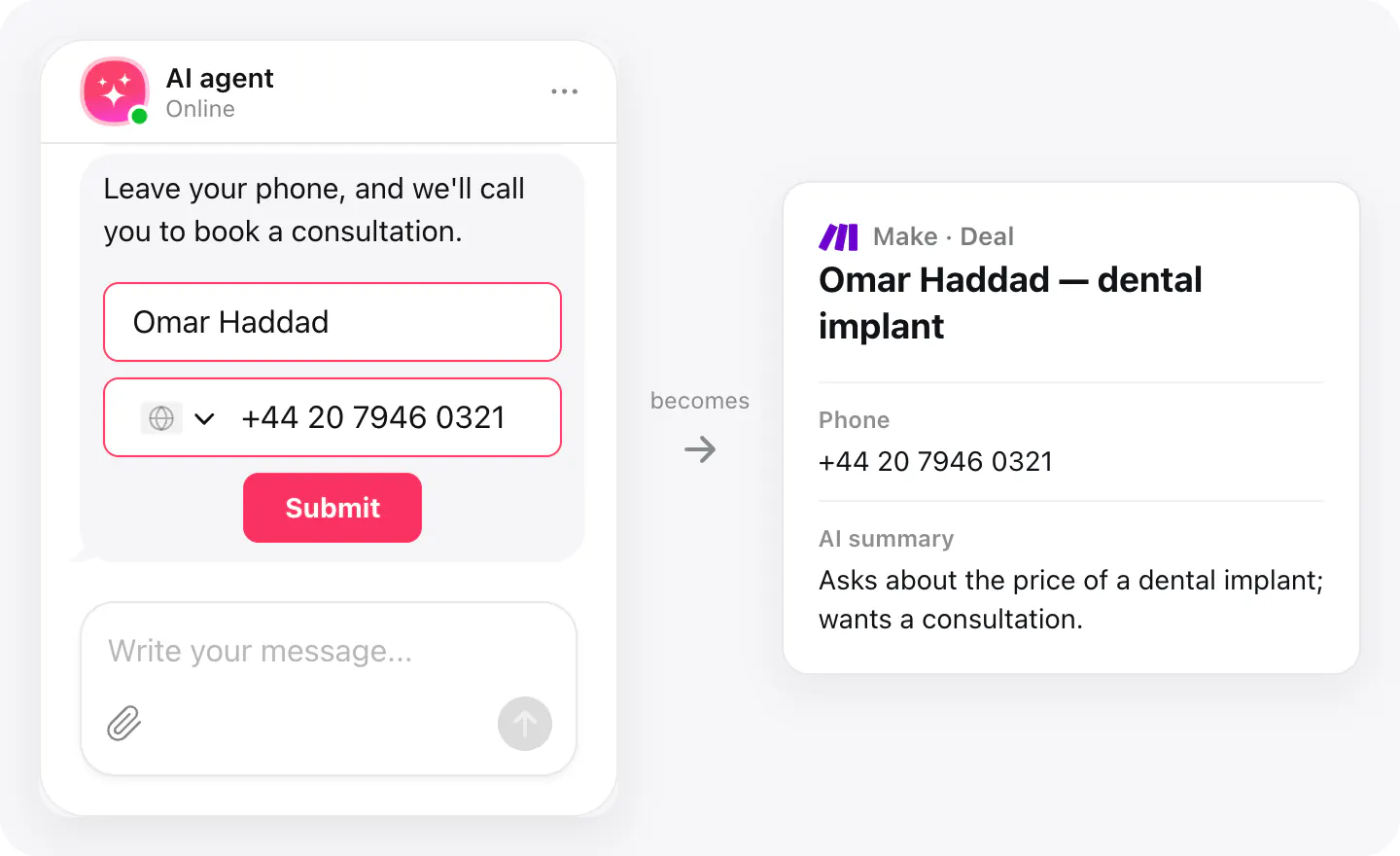
Send ready leads to sales
Filter for chats where the visitor left a phone, and only those become deals in your CRM — with the AI summary, so the call starts with context.
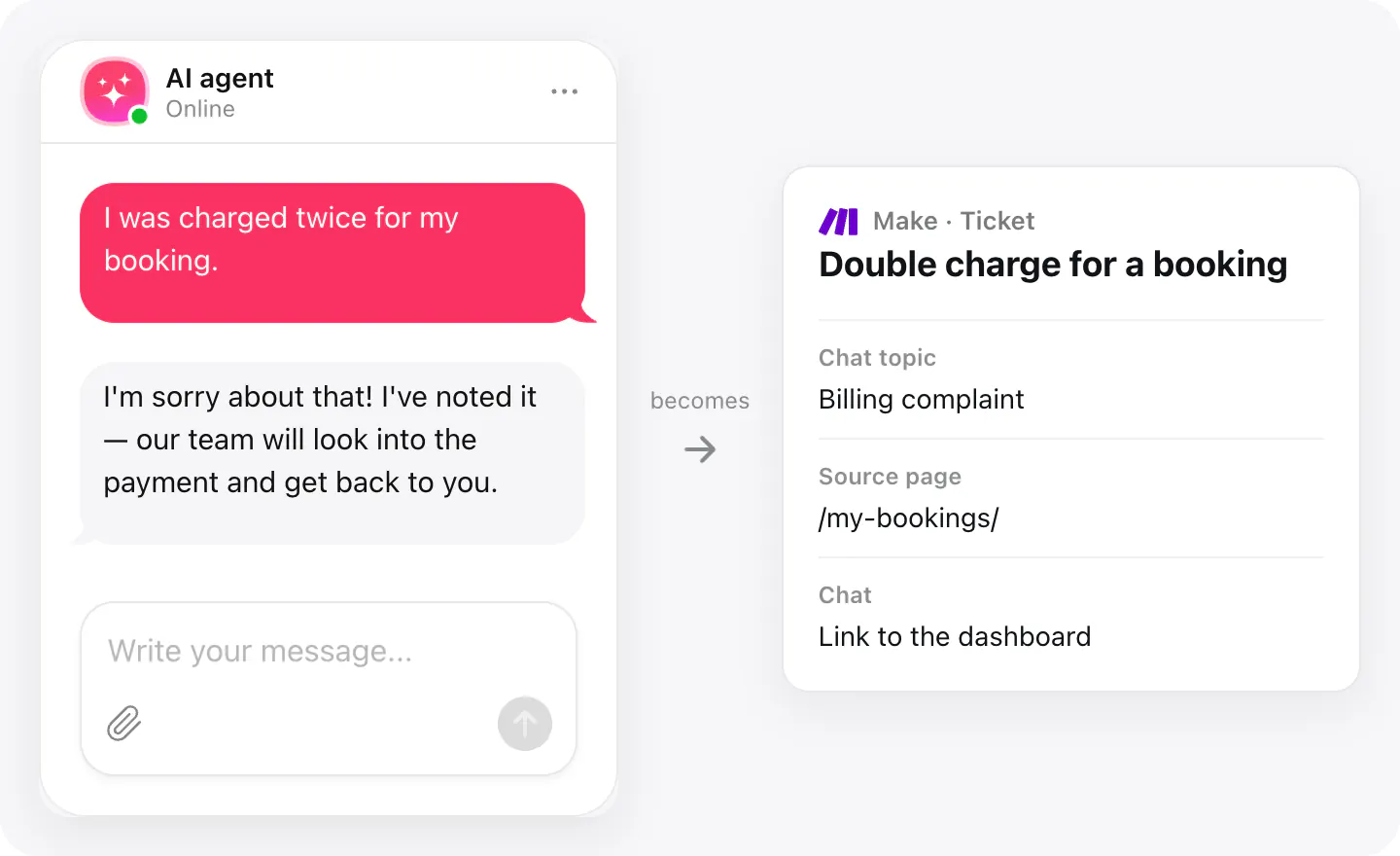
Branch complaints to support
Route a chat by its topic: a complaint becomes a ticket in your helpdesk with the page it came from and a link to the conversation.
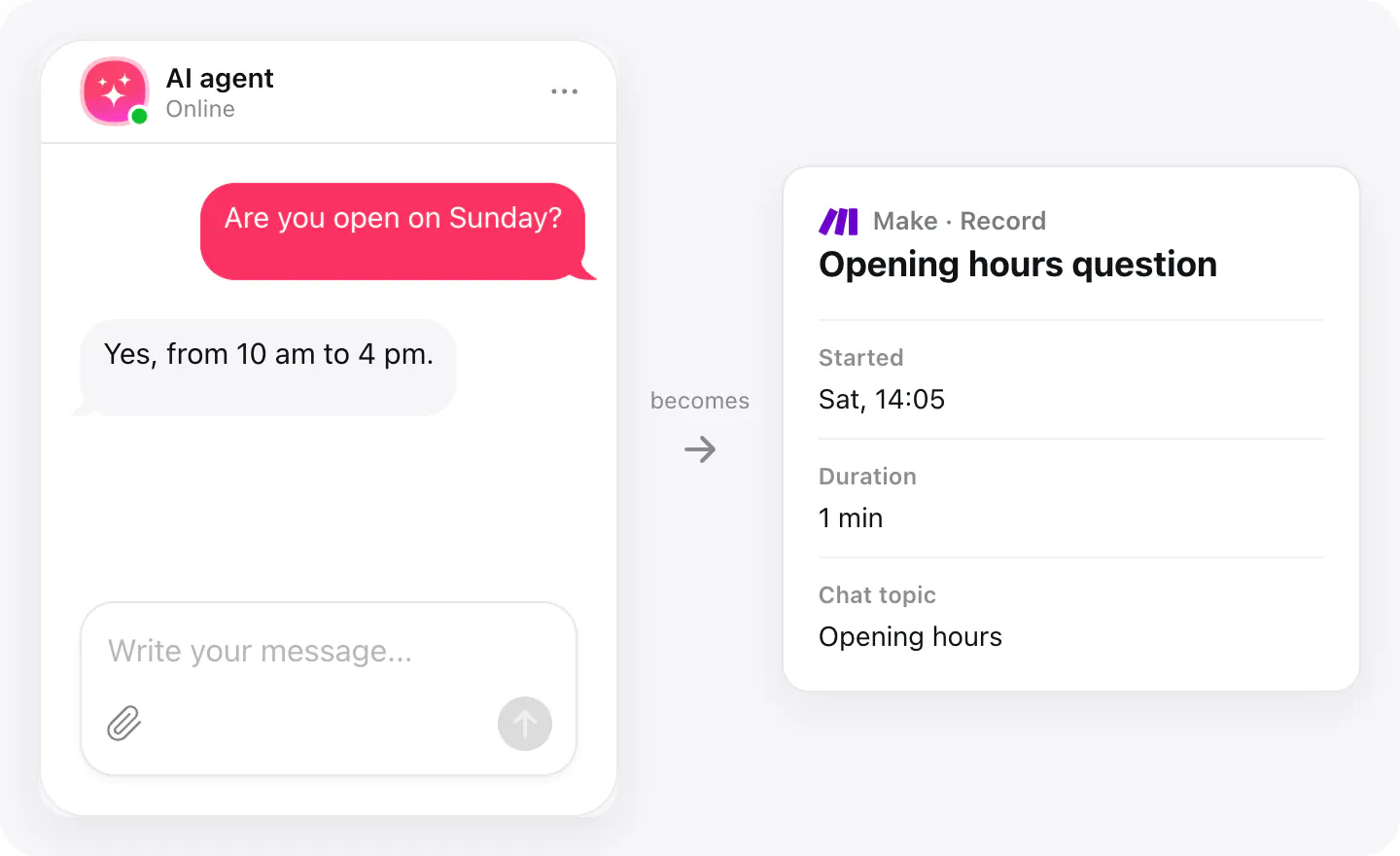
Keep a log of every chat
Add each finished chat to a table — when it started, how long it lasted, what it was about — to see what visitors ask week by week.
Set up
The connection starts in your AI Chatbot widget, which gives you a key, and finishes in Make. Chat data goes out when a conversation ends.
- Open your AI Chatbot widget, go to Integrations, choose Make and connect it.
- Copy the key it shows — you can come back to Integrations for it later.
- In Make, start a scenario with the Elfsight AI Chatbot trigger, paste the key when you add the connection, then build the routes that follow.
Connected apps and their status are listed in Integrations in your widget, where you can disconnect access at any time.
Requirements
- An AI Chatbot widget published on your site.
- A Make account with the apps you want to connect.
What gets sent
What the integration passes on.
Name, email and phone, if the visitor left them
The visitor's consent, if you ask for it: the text and when it was given
Chat topic and an AI summary of the conversation
The page the chat started on
When the chat started and how long it lasted
The full transcript: who said what and when, with files the visitor attached
Questions the agent couldn't answer in this chat
Links to the chat and to unanswered questions in your dashboard
If nothing arrives
- Wait for the chat to end. A chat is sent when it ends: the visitor ends it, or nobody writes for a while (10 minutes by default). A chat that's still open hasn't been sent yet.
- One scenario per key. A key starts one scenario. For a second scenario, connect Make again in your widget and use the new key.
- Check that both sides are on. The scenario has to be on in Make, and the Make integration on in your widget's Integrations.
How businesses use it
The same connection, set up for different kinds of business.
- Dental clinicsVisitors who leave a phone go to the front desk's call list; price questions without one go to a log.
- Car dealershipsTest-drive requests go to sales and service questions to the workshop, from the same chat widget.
- SaaS & softwareBilling complaints become support tickets, and feature questions are logged for the product team.