
Facebook Page Instagram Feed widget

Create your Instagram Feed widget
Screenshots

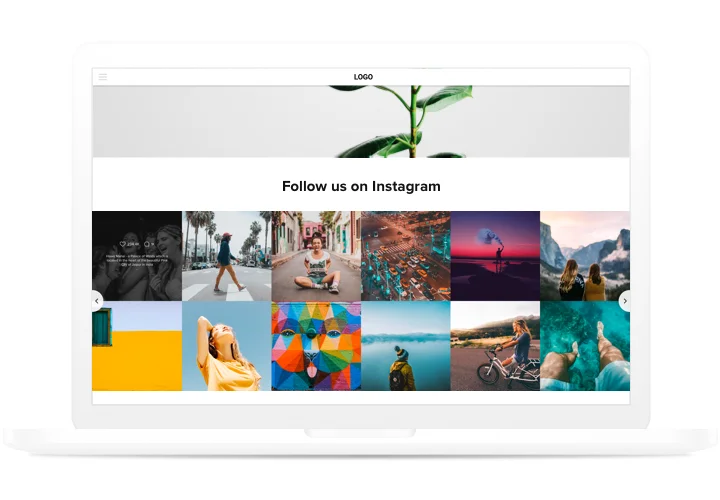
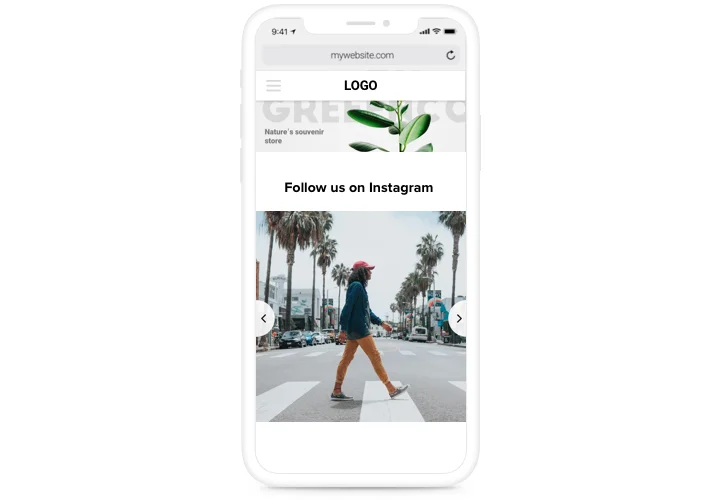
Why People Love Elfsight
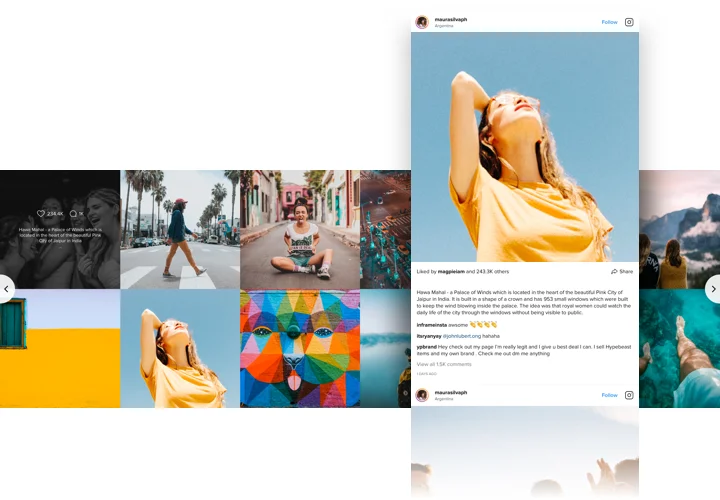
At Elfsight, we love helping businesses and creators share their stories. Our Instagram Feed widget is a simple way to collect your latest Instagram photos, reels, and hashtag collections in one place and make them easy to open from your Facebook Business Page.
This seamless integration ensures your visitors can engage directly with your Instagram content, increasing social trust and encouraging more interaction.
Did you know?
Social media posts influence around 75% of consumers when they make purchase decisions.
Connect Instagram Feed to your Facebook Business Page using Elfsight to keep your audience engaged, build trust and drive conversions.
Key Features of the Instagram Feed for Facebook Page
Here’s what makes the Elfsight widget a favorite:
- Flexible Design: Tweak colors, fonts, spacing, and layout so the feed feels perfectly on-brand.
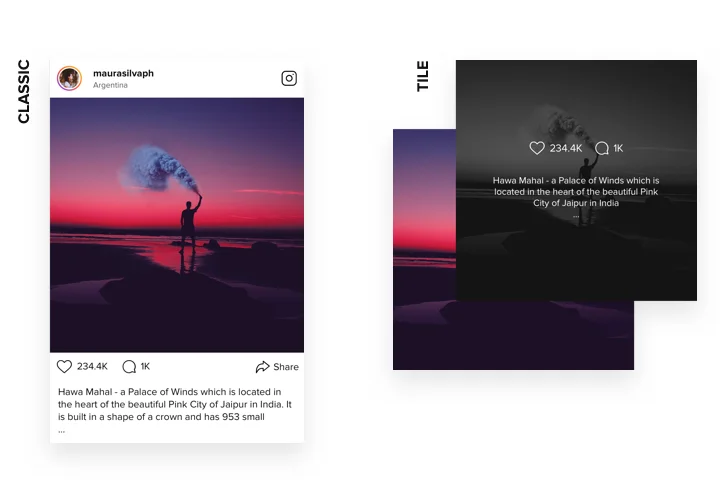
- Layout Variety: Choose from grid, slider, or masonry styles to display posts in a way that suits your page.
- Hashtag Filters: Highlight only the posts or campaigns that matter most by filtering with specific hashtags.
- Mobile-Ready: Your feed automatically adapts to phones, tablets, and desktops for a seamless look everywhere.
- Beginner-Friendly Setup: Our visual editor lets you build and customize your feed without writing a single line of code.
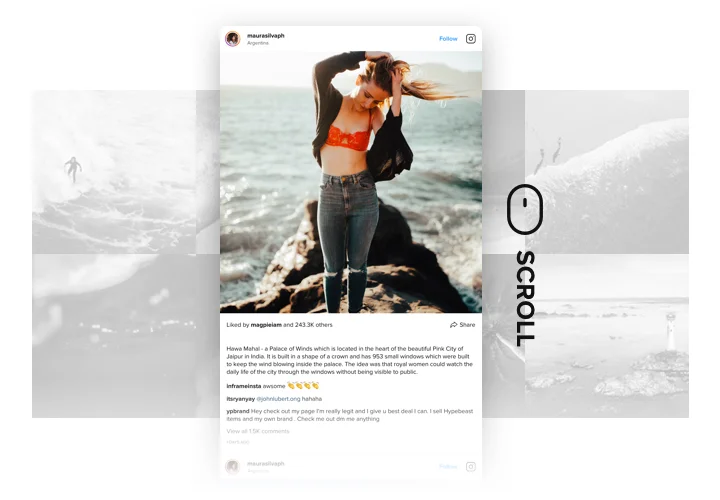
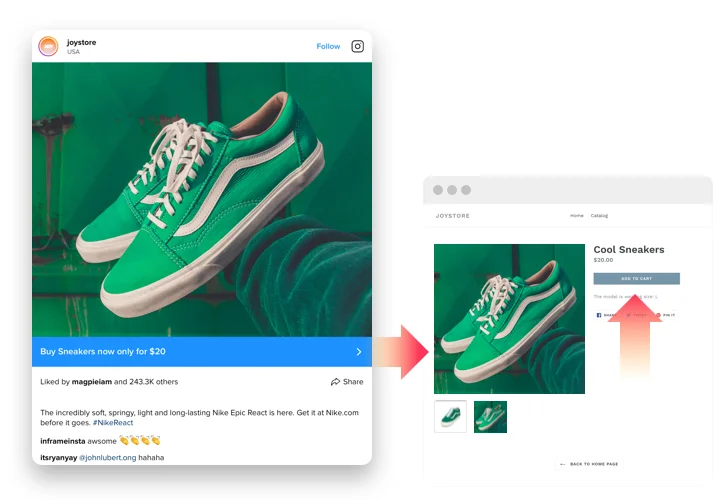
- Interactive Posts: Visitors can view your Instagram content and open posts from the feed, helping you drive more attention to your social media presence.
How to Add an Instagram Feed to Facebook Page
Getting your feed live takes just a few minutes.
- Pick a Template: Browse Elfsight’s layouts and choose the one you like.
- Customize Your Feed: Connect your Instagram account or hashtag, adjust the design, and set display options.
- Get the Share Link: In your Elfsight dashboard, open the widget installation settings, switch to the Share Link tab, and copy your widget link.
- Add It to Facebook: Open your Facebook Business Page, choose the Action Button option, select a suitable button type, and paste the copied Share Link.
- Save and Test: Save the button, open your Facebook Page, and check that it leads visitors to your Instagram Feed.
Need a hand? Our Help Center offers detailed guides, and our blog has additional tips on how to add Instagram to Facebook Page. While the Community Forum is great for tips, feature requests in the Wishlist, and the latest updates in the Changelog.