Most repeat admin in a small business can be automated – but every task has a limit on how far it should run on its own. Start with the job that eats the most time and costs the least when it goes wrong, look in the apps you already pay for, and keep a person wherever a mistake reaches a customer or moves money.
Everyone seems to be automating something these days, and it’s hard not to feel behind. Jobs that used to mean doing it yourself or hiring help – calling back missed calls, chasing invoices, booking appointments, answering the same five questions – can now run on a rule or start with an AI draft.
The first question is the same: what do other businesses actually automate, and how far can each job go before someone has to step in? We put four recent surveys next to what owners report in public discussions and turned it into a task-by-task map of small business automation: what’s worth handing off first, how far each job can safely go (and where a person still has to look), which kind of tool fits each job, and what it will cost you.
- Start with the busiest job whose mistakes are cheap to fix – usually missed calls, reminders or first drafts.
- Look in the apps you already pay for first – many include the automation step at no extra cost.
- Split each task: the routine version can run on its own, the one with money or complaints stays with you.
- Check what the automation did, not whether it ran – the worst failures don’t throw errors.
What small businesses actually automate
Most AI automation for small business is desk work: writing and replies, research, data analysis, marketing content and bookkeeping. Routine steps also run on the rules built into email, calendar and invoicing apps. Few hand over whole processes, though, with only 22% of owners completely confident AI could handle low-level tasks unsupervised.
What the surveys say
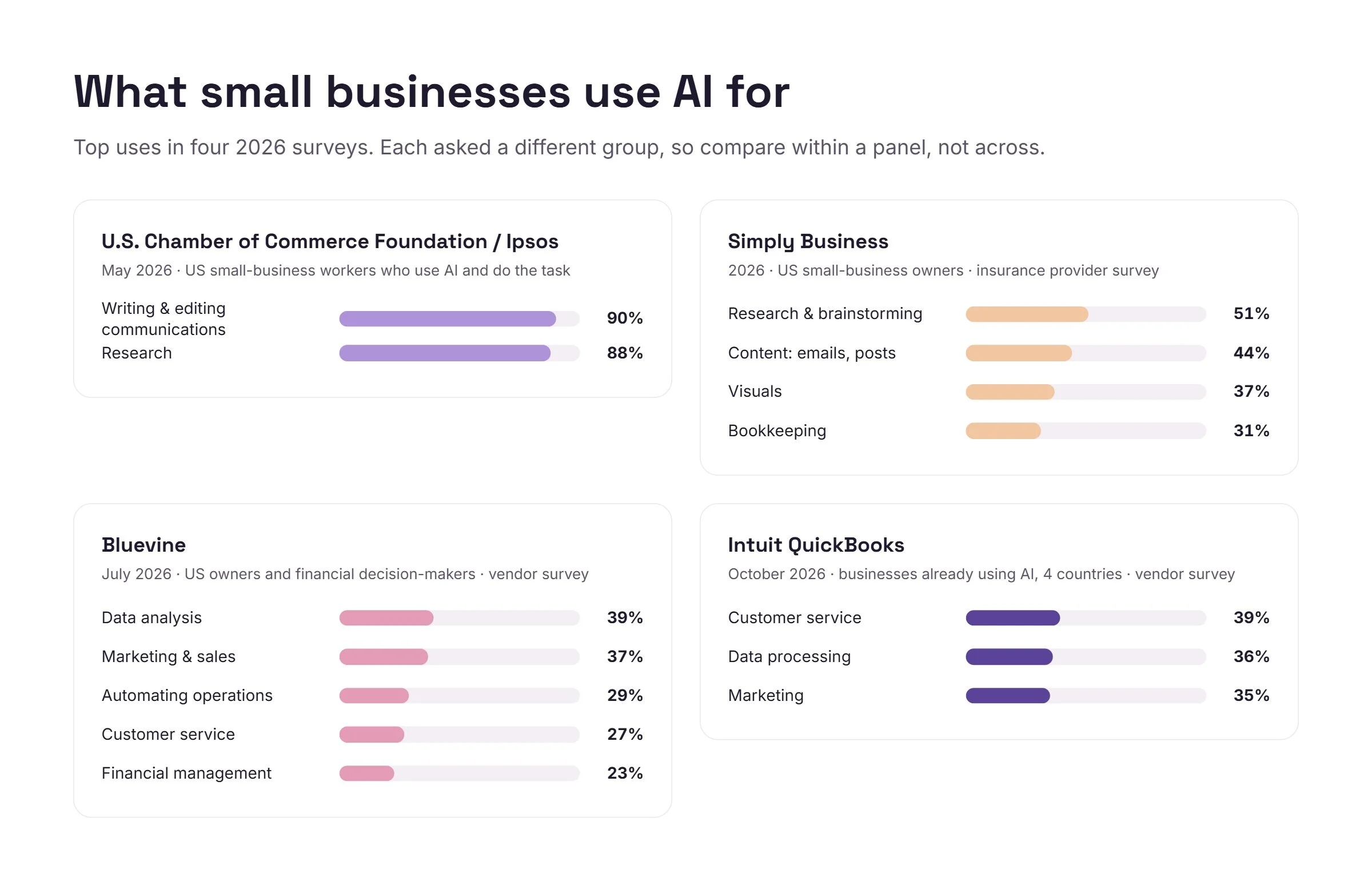
- Most use it to speed themselves up: 64% mainly use AI to speed up their own work, and only 6% run workflows with minimal human input (U.S. Chamber of Commerce Foundation / Ipsos, May 2026).
- US owners in Simply Business’s 2026 survey (an insurance provider) use it most for research and brainstorming (51%), content such as emails and posts (44%), visuals (37%) and bookkeeping (31%).
- Bluevine’s July 2026 vendor survey puts data analysis first (39%), ahead of marketing and sales (37%) and customer service (27%).
- Intuit QuickBooks’ October 2026 vendor survey of businesses already using AI, across four countries, has customer service on top at 39%.
Each survey asks a different group, so the percentages don’t compare directly. The more practical question is what owners kept once the novelty wore off.
What owners say stuck
Surveys count usage. Owner threads show what survived the first month. The same handful of automations come up again and again as the ones people kept: invoice reminders, a text back on every missed call, booking reminders, and form entries that land in a CRM on their own.
The ones that got rolled back are just as consistent: AI writing social posts end-to-end, auto-replies to comments and DMs, and AI answering the phone during business hours. One owner who rebuilt their content process kept AI in the middle and a person at both ends: “A human reads every post before it goes out. If it doesn’t sound like us, it gets rewritten or killed.” (r/smallbusiness)
The pattern behind both lists is the same – and it’s more useful than “automate the boring stuff.”
How far each task can go: the automation ladder
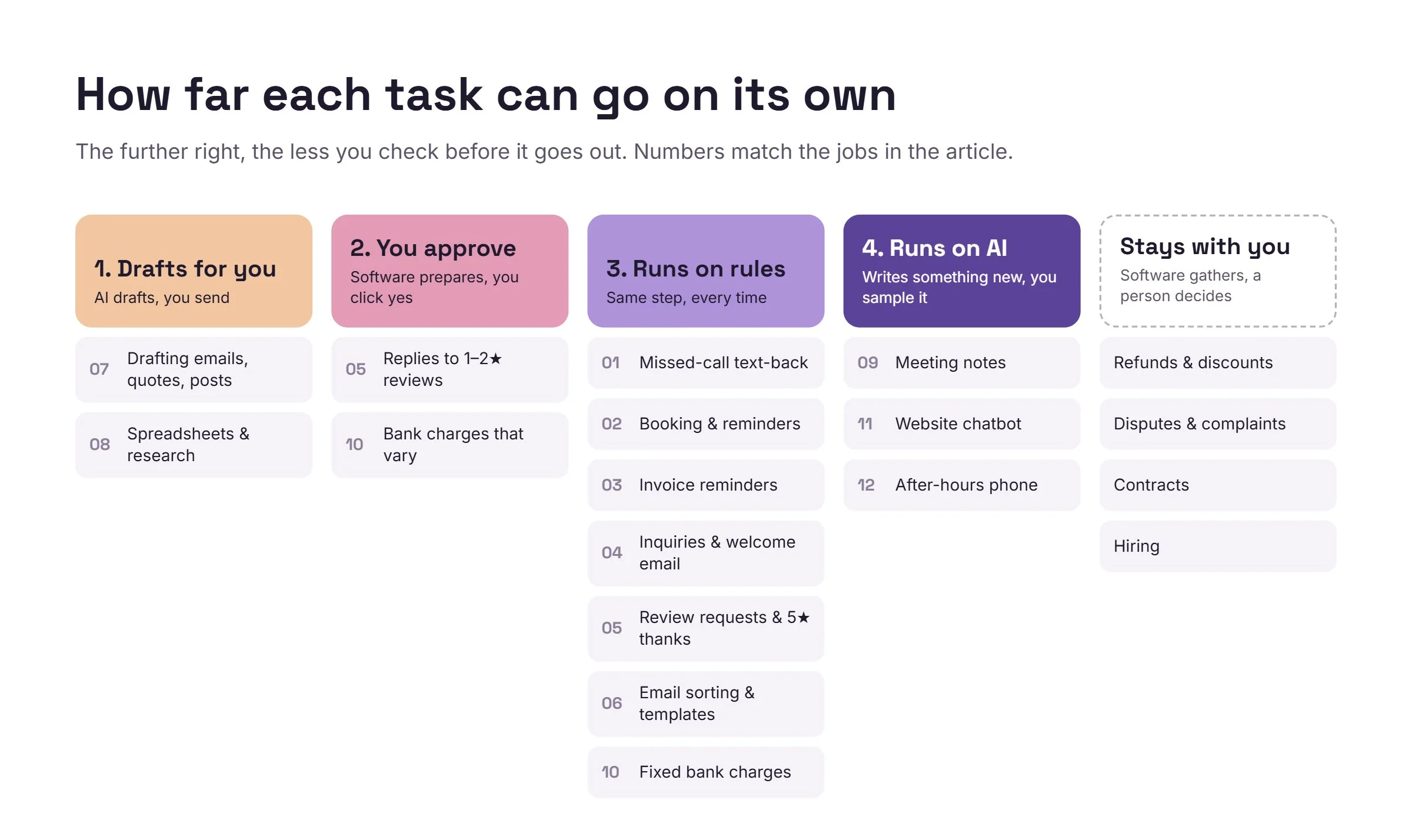
Almost any task can be automated to some extent. The useful question is how far it can go before a person needs to look – and the answer sits on a ladder with four rungs, plus one category that stays off it.
| Level | What happens | Who looks, and when | Examples |
|---|---|---|---|
| 1. Drafts for you | AI or a template writes the first version | You edit and send every one | Email replies, quotes, social captions, research notes |
| 2. You approve | Software prepares the finished action and waits | You click yes or no | Bank-rule matches waiting for review, a reminder you OK before it sends, a reply to a 1-star review |
| 3. Runs on rules | The same step, the same way, every time | Nobody before it goes out – you check exceptions | Booking reminders, missed-call texts, invoice reminders, form-to-CRM |
| 4. Runs on AI | Writes something new every time, with nobody reading first | You sample what it said, on a schedule | Website chatbot answers, meeting summaries, a scheduled AI digest |
| Stays with you | Software only gathers details or drafts | A person decides, every time | Refunds and discounts, contracts, hiring, insurance |
Rules fail in predictable ways – the rent amount changes and the rule misses it. AI fails in unpredictable ways, and confidently. That’s why levels 3 and 4 are separate rungs: what you check is different.
12 business tasks to automate first, and how far each one goes
These are the repetitive business tasks owners hand off most, ordered roughly from “set it up this week” to “set it up once the basics run.” Each one lists the highest level it should reach and where a person steps in.
1. Text back every missed call
How far it goes: runs on rules.
Where you step in: the text is only the holding message.
Owners in threads we checked say it over and over: callers who won’t leave a voicemail will often answer a text. A missed-call auto-reply sends one within seconds, before the caller moves on to the next number on the list.
It’s often already in your phone system. Quo (formerly OpenPhone) includes auto-replies to missed calls on every plan and sends at most one auto-reply every three hours to the same number, so a caller who redials doesn’t get three texts. Grasshopper’s Instant Response texts first-time callers you miss, with a 160-character limit.
2. Let customers book a time
How far it goes: runs on rules – booking, confirmation and reminders all happen without you.
Where you step in: book a test slot yourself first, and watch for double bookings if your calendars don’t all sync.
A free Calendly link lets visitors pick from your open times – no emails back and forth. Automatic reminders come with the paid Standard plan. For an embedded calendar on your own pages, there are website booking systems built for service businesses.
3. Send reminders for unpaid invoices
How far it goes: runs on rules; some owners keep it one rung lower on purpose.
Where you step in: disputes, partial payments and payment plans – and a phone call once an invoice is a month late.
Chasing late payments by hand is awkward, so it slips. Invoicing apps send the nudges on a schedule – and since the software sends them, nobody takes it personally. QuickBooks Online sends automatic reminders up to 90 days before or after the due date, only for unpaid invoices you’ve already emailed. Wave’s free Starter plan sends unlimited invoices, while automatic reminders come with its paid Pro plan.
Two things to set up on purpose: a reminder before the due date, not only after, and a stop rule. QuickBooks stops once the invoice is marked paid – which means a payment that isn’t matched to its invoice keeps the reminders going.
4. Capture inquiries and send a welcome email
How far it goes: runs on rules.
Where you step in: send a test inquiry and read what it triggers.
A lead capture form, a free CRM and an email tool cover lead intake between them. Google Forms saves every submission to a linked Sheet and can email you on each new response. HubSpot’s free CRM holds the contact records. Brevo’s free plan includes automation for up to 2,000 contacts, while Mailchimp’s free plan leaves out automation flows.
Personal follow-ups to hot leads stay with you.
5. Ask for reviews after the job
How far it goes: the ask runs on rules. Replies split: a thank-you on a 5-star review can be templated, a reply to a 1–2-star review is “you approve” at most.
Where you step in: anything that mentions what went wrong – and anything private a customer mentioned in the review.
Field-service software can ask for a Google review at the right moment on its own. Jobber’s Reviews sends the request after a visit, when a job closes or when the invoice is paid, only once per client every six months, and by email only if the trigger fires late at night. It’s an add-on to most Jobber plans.
Replying to reviews is a separate job. Google is testing a “Reply to reviews with AI” option in Business Profile that suggests a reply you edit and post yourself.
6. Sort incoming email and reuse your standard replies
How far it goes: runs on rules.
Where you step in: send a few test messages from another address before an automatic reply answers real customers.
Filters do the sorting, templates do the typing. Gmail filters can label, archive, delete, star or forward matching messages as they arrive, and saved templates turn standard answers into one-click replies. A narrowly set filter can even send a template on its own – attach one only when the trigger matches a single, predictable request.
7. Draft emails, quotes and posts
How far it goes: drafts for you. The queue runs on rules; the writing doesn’t.
Where you step in: every draft, every time – AI drafts can invent a date, a price or a promise.
Rough notes or a long email thread in, a first draft out. ChatGPT’s free tier covers drafting within usage limits that reset, and there are other AI tools by job for specialized writing. For social media, Buffer’s free plan queues up to 10 posts per channel at a time, so a week of posts can go out from one sitting.
The version that sticks starts from something real. In one owner’s words: “I still write and send everything myself. I just don’t start from a blank page anymore.” (r/smallbusiness)
8. Clean up spreadsheets and pull numbers from your own data
How far it goes: drafts for you.
Where you step in: recompute a few rows by hand and open the source of any number you plan to use.
Upload a sales, bookings or expense export to ChatGPT, whose free tier analyzes files within its usage limits, and ask for a cleaned version, a category breakdown or a formula to paste back. The same goes for research: a first pass on suppliers or the key terms of a long PDF.
A contract summary is for orientation – the contract itself stays with a person.
9. Turn meetings into notes and action items
How far it goes: runs on AI.
Where you step in: names, dates and who owns which task, before anything is forwarded to a client.
You lead the call, the video tool writes the recap. Zoom’s free plan includes AI summaries for 3 hosted meetings a month. Google Meet’s “Take notes for me” writes notes into Google Docs and emails the organizer a recap on eligible Workspace or Google AI plans.
10. Categorize bank transactions
How far it goes: runs on rules for fixed charges like rent.
Where you step in: keep Auto-add off for anything that varies, and review the categorized list when you close the month.
Same charges, same categories, every month – a job for bank rules. QuickBooks Online rules categorize downloaded transactions by conditions on the description, bank text or amount. With Auto-add on, matching transactions are added to your books without a review step, and auto-add rules run when you sign in.
Xero’s JAX goes further: it reconciles on its own when it’s highly confident, using your rules, existing matches, its memory of how you reconciled similar lines and predictions from other Xero users. Bookkeepers in r/xero are mostly unimpressed.
11. Answer customer questions on your website
How far it goes: runs on AI, with a handoff.
Where you step in: refunds and anything else that moves money go to a person.
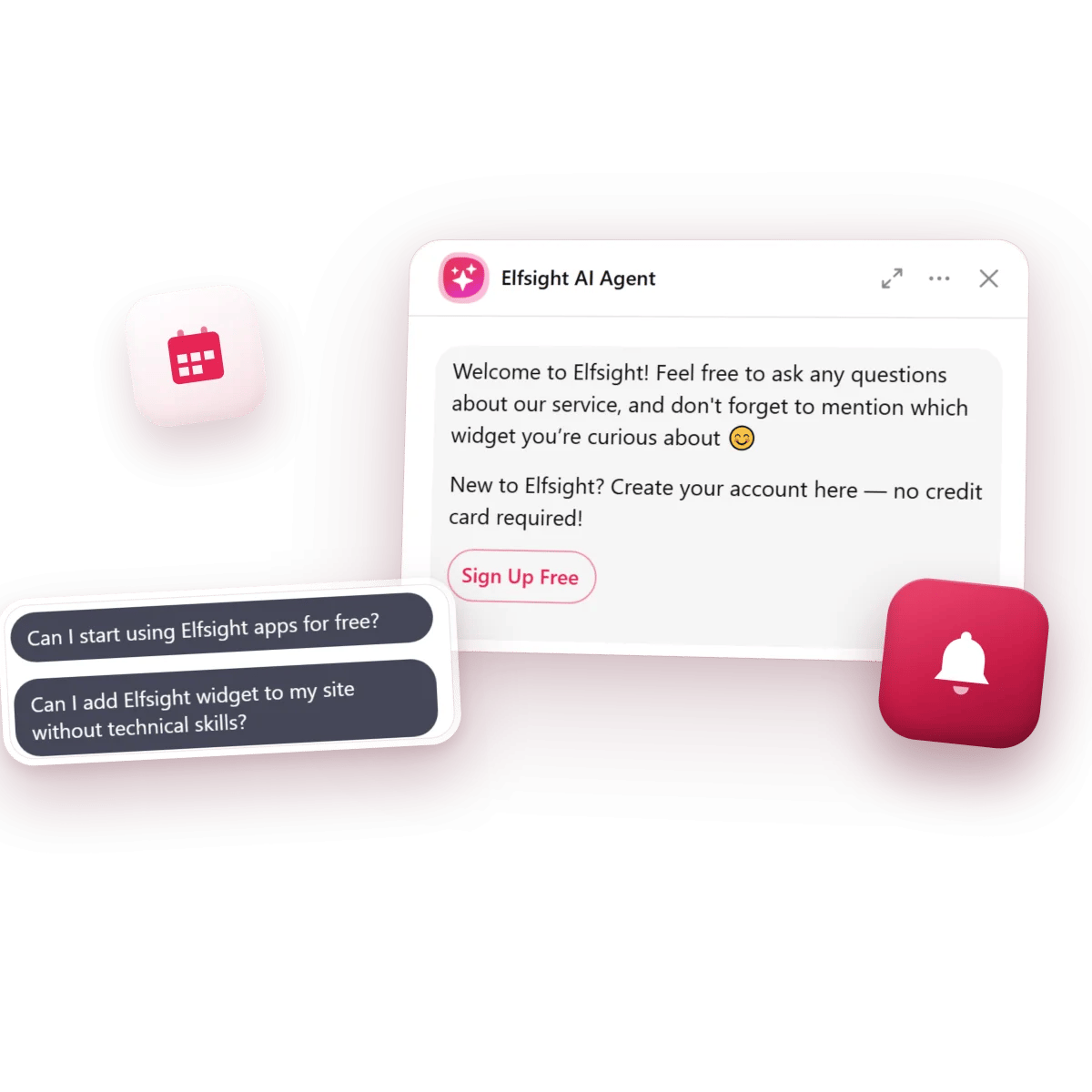
A website chatbot answers repeat questions about shipping, prices or hours from your pages, files and Q&A, at any hour. Elfsight AI Chatbot is ours, and we set it up on its Free plan to test the small-business automation scenario. Asked something outside its knowledge, it said it couldn’t confirm the detail and pointed the visitor to support instead of guessing.
- Keep one source of truth for prices and policies, and update the bot when it changes.
- Add conditions like shipping regions as their own Q&A entry – one buried in a longer page can drop out of an answer.
- Utilize the chatbot’s Skills to capture leads, book meetings, and create tickets in-widget
Create your AI chatbot in the live editor ↓
12. Answer the phone after hours
How far it goes: runs on AI, after hours only.
Where you step in: quotes, prices and anything urgent go to a person.
This is where owners are most divided. Customer comments in owner threads are blunt – plenty hang up the moment they hear a bot. The setups owners keep share three things: the AI only picks up after hours or when the call would go to voicemail anyway, it says it’s an assistant in the first sentence, and asking for a person works right away. Callers in the same thread wanted proof, too – a text with the booked time beats a voice saying “you’re all set.”
Some jobs shouldn’t climb the ladder at all.
What stays with a person
Anything legally binding, anything that promises or settles money, and decisions about people. Automation can collect the details and prepare a draft – a person decides. Owners and customers draw that line in the same place: in Simply Business’s 2026 survey, only 10% of owners would let AI handle their business insurance, and in Medallia’s 2026 State of CX report, 73% of consumers wanted a person for a formal complaint.
There’s a legal reason too – your chatbot’s answers are your business’s answers. In a 2024 decision reported by CTV News, a Canadian tribunal held Air Canada liable after its website chatbot gave a customer wrong bereavement-fare information, finding the airline “did not take reasonable care to ensure its chatbot was accurate”. The bot got it wrong. The airline was held responsible.
Which small business automation tools to use
Most tools to automate business processes fall into four kinds, and most setups combine them. Start with the first two – they’re often already paid for.
| Kind | What it does | Example | Reach for it when |
|---|---|---|---|
| Built-in app automation | Runs a rule inside software you already use | Gmail filters, QuickBooks reminders, Quo auto-replies | Your email, phone, forms or accounting app already has the trigger and action |
| General AI assistant | Drafts, summarizes, searches and analyzes files | ChatGPT, Claude, Gemini | You need a first draft or analysis you’ll review yourself |
| Dedicated tool | Handles one repeatable job end to end | Calendly, Jobber, a website chatbot | Your apps lack a booking calendar, review requests or a Q&A widget |
| Connector | Passes data between apps with no direct link | Zapier, Make | Two apps you rely on can’t sync through their own settings |
A free Zapier workflow has one trigger and one action, so “add a row and email me” is two Zaps, or a paid plan. Make’s free plan includes 1,000 credits a month. AI assistants can also run jobs on a schedule now – ChatGPT’s free plan allows up to 3 scheduled tasks, each run at most daily.
Before you paste customer emails or upload a sales export, check the data settings. On ChatGPT’s Free, Plus and Pro plans, OpenAI may use your content to train its models unless you turn off “Improve the model for everyone” under Data controls. On personal Gemini accounts, Keep Activity is on by default, and a sample of chats is read by human reviewers.
Small-business automation tools by job
The picks below are the tools owners and review sites keep recommending for each job, with what the free plan covers and where paying starts:
| Job | Tool | Free plan covers | Needs a paid plan | First paid plan |
|---|---|---|---|---|
| Missed-call texts | Quo (formerly OpenPhone) | No free plan. 7-day free trial | Business phone line with auto-replies on every plan | Starter from $19/user/mo |
| Missed-call texts | Grasshopper | No free plan. 7-day free trial | Business phone line with Instant Response | True Solo $18/mo |
| Booking | Calendly | 1 event type, 1 calendar connection | Reminders | Standard $12/seat/mo |
| Invoices | Wave | Unlimited invoices | Automatic reminders | Pro $19/mo |
| Invoices, bank rules | QuickBooks Online | 2 invoices a month, or unlimited with QuickBooks Payments | More invoices without QuickBooks Payments | Simple Start $38/mo |
| Contacts | HubSpot CRM | 2 users, 1,000 contacts | — | — |
| Welcome emails | Brevo | 300 emails a day, automation for up to 2,000 contacts | Unlimited multi-step workflows | Standard $17/mo |
| Welcome emails | Mailchimp | 250 contacts, 500 sends a month | Automation flows | Standard from $20/mo for 500 contacts |
| Social posts | Buffer | 3 channels, 10 scheduled posts per channel | More posts and channels | Essentials $6/channel/mo |
| Meeting notes | Fathom | Unlimited recordings; 5 advanced AI summaries a month | Unlimited advanced summaries | Premium $20/mo billed monthly |
| Website chatbot | Elfsight AI Chatbot (ours) | 1 chatbot, 50 messages and 200 views a month | More messages and views | Basic $6/mo |
| Connecting apps | Zapier | 100 tasks a month, two-step Zaps | Multi-step Zaps | Professional $29.99 |
| Connecting apps | Make | 1,000 credits a month | More credits and active scenarios | Core $16 |
How to automate business processes: start with one job
Here’s how to automate your business without rebuilding it – four steps from last week’s repeat jobs to one setup you can trust.
Step 1: List last week’s repeat jobs and time them
One row per job: how often it happened and how many minutes it took. Those weekly minutes are your “before” number. Skip anything you’re still changing every week – a process you can’t describe to a new hire isn’t ready for a tool either.
Step 2: Mark the highest safe level for each job
Use the ladder: drafts for you, you approve, runs on rules, runs on AI, or stays with you. Then split anything with a risky version – the 1-star reply, the disputed invoice – into its own row one level down.
Step 3: Pick the busiest job and run it one level low first
Take the top row by weekly minutes and look for the toggle in apps you already use. For the first two weeks, run it one rung below where it’ll end up: drafts instead of sends, Auto-add off, reminders you approve. Count how often you’d have overruled it. If it was right every time, move it up.
Step 4: Decide what happens when it isn’t sure
Every automation needs an exit: a person it hands off to, and a rule for when to stop. Fail closed – if it can’t confirm something, it drafts and pings you instead of sending. Write down what it may never promise on its own, like refunds, discounts or delivery dates.
How to tell if your AI business automation works
Check what it did, not that it ran
A crashed job tells you it crashed. A job that quietly stops doing anything doesn’t. In one r/zapier case, a Zap that had run for over two years stopped the day an upstream mailbox changed – no errors anywhere, reviews just stopped coming in.
- For anything that should fire daily, add a check that tells you when it goes quiet.
- Once a week, open what it produced – the rows, emails or contact records – not just the run history.
- For anything that talks to customers, read the conversations where it gave up. That’s where its knowledge has holes.
Measure the time saved, minus the checking
After two weeks, compare the job’s weekly minutes and its outcome with your Step 1 numbers – and count the checking. A tool that saves ten hours and needs three hours of review saves seven. If checking eats the savings, drop the task one rung instead of dropping the idea.
Measure the outcome, not the activity: an automatic “we got your message” isn’t a real first response.
| Job | Compare before and after |
|---|---|
| Missed calls | Missed calls that turned into bookings |
| Invoice reminders | Overdue balance, days to paid |
| Booking | Back-and-forth scheduling emails, no-shows |
| Drafting replies | Minutes per reply, including checking |
Don’t lean on industry ROI numbers here. In Bluevine’s 2026 survey, 52% of small businesses using AI said they’d seen a return and 24% hadn’t yet – but those are owners’ impressions, collected by a vendor. Your own before-and-after numbers tell you more.
For a chatbot, the numbers to watch are different – how many conversations it resolves, how often it falls back, how many leads it captures. Our guide to chatbot KPIs covers how to track them.
Frequently asked questions
Can I automate my business for free?
How do I automate my business if I’m not technical?
How much does it cost to automate a business?
How many small businesses actually use AI?
How much time does automation save?
How do you automate business processes with AI?
Where to start this week
The small business automation that sticks isn’t AI running the show. It’s a handful of plain rules – a text on every missed call, reminders before and after an invoice is due, a booking link that confirms itself – plus AI drafts you still read before they go out. AI that works on its own, like a website chatbot or meeting notes, earns its place next, on jobs where you can sample what it said.
Every job has a limit on how far it should run without you, and that limit often comes down to one setting. Split the risky version of a job from the routine one, start one level lower than where it’ll end up, and judge it by what it did – not by a green “success” in the run history.
To automate a small business this week: list and time your repeat jobs → pick the busiest one with the cheapest mistakes → run it one level low for two weeks → check what it did → move it up.
Key references
- Main Street AI Monitor: Half of Small Business Workers Use AI, Most to Boost Productivity, Not Automate Jobs, U.S. Chamber of Commerce Foundation / Ipsos, May 2026
- Small Business AI Trends: 2026 Small Business AI Trends Report, Bluevine, July 2026