
If your website includes age-restricted content, there’s a common problem many businesses overlook: visitors can access everything immediately, even when they shouldn’t. This not only creates compliance risks but can also lead to trust issues and potential penalties. Trying to fix this manually often results in clunky user experiences, limited control, or ongoing maintenance headaches.
The Elfsight Age Verification widget solves this by giving you a ready-to-use, customizable age gate that works across any website. You can quickly add Age Verification to your website, control access rules, and create a smooth, branded experience – all without touching code.
- How to add age verification to website quickly without coding
- Why age verification is important for compliance and trust
- How to set up and customize your age gate
- Alternative solutions and when to use them
- Best practices for balancing compliance and user experience
We’ll start with the fastest way to get your age verification live so you can implement a working solution right away, then move into full setup and optimization.
Quick Start: Add Age Verification to Website
If you’re looking for a simple and efficient way to embed Age Verification on your page, here’s the fastest method to get everything up and running:
- Open the Age Verification widget editor and select a template
- Customize age rules, text, and design
- Click “Add to website for free” to generate the embed code
- Paste the code into your website and publish
Build your Age Verification popup in our live editor right now!
Why Add Age Verification to Website
Adding an age gate to your website directly affects how your business operates, how visitors perceive your brand, and whether you meet legal requirements in your industry. When implemented properly, it becomes a seamless part of your user experience rather than a barrier.
🔒 Ensure regulatory compliance
Many industries require verification of users’ age before they can view content or make purchases. Whether you sell alcohol, CBD, or other restricted products, adding Age Verification helps you meet these requirements and avoid potential legal consequences.
🛡 Protect your business from risk
Without a proper age gate, your website may be exposed to fines, restrictions, or reputational damage. Age Verification acts as a safeguard, showing that you’ve taken steps to prevent underage access and operate responsibly.
🎯 Filter visitors early in the journey
An age check works as a first layer of filtering. Visitors immediately understand whether your content is relevant to them, which reduces confusion and ensures that only the right audience continues browsing your website.
💬 Build trust and credibility
A well-designed Age Verification popup signals professionalism. It shows that your business follows industry standards and respects regulations, which can increase confidence among legitimate customers.
📈 Improve user flow and clarity
Instead of introducing restrictions later in the journey – such as at checkout – Age Verification sets expectations upfront. This creates a clearer browsing path and helps users understand what to expect from your website.
📱 Deliver a smooth experience across devices
Modern age verification solutions are optimized for both desktop and mobile. Visitors can quickly confirm their age and proceed without unnecessary friction, making the process feel natural and unobtrusive.
Overall, adding Age Verification to your website is not just a compliance measure but also a strategic step that helps protect your business while creating a more structured and transparent experience for your visitors.
Core Features of the Age Verification Widget
Before you implement an age gate, it’s important to understand what makes a solution actually effective. A basic popup might block access, but a well-designed widget gives you control, flexibility, and a smooth user experience across your entire website.
Below is a breakdown of the key features and how they translate into practical use:
| Feature | Practical Use |
| Multiple verification methods | Choose between yes/no confirmation, date of birth input, or age selection depending on your compliance needs |
| Custom messaging | Clearly explain why verification is required and align the text with your brand voice |
| Redirect options | Send underage visitors to a safe page, homepage, or external URL |
| Cookie-based memory | Remember verified users so they don’t need to confirm their age on every visit |
| Design customization | Match colors, fonts, and layout to your website for a seamless look |
| Flexible display conditions | Show the popup on the entire website or only on specific pages |
| Mobile responsiveness | Ensure the popup works smoothly across all devices and screen sizes |
For the complete feature breakdown, visit the widget features page.
Now that you understand what the widget can do, let’s move on to the detailed setup process and see exactly how to implement Age Verification on your website step by step.
Step-by-Step: How to Add Age Verification to Website
Now let’s go through the full integration process, from choosing the right verification format to embedding it on your website and making sure it works smoothly for your visitors.
Step 1: Choose a Template
Start by opening the Elfsight editor and selecting a template that fits your use case. You’ll see several various formats designed for different types of businesses.
At this point, focus on choosing the structure that best matches your goals. You’ll still be able to customize the content, design, and behavior later.

Step 2: Select the Verification Method
Choose how visitors will confirm their age. This is one of the most important decisions in the setup process because it affects both compliance and user experience.
You can choose a simple yes/no confirmation if you want the fastest interaction possible. This works well for websites that need a visible restriction but don’t require detailed age input. If you need more precise verification, you can use date-of-birth entry or age selection instead.

Step 3: Adjust Memory for Returning Visitors
Now, configure how the popup behaves for returning visitors. With return visitors memory enabled, users who have already passed the check won’t need to repeat the process every time they revisit the website.
The ideal cookie duration depends on how you want to balance convenience with caution. A shorter duration is stricter, while a longer one makes repeat visits smoother.
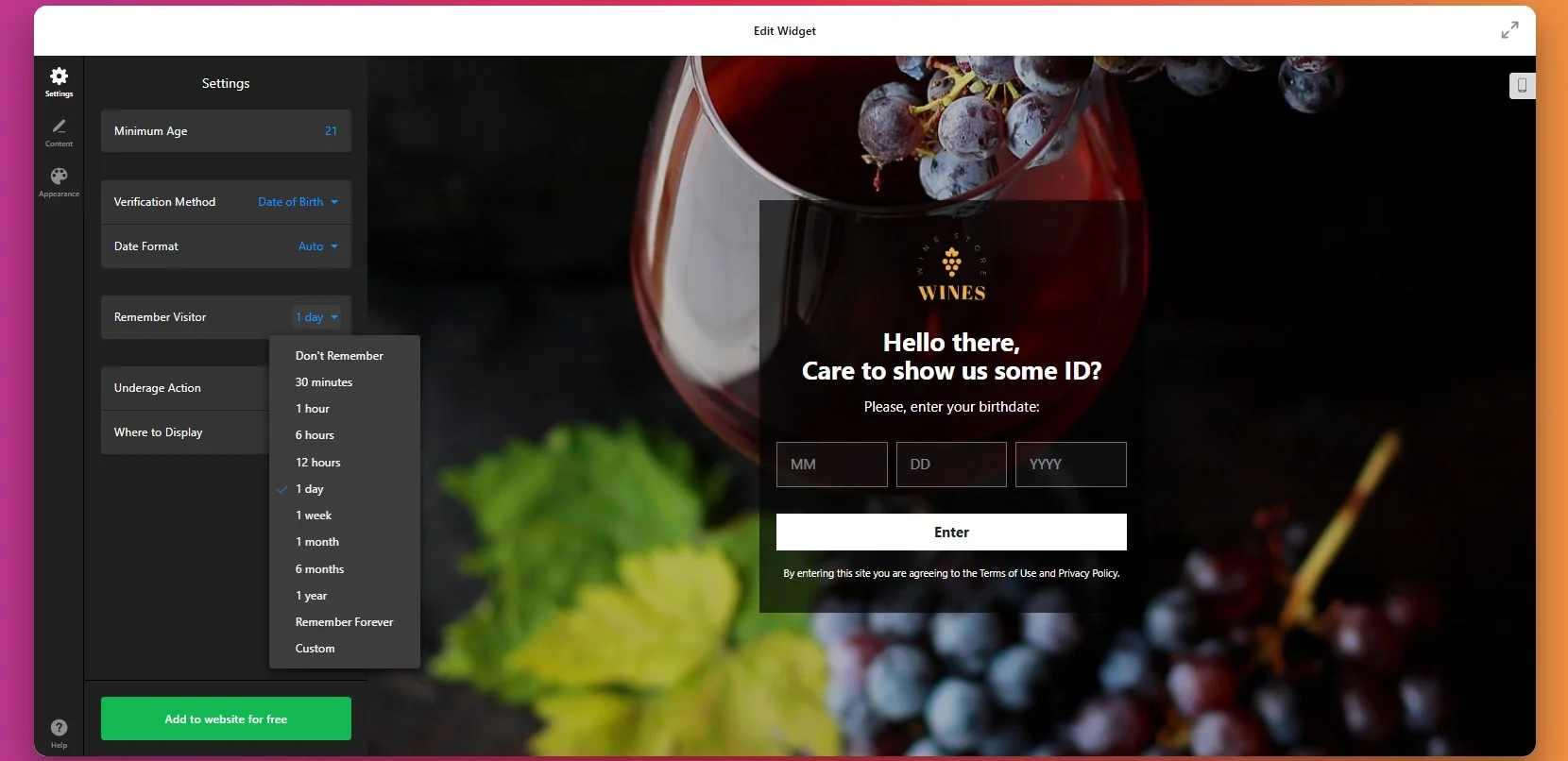
Step 4: Set Actions for Denied Visitors
Choose what happens after a user interacts with the popup. For users who do not qualify, you can show a custom message or redirect them to another page, such as your homepage or a general information page.
You can also decide whether the popup applies to the entire website or only specific sections. Some businesses need a full-website gate, while others only want to restrict access to selected pages or product categories.

Step 5: Customize the Popup Text and Buttons
Once the verification method is in place, customize the wording shown inside the popup. This includes the heading, supporting text, confirmation button, and additional information.
Your message should explain the purpose of the popup clearly and quickly. Visitors should immediately understand that the website contains age-restricted content or products and that verification is required before proceeding.
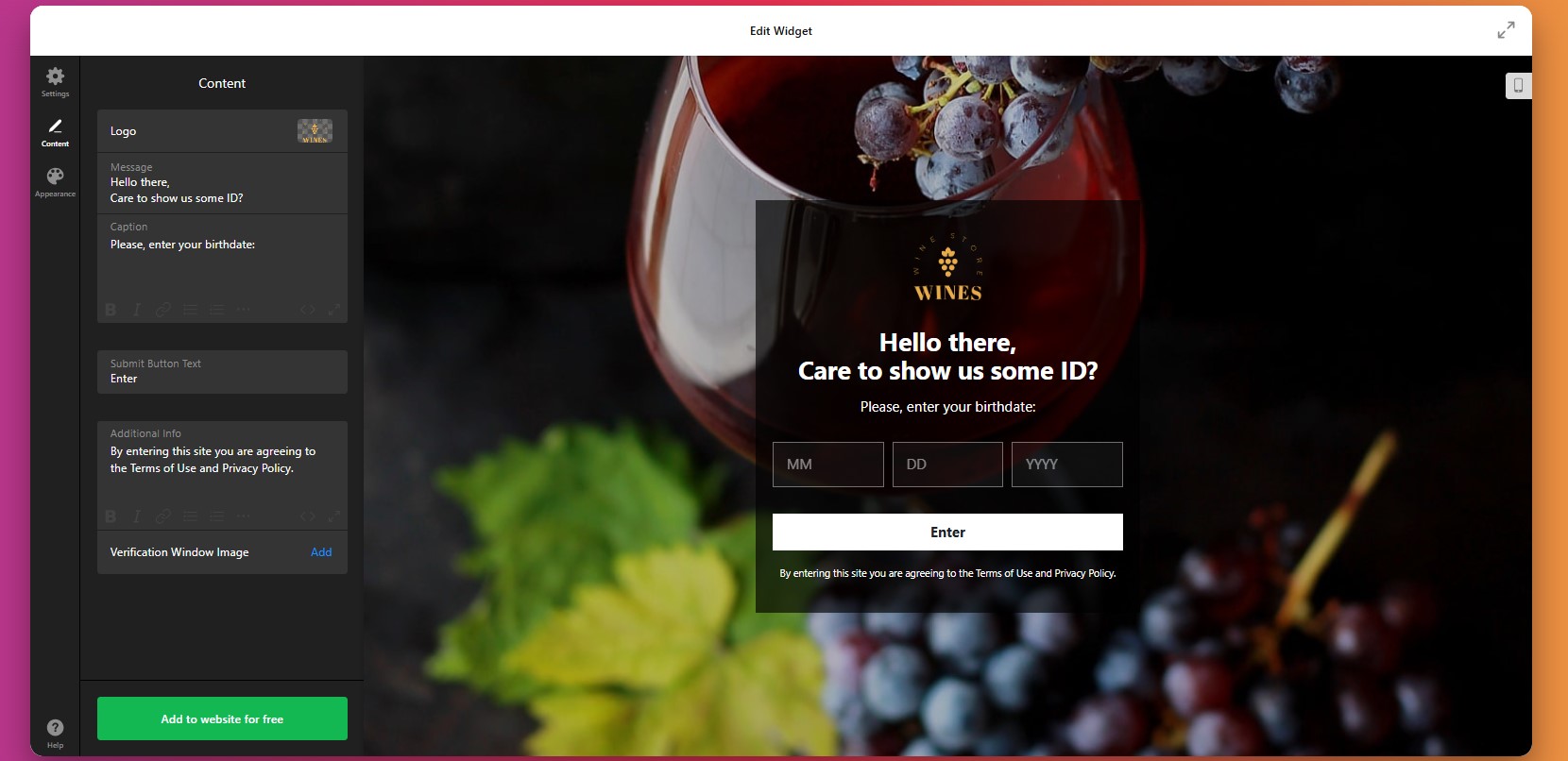
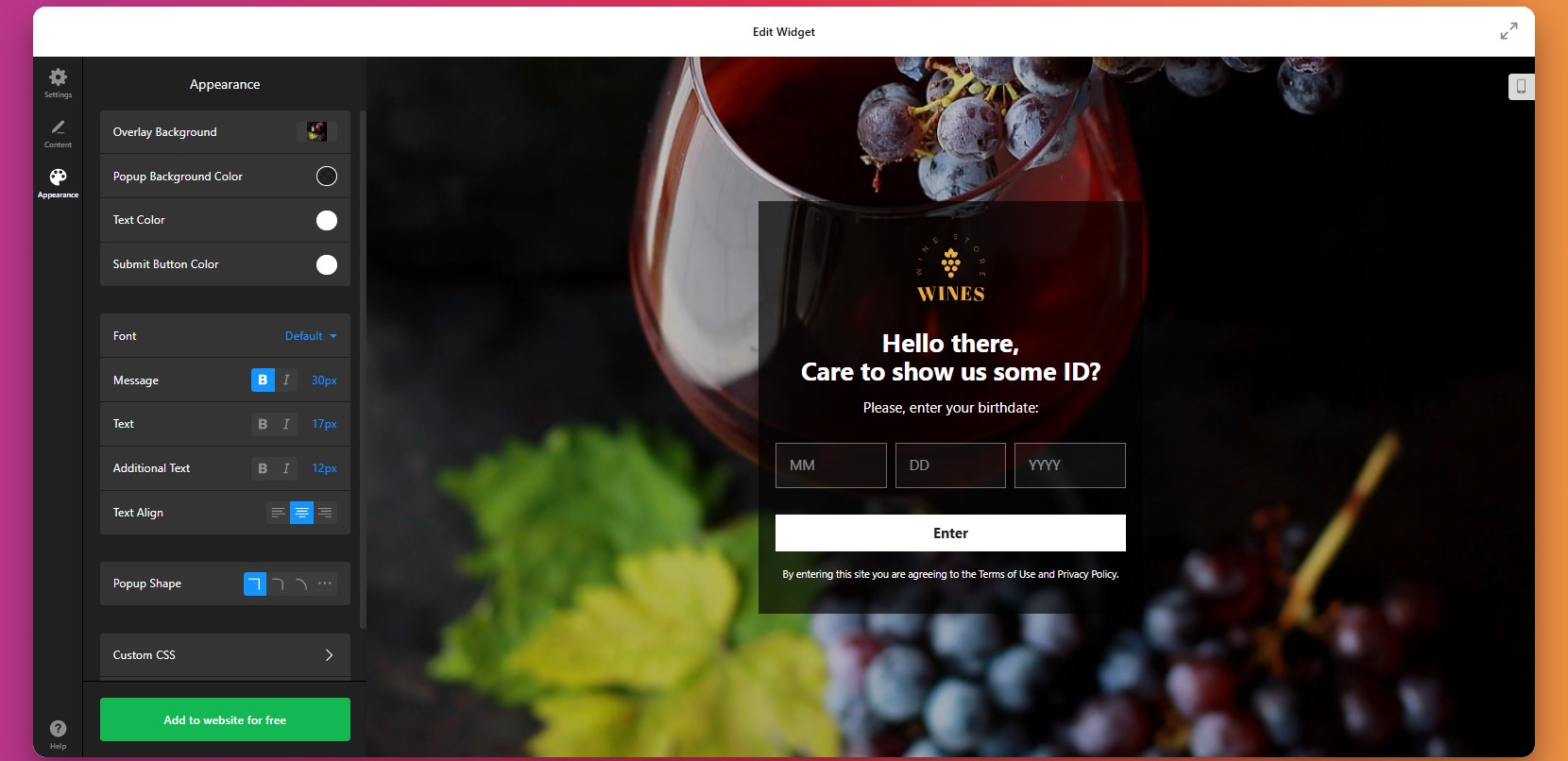
Step 6: Personalize the Design
Next, move to the design settings and adapt the popup so it looks like part of your website rather than an external overlay.
Make sure the text is easy to read, the buttons are clearly visible, and the popup is comfortable to use on both desktop and mobile.
Step 7: Generate the Embed Code
Once your settings are ready, click “Add to website for free” to generate the embed code. This code connects your configured age gate to your website.
At this point, the setup inside the editor is complete and the widget is ready to be installed.
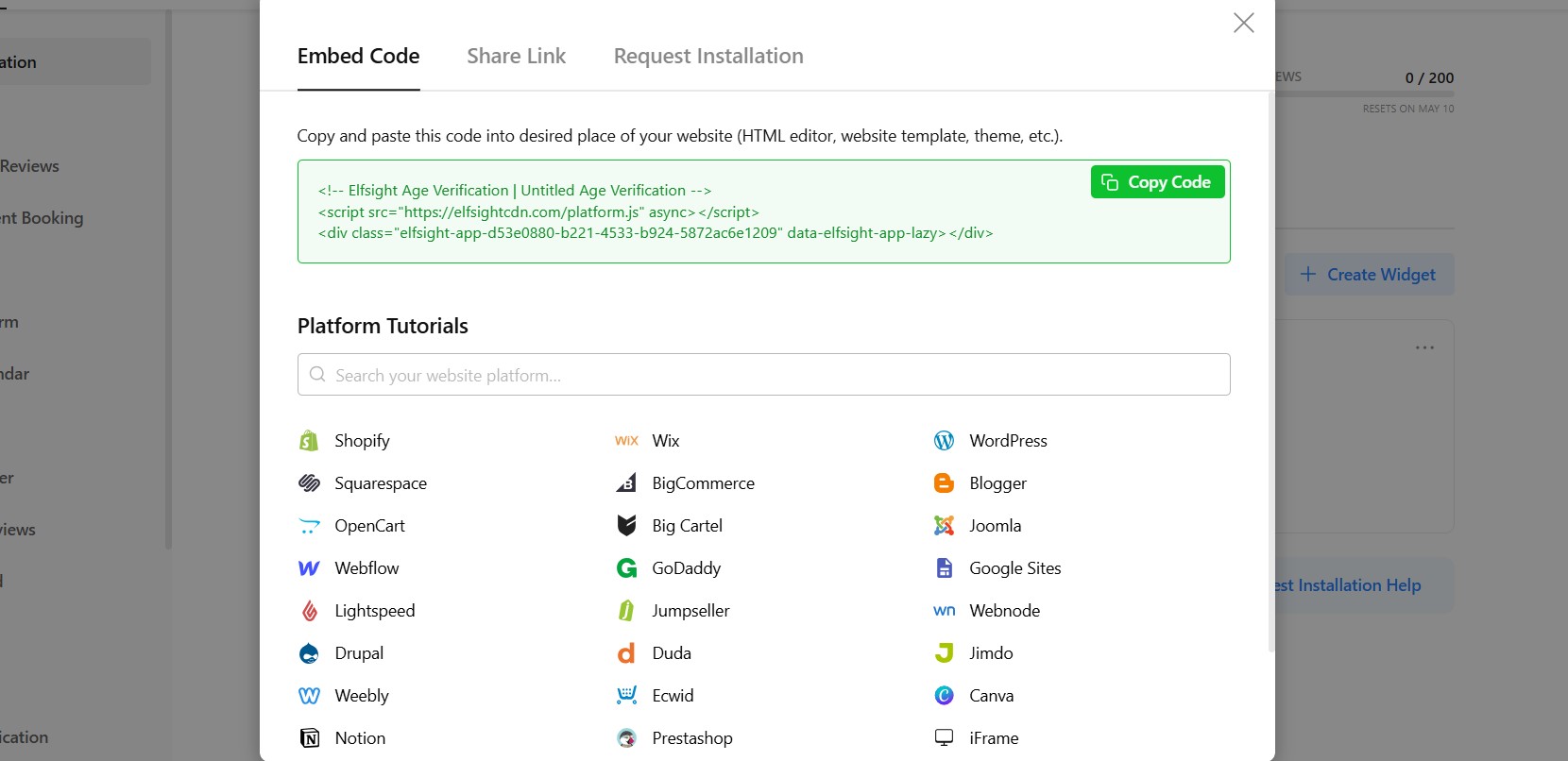
Step 8: Embed the Age Verification Widget on Your Website
- Open your website backend or CMS
Navigate to the section where custom code or HTML can be added. This is typically your theme settings, global scripts area, or page builder. - Paste the embed code
Insert the full code snippet into the appropriate section. Make sure it’s not truncated or modified, as this may prevent the popup from loading. - Decide where the age gate should appear
If you want the popup to apply across your entire website, place the code in a global area such as the main template or site-wide settings.
If you only need it on specific pages, add the code only within those pages’ content or sections. - Save and publish your changes
Once the code is added, update your website so the widget becomes active.
After saving your changes, open the live website and test the full experience. It’s also important to test the widget on desktop and mobile devices so you can confirm that the layout, buttons, and display timing all work as expected.
- If the popup doesn’t appear, first make sure the full embed code was added to the correct website section and that your changes were published.
- If returning visitors keep seeing the age check, review the cookie memory settings.
- If the layout looks broken, check for conflicts with your website styles or narrow containers.
- If redirects or blocked access aren’t working properly, recheck the rules you set inside the widget editor.
Alternative Solutions to Implement Age Verification for Websites
There are several other ways to add age verification to a website, but each comes with trade-offs in flexibility, usability, and long-term maintenance. While these methods may work for simple setups, they often become limiting as your needs grow.
Custom JavaScript Popup
One option is to build your own age verification popup using JavaScript and embed it directly into your website.
To implement this, you create a script that triggers a popup when a user lands on your website. The script collects input (such as a yes/no confirmation or date of birth) and then controls access based on the response. You then place this script in your website’s HTML or global code section.
This method gives you full control over functionality, but requires development skills and ongoing maintenance.
- Requires coding knowledge to build and maintain
- Time-consuming to implement correctly
- No visual editor for easy updates
CMS Plugins or Platform Apps
If your website is built on a CMS like WordPress, Shopify, or Wix, you can install plugins or apps that provide basic age verification functionality. To implement this:
- Go to your platform’s plugin or app marketplace.
- Search for “age verification”.
- Install a suitable option, and configure the popup settings inside the plugin interface.
This approach is convenient, but it often comes with limitations in customization and control.
- Limited design and layout customization
- Advanced features often locked behind paid plans
- Platform-dependent (not portable across websites)
Basic Popup or Lightbox Workaround
Another approach is to use a standard popup or lightbox tool and adapt it for age verification:
- Create a popup using your website builder or a popup plugin.
- Add a simple message asking users to confirm their age.
- Include buttons that allow them to continue or leave. You can trigger this popup on page load.
Before deciding which method to use, it’s helpful to compare them based on real-world needs such as ease of use, flexibility, and scalability.
| Feature | Elfsight Age Verification | Plugins/Apps | Custom Code | Basic Popup |
| Ease of setup | Easy | Easy | Hard | Easy |
| Customization | High | Medium | High | Low |
| Design control | Full | Limited | Full | Limited |
| Cookie memory | Yes | Limited | Custom | Rare |
| Maintenance required | None | Medium | High | Medium |
| Automatic updates | Yes | Yes | No | No |
| Compliance flexibility | High | Medium | Custom | Low |
Each approach comes with its own trade-offs, from simplicity to flexibility and long-term maintenance requirements. The right choice depends on how much control you need and how much time you’re willing to invest in setup and ongoing management.
If your goal is to combine straightforward implementation with advanced customization and room to grow, Elfsight offers a practical balance without introducing unnecessary technical overhead.
Optimization Tips for Your Age Verification
Once your age verification is in place, refining how it behaves and appears can make a noticeable difference in both compliance and user experience.
- Choose the right level of verification: Match the verification method to your needs. Simpler confirmations reduce friction, while stricter methods like date of birth provide stronger compliance.
- Keep messaging clear and purposeful: Explain why the age check is required in one or two concise sentences. Clear intent reduces confusion and helps users complete the process faster.
- Align the popup with your design: Use your website’s colors, fonts, and spacing so the age gate feels like a natural part of your layout rather than a separate layer.
- Use cookie memory to reduce repetition: Allow verified users to skip the popup on return visits. This creates a smoother experience, especially for frequent users.
- Test placement and timing carefully: Display the popup immediately on entry for strict compliance, or adjust timing if you want to soften the interruption while still controlling access.
- Optimize for mobile usability: Make sure buttons are easy to tap, text is readable, and the popup doesn’t interfere with navigation on smaller screens.
- Limit friction to improve completion: Avoid adding unnecessary steps or fields. The faster users can verify, the less likely they are to leave your website.
- Review performance and adjust regularly: Monitor how users interact with the popup and refine settings over time to improve both compliance and user flow.
Frequently Asked Questions
Can I control how long the age verification is remembered for each visitor?
Can I update the Age Verification rules without reinstalling the widget?
Is it possible to customize the appearance of the popup for better accessibility?
How can I make the Age Verification less intrusive for users?
Does the Age Verification app store personal user data?
Conclusion
Adding Age Verification to your website is a key step in protecting your business, meeting compliance requirements, and creating a clear entry point for visitors. It ensures that the right audience accesses your content while helping you avoid unnecessary risks.
The Elfsight Age Verification widget makes this process simple and flexible. You can choose from multiple verification methods, control how users access your website, and customize every detail to match your design – all without writing code.
If you’re looking for a reliable way to add Age Verification to your website, Elfsight gives you everything you need to implement it efficiently while maintaining both compliance and a smooth user experience.