If your Wix website offers age-restricted products or content, adding an age verification layer is essential not just for compliance, but for protecting your business and shaping how users interact with your website.
Without it, visitors can freely access restricted content, which may expose your business to legal risks, reduce trust, and create a poor first impression for users who expect clear boundaries and responsible handling of sensitive products.
The Elfsight Age Verification app allows you to add age verification to your Wix website in minutes. You can create a fully customizable popup to control who can access your website, and deliver a smooth, branded experience – all without writing a single line of code.
Before diving into setup, it helps to understand exactly what you’ll be doing and how each step fits into the bigger picture of adding Age Verification to your Wix website.
- How to add Age Verification to Wix website step by step using a no-code solution
- Why Age Verification matters for compliance, trust, and user experience
- Alternative solutions and when they might (or might not) work
- Best practices to balance compliance and user experience
Let’s start with the quickest way to get your age gate live.
Quick Start: Add Age Verification to Wix
If you want a fast and reliable way to add age verification to Wix, here’s the streamlined process to get everything up and running in just a few minutes:
- Open the Age Verification app editor and choose a template.
- Customize age rules, content, and design to fit your website.
- Click “Add to website for free” to generate the embed code.
- Paste the code into your Wix website using the Embed element and publish.
Create your Age Verification popup now in the live editor!
Why Add Age Verification to Wix Website
Adding an age gate to your Wix website directly affects compliance, user trust, and how smoothly visitors interact with your content. When implemented correctly, it becomes a seamless part of your website experience rather than a barrier.
🔒 Stay compliant with regulations
If your Wix website offers products like alcohol, CBD, or adult content, age verification is often a legal requirement. Without it, your business may be exposed to fines, restrictions, or even removal from certain platforms. A proper age gate helps you meet these requirements and operate with confidence.
🛡 Reduce legal and reputational risk
Allowing unrestricted access to age-sensitive content can lead to serious consequences, not only legally, but also for your brand reputation. By adding Age Verification, you demonstrate that your business takes responsibility seriously and actively protects underage users from inappropriate access.
🎯 Filter visitors before they engage
Age Verification works as an early filter in the user journey. Visitors immediately understand whether your content is intended for them, which reduces confusion and prevents unqualified traffic from interacting with your pages.
💬 Build credibility with your audience
A well-designed age verification popup signals professionalism. It shows that your Wix website follows industry standards and values transparency. This can increase confidence among legitimate customers who expect responsible handling of regulated products.
📈 Improve user flow on restricted content
Instead of surprising users later in the funnel (for example, at checkout), Age Verification sets expectations upfront. This creates a clearer, more structured browsing experience and helps guide users through your website more effectively.
📱 Maintain a smooth experience across devices
Modern age verification popups are optimized for both desktop and mobile. Visitors can quickly confirm their age and continue browsing without interruptions, making the process feel natural rather than intrusive.
Overall, adding Age Verification to your Wix website is not just about compliance – it’s about creating a controlled, transparent, and user-friendly environment that supports both your business goals and your visitors’ expectations.
Core Features of the Age Verification App
Before implementation, it’s important to understand what the app actually enables and how these features translate into real control over your Wix website experience.
Below is a breakdown of the key features and how they apply in practice:
| Feature | Practical Use |
| Multiple verification methods | Choose between simple yes/no confirmation, date of birth input, or age selection depending on your compliance requirements |
| Custom messaging | Tailor the popup text to clearly explain why verification is required and match your brand voice |
| Access control rules | Decide whether users can enter, be blocked, or redirected based on their response |
| Redirect options | Send underage visitors to another page, homepage, or external URL |
| Cookie-based memory | Remember verified users so they don’t see the popup on every visit |
| Design customization | Adjust colors, fonts, buttons, and layout to match your Wix website style |
| Flexible display conditions | Show the popup across your entire website or only on selected pages |
| Mobile responsiveness | Ensure the popup works smoothly on mobile, tablet, and desktop devices |
These features allow you to move beyond a basic age check and create a structured entry point to your website. Instead of interrupting users, the app helps guide them through a clear and controlled experience that feels consistent with the rest of your design.
For example, you can choose a strict verification method for regulated products, while keeping the design minimal so it doesn’t overwhelm the page. Or you can apply the age gate only to specific sections of your Wix website, rather than restricting access globally.
For the complete feature breakdown, visit the app features page.
Now that you understand what Elfsight can do, let’s move on to the full setup process and see how to implement Age Verification step by step.
Step-by-Step: How to Add Age Verification to Wix Website
Now let’s go through the full process of how to add Age Verification to your Wix page, from choosing the right verification format to embedding the popup and making sure it fits naturally into your user experience.
Step 1: Select a Template
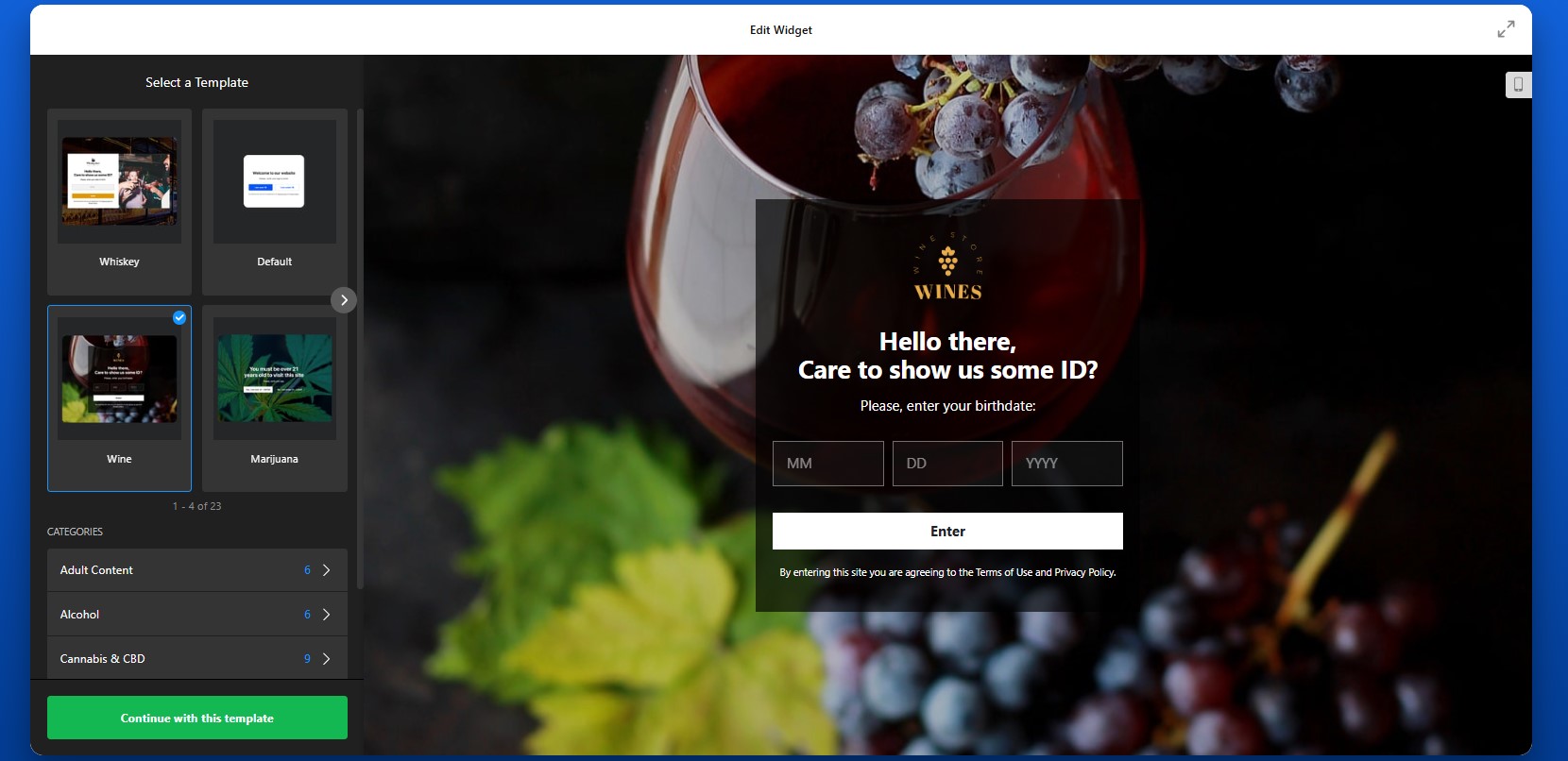
Start by opening the Elfsight editor and choosing a template that matches your business needs. There’s a wide range of ready-made templates designed for different types of businesses and compliance needs.
At this stage, focus on the overall structure rather than fine details. You’ll still be able to customize the text, visuals, behavior, and display conditions later.
Step 2: Choose the Verification Method
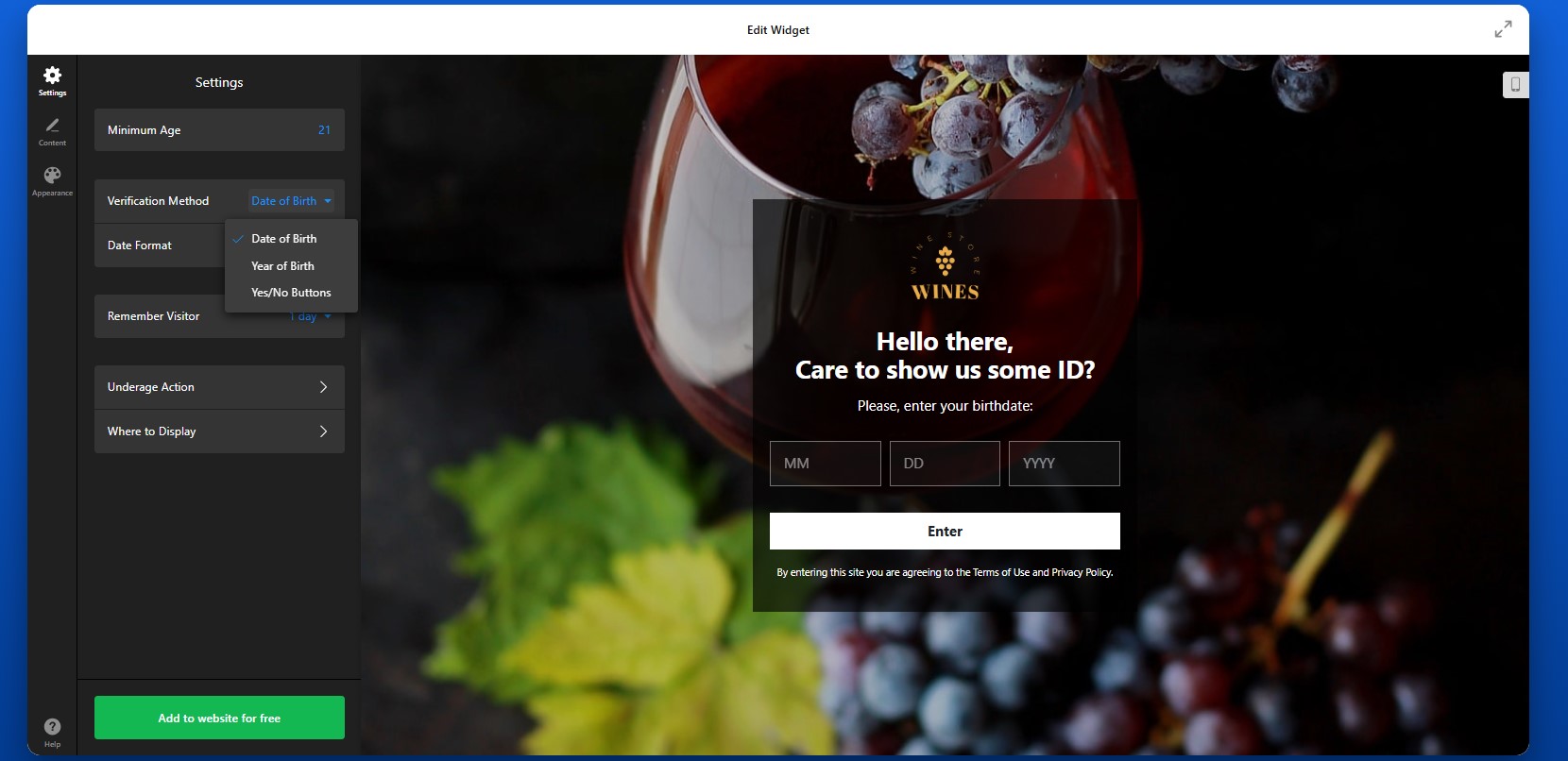
Next, select how visitors will confirm their age. You can choose a simple yes/no confirmation if you want the fastest possible interaction. This works well when your main goal is to clearly communicate restricted access and discourage underage users. If you need a more controlled process, you can use date-of-birth input or age-based selection to make the check more specific.
The method you choose should reflect both your legal requirements and the type of experience you want to create. A faster method reduces friction, while a more detailed one gives you stronger control.
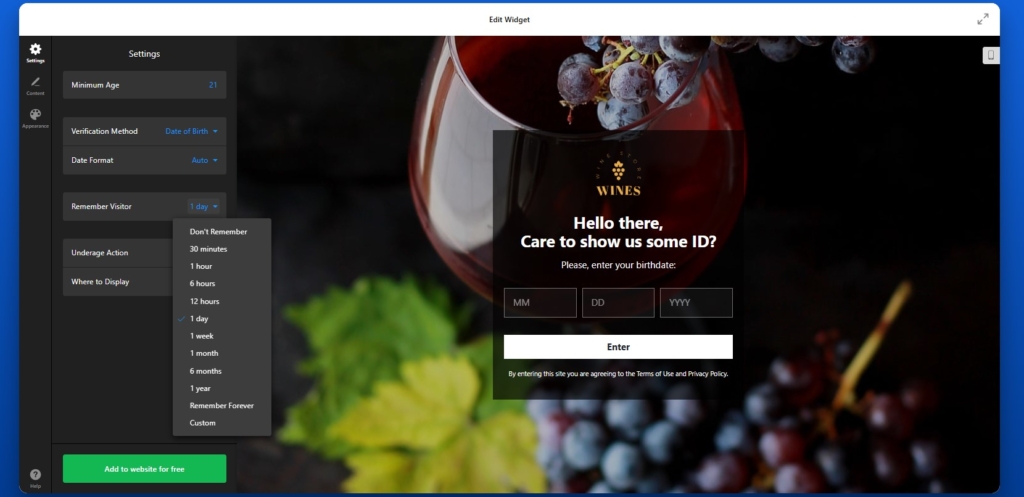
Step 3: Configure Repeat Behavior for Returning Visitors
Next, adjust how the widget behaves for people who have already passed the age check. With cookie memory enabled, verified visitors won’t need to confirm their age every time they return to your website.
Step 4: Set What Happens After Verification
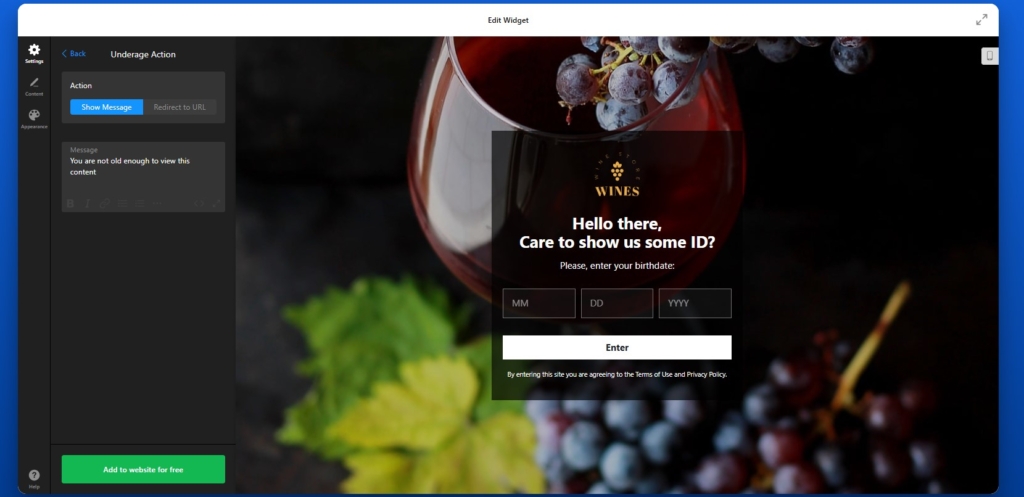
After the content is ready, define how the app should behave based on the visitor’s response. This is where the age verification popup becomes a real access-control tool rather than just a message.
For users who do not meet the age requirement, you can either show a custom message, or redirect them to another page. That destination could be your homepage, an informational page, or another URL depending on your needs.
You should also decide whether you want the popup to appear on the whole Wix website or only on certain pages. Some businesses need a full-website age gate, while others only need it on selected product pages or specific content sections.
Step 5: Customize the Popup Text and Buttons
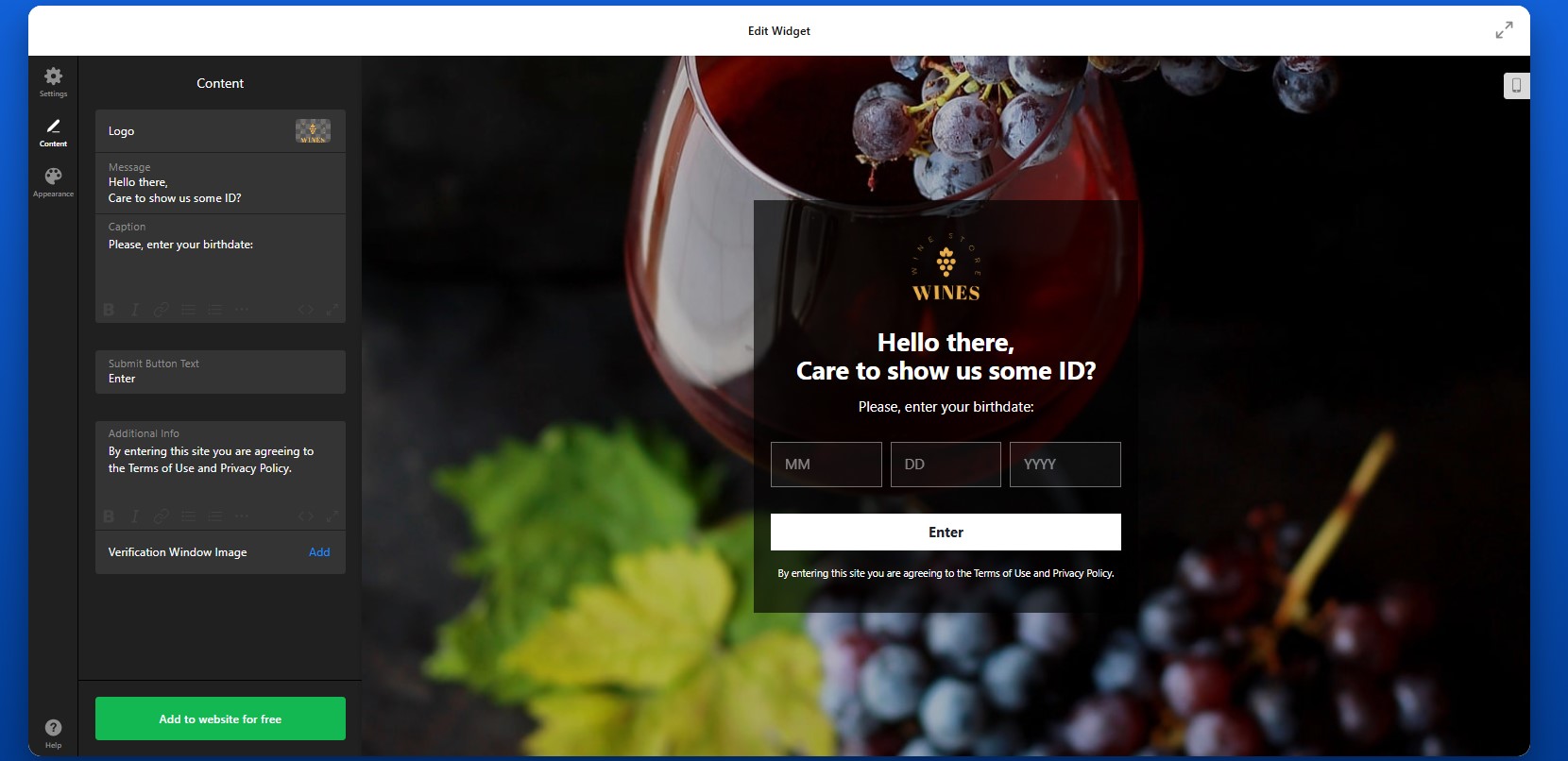
Once the verification method is set, move on to the content of the popup itself. This includes the title, explanatory text, confirmation button, and additional information.
Your message should be direct and easy to understand. Visitors should know immediately why the popup appears and what they need to do next. For example, instead of generic wording, you can use text that clearly explains that the website contains age-restricted products or content.
Step 6: Customize the Design
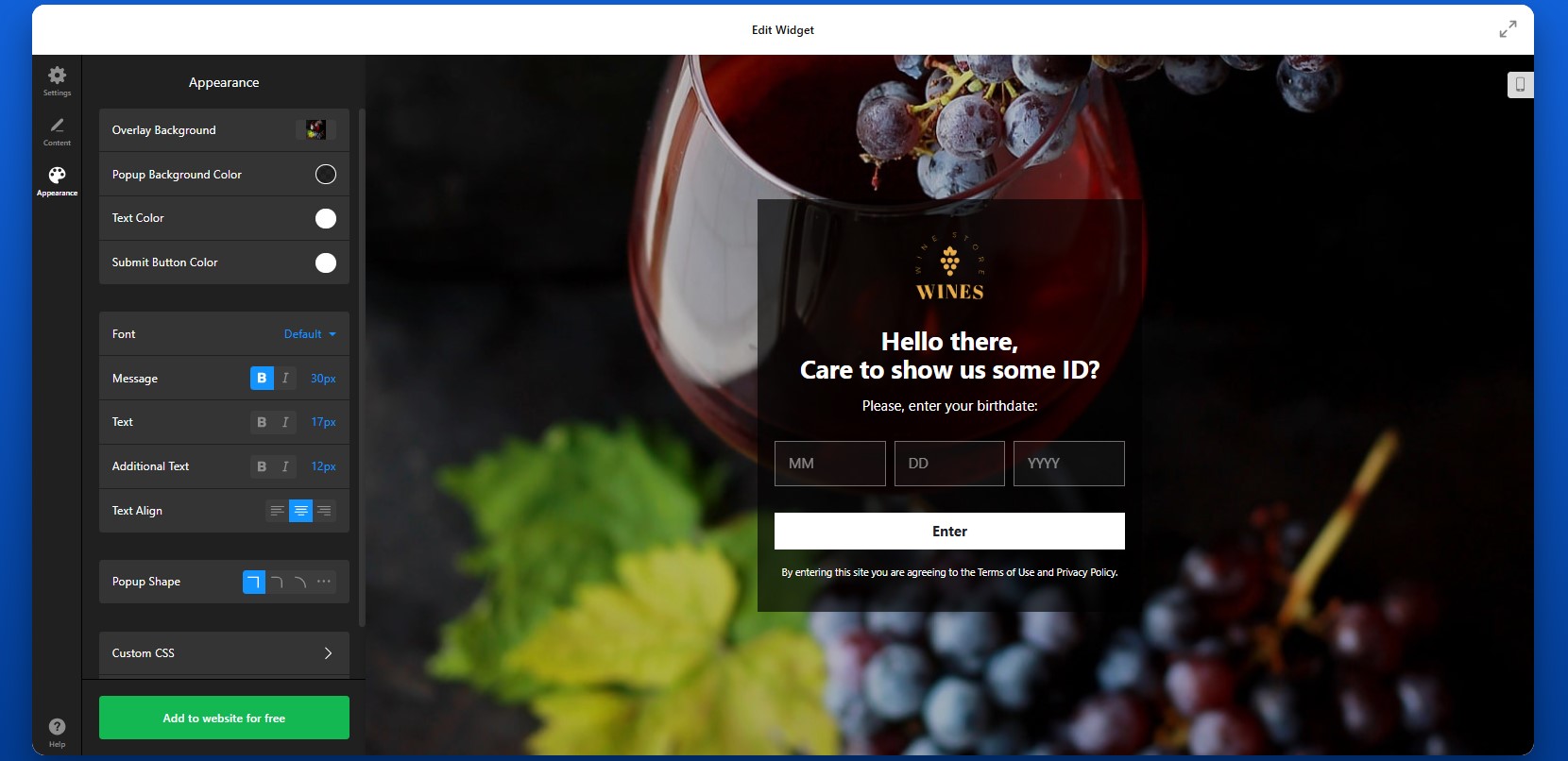
Now move to the design settings and make sure the popup aligns with the look and feel of your Wix website. This includes colors, fonts, buttons, spacing, overlays, and other visual elements.
Your age gate should feel like part of your website, not like an unrelated layer added on top. If the styling is consistent with the rest of your design, users are more likely to trust it and continue smoothly through the process.
This is also the step where readability matters. Make sure the text is large enough, the contrast is strong enough, and the buttons are easy to tap on smaller screens.
Step 7: Generate the Embed Code
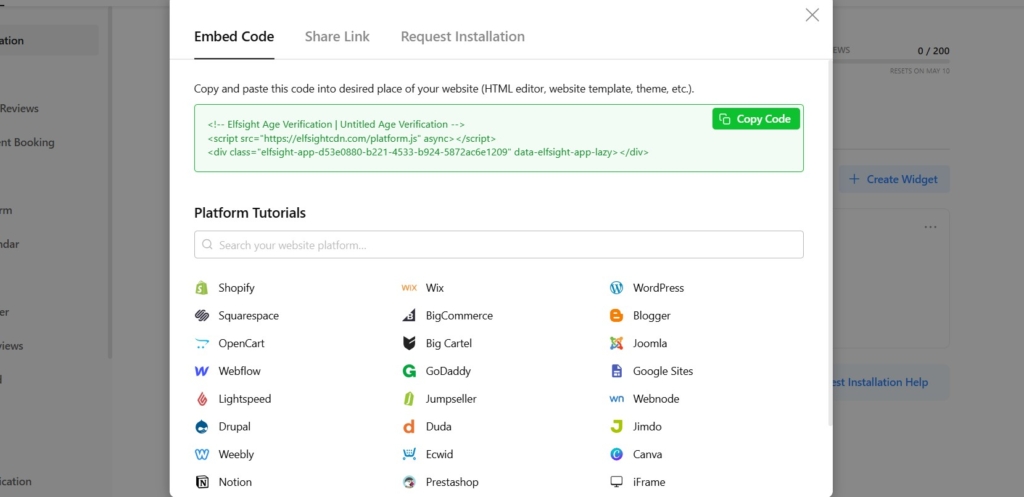
Once your Age Verification is fully configured, click “Add to website for free” to generate the embed code. This code contains everything needed to display the age verification popup on your Wix website. Copy the entire code snippet exactly as shown.
At this point, the configuration work is done and the widget is ready to be installed.
Step 8: Add Age Verification to Wix Website
Now open your Wix editor and navigate to the page or section where you want the Age Verification app to load. In most cases, it is used as an entry popup for the website experience, so you’ll want to place the code where it can apply broadly across the pages you want to protect.
Add an Embed HTML element in Wix, then paste the code into that block. Save your changes and publish the website. Once published, the popup should appear according to the rules you configured in the editor.
After installation, test the full experience carefully.
- If the popup doesn’t appear, confirm that the full embed code was pasted into the correct Wix Embed HTML element and that the page was published after changes.
- If the popup keeps showing to returning visitors, review the cookie memory settings.
- If the layout looks off, check the size of the embed container and test the widget on mobile and desktop.
- If redirects don’t work as expected, recheck the destination URL and the logic you set for denied visitors.
Alternative Solutions to Add Age Verification to Wix
There are a few other ways to add Age Verification to a Wix website, but they vary significantly in flexibility, ease of use, and long-term reliability. While these options can work in simple cases, they often become limiting as your website grows or your compliance needs become more specific.
Wix App Market Solutions
One of the most common alternatives is installing an age verification app from the Wix App Market. These apps are designed to integrate directly with Wix and typically provide a quick way to add a basic popup.
To implement this method, open your Wix editor, go to the App Market, search for “age verification,” and install a suitable app. After installation, through the app interface you’ll configure such popup settings as text, display behavior, and basic design.
This approach is convenient and requires no coding, but it still has some limitations.
- Limited design flexibility compared to fully customizable solutions
- Feature restrictions depending on pricing tiers
- Dependency on third-party app updates and support
Custom Code (JavaScript Popup)
Another option is building your own age verification popup using JavaScript and embedding it into your Wix website through the HTML embed feature.
To implement this, you would create a script that triggers a popup on page load, collects user input (such as confirmation or date of birth), and then controls access based on that input. This script is then added to your Wix website using an Embed HTML element or developer tools.
This method gives you full control over functionality, but it requires technical knowledge and ongoing maintenance.
- Requires coding skills and technical setup
- No built-in interface for easy updates or adjustments
- No automatic improvements, fixes, or compliance updates
Wix Native Popups or Lightboxes
Wix also offers built-in popup (lightbox) functionality that you can adapt for age verification. This is a manual workaround rather than a dedicated feature.
To implement this, you create a lightbox in Wix, design it as an age confirmation popup, and set it to appear when users enter your website. You can add buttons for confirmation and optionally link them to different actions.
While this method is easy to set up, it’s not specifically designed for age verification.
- No true age verification logic (only basic confirmation)
- No built-in cookie memory for returning users
- Requires manual setup for each behavior
- Difficult to scale across multiple pages or use cases
Before choosing a method, it helps to compare them based on real-world factors like flexibility, maintenance, and user experience.
| Feature | Elfsight Age Verification | Wix Apps | Custom Code | Wix Lightbox |
| Ease of setup | Easy | Easy | Hard | Easy |
| Customization | High | Medium | High | Low |
| Design control | Full | Limited | Full | Limited |
| Cookie memory | Yes | Limited | Custom | No |
| Maintenance required | None | Medium | High | Medium |
| Compliance flexibility | High | Medium | Custom | Low |
Each method can work depending on your needs, but they serve very different levels of complexity. Elfsight provides the best balance: it combines ease of use with advanced features, allowing you to scale your age verification setup without increasing complexity or maintenance over time.
Optimization Tips for Your Age Verification Popup
Once your age verification is in place, refining how it behaves and appears can significantly improve both compliance and user experience.
- Choose the right verification method for your industry: If your Wix website operates in a strictly regulated space, use more precise methods like date-of-birth input. For less strict use cases, a simple confirmation can reduce friction while still setting expectations.
- Keep messaging clear and transparent: Explain why age verification is required. When users understand the reason behind the popup, they’re more likely to complete the process without hesitation.
- Match the popup design to your website: Align colors, fonts, and layout with your Wix branding. A consistent design makes the popup feel like a natural part of your website rather than an interruption.
- Use cookie memory to improve repeat visits: Allow verified users to bypass the popup for a certain period. This creates a smoother experience for returning visitors and reduces unnecessary repetition.
- Test display behavior across pages: Decide whether the popup should appear across the entire website or only on specific pages. For example, you may only need age verification on certain product or content sections.
- Ensure mobile usability: Check that buttons are easy to tap, text is readable, and the popup doesn’t block essential navigation on smaller screens. A smooth mobile experience is critical for completion rates.
- Control timing and visibility: Display the popup immediately on entry for compliance-critical websites, or adjust timing to avoid disrupting the user flow where appropriate.
- Review and update settings regularly: As your Wix website evolves or regulations change, revisit your age verification setup to ensure it still aligns with your business needs and legal requirements.
Frequently Asked Questions
Can I choose different types of verification methods?
Can I control what happens when a user fails the age check?
Will visitors need to verify their age every time they open my Wix website?
Can I show the Age Verification popup only on specific pages?
Does the Age Verification app store personal user data?
Conclusion
Adding age verification to your Wix website is a practical step toward protecting your business, meeting regulatory requirements, and creating a clear experience for your visitors from the very first interaction.
With the Elfsight Age Verification app, you can set up a fully functional, branded age gate in minutes. From advanced verification options to cookie-based memory and responsive design, it provides everything you need to balance compliance with a smooth user experience.
If you’re looking for a reliable and scalable way to add age verification to Wix, this approach helps you do it quickly while keeping both your visitors and your business protected.