

Overview
Contacts from the chat shouldn't wait for someone to copy them. With Zoho CRM connected, a visitor who leaves their name, email or phone in the chat becomes a lead in your Leads module at once, with first and last name, email and phone.
Leads are created the usual way, so the workflow rules you've set up for new leads run on chat leads too. A visitor already in your leads is matched by email: their lead only gets the details it was missing, and the name you have is never overwritten.
What you can do
These are the jobs the integration is built for.
Collect leads
When a visitor sends their details in the chat, a lead appears in Zoho CRM with their first and last name, email and phone.
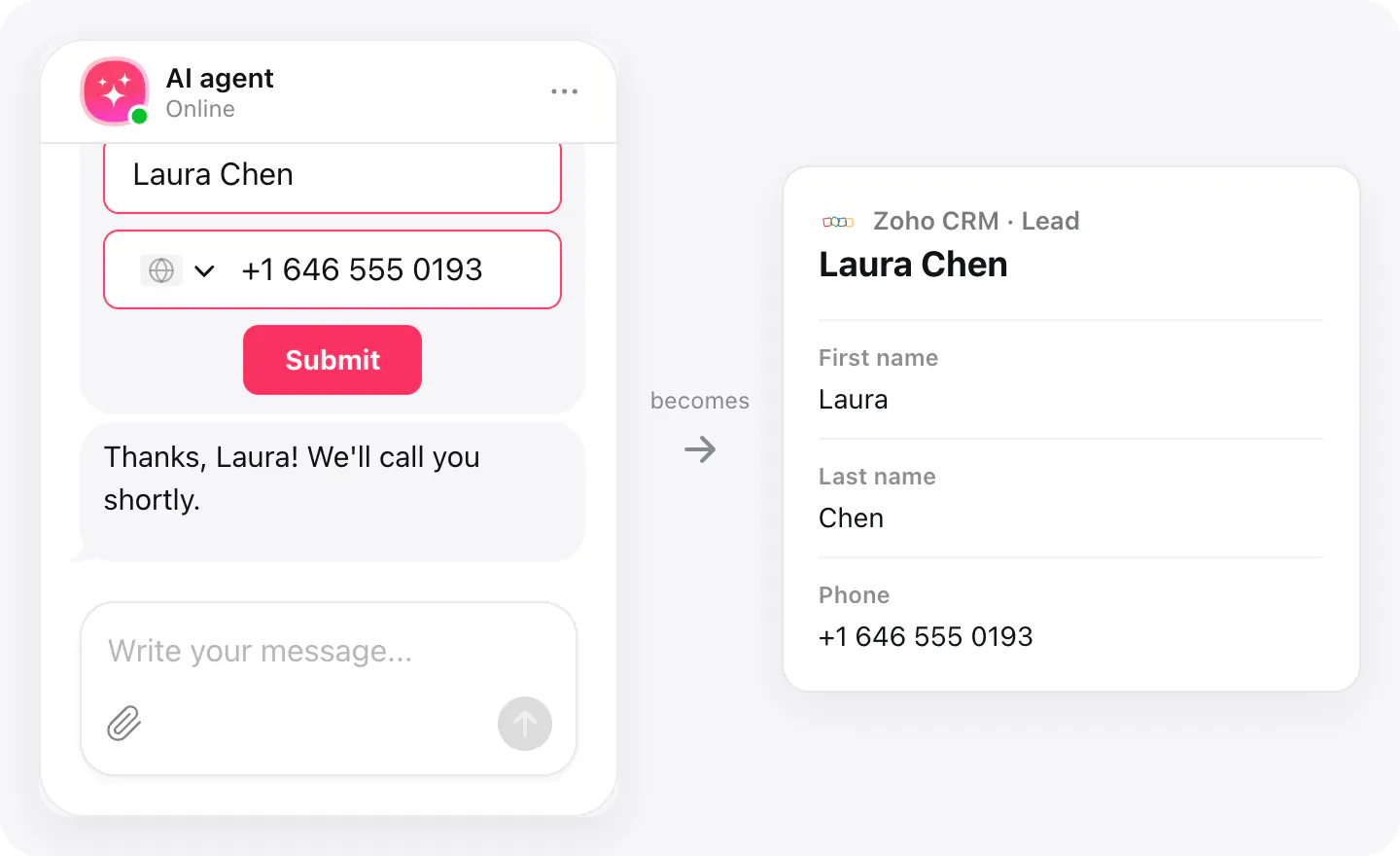
Your workflow rules run
A lead from the chat is created like any other, so the workflow rules you've set for new leads — an email alert, a task, a field update — fire on it too.
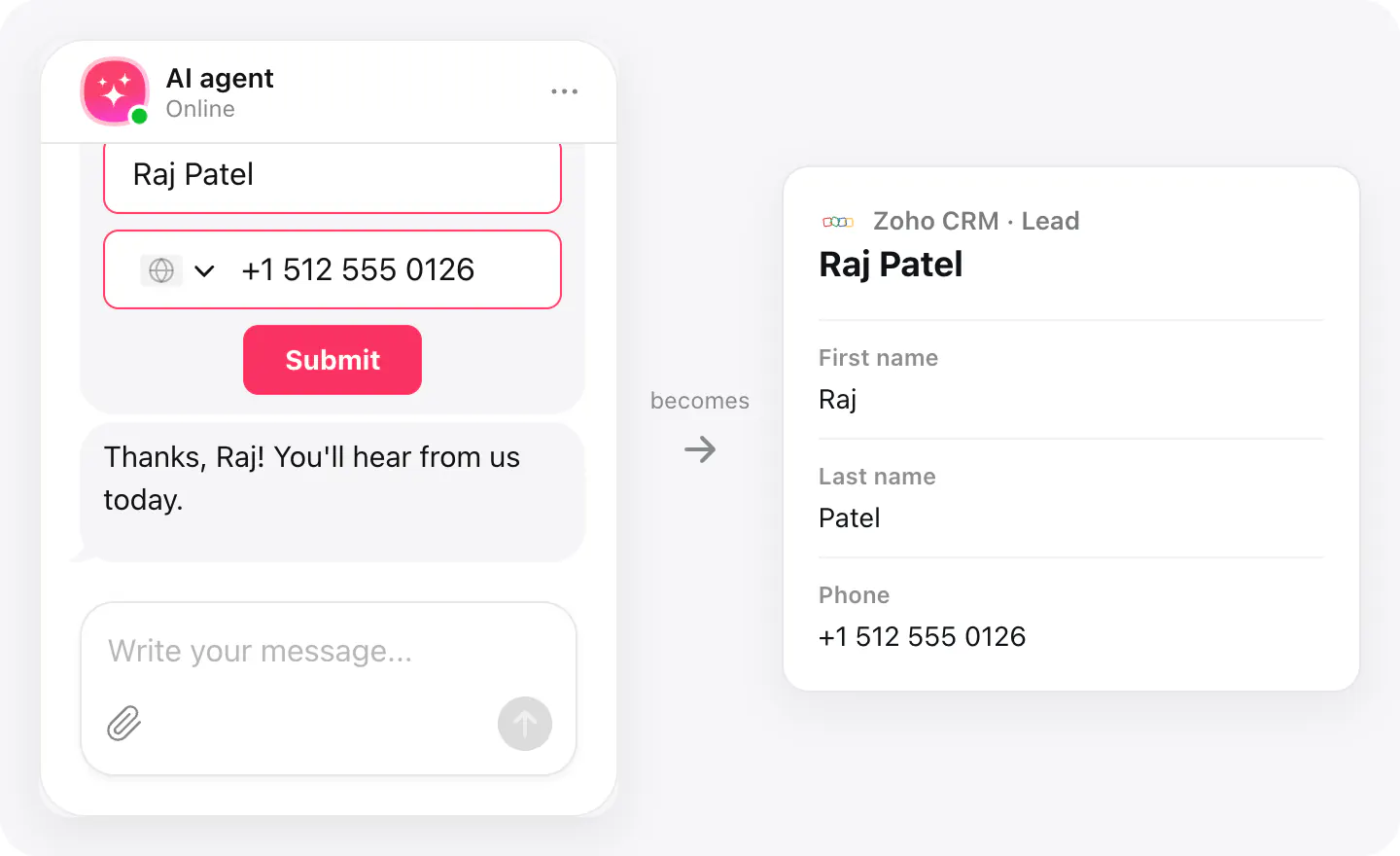
No duplicate leads
A visitor who is already one of your leads is matched by email: the lead gets the details it was missing, and nothing you entered is overwritten.
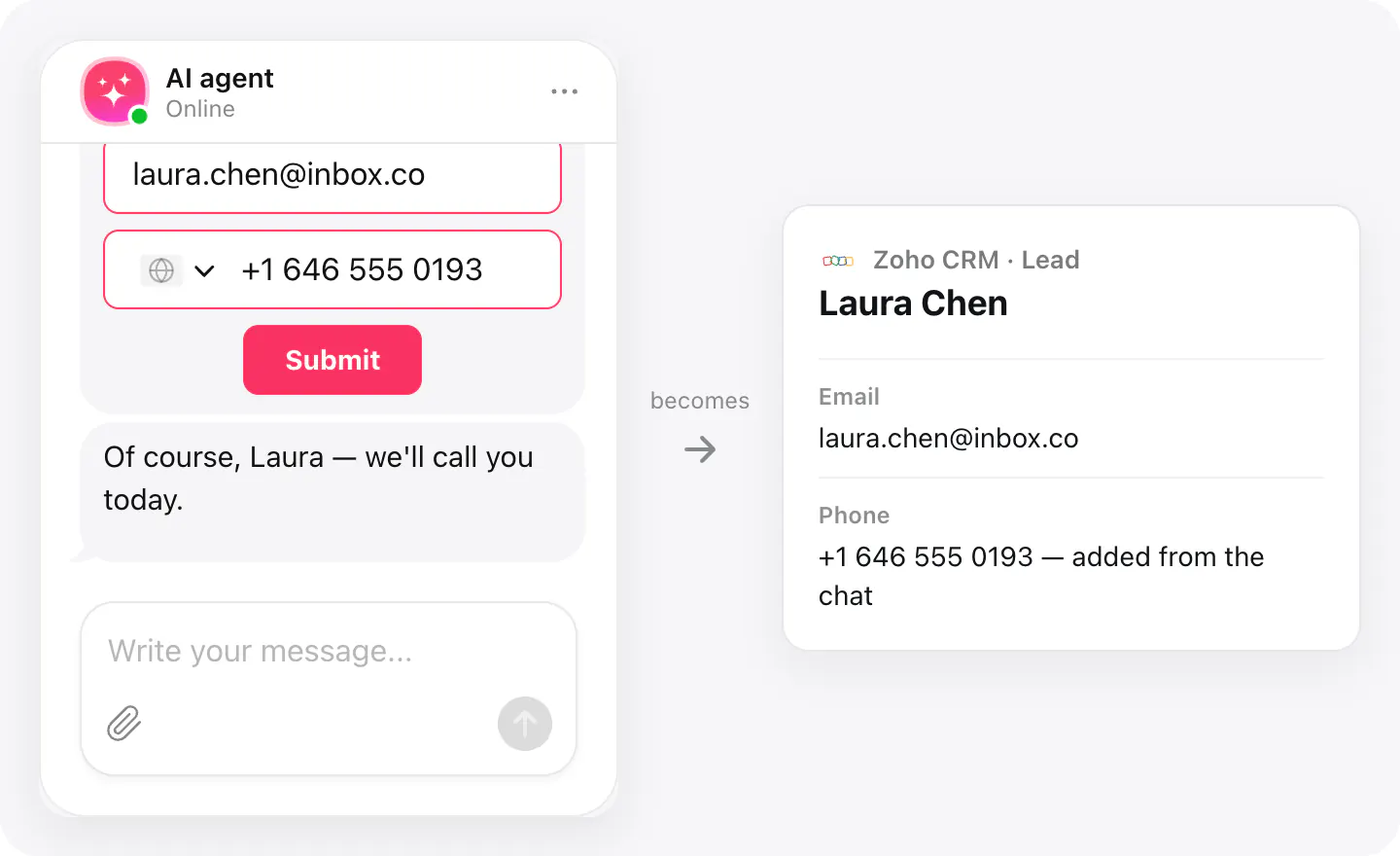
Set up
Connect Zoho CRM in your widget's Integrations, then pick it in the Collect contacts skill as where contacts go.
- Open your AI Chatbot widget, go to Integrations, choose Zoho CRM and sign in to your Zoho account to allow access to leads.
- In Agent skills, turn on Collect contacts and pick Zoho CRM as where contacts go.
- Make sure the form asks for an email: it's how a returning visitor is matched to their lead.
Connected apps and their status are listed in Integrations in your widget, where you can disconnect access at any time.
Requirements
- An AI Chatbot widget published on your site.
- A Zoho CRM account with permission to view, create and edit leads.
- Any Zoho data center works: US, EU, India, Australia, Japan, Canada, Saudi Arabia or China.
What gets sent
What the integration passes on.
First name
Last name (from the email when there's no name)
Email
Phone
Company: «Not provided», only when your layout requires it
If nothing arrives
- Check the skill. Collect contacts needs Zoho CRM picked as where contacts go; with no CRM picked there, nothing is sent.
- Check required fields. Company is filled with «Not provided» when your Leads layout requires it. Any other field you've made mandatory stops the lead from being created — make it optional.
- Check the contact details. A lead is created only when the visitor leaves an email or a phone number; a name alone isn't enough.
How businesses use it
The same connection, set up for different kinds of business.
- Local & small businessWebsite enquiries land in the same Zoho CRM leads your team already follows up.