
Overview
A chatbot you can't measure is hard to justify. With Google Analytics, the chat shows up in the same reports as the rest of your site — next to your pages, campaigns and conversions, not in a separate tool nobody opens.
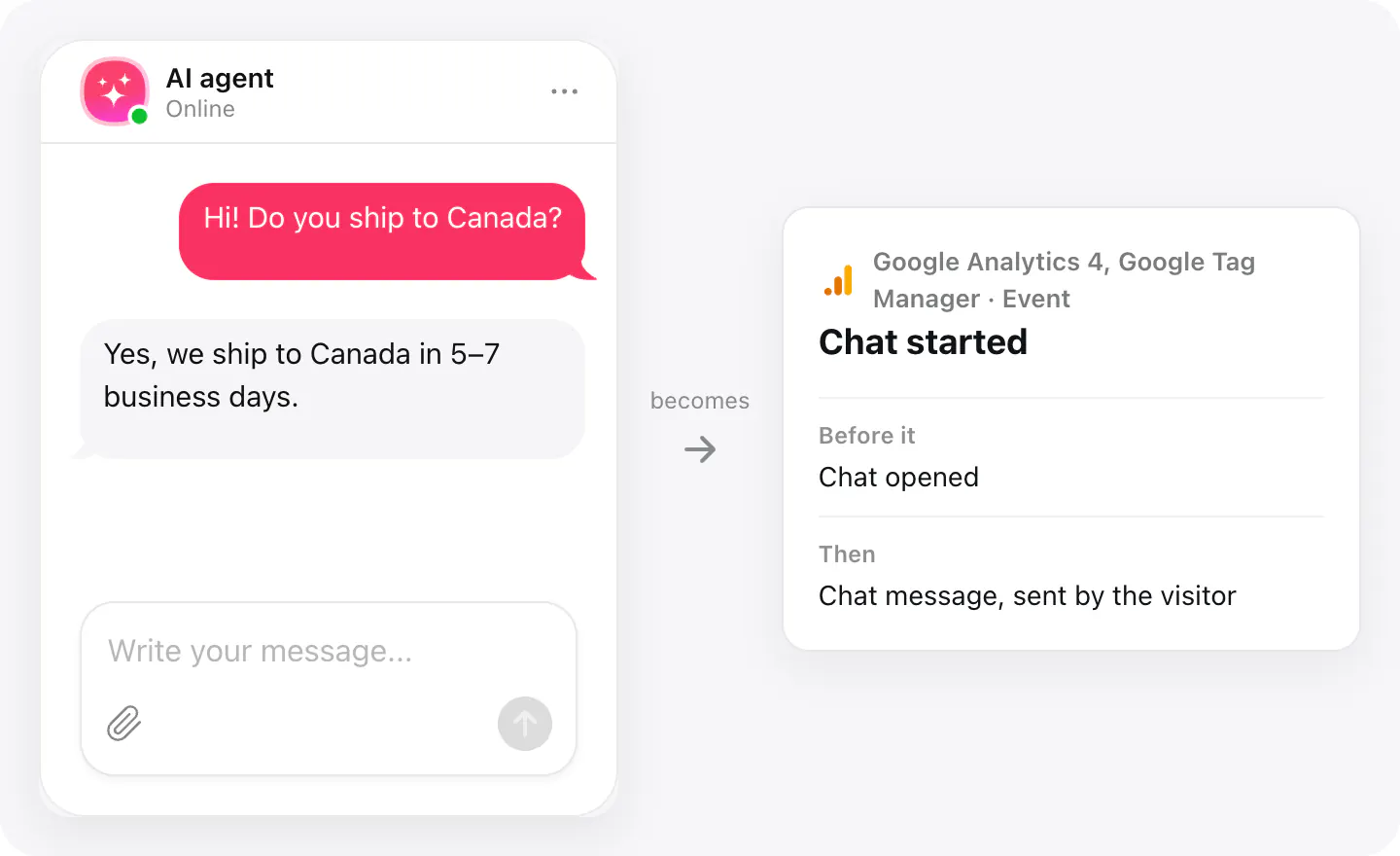
The widget uses the Google Analytics or Google Tag Manager already on your pages. The events — chat opened, chat started, a message with who sent it, form started and form submitted — are enough to build a funnel from a visit to a lead.
What you can do
These are the jobs the integration is built for.
See how many visitors talk to the chat
Chat opened and chat started show how many visitors open the chat, and how many of them actually start a conversation.
Count chat leads as conversions
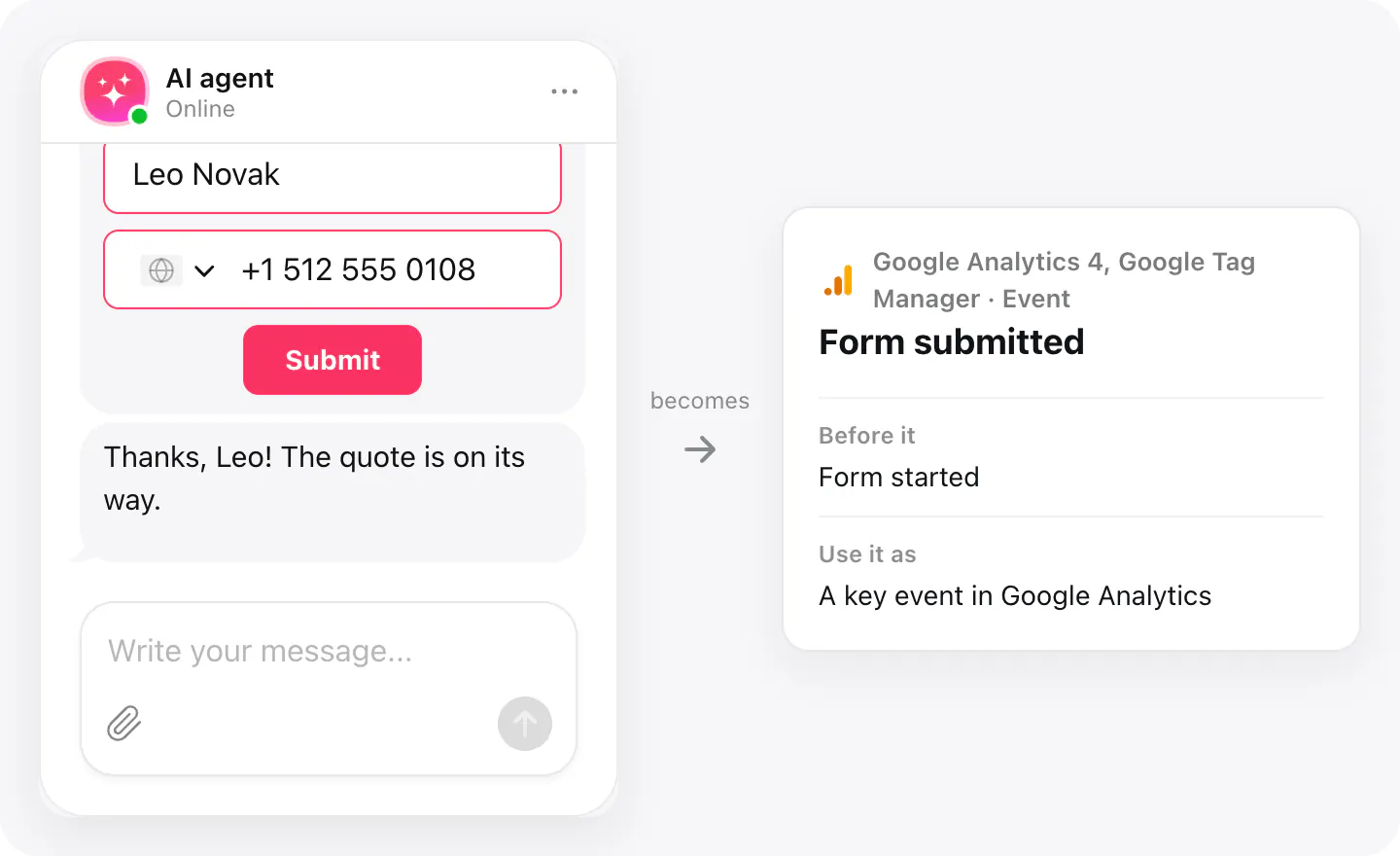
Form submitted marks the moment a visitor leaves their details in the chat — mark it as a key event and see chat leads beside your other conversions.
Find where visitors drop off
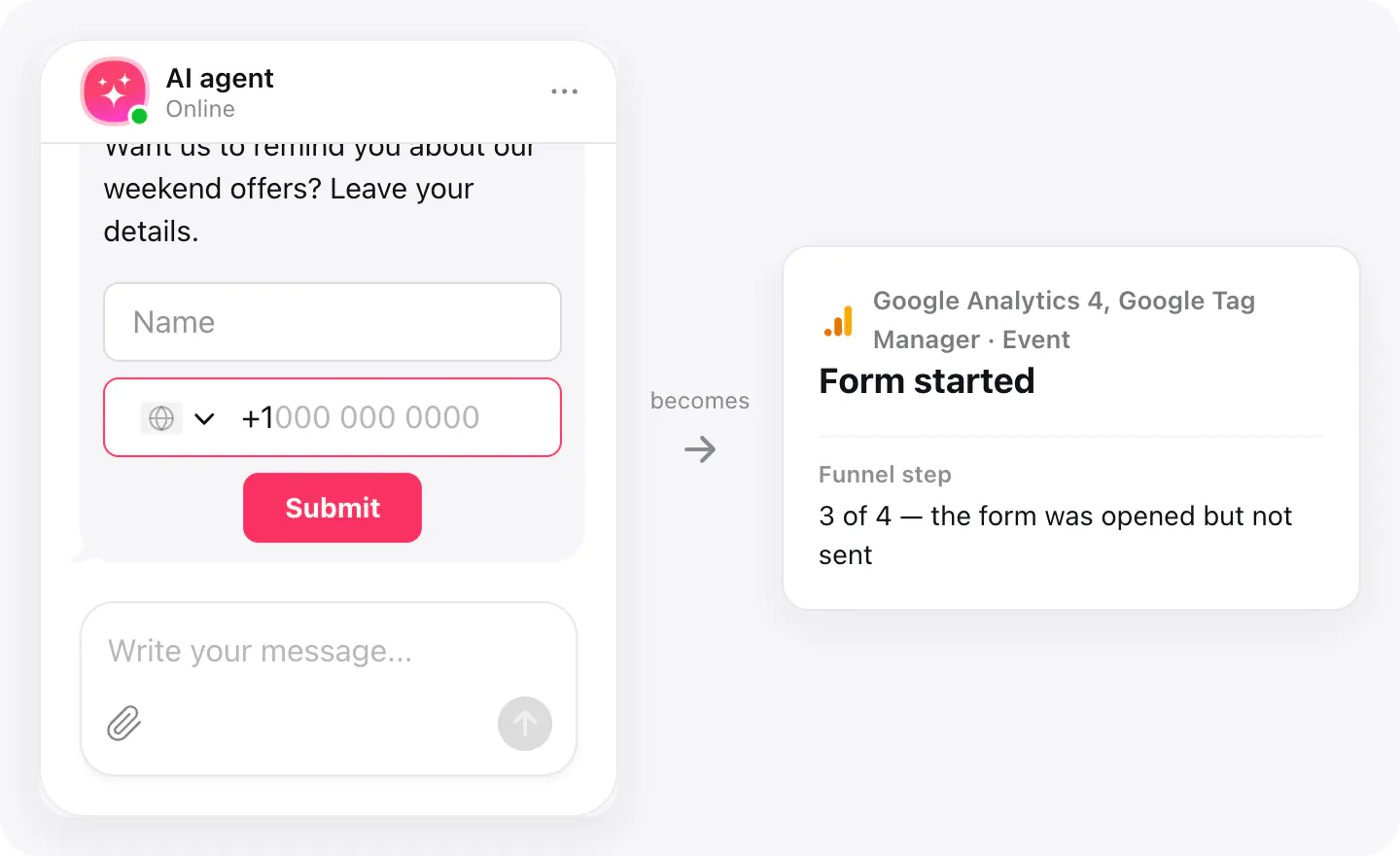
Put the chat events in a funnel: opened, started, form started, form submitted. The step with the biggest drop is the one to work on.
Set up
Connection happens inside your AI Chatbot widget. Open the Integrations tab, pick this connector, and follow the steps shown there.
- Open your AI Chatbot widget, go to Integrations and choose Google Analytics.
- Add the events you want to track — chat opened, chat started, chat message, form started, form submitted — and the parameters to send with them.
- Publish the widget; the events go to the Google Analytics or Tag Manager already on your site.
Connected apps and their status are listed in Integrations in your widget, where you can disconnect access at any time.
Requirements
- Google Analytics 4 or Google Tag Manager already installed on your site.
- An AI Chatbot widget published on the same pages you want to measure.
Events you can send
Add the ones you want in the widget's Google Analytics settings; each can carry the widget's name or id, the app, the source or a parameter of your own.
chat_open — the chat window is opened
chat_start — the visitor sends their first message
chat_message — any message, with sender: visitor or agent
form_start — the visitor starts filling in the contact form
form_submit — the visitor sends the form
If nothing arrives
- Check your Google tag. Events go to the Google Analytics or Tag Manager on the page. A page without them sends nothing to Google Analytics.
- Give the reports time. Google Analytics' standard reports can take a day to show new events; check the Realtime report first.
- Check the widget is on that page. Events come only from pages where the AI Chatbot widget is published and the visitor actually opens the chat.
How businesses use it
The same connection, set up for different kinds of business.
- Online storesStore owners see whether shoppers who chat go on to buy more often than those who don't.