

Overview
A visitor who asks to meet is as ready as they will ever be; a reply like «email us to arrange a time» loses many of them. With the Booking skill and your Calendly link, the agent opens Calendly's own booking page as soon as the visitor asks to schedule something, and they pick a time from your real availability.
You describe when the booking should appear — a demo request, a consultation, a call. The meeting lands in your Calendly with everything the visitor filled in, and the chat goes on: the agent confirms the booking and stays there for any other question.
What you can do
These are the jobs the integration is built for.
Book at the moment of interest
A request for a demo, a call or a consultation opens your Calendly page right over your site — no form to fill in first, no email back and forth.
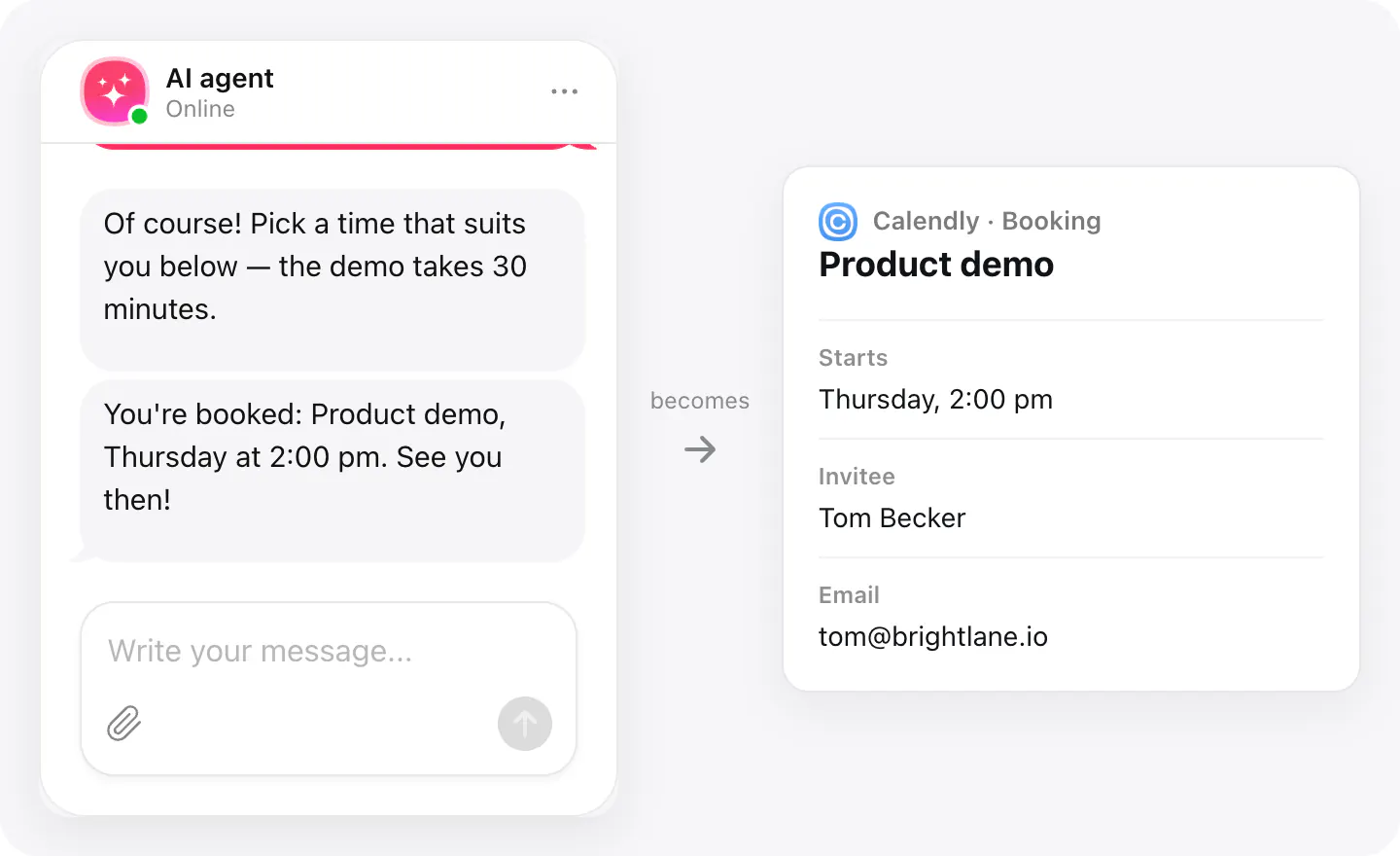
The right meeting for the question
Add a Booking skill for each kind of meeting, each with its own Calendly link and its own «when to show»: sales calls for pricing questions, onboarding for new customers.
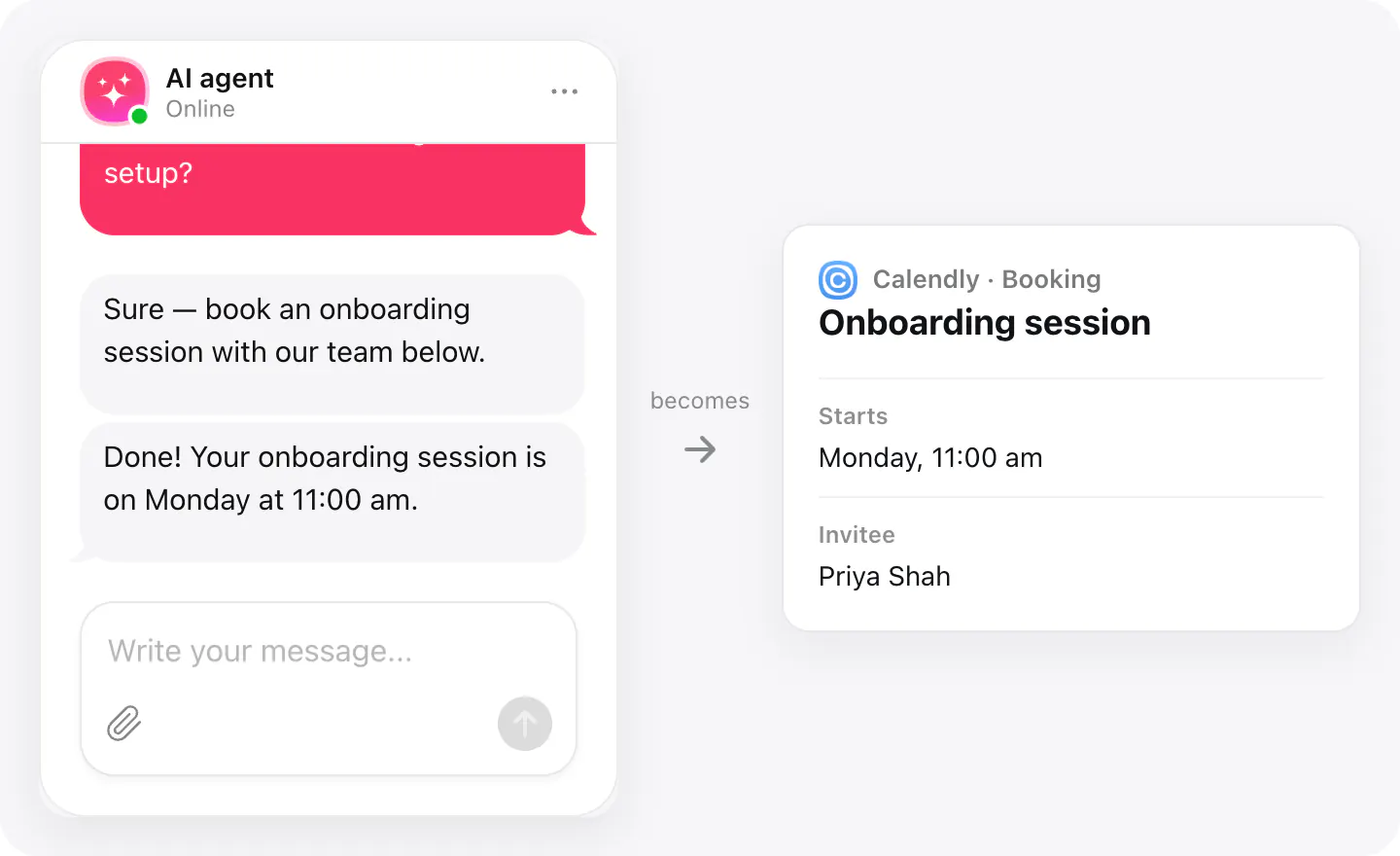
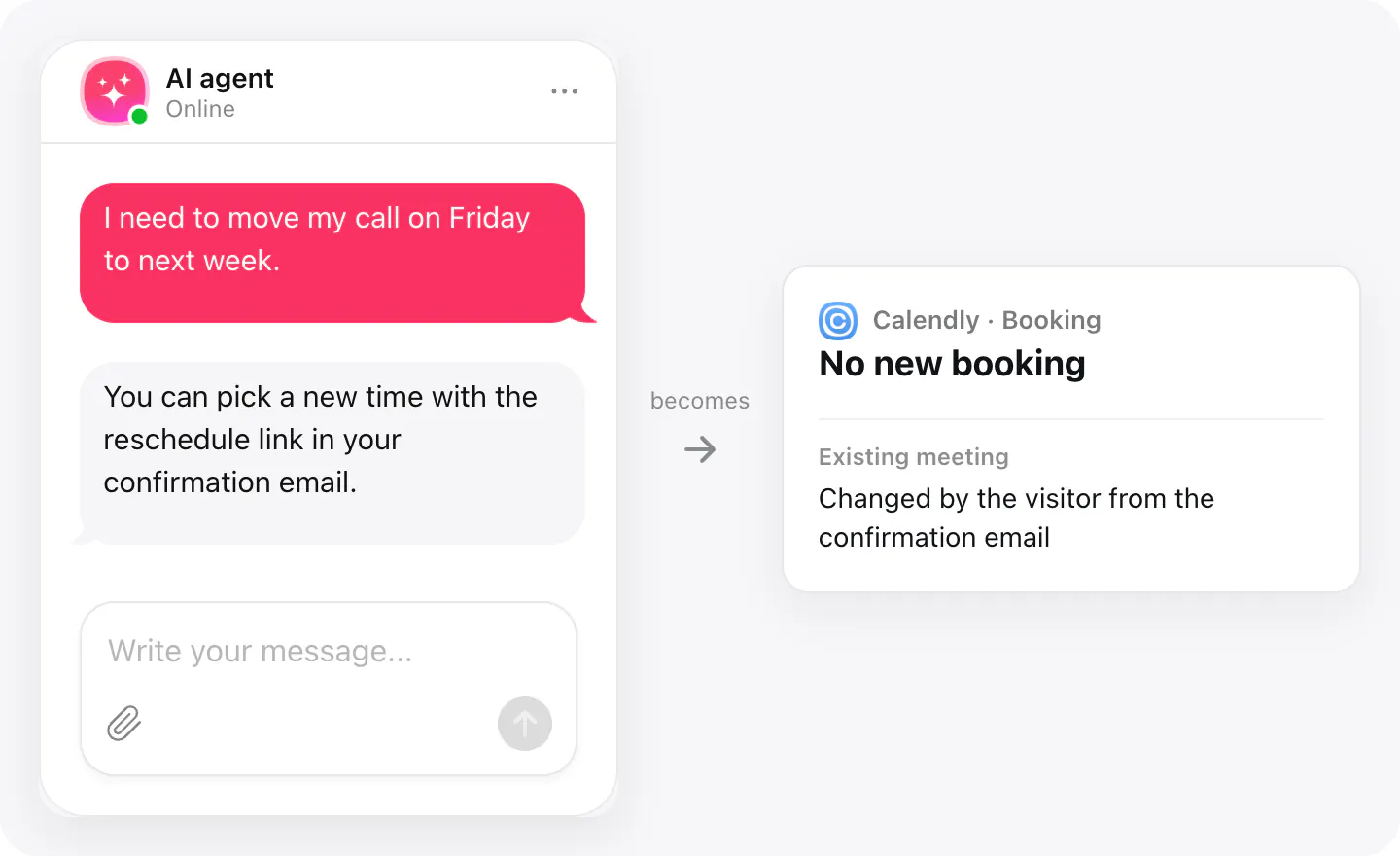
Reschedules go to the confirmation email
When a visitor wants to move or cancel a meeting they already booked, the agent doesn't open a new booking — it points them to the link in their confirmation email.
Set up
Booking is an agent skill. Open Calendly under Integrations in your AI Chatbot widget and add the skill there.
- Open your AI Chatbot widget, go to the Integrations tab, and choose Calendly.
- Click Add Skill, then paste the public link to your Calendly booking page. If you offer several meeting types, use the main page link that lists them all — or add a skill for each.
- Describe when the booking should appear — for example when a visitor asks to schedule a meeting, book a demo or call, or wants to talk to someone.
You can change the link or the offer rules any time under Agent skills in the widget.
Requirements
- An AI Chatbot widget published on your site.
- A public Calendly booking page link (the main listing page if you offer several event types).
Where the booking lands
Visitors book in Calendly's own page, opened over your site.
| Where the booking lands | Calendly | The chat |
|---|---|---|
| The booking, its time and what the visitor filled in | ||
| A confirmation that the booking went through |
If nothing arrives
- Check the link. A Booking skill without a booking link is never offered. Paste your public Calendly page, the one visitors can open without signing in.
- Check «when to show». The agent opens the booking when the conversation matches what you described. Name the requests plainly: a demo, a consultation, a call.
- Rescheduling is by email. Requests to move or cancel an existing meeting don't open the booking; visitors use the link in their confirmation email.
How businesses use it
The same connection, set up for different kinds of business.