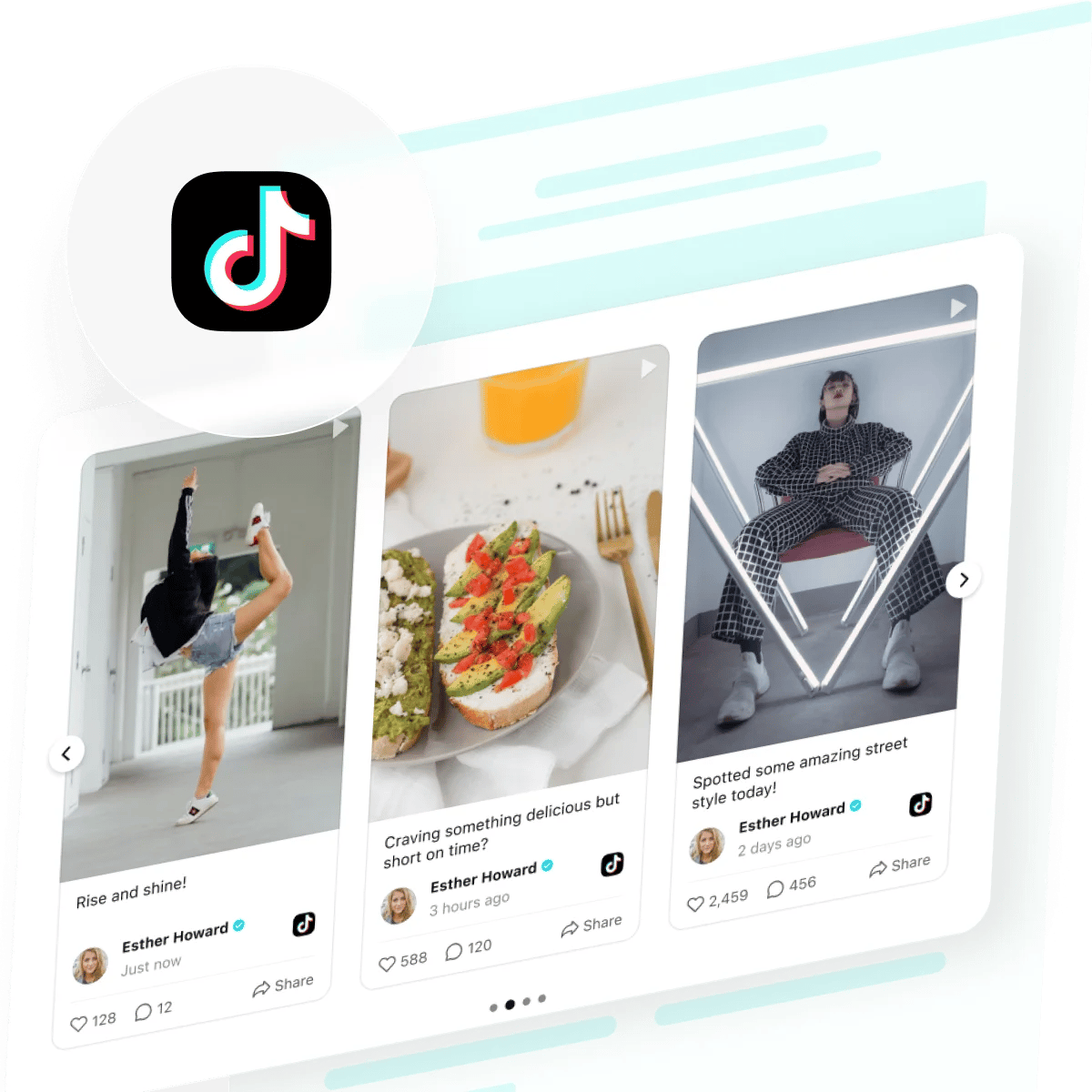
According to recent industry data, TikTok’s advertising engagement rate reaches 5.3% — significantly outpacing Instagram, YouTube, and Facebook, making the platform ideal for brands seeking authentic audience interaction.
TikTok has evolved far beyond dance videos and viral trends. When you integrate a live TikTok feed on your website, you’re tapping into a platform where 1.83 billion monthly active users discover new brands daily. This direct connection transforms static web pages into dynamic, credibility-building spaces that keep visitors engaged longer and significantly boost conversion opportunities.
Whether you operate an e-commerce store, creative agency, or community-focused brand, displaying authentic TikTok content on your pages builds genuine trust. Users see real people using and enjoying your products, which proves far more persuasive than traditional marketing claims.
- The fastest method to add TikTok feed to your website (zero coding required)
- Complete setup workflow from template selection through live deployment
- How different embedding approaches stack up against native solutions
- Proven optimization strategies for maximum visitor engagement
The sections below take you from initial setup to a fully functional, professionally styled TikTok feed that drives real business results.
Quick Start: Display TikTok Videos on Your Website
Here’s a direct sequence of steps to embed TikTok feed on your website right away:
- Open the Elfsight editor and select a TikTok Feed template.
- Connect your TikTok account and customize the feed.
- Click ‘Add to Website’ and copy the installation code.
- Paste the code into your website’s page editor and save.
🚀 Build a live preview of your TikTok feed in the interactive editor!
Why Embed a TikTok Feed on Your Website
Before diving into the technical setup, understanding the strategic value helps you position your feed for maximum impact. A live TikTok feed addresses several critical business challenges simultaneously:
📱 Access to billions of engaged users
TikTok’s 1.83 billion monthly active users spend an average of 95 minutes daily on the platform. By embedding TikTok content on your website, you’re bridging two ecosystems and making it effortless for engaged TikTok viewers to discover you through another channel. This cross-platform visibility dramatically expands your potential customer base.
🎯 Authentic social proof that converts
Customer-generated TikTok content functions as powerful third-party validation. When visitors see real people, reviews, and testimonials displayed through your embedded feed, they perceive your brand as trustworthy and authentic. This effect intensifies when content appears directly on your website rather than requiring them to visit TikTok separately.
💫 Fresh, automatically updating content
Unlike static website content that requires manual updates, a live TikTok feed continuously refreshes with new videos from your account or chosen hashtags. Search engines reward websites with frequently updated content, interpreting fresh feeds as signals that your site remains active and current.
🎨 Flexible visual storytelling
A single TikTok feed widget can display brand announcements, customer testimonials, product demonstrations, behind-the-scenes content, or tutorial videos depending on your configuration. This multi-purpose flexibility means you can use one embedding approach for vastly different marketing objectives across multiple pages.
Core Features of a Powerful TikTok Feed Widget
Elfsight’s TikTok Feed widget extends far beyond simply displaying a list of videos. Understanding the available features helps you build a feed optimized for your specific goals:
| Capability | Practical Use |
|---|---|
| Profile or hashtag-based feeds | Showcase your company’s TikTok timeline, aggregate customer stories by campaign hashtag, or feature user-generated content at scale. |
| Multiple layout options | Choose from grid layouts for galleries, carousels for featured content, masonry layouts for efficient space usage, list views for endless scrolling, or popup modes for detailed viewing. |
| Fully embedded interactive features | Visitors like, comment, share, and follow directly from your website without navigation friction, increasing engagement metrics and time-on-site. |
| Advanced card customization | Select from five distinct card layouts controlling what elements display (author names, publication dates, like counts, follow buttons, media indicators). |
| Granular content filtering | Automatically exclude specific post types, keywords, or accounts to maintain on-brand, professional feed appearance. |
| Flexible color and design systems | Match your brand’s exact visual identity through color themes, custom fonts, card shapes, and background styling without touching any code. |
| Header and messaging control | Add contextual titles and captions that guide visitors (e.g., “See what’s trending” or “Join our TikTok community”) or run a completely headless feed for minimal visual footprint. |
| Responsive mobile optimization | All layouts automatically adapt to phones, tablets, and desktops, ensuring consistent viewer experience regardless of device. |
For the complete feature breakdown, visit the TikTok Feed Features page. Now let’s walk through the step-by-step process for embedding TikTok on your website.
Setting Up Your TikTok Feed: Step-by-Step
This section guides you through each configuration stage, with practical examples for common use cases.
Step 1: Select Your Preferred Layout Template
Navigate to the Elfsight TikTok Feed editor and you’ll immediately see template options. Each template defines how videos display and influences the initial user experience:
- Grid Layout – Best for galleries or portfolio-style presentations where you want to display many videos simultaneously in organized rows
- Masonry Layout – Maximizes space efficiency by arranging cards of varying sizes, creating a sophisticated, modern aesthetic
- Carousel/Slider – Ideal for featured content or when you want to highlight specific videos one at a time with manual or auto-advance controls
- List View – Creates a vertical timeline for endless scrolling, mimicking TikTok’s native feed experience
- Popup Mode – Displays video thumbnails that expand into full-screen details when clicked, perfect for modal-focused designs
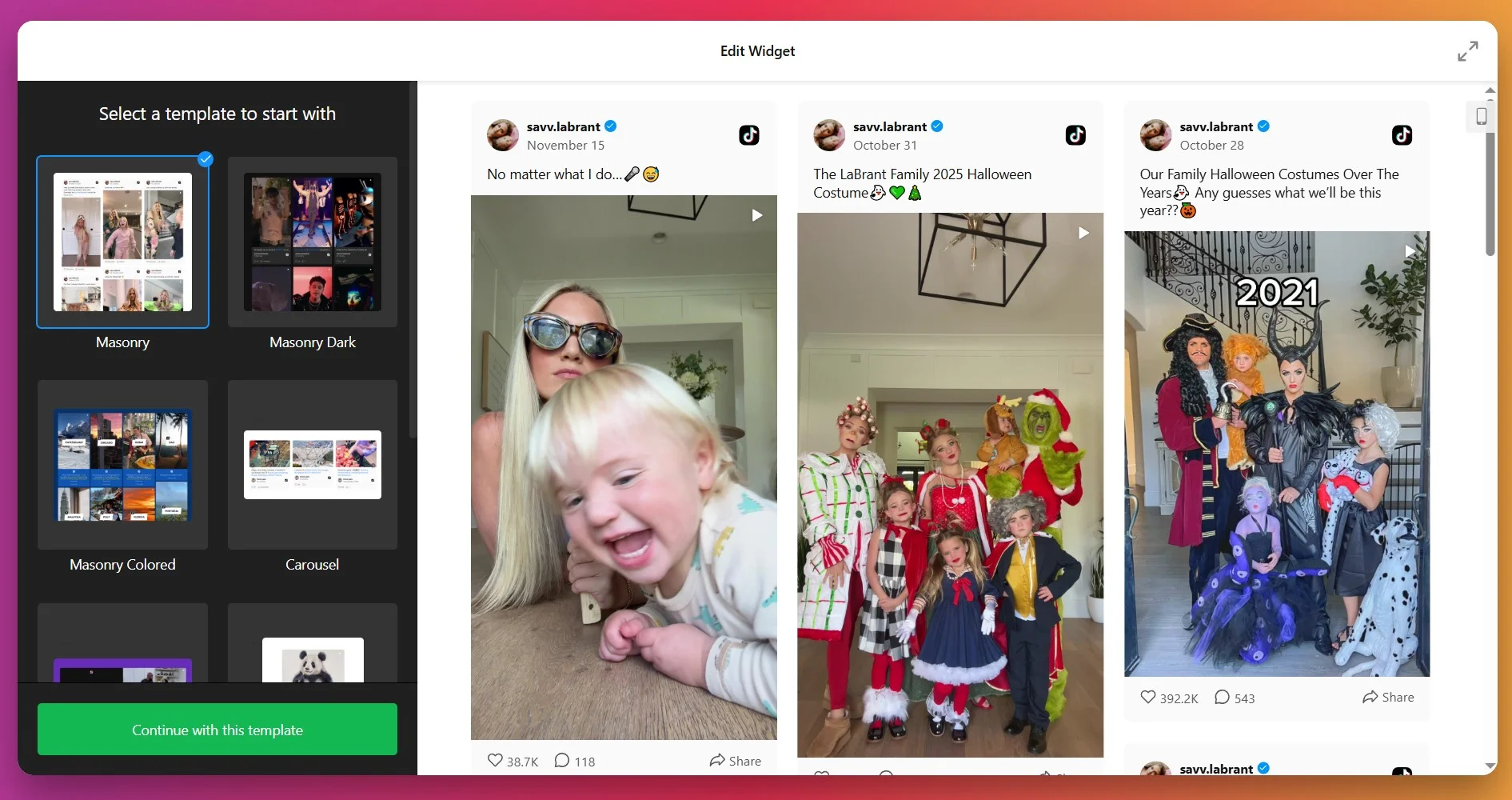
Choose the template that best aligns with your website layout and user experience goals. You can preview each option in the editor before committing. Once selected, click “Continue with this template” to advance.
Step 2: Connect Your TikTok Content Source
Now specify which TikTok content should populate your feed. The widget supports multiple source types, each serving different strategic purposes:
- Account Profiles – Display all videos from your own TikTok account or other specific creator profiles by entering their @username
- Hashtags – Aggregate public videos tagged with specific hashtags, perfect for brand campaigns (#YourBrandName) or user-generated content collection
- Trending Topics – Automatically surface videos related to specific trending hashtags in your industry
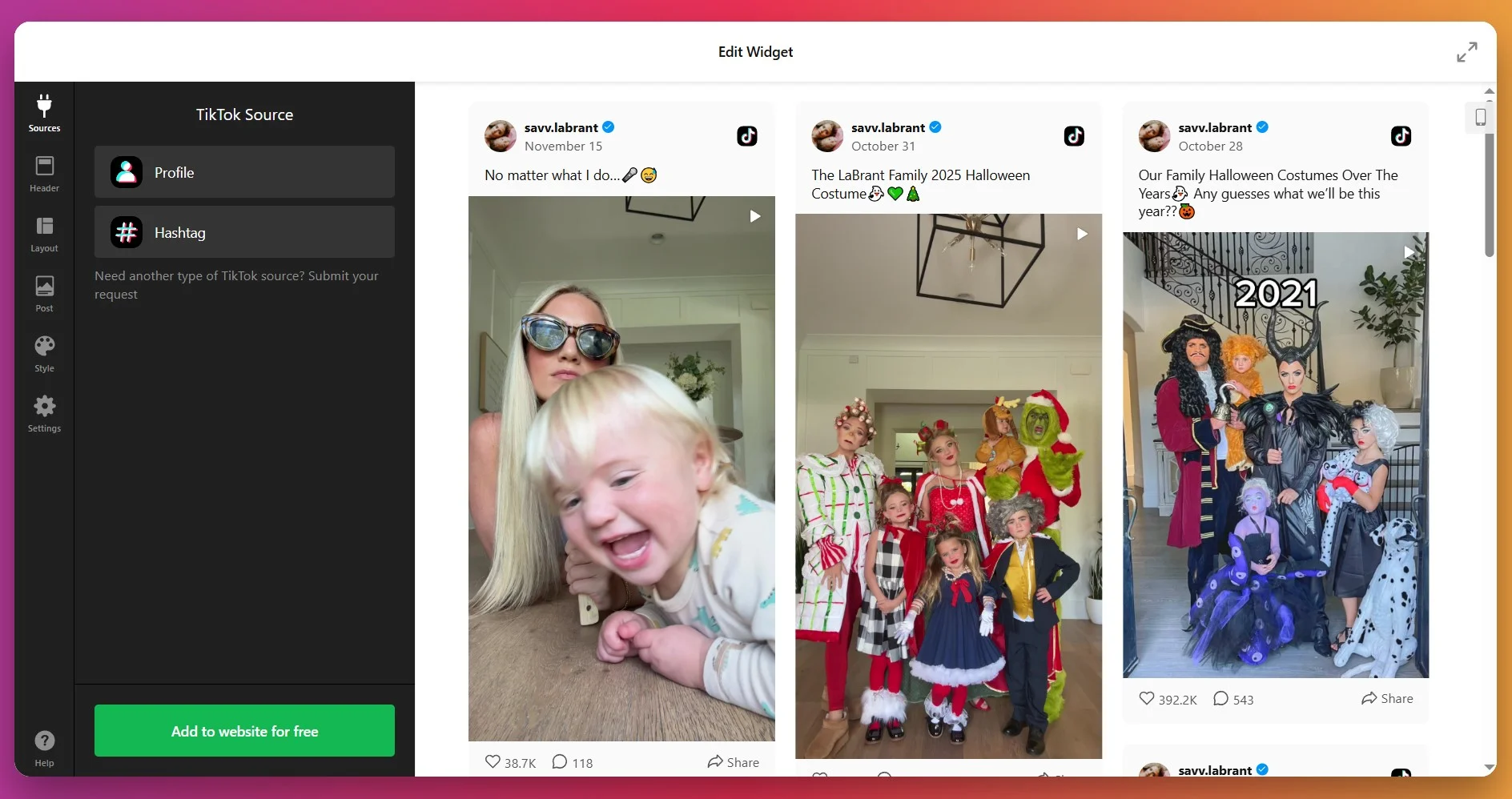
Enter your chosen source and click “Apply” – your feed will instantly populate in the preview panel, showing you exactly how content appears to visitors.
Step 3: Customize Layout Dimensions and Visibility
Under the ‘Header’ and ‘Layout’ tabs, you control exactly how your feed displays within your website layout:
- Set precise width and height in pixels or percentages to fit your page perfectly
- Add a custom title or heading above your feed or leave it blank for seamless integration
- Show or hide the header area (which might include account information or campaign messaging)
- Toggle visibility of author names, publication dates, engagement counters, and follow buttons
- Configure scrolling behavior (auto-load more or require manual “Load more” clicks)
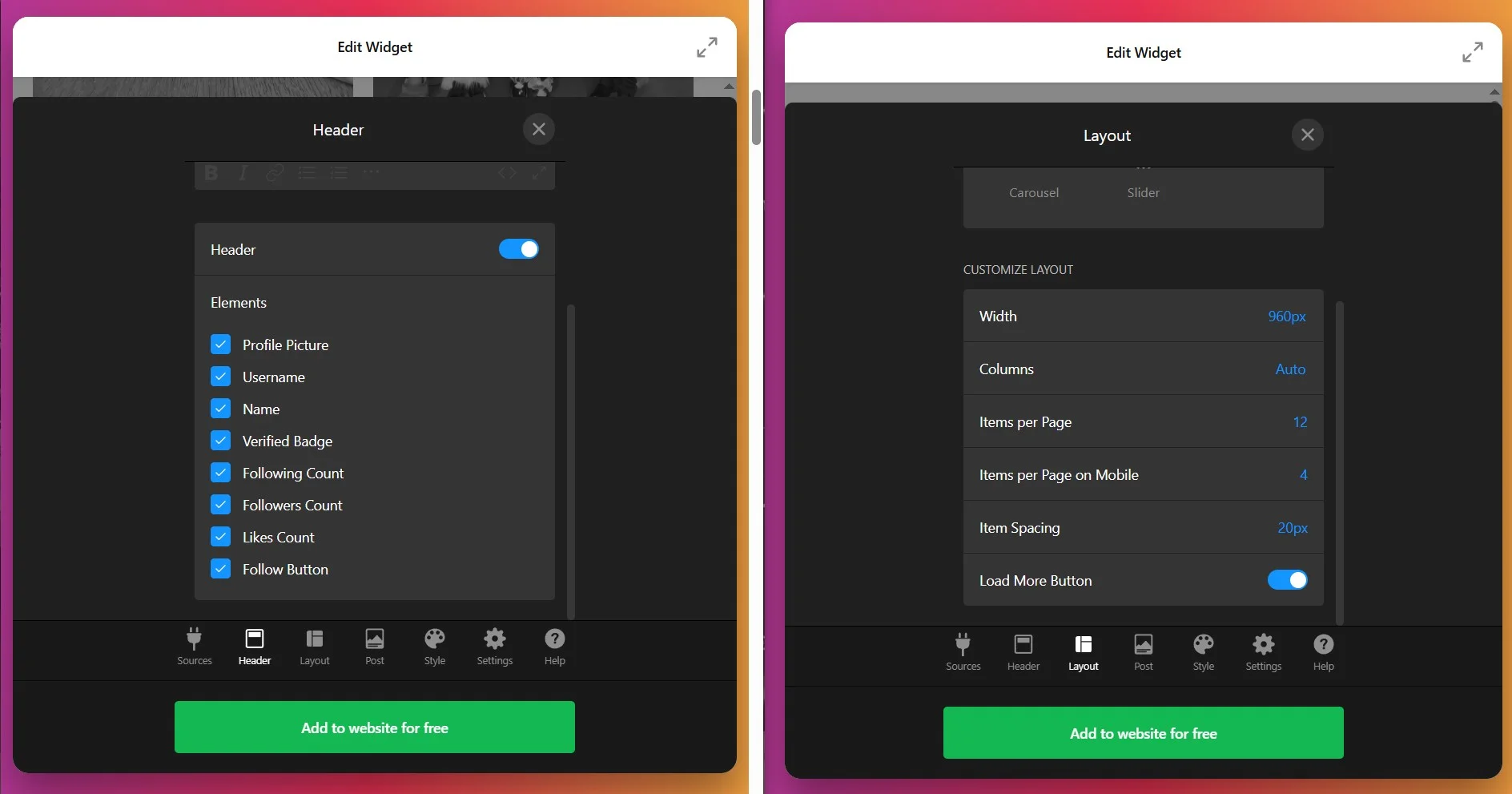
For minimalist website designs, hiding non-essential elements reduces visual clutter while preserving the core feed functionality. For conversion-focused pages, showing all interactive elements (follow buttons, like counts) maximizes engagement opportunities.
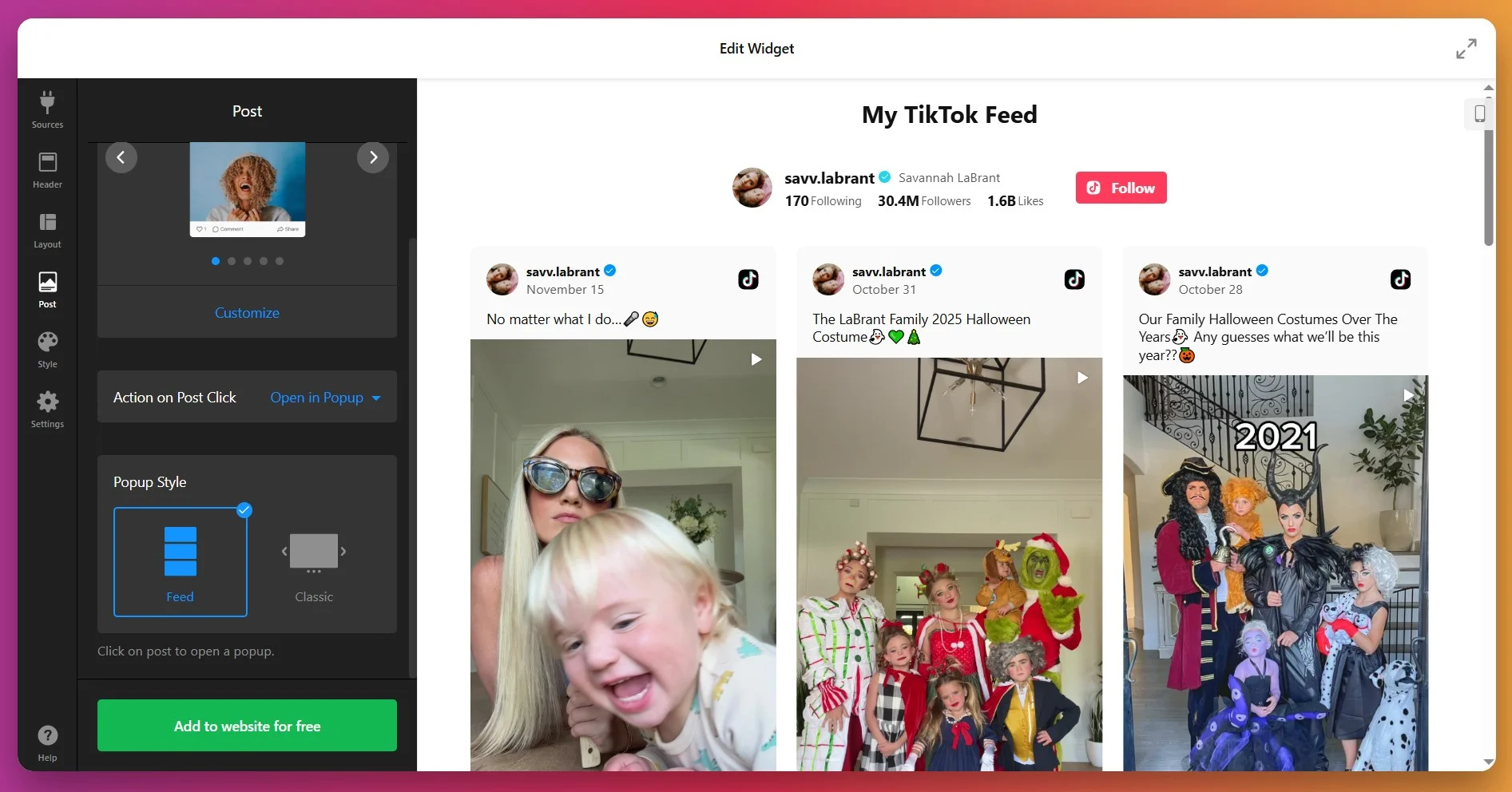
Step 4: Configure How Your Posts Display
Switch to the ‘Post’ tab to customize how your posts will display in the feed, set the action on post click, and choose a popup style.
For minimalist website designs, hiding non-essential elements reduces visual clutter while preserving the core feed functionality. For conversion-focused pages, showing all interactive elements (follow buttons, like counts) maximizes engagement opportunities.
Step 5: Apply Brand Colors and Design Elements
Your TikTok feed should look like a natural extension of your website, not a separate plugin. Use the Style tab to achieve visual cohesion:
- Theme Selection – Choose from light theme (clean and minimal), dark theme (modern and bold), or full custom mode
- Brand Color Integration – Apply your primary brand color to buttons, links, and interactive elements
- Background Styling – Match your page background or create intentional contrast for definition
- Typography – Select font families and sizes that align with your website’s typographic system
- Card Styling – Customize borders, shadows, and spacing of individual video cards
- Advanced Customization – For precise control, add custom CSS targeting specific elements
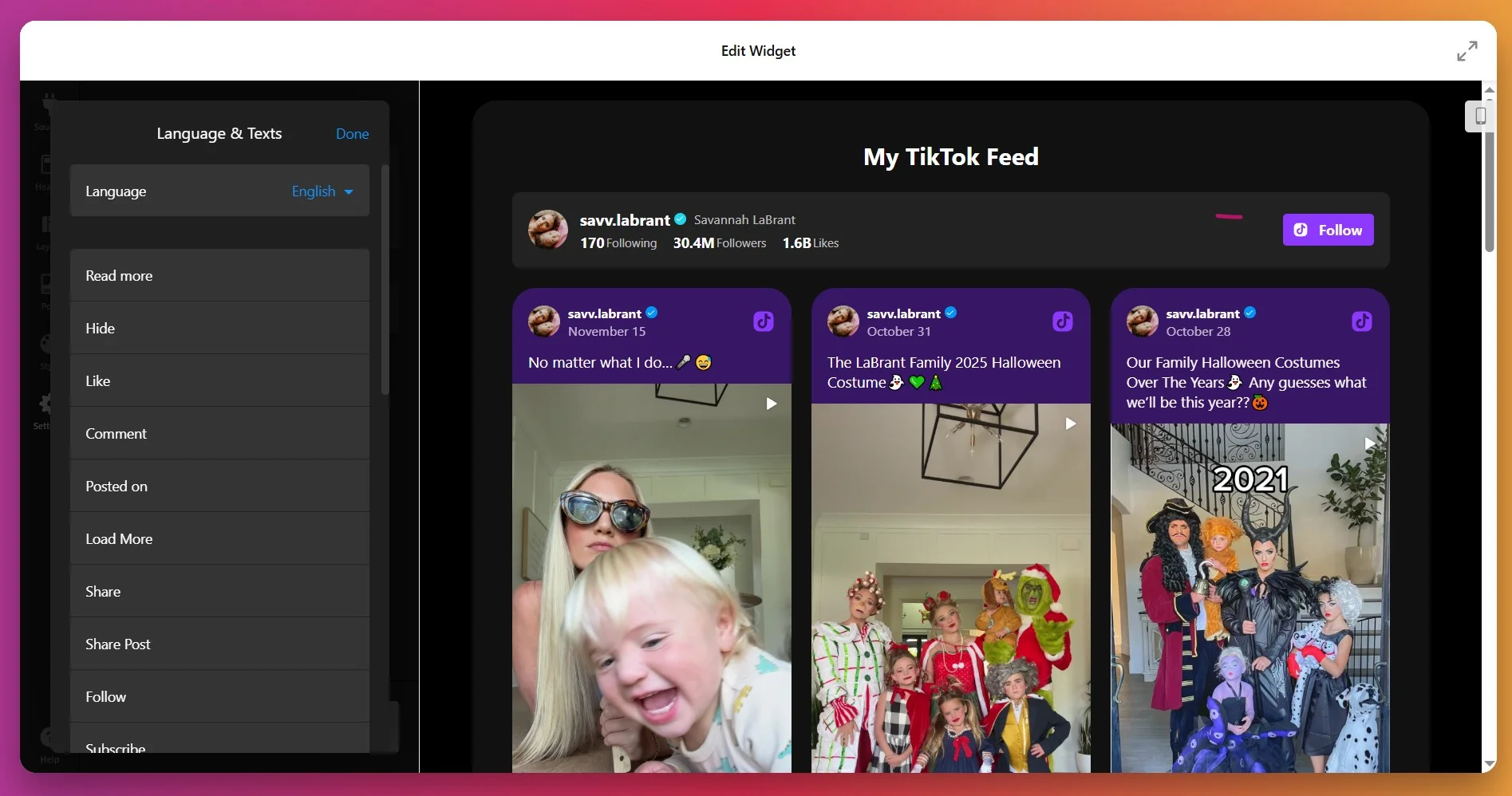
Step 6: Configure Advanced Settings
The Settings tab handles interface language selection and advanced developer options. For most users, default settings work perfectly. Advanced users can add custom JavaScript here for specialized functionality like event tracking or conditional display logic.
Step 7: Obtain Your Installation Code
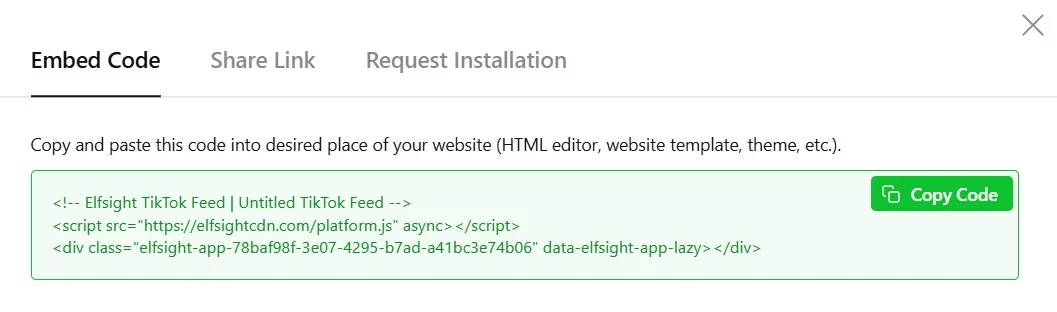
Once your feed is fully configured and previewing correctly in the editor, click “Add to Website” – a popup displays your unique installation code. Copy this entire snippet (don’t modify or trim it) to your clipboard. This code embeds your configured feed into your website pages.
Step 8: Embed Your TikTok Feed on Your Website
With your installation code ready, choose from these straightforward methods to add it to your website:
Method 1: Add to Specific Pages or Posts
Best for: Landing pages, product pages, or blog posts where you want strategic TikTok feed placement.
- Open your page in the WordPress Block Editor and click the + icon to add a new block
- Search for and select Custom HTML
- Paste your entire Elfsight installation code into the block
- Click Publish or Update to save your changes
Your TikTok feed now displays live on that specific page. Strategic placement matters significantly—position your feed near customer testimonials, success metrics, or your main value proposition to maximize conversion impact on visitor decisions.
Method 2: Display Your TikTok Feed Site-Wide
Best for: Brand feeds you want appearing across your entire website in consistent locations.
- Navigate to Appearance → Widgets in your WordPress dashboard
- Select the widget area where you want your TikTok feed (Header, Sidebar, Footer, etc.)
- Click Add Block and select Custom HTML
- Paste your installation code into the widget
- Click Save – your feed now appears in that location across your entire site
This approach broadcasts your latest TikTok content to every visitor, regardless of which page they browse. Particularly powerful for maintaining visible brand presence across your site while minimizing setup effort.
Method 3: Floating TikTok Feed (Always Visible)
Best for: Creating persistent engagement opportunities that remain visible while visitors scroll through your content.
- In your Elfsight editor, go to Layout → Positioning
- Enable Floating Layout and choose your preferred corner position (top-left, bottom-right, etc.)
- Save your changes and copy the updated installation code
- Paste into your WordPress page as described in Method 1 – your feed now stays fixed while content scrolls beneath it
Native Solutions to Embed TikTok Content
While Elfsight offers comprehensive customization for embedding TikTok feeds on websites, alternative approaches exist. Understanding each method’s distinct strengths and limitations helps you make an informed choice aligned with your specific needs.
TikTok’s Official Embed Code
TikTok provides native embedding tools directly through their official infrastructure.
- Visit TikTok Embed: Navigate to TikTok.com and find the video you want to embed.
- Click Share: Select the Share button on the video (represented by an arrow icon).
- Select Embed: Choose the Embed option from the sharing menu.
- Copy the Code: TikTok generates an embed code snippet – copy it to your clipboard.
- Paste into WordPress: Add the code to a Custom HTML block on your website page as described above.
WordPress Native Embed Block
Modern WordPress versions include built-in support for TikTok embeds through Gutenberg blocks.
- Edit Your WordPress Page: Open any post or page using the block editor.
- Add Embed Block: Click the + button, search for “Embed,” and select it.
- Paste TikTok URL: Enter the link to your chosen TikTok video.
- Publish: Save your page – WordPress automatically embeds the video with default TikTok styling.
You can find more information on Embed blocks in official WordPress documentation.
Manual HTML and CSS Implementation
Developers with coding skills can manually construct TikTok embeds using standard web development approaches.
- Build HTML Structure: Create custom containers and elements using semantic HTML markup.
- Write Custom CSS: Develop stylesheets to achieve your desired appearance and match your website’s design system.
- Manually Integrate Videos: Copy individual TikTok embed codes and place them within your custom HTML structure.
- Regular Updates: Manually replace old videos with new ones as your content strategy evolves.
Embedding Methods Compared
This comparison helps you evaluate which approach best serves your website’s needs and goals:
| Method | Customization Options | Setup Difficulty | Ongoing Maintenance | Best Use Case |
|---|---|---|---|---|
| Elfsight Widget | Extensive – full design control, filtering, moderation, layout flexibility | Visual editor, no coding knowledge required | Automatic – cloud-based updates, zero effort | Professional feeds aligned with brand identity, requiring content moderation and visual polish |
| TikTok’s Official Embed | Minimal – only basic sizing available | Quick but requires code copying | Minimal – TikTok handles video updates | Individual video embeds within blog posts or simple timeline displays |
| WordPress Native Block | None – zero customization possible | Simple drag-and-drop interface | Zero maintenance required | Quick single-video embeds in blog content without design considerations |
| Manual HTML/CSS | Total control but demands developer expertise | High technical barrier to entry | Ongoing manual updates and code maintenance | Unique custom designs requiring developer skillsets and significant time investment |
Now that you understand your options, let’s explore best practices that maximize the effectiveness of your embedded TikTok feed.
📝 Best Practices for Maximum Impact
From analyzing thousands of TikTok feed implementations, certain configuration choices consistently deliver superior visitor engagement and conversion results. These practices apply regardless of which embedding method you choose:
- Keep video count realistic. Displaying too many videos simultaneously overwhelms visitors and slows page load times. Limit sidebar feeds to 3-5 videos and dedicated TikTok gallery sections to 8-12 videos. This maintains fast loading while showing enough content to prevent repetition across multiple visitor sessions.
- Hide unnecessary post metadata. Remove timestamps, like counts, or other elements not central to your objectives. Each hidden element improves page speed and focuses visitor attention on what truly matters—your TikTok video content and your brand credibility.
- Leverage hashtag aggregation for user-generated content. Create a branded hashtag and embed videos featuring that hashtag to showcase real customers using your products. This transforms generic social content into powerful authentic testimonial proof that directly influences purchasing decisions.
- Position strategically for decision-making moments. Place your TikTok feed near product descriptions, pricing comparisons, or checkout pages where visitors are actively evaluating purchases. Feed visibility at crucial decision-making moments influences conversion more significantly than feeds positioned in secondary sidebar areas.
- Test responsiveness across all devices. Preview your embedded feed on desktop browsers, tablets, and mobile phones. Ensure videos display properly without text cutoff or layout collapse. Adjust sizing or switch layouts if necessary to guarantee optimal mobile experience (where most viewers access content).
- Add contextual headers above your feed. Include guidance like “See what customers say” or “Trending videos from our community” above your TikTok feed. This simple contextual messaging increases engagement by preparing visitors for what they’re about to experience.
Frequently Asked Questions About TikTok Feeds
Here are commonly asked questions when adding TikTok feeds to websites:
How frequently does my TikTok feed update on my website?
Can I display videos from multiple TikTok accounts in one feed?
Why aren't images or videos appearing in my feed?
How do I show only specific videos or testimonials?
Will embedding a TikTok feed slow down my website?
What happens if TikTok changes their API or policies?
Is embedding TikTok content bad for my SEO?
Final Thoughts & Additional Resources
You now have everything needed to successfully embed TikTok feeds on your website without coding. Whether showcasing customer testimonials, brand announcements, or trending content from your industry, a well-configured TikTok feed transforms static pages into dynamic, credibility-rich experiences that drive meaningful business results.
The Elfsight community forum welcomes questions, tips, and success stories from users embedding TikTok content. Connect with us on our social channels for the latest updates and widget discussions—we’re active on X, Facebook, and LinkedIn.
Source cited: TikTok Usage Statistics 2025: User Growth, Engagement & Trends