
Did you know? 97% of online shoppers check reviews before trusting a business, making customer feedback one of the strongest decision-making factors on any website.
If you manage a WordPress website, showcasing customer reviews can significantly improve how visitors perceive your business. The issue is that WordPress doesn’t always offer a straightforward way to display reviews from multiple platforms in a clean, organized format. As a result, many website owners look for better ways to add reviews to their WordPress website beyond static testimonials or manual content.
The Elfsight All-in-One Reviews plugin provides a simple solution to showcase reviews on a website without coding. It allows you to gather feedback from different platforms, customize how it looks, and place it exactly where it supports user decisions.
- The simplest way to add reviews to a WordPress website without technical setup
- How reviews influence trust and help visitors make decisions
- Alternative approaches and when they might be useful
- Practical tips to make your reviews more effective
To keep things clear and actionable, we’ll start with the quickest method to get reviews live.
Quick Start: Embed Reviews on WordPress
If you’re looking for a quick way to embed reviews on your web page, you can get everything running in just a few steps:
- Open the All-in-One Reviews plugin editor and select a template.
- Connect your review sources (Google, Facebook, etc.).
- Click “Add to website for free” to generate the embed code.
- Paste the code into your WordPress page using a Custom HTML block
This approach works whether you’re adding a small review section or building a more structured layout across multiple pages.
Build your own reviews plugin in our live editor right now!
Why Add Reviews to WordPress Website
Integrating reviews into your website does more than fill space, it changes how visitors evaluate your business and whether they feel confident enough to take the next step. When used strategically, reviews become a key part of your decision-making flow.
🧠 Help visitors make decisions faster
Most users arrive with questions: Is this reliable? Does it work? Can I trust this business? Reviews answer these questions immediately, reducing the need for extra research and helping users move forward without hesitation.
🔍 Provide real-world context to your offer
Descriptions explain what you do, but reviews show how it actually works in practice. Feedback from real customers adds context, showing outcomes, experiences, and specific benefits that static content can’t fully capture.
📊 Strengthen credibility with consistent proof
When visitors see multiple reviews across different topics – service, quality, support – it creates a pattern of trust. This consistency is often more convincing than a few highlighted testimonials.
⚡ Reduce friction in key moments
Placing reviews near actions like contacting you, booking a service, or purchasing a product removes doubt at critical points. Instead of leaving your website to check external platforms, users find the reassurance they need right where they are.
🔄 Keep your website aligned with customer sentiment
As your business evolves, so does customer feedback. By displaying up-to-date reviews, your website reflects current experiences rather than outdated messaging, making your content more relevant and reliable.
🌐 Bring external credibility onto your website
Reviews from platforms like Google or Facebook already carry recognition. When you display them directly on your WordPress website, you transfer that credibility into your own environment without sending users away.
📱 Improve accessibility of feedback
Instead of making users search for reviews elsewhere, you present them in a clear, structured format. This makes it easier to scan, compare, and understand feedback, especially on mobile devices.
With the Elfsight All-in-One Reviews, you’re creating a layer of proof that supports every interaction and helps visitors move from interest to action with more confidence.
Core Features of All-in-One Reviews Plugin
Before you add reviews to your website, it’s helpful to understand what makes All-in-One Reviews effective in real use – not just displaying feedback, but organizing it in a way that supports decisions and fits your website structure.
These are the key features of the Elfsight All-in-One Reviews and how they translate into practical value:
| Feature | Practical Use |
| Multi-platform aggregation | Combine reviews from 60+ platforms, like Google, Facebook, Yelp, and other sources into a single display |
| Automatic synchronization | New reviews appear on your WordPress website without manual updates |
| Flexible filtering | Show only selected reviews based on rating, keywords, or relevance |
Layout variations | Display reviews as grids, sliders, lists, or compact badges depending on placement |
| AI-powered summaries | Present key insights from multiple reviews to help visitors quickly understand feedback |
| Translation support | Make reviews accessible to a broader audience by displaying them in different languages |
| Custom styling controls | Adjust colors, fonts, and layout to match your WordPress theme |
| Mobile-ready design | Ensure reviews are easy to read and interact with on any device |
These features allow you to go beyond basic testimonials and create a structured review section that works across different parts of your website. To explore the detailed plugin characteristics, visit the features page.
Step-by-Step: How to Add Reviews to WordPress Website
Want the full setup flow with customization tips along the way? This section covers everything from choosing the right layout to placing the Elfsight widget on your WordPress website most effectively.
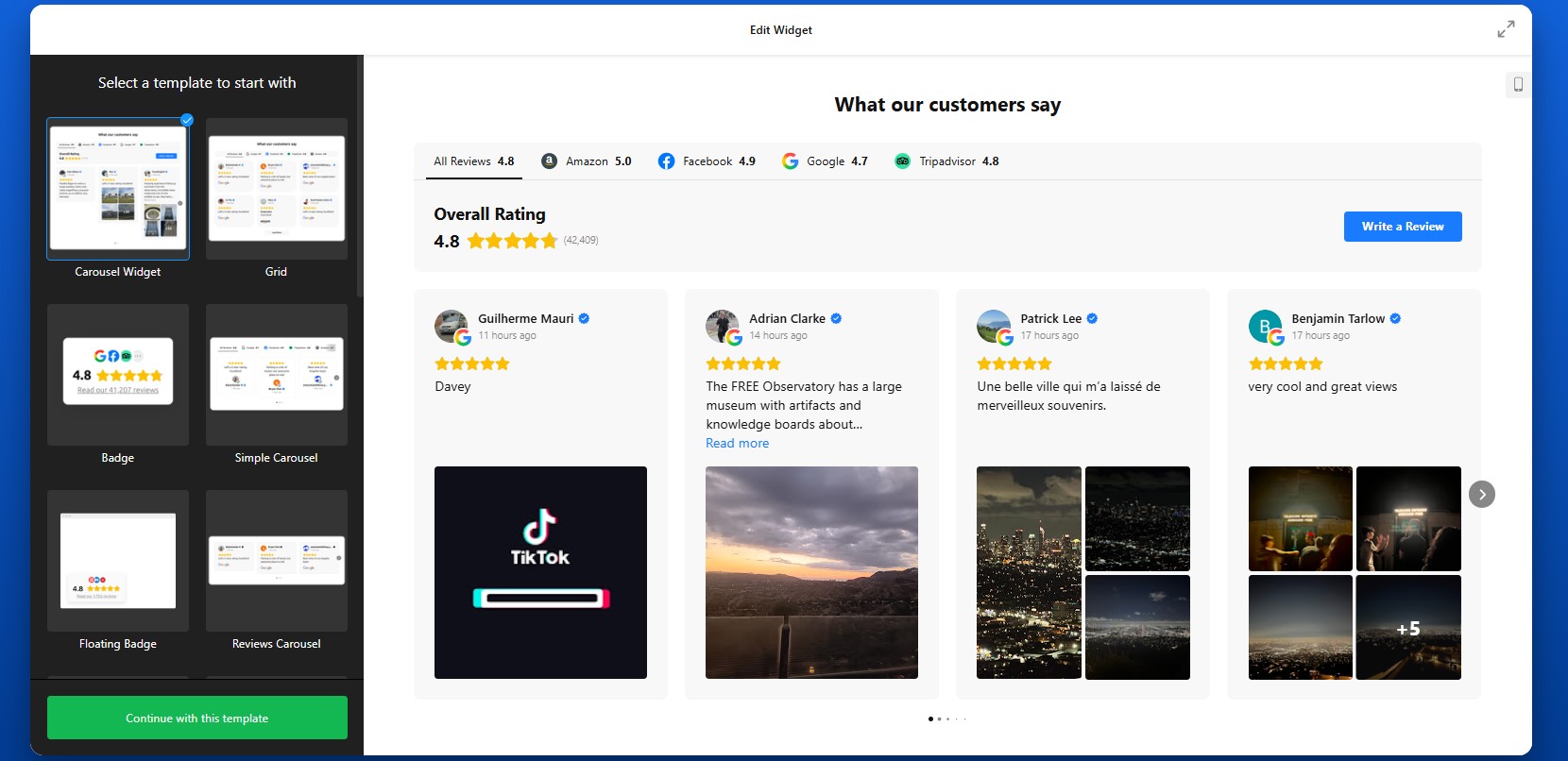
Step 1: Choose a Template That Fits Your Goal
Start by opening the Elfsight editor and selecting a pre-made template. Common layout directions include:
- Grid for showing volume and credibility at a glance
- List for longer, more detailed reviews
- Slider / Carousel for saving space while still displaying multiple reviews
- Badge or compact layout for subtle trust signals in smaller areas
At this stage, think less about colors and styling and more about where the widget will appear. A homepage section may benefit from a grid or slider, while a sidebar or footer usually works better with a compact badge.
The goal of this step is to choose a structure that matches both your page layout and the amount of review content you want to show.
Step 2: Connect Your Review Sources
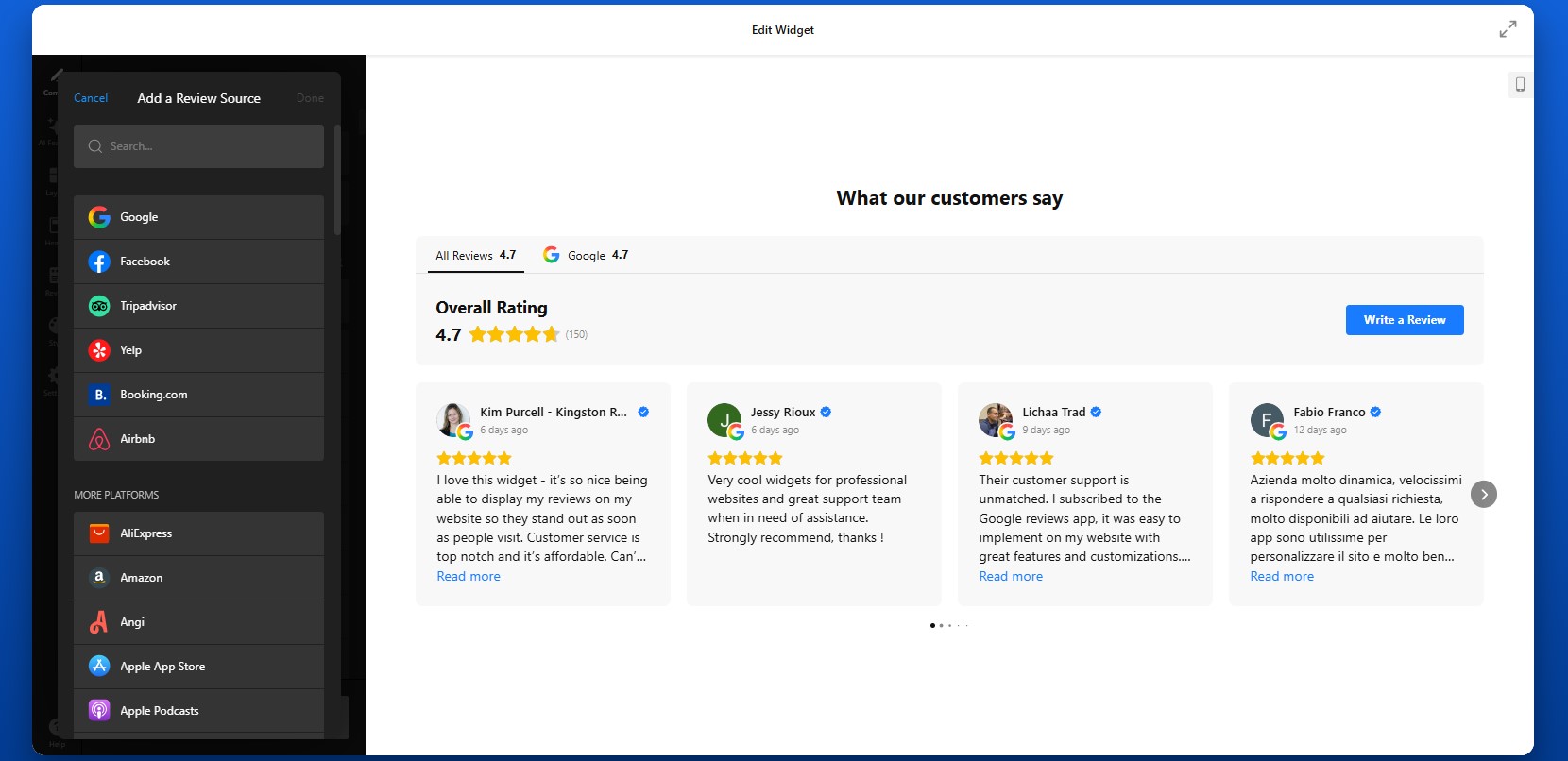
Open the Source tab and connect the platforms you want to pull reviews from. Depending on your setup, you may be adding sources such as Google, Facebook, Yelp, or many other supported review platforms
To do this, paste your business profile link or search for your business directly inside the editor. To show reviews from more than one platform, add multiple sources.
Step 3: Decide Which Reviews Should Be Displayed
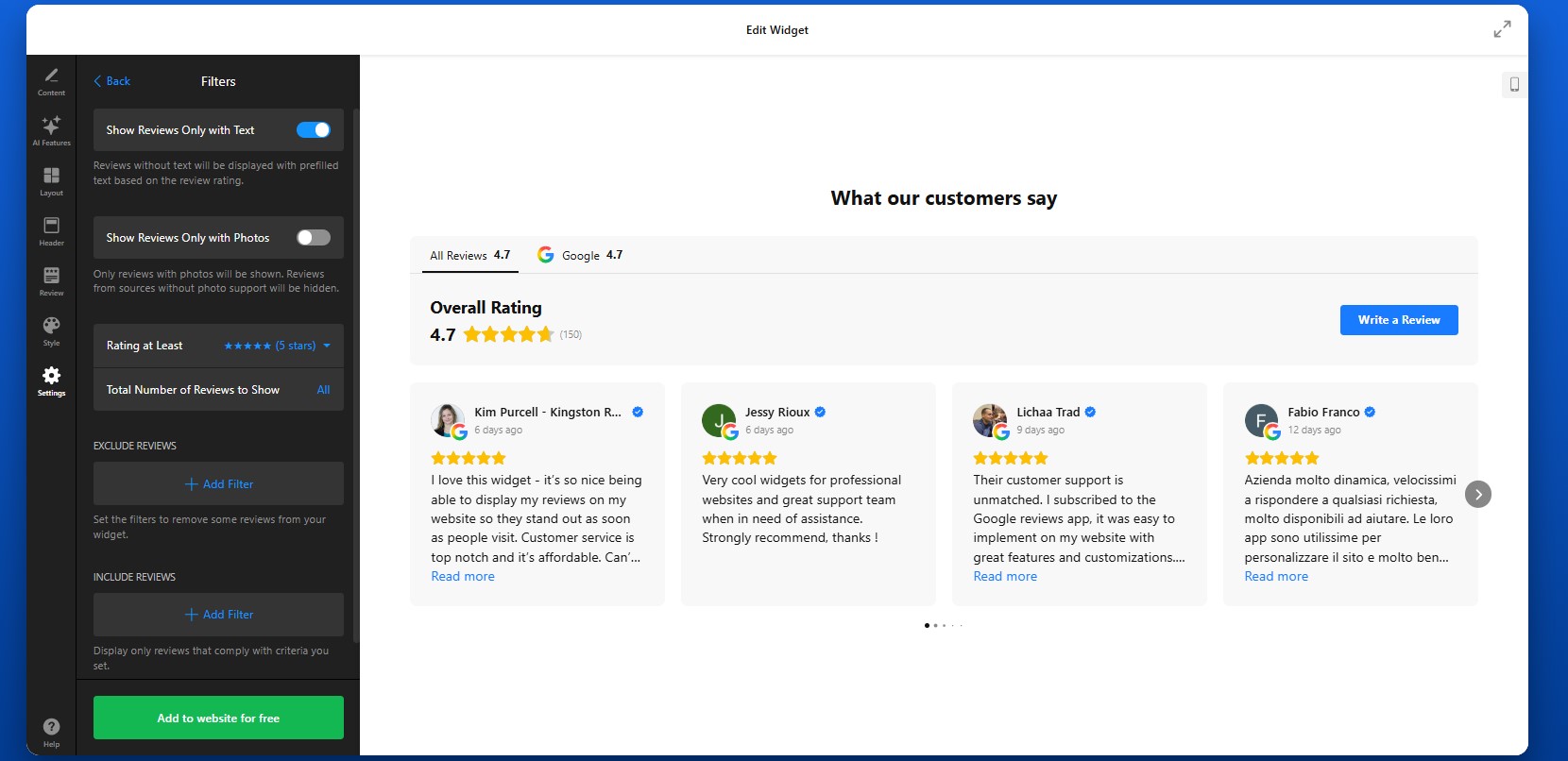
Not every review has to appear on your website. After connecting the sources, refine what visitors will actually see.
This step helps you control the message by filtering reviews based on things like:
- Rating, such as showing only 4-star and 5-star reviews
- Keywords, if you want to highlight certain strengths
- Text presence, so you can hide empty ratings without comments
For example, if your customers often mention fast delivery, excellent communication, or product quality, you can prioritize those reviews and make your strongest points more visible.
Step 4: Customize the Layout and Review Flow
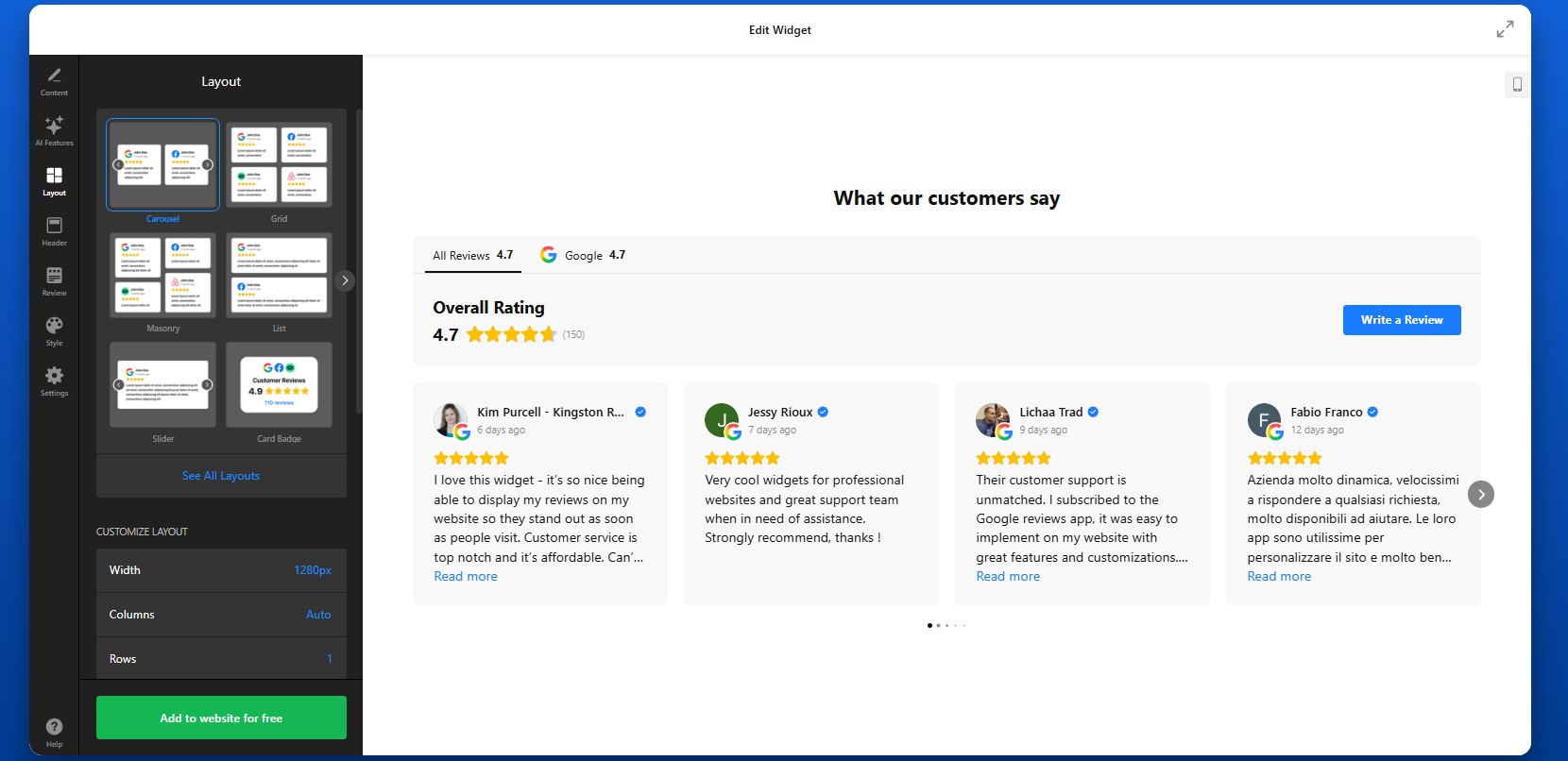
Now move to the Layout tab to control how the reviews are arranged on the page. You can adjust the number of visible reviews, spacing, navigation style, and scrolling behavior.
Step 5: Adjust the Header and Navigation Elements
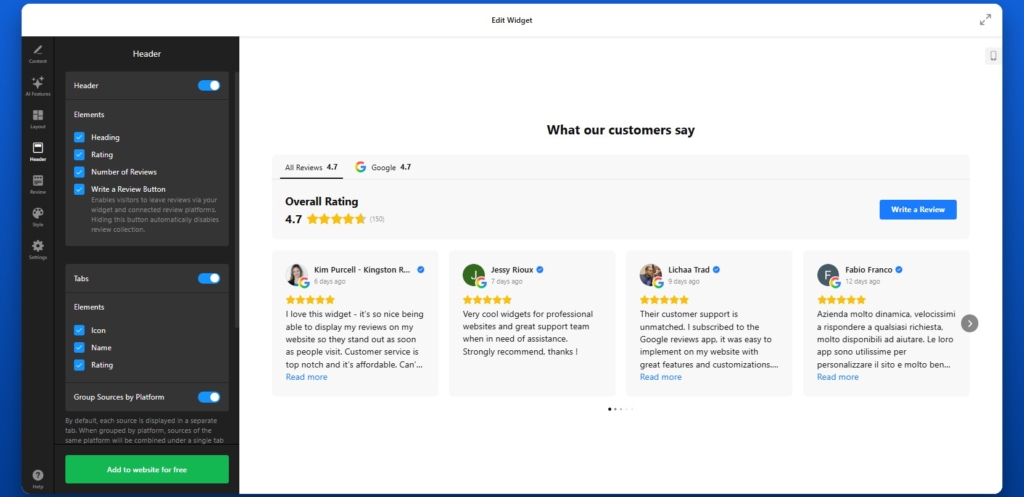
The Header settings help you define how the review section is introduced and how visitors move between sources.
If you enable the Write a Review button, visitors can leave feedback through your connected review platforms. This is useful if you want the plugin not only to display reviews, but also to help generate new ones over time.
Here, you can also customize tabs and source grouping. By default, each source can appear in its own tab. If you prefer a cleaner structure, you can group sources by platform, which combines reviews from the same platform under one tab and calculates an average rating.
Step 6: Match the Design to Your WordPress Theme
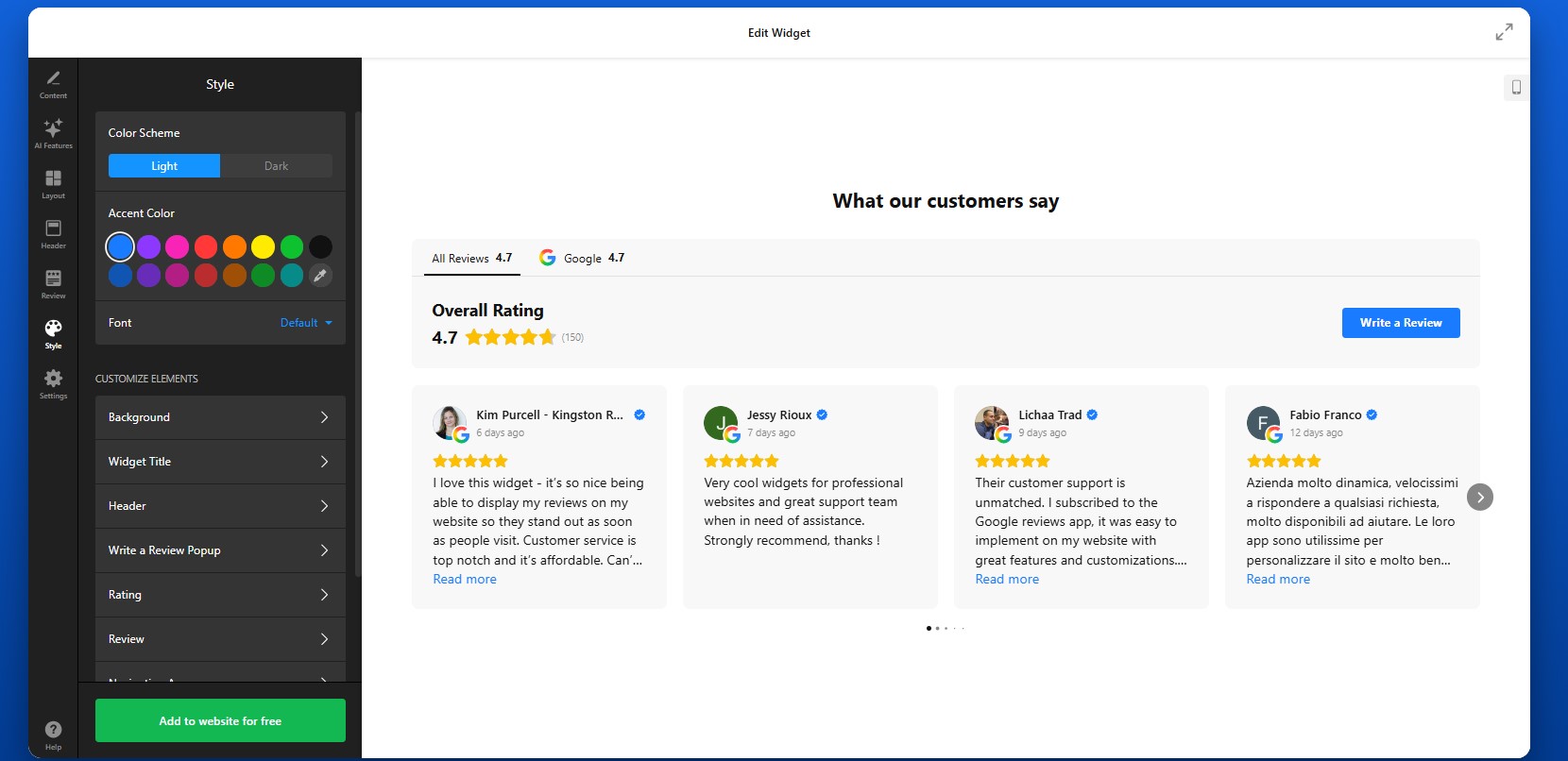
Customize the visual style so the widget feels like part of your WordPress website rather than an external block. A visually consistent design makes the section feel intentional and polished.
Try to keep the review section aligned with the rest of your design system. If your WordPress theme is minimal, keep the reviews clean and lightweight. If your design is more expressive, you can use stronger visual framing without losing readability.
Step 7: Finalize Settings and Extra Options
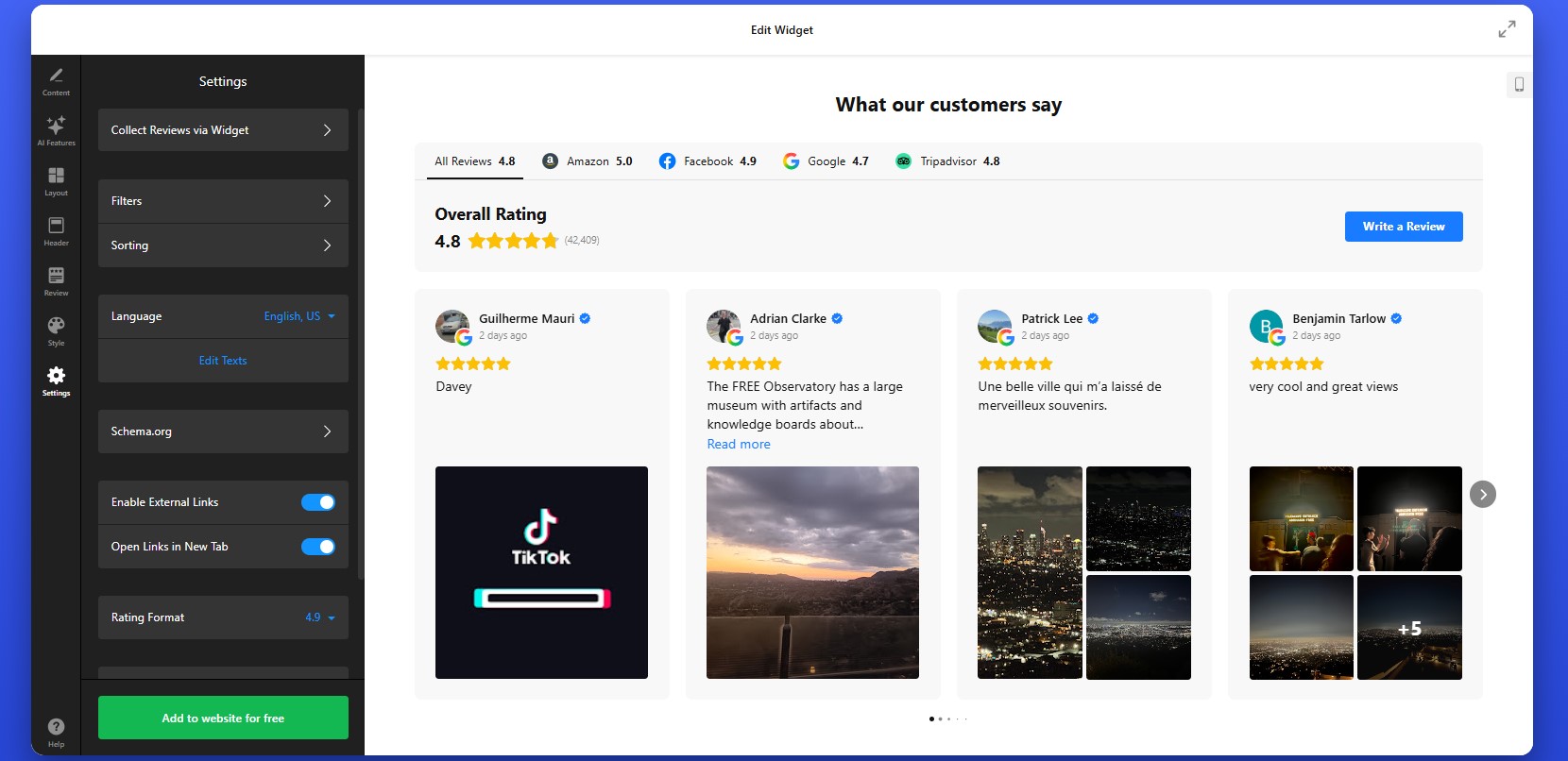
Before publishing, check the remaining settings that affect how the widget behaves behind the scenes.
Depending on the widget, this may include:
- Language settings
- Translation options
- Schema markup
- Link behavior
- Advanced display settings
Step 8: Copy the Embed Code
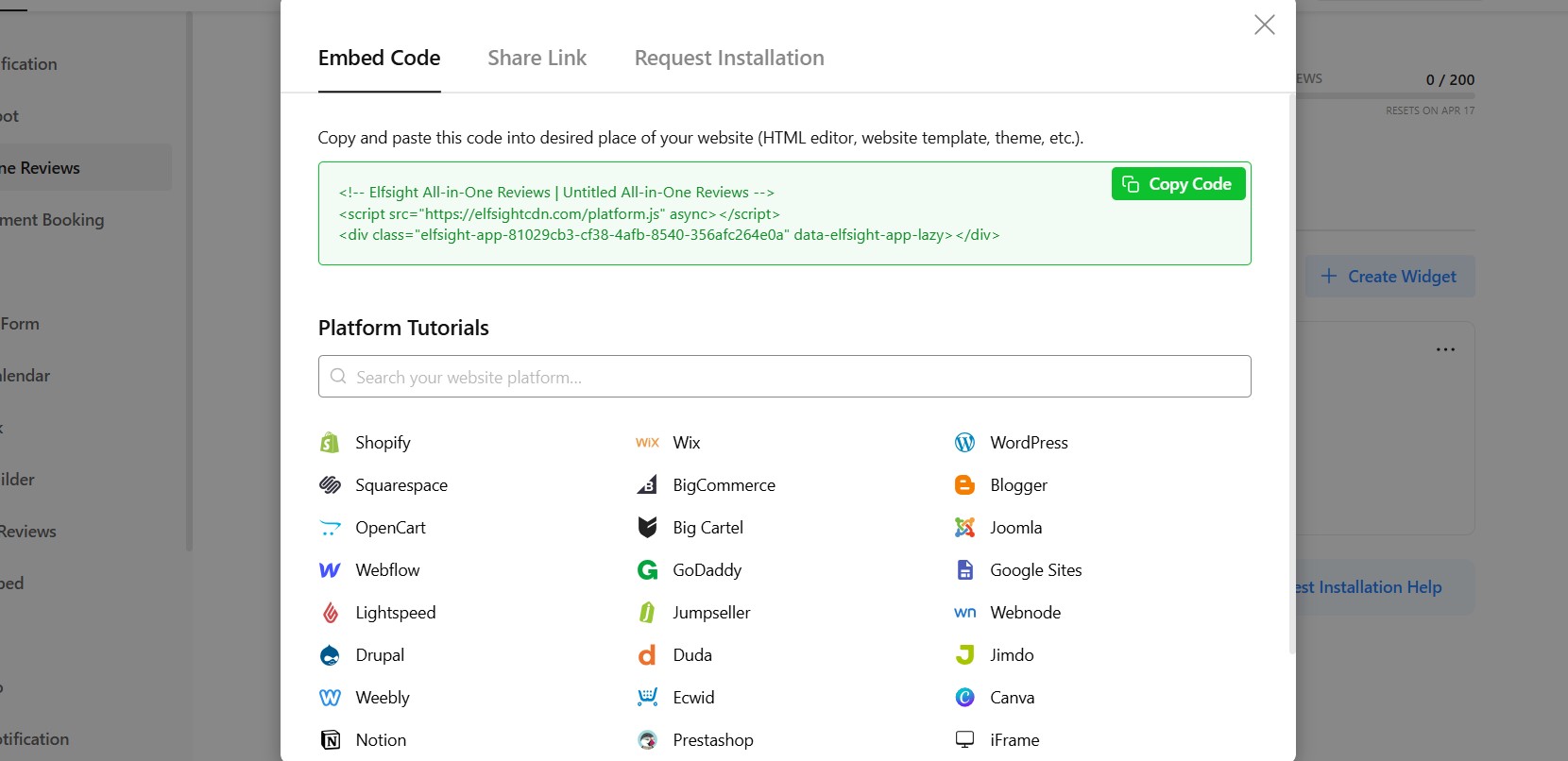
When everything looks right, click “Add to website for free” to generate the embed code.
Copy the full code snippet exactly as it appears. Avoid trimming or partially copying it, since missing part of the code can prevent the widget from loading correctly on your WordPress website.
At this point, the plugin is fully configured and ready to be installed.
Step 9: Embed Reviews in WordPress
To embed reviews on your WordPress website, open the page, post, or widget area where you want the reviews to appear.
From there:
- Add a Custom HTML block in the WordPress editor
- Paste the full embed code into that block
- Save or publish the page
If you want reviews to appear globally, you can also place the code into a reusable block, theme area, or site-wide section depending on your setup.
After publishing, check the live page and review the result carefully. Make sure the reviews are loading correctly, the layout looks balanced, and the section appears in the right place relative to your content and calls to action.Also test the page on desktop and mobile to confirm the widget looks good across different screen sizes.
- If reviews don’t appear, first confirm that the full embed code was pasted into a Custom HTML block rather than a paragraph block.
- If the layout looks compressed, check the width of the container where the widget is placed.
- If reviews seem outdated, allow time for synchronization or verify the connected source.
- If something looks off on mobile, preview the page on smaller screens and adjust the surrounding layout if needed.
By following these steps, you can create a review section that is functional, well-placed, visually consistent, and genuinely useful for helping visitors trust your business.
Other Ways to Display Reviews on WordPress
WordPress gives you more flexibility than most website builders, but that also means there are several different ways to integrate reviews into a WordPress website, each with its own level of control, effort, and scalability.
WordPress Review & Testimonial Plugins
One of the most common approaches in WordPress is using dedicated plugins for testimonials or reviews.
To implement this:
- Install a plugin from the WordPress repository.
- Create review entries inside your dashboard.
- Display them using blocks, shortcodes, or widgets.
This method fits well into the WordPress ecosystem and is easy to manage for basic use cases.
- Reviews are usually entered manually, not synced from platforms
- Limited support for multi-platform aggregation
- Advanced layouts and filtering often require premium versions
Gutenberg Blocks or Page Builder Sections
If you prefer not to use plugins, you can build review sections manually using Gutenberg blocks or page builders like Elementor or WPBakery.
This typically involves creating styled sections with text blocks, star icons, and images to simulate testimonials. You can design these sections exactly how you want and place them anywhere on your pages.
This approach gives full design control but relies entirely on manual work.
- Requires manual creation and updates
- No dynamic or real-time review syncing
- Hard to maintain consistency across multiple pages
Embedding Reviews via Iframe or External Code
Another way to embed reviews on WordPress is by using iframe code from platforms like Google Maps or other third-party services.
To do this, you copy the embed code and paste it into a Custom HTML block, widget area, or even directly into theme files if needed.
This method is quick to implement and works across most WordPress setups, including custom themes.
- Very limited control over design and layout
- Typically shows only a portion of available reviews
- No filtering, sorting, or customization options
Theme-Level Integration (Advanced Method)
For more advanced setups, WordPress allows you to add review content directly into theme files such as header.php, footer.php, or custom templates.
This gives you full control over placement and behavior, especially if you want reviews to appear globally across your website.
However, this method is more technical and usually requires familiarity with WordPress theme structure.
To better understand which approach fits your needs, here’s a quick comparison of the main methods:
| Method | Best For | Requirements |
| Elfsight All-in-One Reviews | Automated, scalable review display from multiple platforms | No coding, embed code placement |
| WordPress Plugins | Basic testimonials managed inside WordPress | Plugin installation and manual setup |
| Gutenberg / Page Builder | Fully custom-designed review sections | Manual creation and design work |
| Iframe / External Embed | Quick display of reviews from a single source | Copy-paste HTML code |
| Theme-Level Integration | Advanced, site-wide placement control | Technical knowledge or developer support |
WordPress offers more ways to add reviews than most platforms but not all of them are equally efficient.
If your goal is to add reviews to WordPress in a way that stays updated, looks consistent, and scales with your content, it’s important to choose Elfsight’s approach which minimizes manual work while still giving you control over presentation.
Optimization Tips for Your Reviews
Once your reviews are displayed on your WordPress website, small improvements in placement, structure, and presentation can significantly increase their impact on user decisions.
- Place reviews close to conversion points: Add them near product descriptions, pricing sections, or contact forms so visitors see social proof exactly when they’re deciding.
- Focus on meaningful reviews: Prioritize feedback that mentions specific results, experiences, or benefits rather than generic comments. This makes reviews more persuasive.
- Use layouts that match your content: A grid works well for showcasing volume, while sliders are better for compact sections. Choose based on how much space you have.
- Keep design consistent with your theme: Align fonts, colors, and spacing with your WordPress design so reviews feel like a natural part of the page.
- Avoid overwhelming users: Display a manageable number of reviews at once. Use “Load more” or sliders to keep the section easy to scan.
- Show reviews across multiple pages: Don’t limit them to one section. Add smaller review blocks on key pages to reinforce trust throughout the user journey.
- Keep content up to date: Fresh reviews build credibility. Make sure your setup reflects recent feedback rather than outdated testimonials.
- Test placement and performance: Experiment with different locations and layouts to see where reviews drive the most clicks, inquiries, or conversions.
These adjustments help ensure your reviews actively contribute to trust, clarity, and better decision-making.
Real-World Example: Beauty Website Builds Trust with Reviews
Andrew Chin manages a beauty services website where showcasing results and building trust are essential for converting visitors into clients. In this industry, potential customers rely heavily on visual proof and real feedback before booking a service.
Before using Elfsight
- Limited customization options in the website builder led to a generic look
- Difficulty displaying reviews and visual content without cluttering pages
- Challenges organizing content in a way that was easy for visitors to navigate
With the All-in-One Reviews widget
“I needed a custom solution to better represent my wife’s beauty business and showcase all her great work. Elfsight made it easy to add testimonials, photos, and organize content in a way that made the site both beautiful and functional.”
Andrew added a compact review badge that displays Google and Yelp feedback directly on the homepage. This approach allowed him to present real customer opinions without taking up too much space, while still keeping reviews visible at key moments.
Instead of isolating reviews on a separate page, he integrated them into the browsing experience alongside visual elements like photo galleries and service timelines. This made it easier for visitors to connect customer feedback with actual results.

The result
The website became more engaging and easier to navigate, with reviews reinforcing trust throughout the user journey. Visitors could quickly see proof of service quality, understand the process, and feel confident about booking.
With the Elfsight All-in-on Reviews, Andrew transformed customer feedback into a core trust-building element, making the website more persuasive without adding complexity or clutter.
Frequently Asked Questions
Can I display reviews in different layouts on different WordPress pages?
Is it possible to group reviews by platform in one widget?
Can visitors leave new reviews through my website?
Can I display reviews from multiple locations in one place?
Will All-in-One Reviews work with WordPress page builders like Elementor?
Conclusion
Adding reviews to your WordPress website is one of the most effective ways to strengthen credibility and guide visitors toward action. Instead of relying only on your own messaging, you bring real customer experiences directly into the decision-making process.
The Elfsight All-in-One Reviews plugin simplifies this completely. You can pull feedback from multiple platforms, control how it’s displayed, and place it exactly where it supports conversions without dealing with manual updates or complex setup. With features like multi-source aggregation, flexible layouts, filtering, and automatic updates, it helps you turn reviews into a structured, high-impact element of your website.