Webflow Restaurant Menu widget

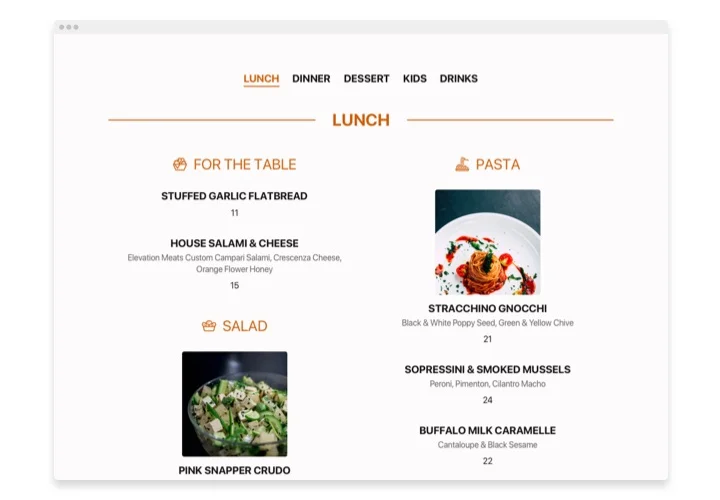
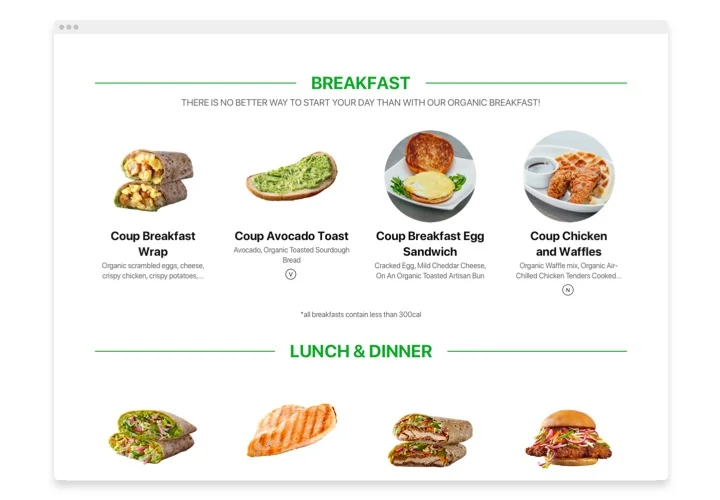
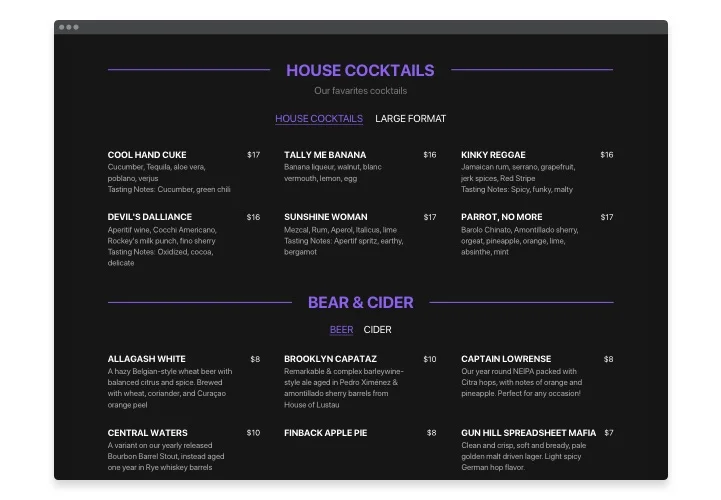
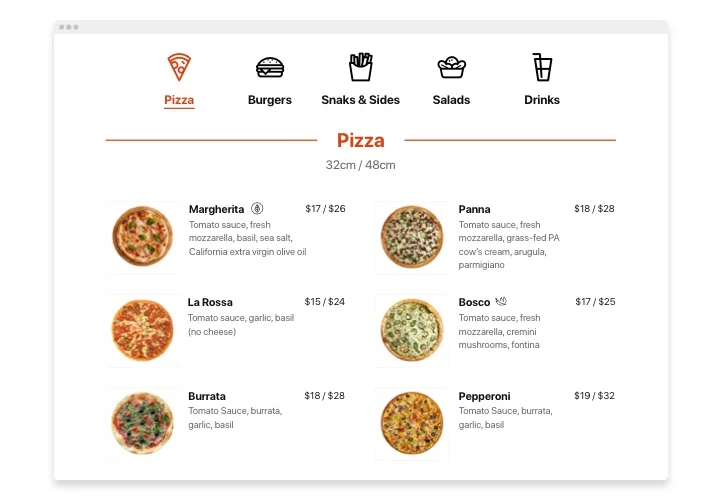
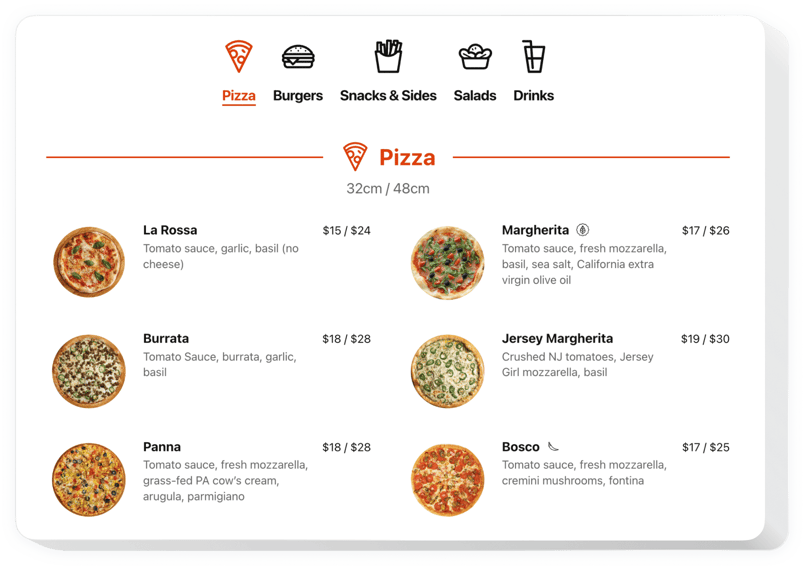
Showcase menu items on your Webflow website with photos, descriptions, categories, and pricing to present your cuisine in the most appealing way.
4.8 rating
10,000+ reviews
Free plan available
Create Widget for Free
No credit card needed
Webflow Restaurant Menu widget
Create your Restaurant Menu widget

Configure your Restaurant Menu and add it to your Webflow website for free!

Screenshots

Webflow Restaurant Menu widget
1 / 6

Embed Restaurant Menu on Webflow with the Elfsight widget

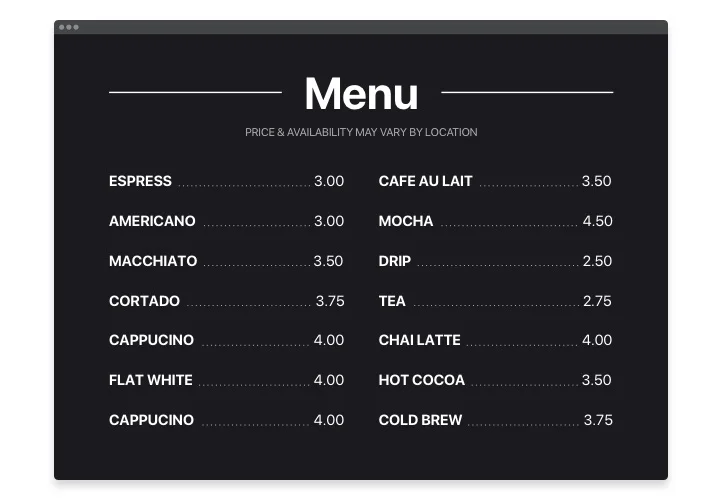
Elfsight Restaurant Menu is a great way to demonstrate your delicious cuisine to the audience, represent an concept and attract them to visit the restaurant. The instrument is an extremely user-tailored and you can make up lots of menus with an amazing range oа section and items. Select light, dark scheme or change any elements you like, changing all accent colors. Besides, your menu can always stay relevant: correct pricing, the dish list, add new beverages or even seasonal menus in mere seconds! No more ready-to-print menus which you have to rewrite it right from the start. Just start creating your stylish menu right at the moment.

Try applying Restaurant Menu to reach your business goals more efficiently! Having the menu on your webpage your establishment can have more guests and see active business growth and increased sales

Find below fundamental features of the widget:

  • Easy-to manage even for non-tech users
  • Limitless quantity of menus, sections or items, organised with the help of different fascinating layouts
  • Always relevant info. Correct pricing, add seasonal specials or beverages any time you like
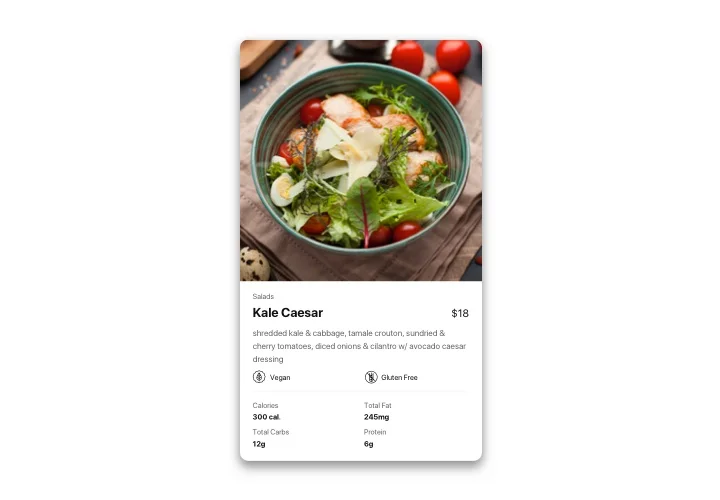
  • Display extra characteristics for the items, for example icons, nutrition elements and badges
  • Upload stunning photos for the items and even show them in popup
  • Modify and change color of any elements: text, color scheme and icons

Test all the personalization features in fully functional demo

How can I embed Restaurant Menu on my Webflow website?

Just take these steps described below to start working with the widget:

  1. Open our free editor and start forming your customized widget.
    Specify the preferable look and specifications of the widget and save the modifications.
  2. Receive the unique code shown in the window on Elfsight Apps.
    After the establishing of your personal tool is over, copy the personal code at the appeared window and keep it for later usage.
  3. Start using the widget on your Webflow website.
    Integrate the code you’ve saved recently into your web page and save the modifications.
  4. Done! The embedding is successfully performed.
    Visit your website to check the functioning of the tool.

Supposing you deal with any obstacles, please seek assistance of our customer service staff. Our consultants are longing to help you with all the questions you may have with the widget.

Does the Restaurant Menu work with Webflow CMS Collections?

You can place the menu inside CMS Collection templates, and it will display consistently across dynamic Webflow pages.

Do I need a paid Webflow plan to embed the Restaurant Menu?

Yes, Webflow requires a paid plan to add custom code, as custom embeds are not available on free plans.

Can I divide my Restaurant Menu into categories in Webflow?

Absolutely, the menu widget allows you to organize dishes into multiple sections, making your Webflow menu clear, structured, and easy to navigate.

Is it possible to reorder menu sections or items later?

Both sections and individual dishes can be rearranged anytime using drag-and-drop in the editor, without recreating the menu.

Can I upload images for menu items on Webflow?

Yes, you can attach images to each dish to make your Webflow restaurant menu more visually appealing and informative.

Can I include allergen or nutrition details for dishes?

Additinal nutritional information or allergen indicators to specific items can be displayed as text or icons for guest clarity.

Are there badges for special or featured meals?

Yes, you can assign labels such as “New,” “Chef’s Choice,” or allergen warnings to highlight important items on your Webflow menu.

Can I disable item popups in my Restaurant Menu?

You can turn popups on or off for images and descriptions, depending on how you want dishes presented on your Webflow website.

Can I promote seasonal offers or daily specials?

Yes, you can modify sections or emphasize selected dishes to showcase limited-time offers, events, or seasonal specials.

How do updates appear on my Webflow website?

After editing menu items, prices, or sections in the editor and publishing changes, the embedded menu automatically updates across your Webflow pages.

Pricing

14-day money back guarantee. Risk-free, you can cancel at anytime.
Elfsight Apps
Platform-independent version
from $0 / month
start with free plan
Unlimited websites
Dedicated and on-time support
Free installation assistance
Special offer for multiple apps
Flexible design