

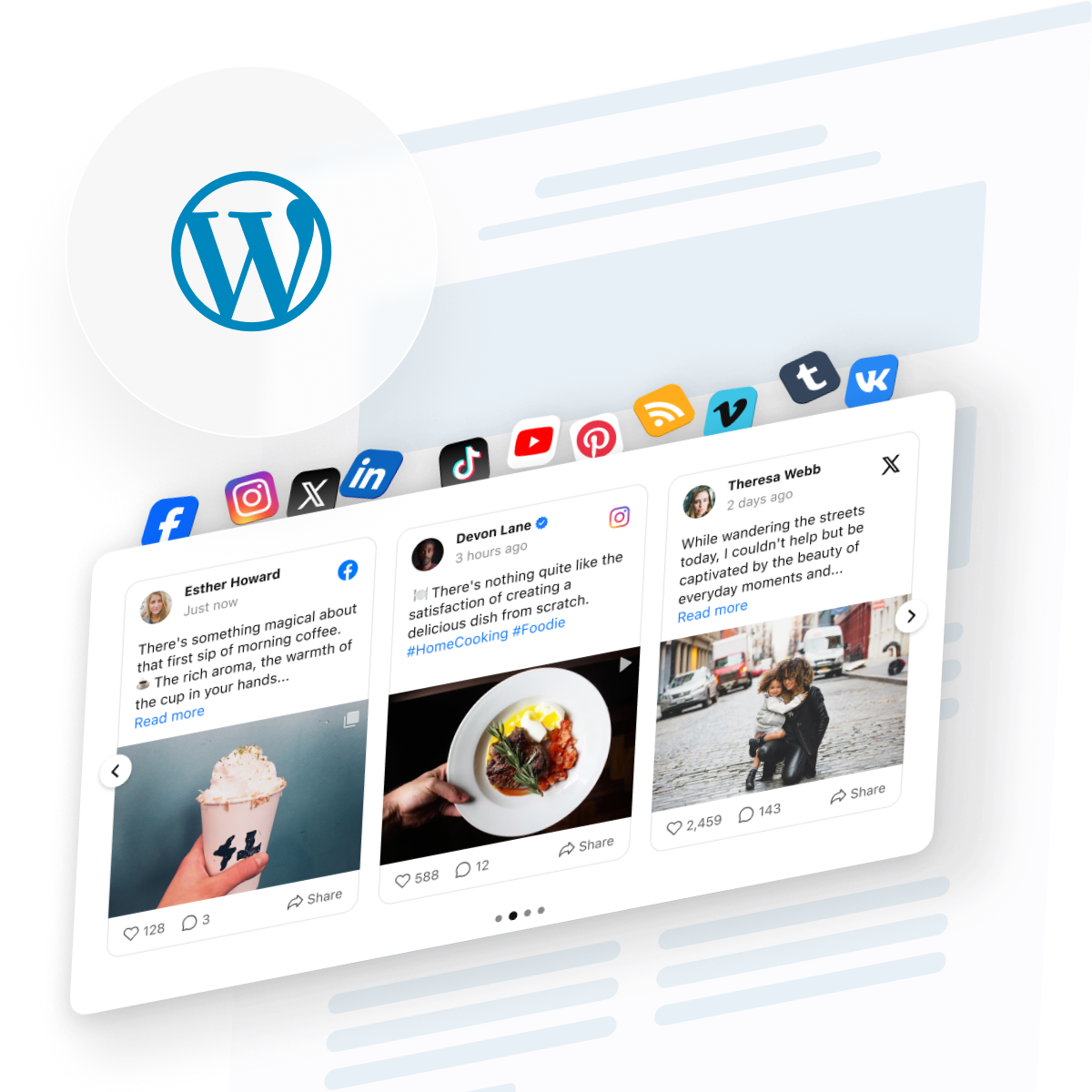
The typical social media user is active on around 6.5 different platforms every month, which means the audience you’re trying to reach with one feed is actually scattered across several. – DataReportal
You want your latest social media posts on your WordPress site, but native embeds only get you so far. Instagram gives you a single post. Facebook gives you another. Before long, you’re juggling multiple plugins, embed codes, and a feed that never updates itself. The easiest alternative is a single social media feed that pulls everything into one place and stays current automatically.
That’s the job the Elfsight Social Feed does. Instead of one network locked into a single block, it pulls posts from up to 10 platforms — Instagram, Facebook, TikTok, YouTube, and more — into a single feed you style and embed once. Below we’ll compare available embedding methods, walk through the full setup, and cover the things that quietly break a social media feed for WordPress.
- The fastest no-code way to combine several networks into one feed
- A side-by-side comparison of every method, free and paid
- A full editor walkthrough — sources, layout, post style, and embedding
- How each network’s refresh rate changes how “live” your feed feels
- Fixes for the most common “it won’t show up” problems on WordPress
Quick Start: Add a Social Media Feed to WordPress
To start off, here’s the whole process in four steps — most people get a working feed live in under ten minutes:
- Open the Social Feed editor and pick a template.
- Connect your social platforms — Instagram, Facebook, TikTok, and any others you post to.
- Click “Add to website for free” to generate your embed code.
- Paste the code on the target WordPress page and publish.
Build your social media feed in the interactive editor below ↓
Ways to Embed a Social Media Feed on WordPress
There’s more than one way to get social content onto a WordPress page, and they differ a lot in effort and in what you end up with. Consider how the main approaches stack up:
| Method | Difficulty | Multiple networks | Auto-updates | Customization | Cost |
|---|---|---|---|---|---|
| Elfsight social feed widget | No code | Yes (up to 10) | Yes | High | Free plan / paid |
| Native WordPress post embeds | Basic HTML | No (one post at a time) | No | Minimal | Free |
| Social feed gallery plugin (WordPress) | Plugin install | No (one network) | Usually | Varies | Free / paid |
| Manual code / API build | Developer | Only if you build it | Manual | Full (DIY) | Developer time |
In short, the widget is the path most people take when they want several networks in one place without touching code. Native embeds are free and fine for dropping in a single highlight, but they don’t aggregate or refresh. A single-network plugin works if you post only to one platform. And a manual build gives total control at the cost of developer time and ongoing maintenance.
Which Sources to Show in Your WordPress Social Media Wall
More networks isn’t automatically better: the wall works best when the sources match where your audience is and what you actually post. A quick gut-check before you connect anything saves you from a feed that’s busy but off-target.
| If you’re… | Sources worth showing | Why |
|---|---|---|
| Retail, fashion, food, beauty, travel | Instagram, TikTok, Pinterest | Discovery here is visual, and these are the platforms where people browse products and save ideas |
| B2B, SaaS, professional services | LinkedIn, X (Twitter), YouTube | Decision-makers and industry conversation cluster here; authority and thought leadership land better than polish |
| Local business or community brand | Facebook, Instagram | Broad, mature local reach plus events, updates, and the everyday community presence customers expect |
| Creator, publisher, or blog | YouTube, RSS, Tumblr | Syndicate your long-form video and your own articles into one place alongside social posts |
| Agency, studio, or video portfolio | Vimeo, Instagram | A clean, professional video player next to your visual work, without the clutter of a public feed |
The right mix usually comes down to your business type — visual, consumer-facing brands live on discovery platforms, while B2B and professional services do better where authority and conversation matter more than aesthetics:
As a rule, two to four well-chosen sources beat all ten: the feed stays relevant and loads faster. Networks also refresh at different speeds, so a YouTube wall won’t feel as “live” as an hourly RSS feed — worth knowing if real-time freshness is the point.
Step-by-Step: Building Your Social Media Feed for WordPress
Now the full version. The editor moves top to bottom through the left-hand tabs: Sources, Header, Layout, Post, Style, Settings, and you can preview every change live before anything touches your website.
Step 1: Pick a template to start from
When the editor opens, you land on a template gallery. There’s a popular Carousel layout, a couple of Masonry options (including a dark variant), and themed presets you can repurpose.
Top six templates
- Grid — clean, even rows that fill a full page; the safe default for a dedicated social page
- Masonry — natural post heights tiled to use vertical space; best for mixed image shapes
- Carousel — a horizontal strip showing several posts at once; good for a homepage section
- Slider — spotlights one post at a time; suits a sidebar or narrow column
- Timeline — posts run down the page in one chronological stream, like a classic feed
- Small Widget — a compact, space-saving block for tight spots like a sidebar or footer
Just choose one and click Continue with this template. None of this is permanent — every element is editable once you’re in.
Step 2: Connect your social platforms
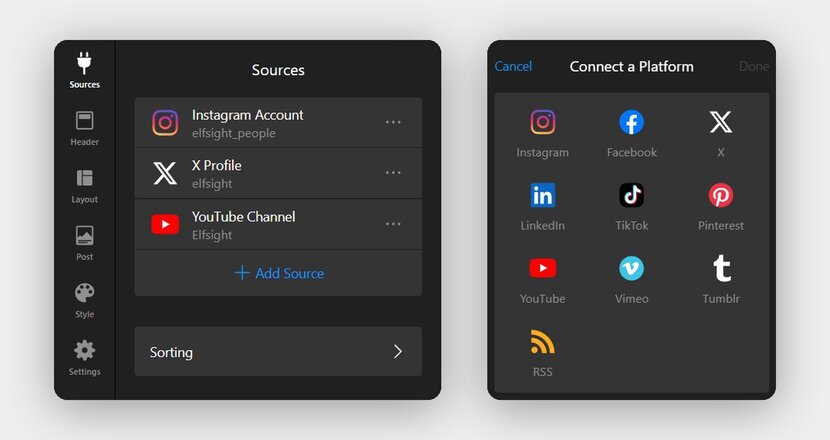
On the Sources tab, you’ll see the Connect a Platform screen with ten networks: Instagram, Facebook, X (Twitter), LinkedIn, TikTok, Pinterest, YouTube, Vimeo, Tumblr, and RSS. Add as many as you want, and they’ll merge into one feed. You can also pull several accounts or hashtags from the same network, and rename each source so it’s easy to identify later.
More on Sources
- Public profiles and hashtags connect with no login
- Facebook Pages and Vimeo need authorization through the network
- Instagram Business and Creator accounts connect without Facebook verification
- Give each source a custom name to keep your tabs readable
Step 3: Set up the header and source tabs
The Header tab controls what sits above your feed. You can switch the widget title on or off, set the title text, and add a rich-text caption underneath. Just as useful is the Show Tabs option — turn it on and visitors get an “All” tab plus a tab per source, so they can filter the wall down to a single network.
Adjustable elements
- Widget Title — toggle, with a title field and optional caption
- Show Tabs — adds an “All” tab plus one per source
- Tab elements — show or hide the network icon and source name
- Group Sources by Platform — merges same-network sources into one tab
Step 4: Choose your social wall layout
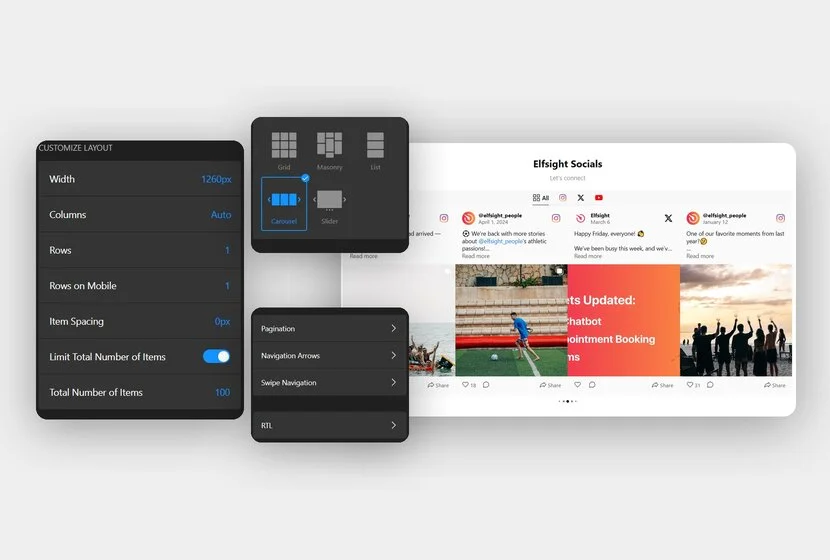
Next up, the Layout tab is where the feed gets its shape. Social Feed offers several layouts – in case you want to switch from the preset one – and below the picker is a Customize Layout panel for fine details.
Five versatile layouts
- Grid — posts displayed in a tiled matrix, the safest default for a dedicated social page
- Masonry — variable heights that flow naturally; best for mixed image sizes
- Carousel – several post cards visible in a row, rotates/advances in steps, great for homepage
- Slider — one post at a time, full-width, stepped; useful as a hero-style element (big image + caption)
- List — a familiar single-column vertical layout; for text-led sections such as blog sidebars
Other elements to adjust:
- Width and Columns (Auto or manual)
- Rows (and Rows on Mobile)
- Item Spacing, and a Limit Total Number of Items toggle
- Auto Slide and Animation, Scroll Mode
- Pagination and Swipe Navigation for the sliding layouts
This step takes the longest, so take your time: changing the layout later usually means readjusting spacing and column counts too.
Step 5: Customize posts and the popup
On the Post tab, you pick a card style from a carousel of ready-made designs, then decide what happens when someone clicks a post. The default Action on Post Click is Open in Popup, and the popup itself comes in two styles — Feed and Classic. Hit Customize under Post and you get granular control over what each card shows.
Post settings
- Image Ratio — keep original or standardize the crop
- Toggles — author name, picture, date, actions bar, text, and source
- Video Autoplay — videos play automatically inside the feed
- Enable External Links / Open in New Tab — control whether clicks leave your website
Step 6: Style the Social Feed widget
The Style tab is the cosmetic pass. Set the Color Scheme to Light or Dark to match your theme, choose an accent color, and pick a font.
Below that, the Customize Elements section lets you style the way posts, tabs, and popups appear.
Customizable options
- Background: set a color, gradient transition, image, or video as the backdrop
- Widget title: alter the alignment, text size & colors
- Tabs: pick the colors for the tab menu and source icons (native/custom)
- Posts: select the color of background and post elements you decided to display
- Popup: adjust the color of background, text, and icons within the popup
- Navigation & pagination: choose the size and colors for nav arrows and pagination
Step 7: Configure widget settings
The Settings tab handles the practical extras. You can set the widget’s display language, open Edit Texts to rewrite any interface strings for localization, and wire up Google Analytics event tracking to measure interactions. There’s also a Custom JS field for advanced tweaks.
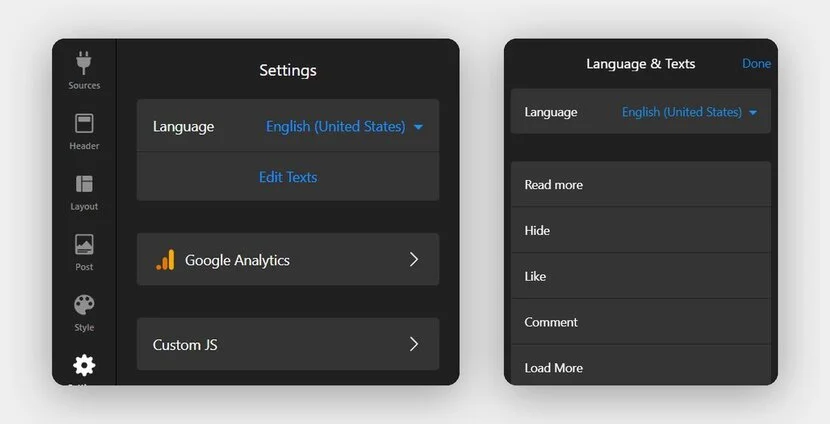
- Language — choose the display language
- Edit Texts — customize every UI string for translation
- Google Analytics — built-in event tracking via GA or GTM
- Custom JS — runs on the live website only, not in the editor
Note that the Google Analytics option sends events to your own GA or GTM account — it’s tracking, not a built-in dashboard inside the widget. Custom JS, similarly, only executes once the feed is live on your website, so don’t expect to test it in the editor.
Step 8: Get the code and embed it in WordPress
Now the actual WordPress part. Click Add to website for free and copy the generated installation code. In your WordPress dashboard, go to Pages or Posts, open the page you want, click the + to add a block, search for Custom HTML, paste the code in, and hit Publish or Update.
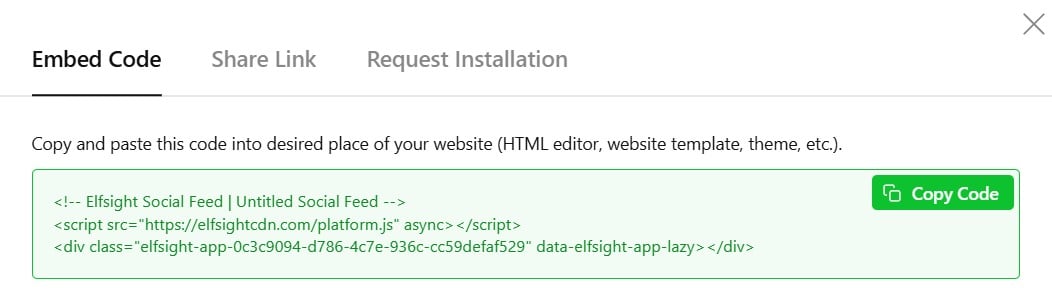
Troubleshooting quick check
- Feed not showing: confirm the code is in a Custom HTML block, not a Paragraph block.
- Still blank after publishing: clear your caching plugin’s cache — it may be serving the old page.
- Posts not updating: each network refreshes on its own cycle (Instagram every 48 hours, TikTok every 36) — there’s no manual refresh.
- Using a page builder: in Elementor, use the plain HTML element, not the “Custom HTML” element.
Alternatives to the Social Media Feed for WordPress
The widget isn’t the only route. Depending on what you need, one of these may fit better — here’s how each works and where it falls short.
Option 1: Embed posts with native tools
WordPress can render a single post from multiple networks without a plugin, using its built-in embed support.
- Copy the URL of the public post you want to show.
- In the block editor, paste the URL on its own line, or use the matching Embed block.
- Publish the page.
Option 1.2: Add the feed in Elementor
If you build pages with Elementor, you can drop the same embed code into an HTML element.
- Open the page in the Elementor editor.
- Drag the HTML element (not “Custom HTML”) onto the page.
- Paste the installation code into the element.
- Click Update.
Option 2: Display via Widgets or the Customizer
To show the same feed across your whole website — for example, in the footer — place the code in a global area instead of a single page.
- Go to Appearance → Widgets, or Appearance → Customize.
- Add a Custom HTML widget to a global area, such as the footer or sidebar.
- Paste the code and save.
If you’d rather embed a single-source widget, take a look at the dedicated Instagram Feed, Twitter Feed, TikTok Feed, LinkedIn Feed, and YouTube Gallery.
Optimization of Your Social Media Feed
Crucially, there are adjustments that separate a feed that just works from one that actually performs and captures attention:
- Switch sorting to Random if you include Pinterest. Pinterest doesn’t provide post dates, so a date-sorted feed quietly buries every Pin below your dated content. Random sorting fixes it.
- Cap the feed with Limit Total Number of Items. A high-frequency network like X can flood the wall and drown out everything else. Setting a limit keeps the mix balanced.
- Decide whether clicks leave your website. Turn off Enable External Links to keep visitors on-page, or leave it on if growing your follower count matters more than dwell time.
- Set freshness expectations against the refresh table. Don’t schedule a feed-dependent announcement assuming instant updates — Instagram and X can lag up to 48 hours behind a new post.
- Whitelist the widget in optimization plugins. Aggressive minification or lazy-loading from caching and speed plugins can stop the feed from rendering. If it won’t load, exclude the Elfsight platform script from those plugins’ optimization rules.
Frequently Asked Questions
Why isn't my social media feed updating on my WordPress website?
Is the social media wall mobile-responsive on WordPress?
Can visitors like or comment on posts directly in my social feed?
Do I need a plugin to add a social media aggregator to WordPress?
Why isn't my social media feed showing up after I pasted the code?
Conclusion
To sum up, adding a social media feed to WordPress comes down to one choice: stitch together separate embeds and plugins network by network, or use a single widget that aggregates everything into one wall you style once and embed once. The widget route trades a small amount of setup for a feed that combines up to 10 platforms and refreshes automatically.
If you’ve mapped out your networks and know how fresh you need the feed to feel, the next move is to build your WordPress social feed widget in the editor, copy the code, and drop it into your page. From there you can keep refining the layout and styling without ever re-embedding — changes you make in the editor go live on your website automatically.

![Social Proof on a Website [15+ Examples & Tips]](https://elfsight.com/wp-content/uploads/2024/12/social-proof-on-website-featured-image-500x278.png)