According to Meta, the Facebook Like button will stop rendering on external websites on February 10, 2026, ending a 16-year era that transformed how people interact with web content.
Meta is discontinuing the Facebook Like button plugin for external websites, the same day it’s ending support for Facebook Comments. If you’ve been using the Like button on your website, it will stop functioning and render as an invisible element. Unlike the Comments plugin, which enabled discussions, the Like button served two distinct purposes: allowing visitors to express approval of your content and enabling them to share it to Facebook with one click.
This guide explains which alternative solutions can replace these functions. Whether you need content sharing capabilities, social profile visibility, or both, you’ll find practical options to maintain social engagement after the Like button disappears.
- Two categories of solutions: content sharing buttons vs. social profile links
- Step-by-step setup for social media icons and share button alternatives
- A comparison of third-party widgets, native platform tools, and custom implementations
- Best practices for maintaining social engagement without Facebook’s plugin
Understanding your options helps you choose the right combination of tools to maintain, and potentially improve, your website’s social integration.
Alternative Solutions for Social Engagement
The discontinuation of the Facebook Like button creates an opportunity to implement more flexible social integration tools. Your replacement strategy depends on which functionality matters most: enabling content sharing or displaying your social media profiles.
Two Complementary Approaches
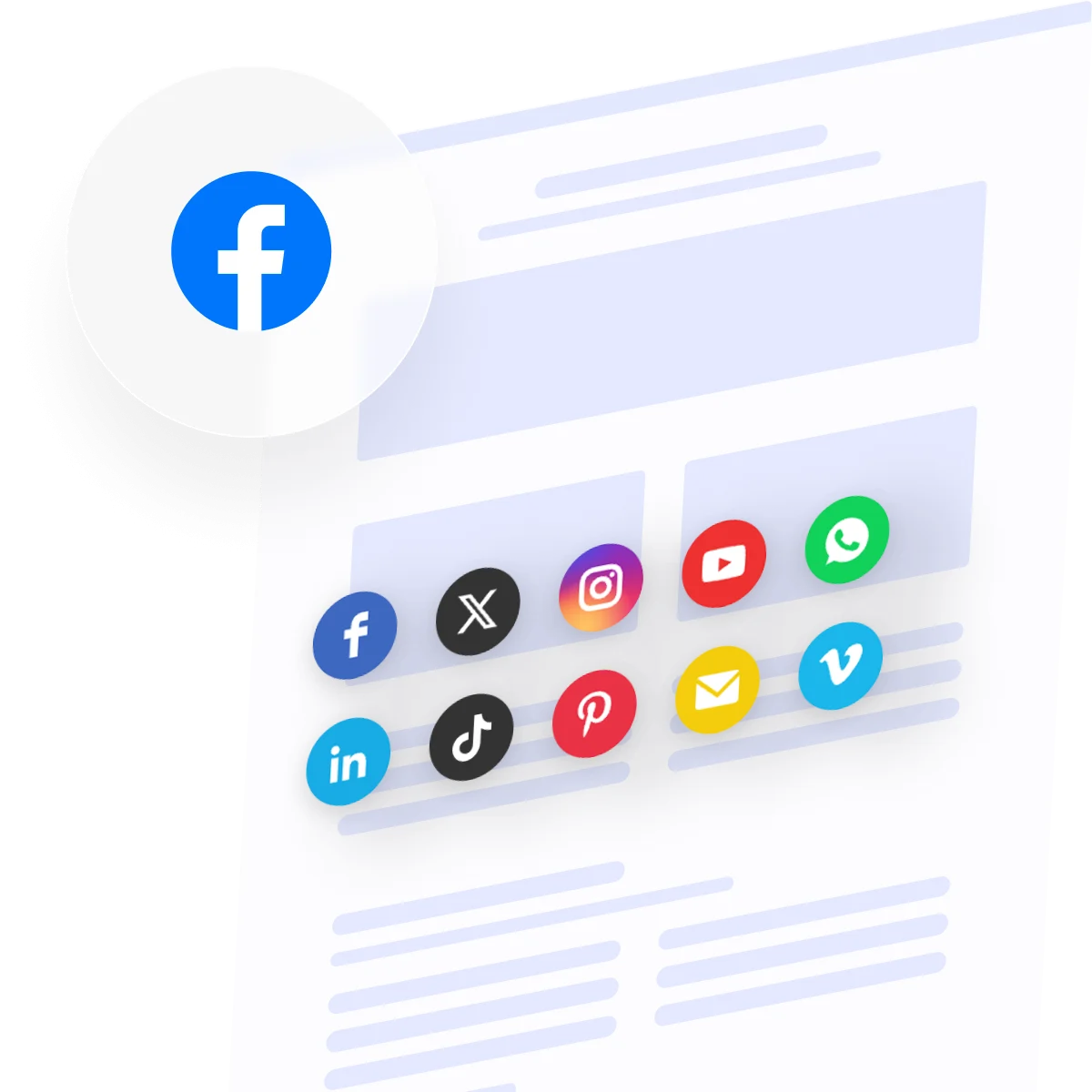
If your priority is social presence, display Social Media Icons that link to your Facebook page, Instagram, YouTube, and other profiles. These icons don’t enable sharing, but keep your social channels visible and accessible.
If your priority is content sharing, implement Social Share Buttons that let visitors share your content to Facebook, X, LinkedIn, Pinterest, and other platforms. These buttons replace the Like button’s sharing functionality.
For comprehensive social integration: Combine both solutions. Use Share Buttons for content sharing and Social Media Icons for profile visibility. This dual approach covers both functions that the Like button previously served.
1. Social Media Icons
Social Media Icons provide persistent visibility for your social profiles, encouraging visitors to follow you on Facebook, Instagram, LinkedIn, and other platforms. While they don’t replace the Like button’s sharing functionality, they maintain your social presence and drive profile traffic.
Elfsight Social Media Icons
The Social Media Icons widget offers customizable icon sets for 50+ platforms with extensive design flexibility. The setup is easy and intuitive:
- Open the editor and select platforms to display
- Add your profile URLs for each selected platform
- Customize style and configure widget
- Generate the embed code and paste it into your website
🚀 Create your social media icons now in the live editor!
Key features
- 50+ social platform icons, including Facebook, Instagram, X, TikTok, LinkedIn, YouTube
- 5 pre-designed styles with full color customization
- Inline layout for content areas or floating layout for persistent visibility
- Unlimited icons with drag-and-drop reordering
- Icon size, shape (circle, rounded, square), and animation options
- Mobile-responsive design
For complete feature details, see the Social Media Icons features page.
2. Social Share Buttons
Social Share Buttons enable visitors to distribute your content across multiple platforms, not just Facebook. This broader sharing capability often generates more traffic than Facebook-only solutions.
AddThis / ShareThis (Third-party alternatives)
AddThis and ShareThis are established social sharing platforms used by millions of websites worldwide.
- Create a free account at addthis.com or sharethis.com
- Configure which share buttons to display and customize the appearance
- Copy the embed code and paste it into your website
- Share data and analytics appear in the platform dashboard
3. Native Platform Solutions
Many website builders include basic social integration features that require no third-party tools.
WordPress Social Icons (Native)
WordPress themes often include social icon widgets, and the Block Editor provides a Social Icons block.
- In the Block Editor, click the + icon and search for Social Icons
- Select which platforms to display from the available options
- Add your profile URLs for each icon
- Customize icon style and alignment
- Publish the page
Squarespace Social Links
Squarespace includes Social Links blocks for displaying icons in any content area.
- Click the Insert Point where you want icons to appear
- Select Social Links from the block menu
- Choose which platforms to display and add profile URLs
- Adjust icon style, size, and spacing via design settings
- Save and publish
4. Custom Implementation
Developers can build custom social icon sets or share buttons using HTML, CSS, and platform-specific sharing URLs.
Custom Social Icons
- Create HTML markup for icon links using SVG icons or icon fonts (Font Awesome, etc.)
- Style icons with CSS for hover effects, sizing, and responsive behavior
- Link each icon to the appropriate social profile URL
- Implement across your website template
Custom Share Buttons
- Use platform-specific sharing URLs e.g.:
https://www.facebook.com/sharer/sharer.php?u=[PAGE_URL] - Create buttons that trigger sharing URLs with current page parameters
- Style buttons and handle JavaScript click events
- Add share count APIs where available (most platforms discontinued count APIs)
Comparison: Which Solution Fits Your Needs Best
Here’s how the major alternatives compare across the features that matter most for replacing the Facebook Like button:
| Feature | AddThis ShareThis | Elfsight Social Icons | WordPress Native | Squarespace Links | Custom Build |
|---|---|---|---|---|---|
| Content sharing | Yes | No | No | No | If coded |
| Profile linking | Limited | Yes | Yes | Yes | If coded |
| Platform coverage | 40+ | 50+ | 10-15 | ~30 | Any |
| Free tier | Yes (with ads) | Yes | Yes | Yes | Yes (DIY) |
| Share count display | Yes | N/A | N/A | N/A | Deprecated APIs |
| Design customization | Moderate | Extensive | Theme-dependent | Limited | Full control |
| Floating option | Yes | Yes | No | No | If coded |
| Mobile-responsive | Yes | Yes | Theme-dependent | Yes | If coded |
| No third-party dependency | No | No | Yes | Yes | Yes |
| Analytics included | Yes | Yes | No | No | If coded |
Decision framework
- Need content sharing functionality: Elfsight Social Share Buttons or AddThis/ShareThis provide multi-platform sharing
- Need social profile visibility only: Social Media Icons (Elfsight or native) display your active platforms
- Need both sharing and profile visibility: Combine Share Buttons with Social Media Icons for comprehensive coverage
- Budget-conscious: Native platform solutions (WordPress, Wix, Squarespace) provide basic profile linking at no extra cost
- Want extensive customization: Elfsight widgets offer the most design flexibility without coding
- Privacy-focused: Native solutions or custom builds avoid third-party tracking and data collection
Most website owners benefit from implementing both solutions: Share Buttons for content distribution and Social Media Icons for profile discovery. This combination replaces both functions the Facebook Like button previously served.
Implementation Guide: Social Media Icons
To illustrate the setup process for maintaining your social presence after the Facebook Like button discontinuation, here’s a complete walkthrough of implementing Elfsight Social Media Icons – a solution that keeps your Facebook page and other social profiles visible and accessible across your website.
Step 1: Access the Social Media Icons Editor
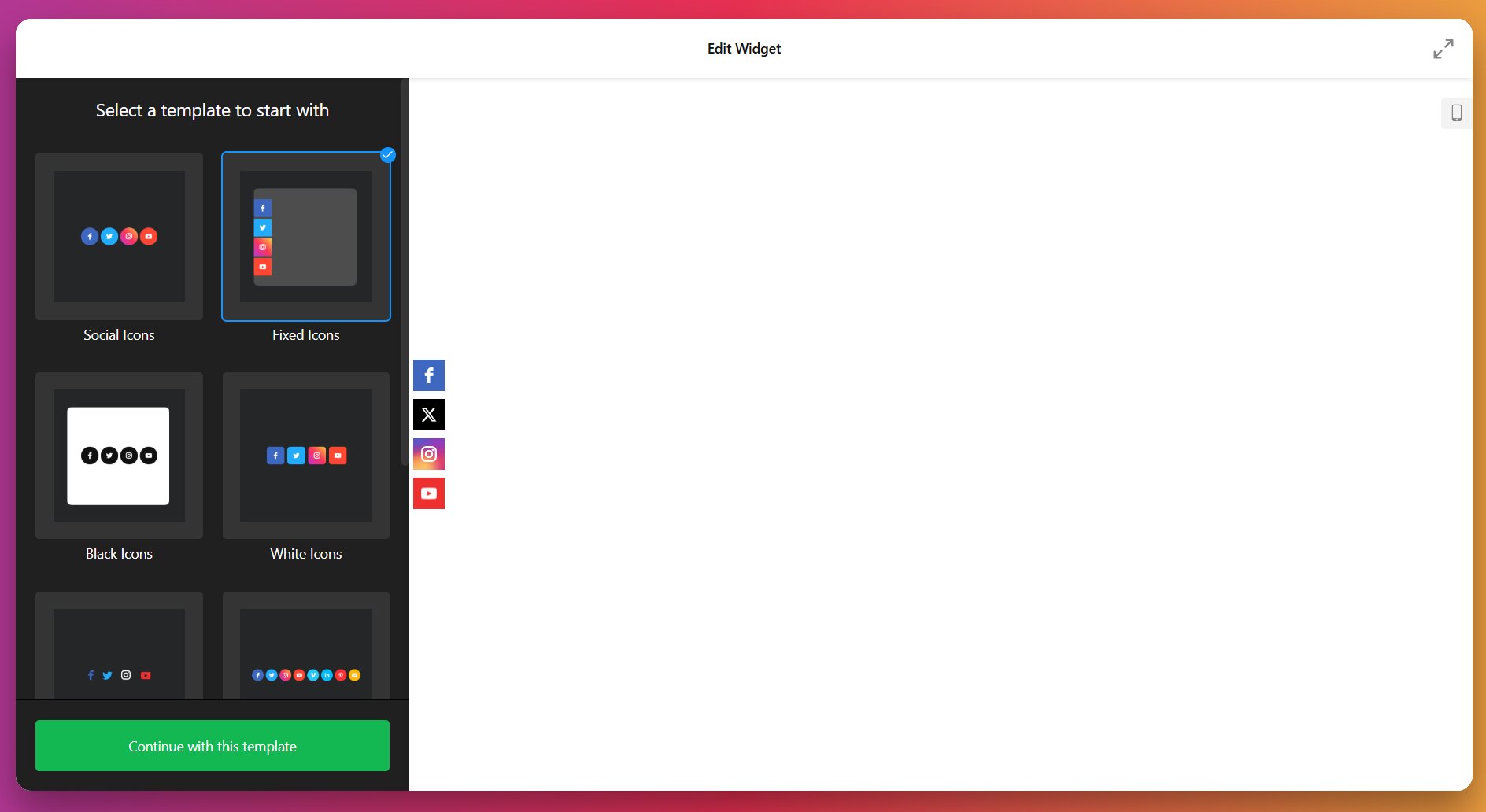
Navigate to the widget editor. Browse the template gallery and select a pre-designed layout that matches your website’s style.
Step 2: Select Your Social Platforms
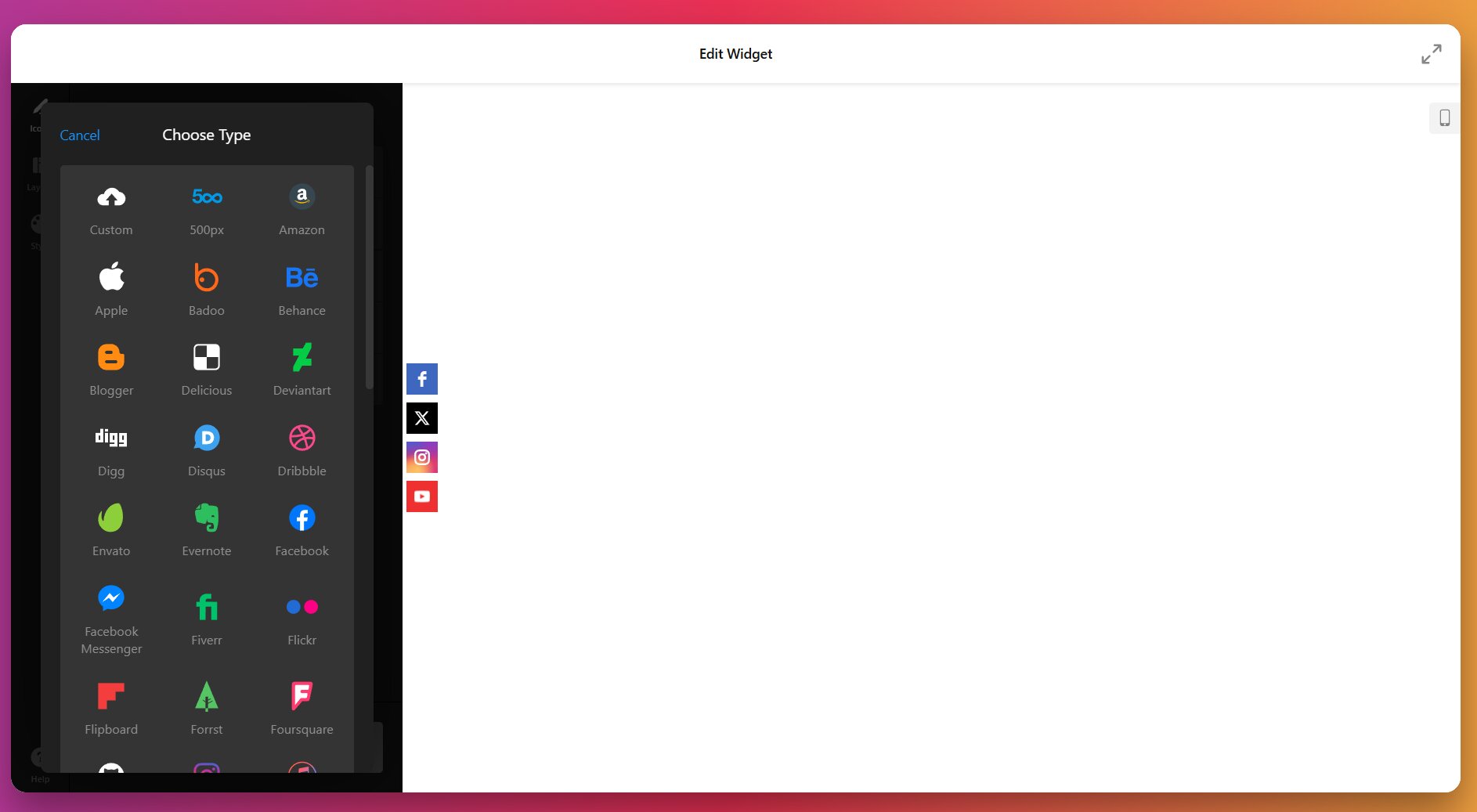
Choose which social platforms to display from the library of 50+ available icons. Include Facebook to maintain visibility for your page, and add other active platforms such as Instagram, X, LinkedIn, YouTube, TikTok, or WhatsApp. Click on each platform to add it to your icon set.
Step 3: Add Profile URLs
For each selected platform, paste your profile URL in the designated field. For Facebook, use your full page URL (e.g., https://www.facebook.com/yourbrandname). Verify that URLs are correct – incorrect links frustrate visitors and damage credibility.
Step 4: Customize Visual Style
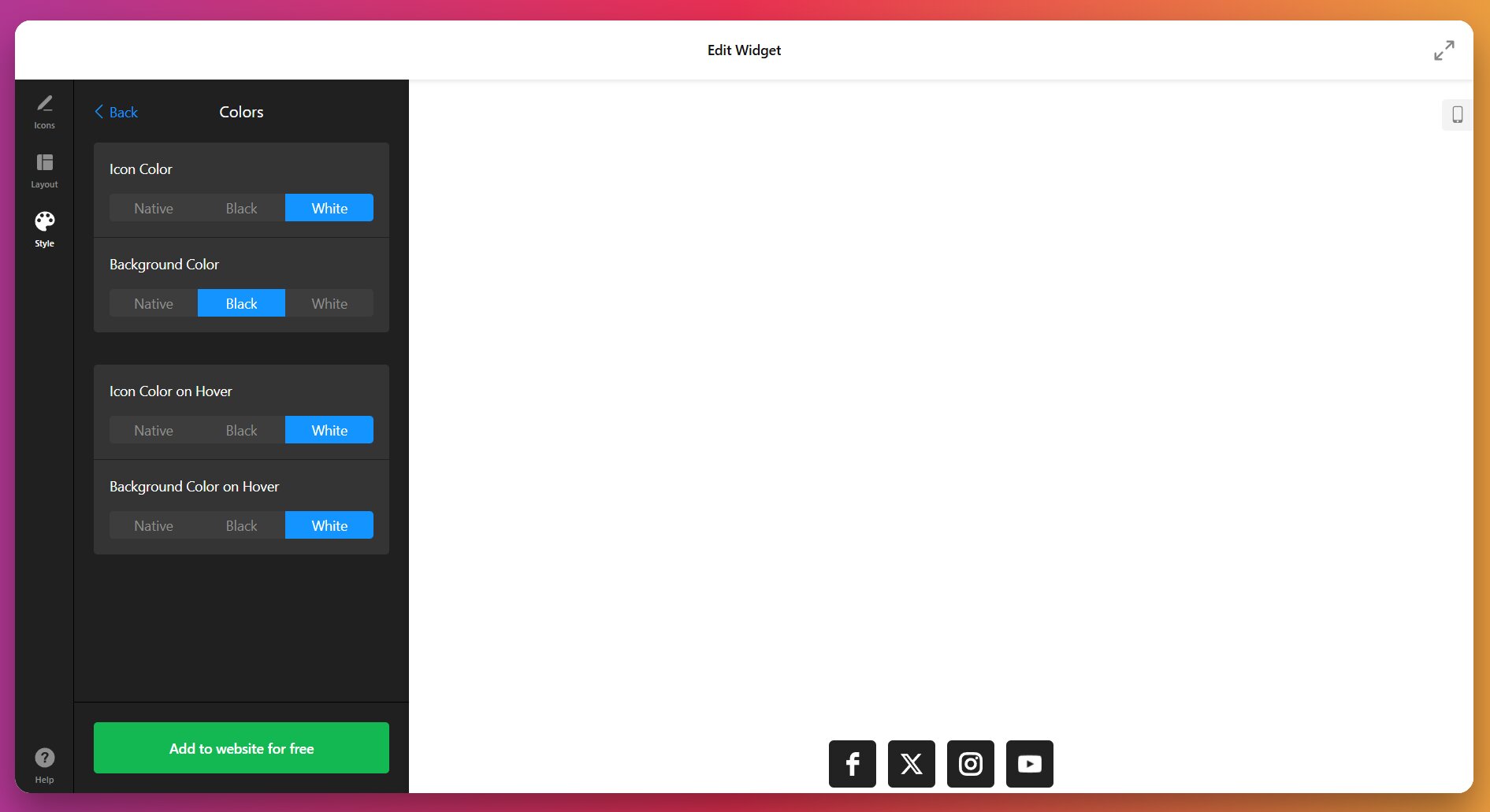
Adjust icon colors (native brand colors, custom colors, black, or white), background colors, and hover effects. Select icon shape: circle, rounded, or square.
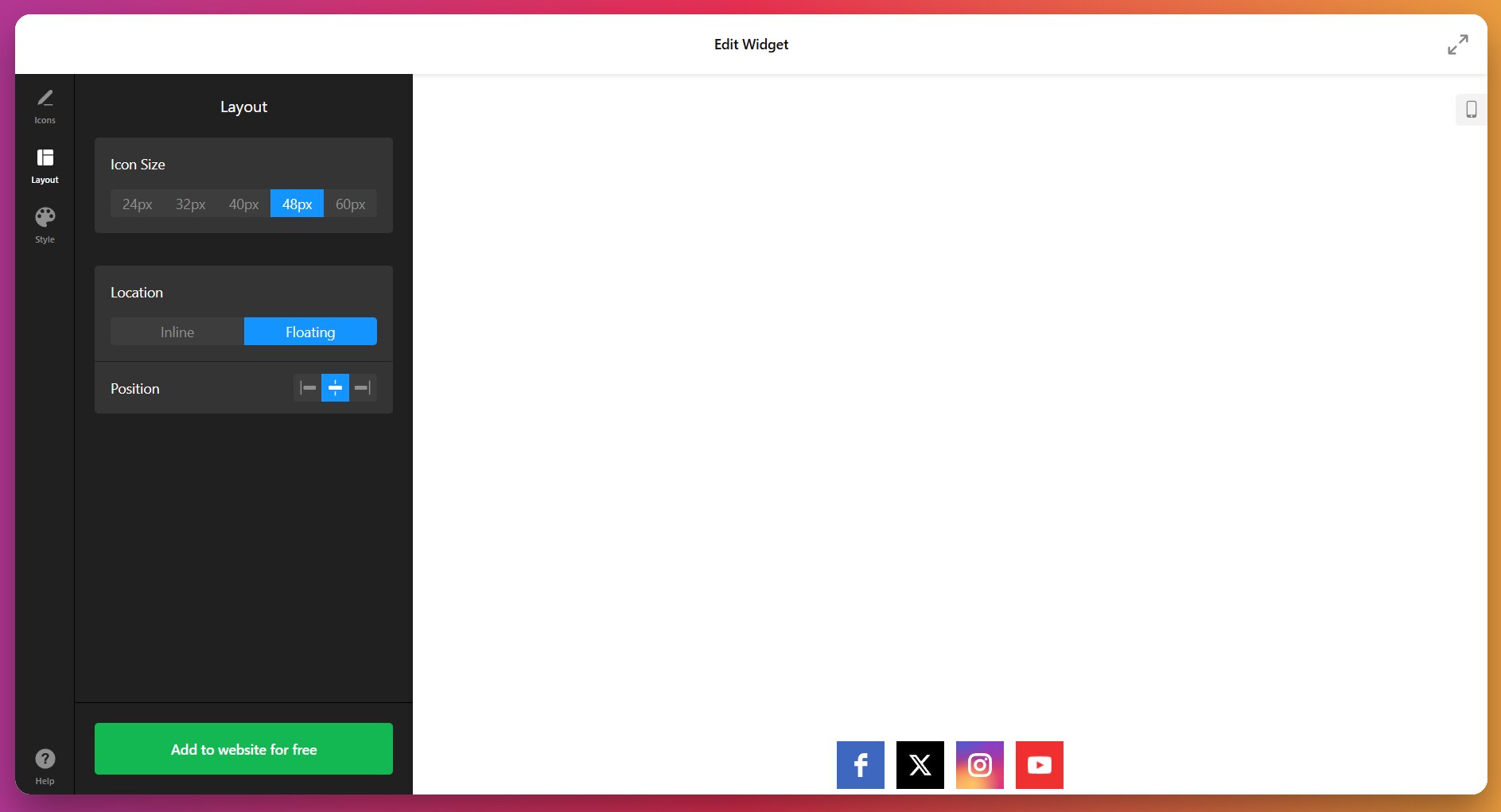
Then configure icon size using the preset options (Small, Medium, Large, X-Large, XX-Large) and choose your widget location (inline or floating) and position.
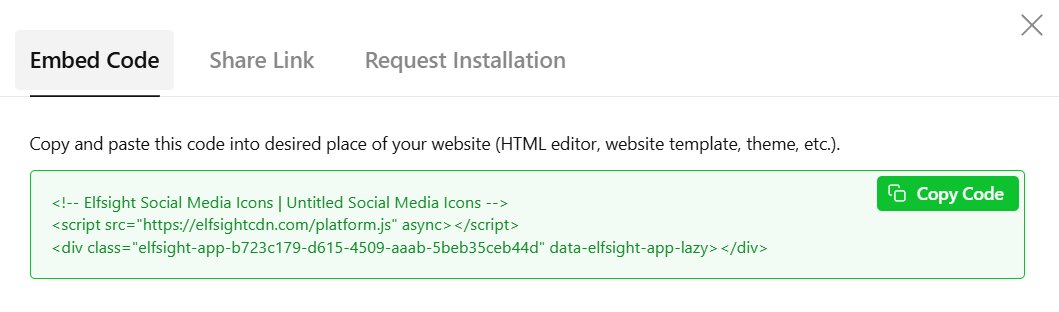
Step 5: Generate and Copy the Embed Code
Click “Add to Website” to generate your installation code. Copy the HTML snippet to your clipboard—you’ll paste this into your website in the next step.
Step 6: Install on Your Website
The installation method depends on your platform. Below are instructions for the most common website builders:
WordPress (Block Editor)
- Navigate to Pages → select your target page → click Edit
- Click the + icon → search for and select Custom HTML
- Paste the Elfsight installation code
- Click Publish or Update
Wix
- Click Edit Site → Plus icon → Embed Code → Embed HTML
- Click Enter Code → paste the installation code → Update
- Drag the widget to your desired position and adjust the container size
- Switch to Mobile editor and adjust sizing separately → Publish
Squarespace (Core/Plus/Advanced plans)
- Navigate to Website → Pages → select target page → Edit
- Click Add block → select Code
- Paste the installation code → Save → Publish
Shopify (Online Store 2.0 themes)
- Go to Sales Channels → Online Store → Customize
- Navigate to target page → Add section → Custom Liquid
- Paste the installation code → Save
For site-wide installation (header or footer across all pages), most platforms offer a “Custom Code Injection” or “Header/Footer Scripts” feature in their settings. This ensures your social icons appear consistently throughout your website.
For detailed platform-specific instructions including troubleshooting, see the Elfsight Help Center.
🔧 Troubleshooting Quick Check
- Icons not appearing: Verify the code was pasted into a Custom HTML or Code block, not a text or paragraph block. Clear your browser cache and check the live published page.
- Icons displaying incorrectly on mobile: Some platforms require separate mobile layout configuration. Test on actual mobile devices, not just browser responsive mode.
- Broken social links: Double-check that all profile URLs are correct and publicly accessible. Test each link by clicking it on your live website.
- Icons too large or too small: Adjust icon size in the Elfsight editor and update your embed code. For Wix, manually resize the container to fit the icons without scrollbars.
- Floating layout blocking content: Adjust the floating position in the editor to place icons where they don’t overlap important content or navigation elements.
Best Practices for Social Integration
Whichever solution you choose as your Facebook like button replacement, there are some must-haves and useful tips to make these social integrations work best for you:
- Combine sharing and presence solutions. Use Share Buttons for content distribution and Social Media Icons for profile visibility. This dual approach replaces both functions the Like button previously served.
- Place icons strategically for maximum visibility. Header and footer placements work well for Social Media Icons. Reserve Share Buttons for content areas (blog posts, product pages, articles) where sharing makes contextual sense. Floating layouts keep icons visible during scroll on long-form content.
- Link only to active social profiles. Avoid displaying icons for platforms where you haven’t posted in months. Dead or dormant profiles damage credibility and disappoint visitors who click expecting to find fresh content.
- Test mobile responsiveness thoroughly. Social buttons and icons must work flawlessly on smartphones and tablets. Test on actual devices, not just browser responsive mode—touch targets should be large enough (minimum 44×44 pixels) for easy tapping.
- Monitor performance impact. Third-party social widgets load external scripts that can slow page load times. Test with Google PageSpeed Insights or GTmetrix. If social integration significantly impacts performance, consider native platform solutions or optimize widget loading.
Frequently Asked Questions
Can I still add a Facebook Like button to my website after February 10, 2026?
How do I add a Facebook Like button to my website using a widget?
How to embed a Facebook Like button on my website with modern alternatives?
Do Social Media Icons replace the Facebook Like button functionality?
Will removing the Facebook Like button affect my website's SEO?
Conclusion
The discontinuation of the Facebook Like button on February 10, 2026, marks the end of an influential era in web integration, but it doesn’t diminish the importance of social connectivity. Modern alternatives offer more flexibility and broader reach than the Like button ever provided. By implementing Social Share Buttons for content distribution and Social Media Icons for profile visibility, you can maintain – and likely improve – your website’s social integration.
The key is understanding which functionality matters most for your audience. Content creators and publishers benefit from robust share button implementations across multiple platforms. Brands and businesses gain value from persistent social icon visibility that drives profile traffic. Most websites need both solutions working together to cover the full spectrum of social engagement.