Did you know? In 2025, 62% of Americans reported owning stock — a rate that has held steady since 2023, according to Gallup. That’s a large audience that cares about where the markets are.
You want live market numbers on your website — a watchlist on a finance blog, crypto prices on a project page, a few headline tickers in your header — and the usual routes keep falling short. The free embeds from big financial portals come pre-branded and barely styleable, copy-pasted iframes break your layout, and rolling your own means wrangling an API and a charting library.
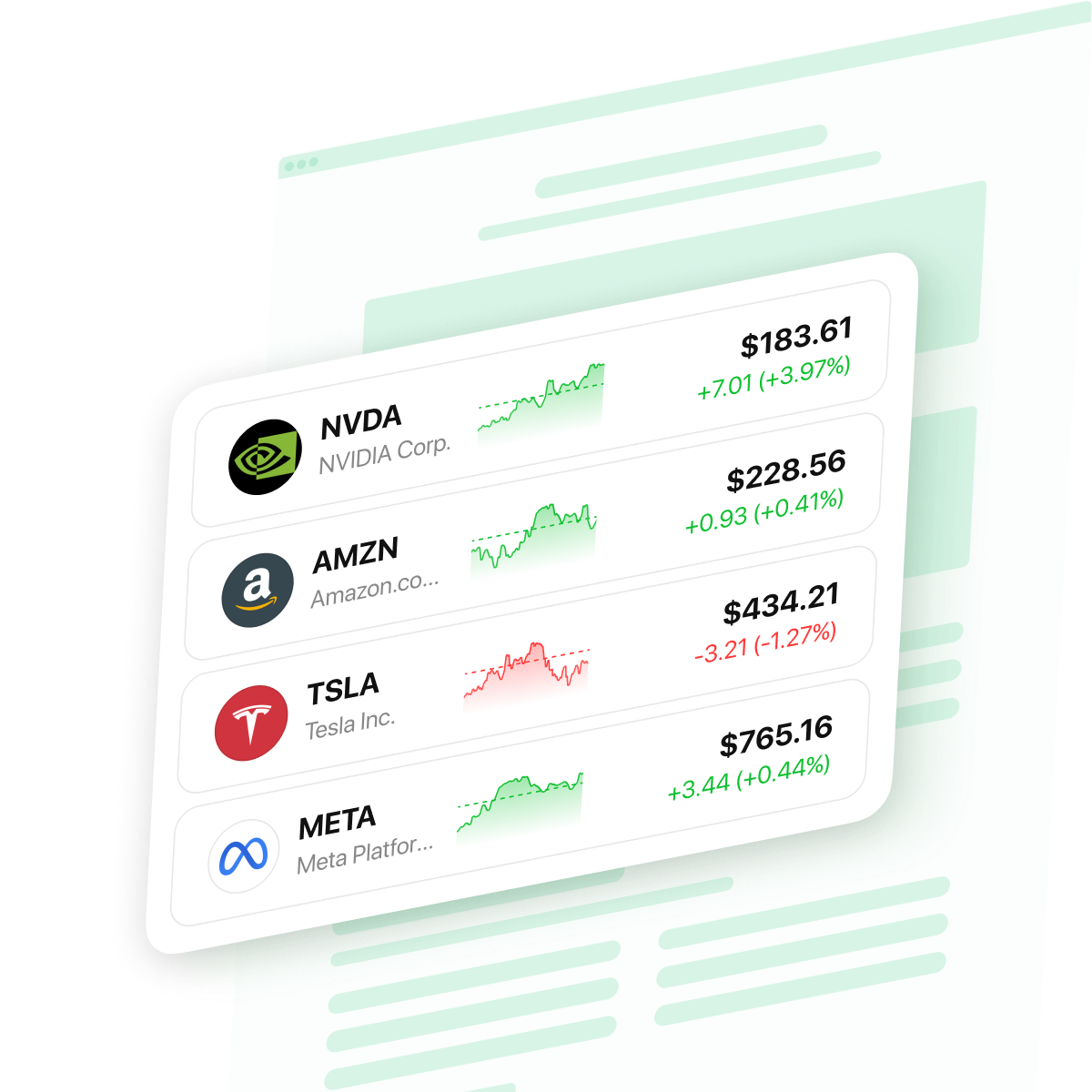
The easier option is the Elfsight Stocks widget, a no-code tool that displays stocks, forex pairs, and crypto as a scrolling ticker, cards, a table, or a list. Values update automatically without a page reload, the look is customizable, and the embed works on any website that accepts a custom HTML block.
- The fastest no-code way to embed a stock ticker
- How the available methods compare on effort, control, and cost
- Which of the five layouts fits where on your website
- Setup and optimization tips that go beyond the obvious
Quick Start: Add a Stock Ticker to Your Website
If you just want it live and don’t need the reasoning behind each choice, these four steps get you there.
- Open the Stocks widget editor and pick a template.
- Add the assets you want to show.
- Click “Add to website for free” to generate your embed code.
- Paste the code into a custom HTML block on your website and publish.
Build your stock ticker in the interactive editor below ↓
Top Methods to Display a Stock Ticker on Your Website
Before committing to one route, it helps to see how the realistic options stack up — because the “best” stock ticker website setup depends entirely on how much control and maintenance you’re willing to take on.
| Method | Difficulty | Customization | Auto-updates | Cost |
|---|---|---|---|---|
| Elfsight Stocks widget | No code | High (layout, colors, fonts, CSS) | Yes | Free plan / paid tiers |
| Embeddable widget from a financial data portal | Copy-paste | Low (provider’s templates) | Yes | Usually free |
| Manual iframe / market-data API | Developer | Full (you build it) | Depends on your code | Free to paid API |
The Elfsight widget suits anyone who wants design control without having to touch code. A free embeddable widget from a financial data portal is the quickest drop-in if you don’t mind the provider’s branding and styling limits.
Layout and Placement: Where to Embed a Stock Ticker
Picking a layout isn’t really a design question — it’s a strategic placement question. Where the stock ticker display on your website lives determines which of the five layouts actually works, so it’s worth deciding that first.
Match the layout to where it lives
Each layout has a natural home. Think about the spot on the page before you think about the style.
| Layout | Best placement | Why it fits |
|---|---|---|
| Ticker (Topbar mode) | Sitewide strip at the top of every page | A constant “market pulse” band, like a news website’s headline crawl |
| Ticker (Inline mode) | Inside an article or section | A scrolling row that sits within content rather than pinned to the top |
| Cards Grid / Cards Stack | A featured block on a homepage or post | Larger cards with mini-charts that draw the eye; Stack swipes one at a time on narrow screens |
| Table | A dedicated “Markets” page | Sortable columns and a Volume field for side-by-side comparison |
| List | A sidebar or narrow column | Compact vertical rows that fit a 300–500px width |
Two practical notes. First, anything above the fold competes with your main message — a full Topbar ticker on a landing page can pull attention away from your call to action, so reserve it for content where market data is the point. Second, the Ticker and List layouts handle narrow mobile widths most gracefully; wide multi-column grids and tables reflow, but check them on a phone before you publish.
Is this the right tool for your website?
It’s worth being honest about fit, because the widget does some things well and others not at all.
Good for: a curated watchlist, market context on a finance blog, crypto prices on a project website, forex pairs on a travel or remittance website, or a credibility element that shows you’re current.
Not built for: a trading dashboard, a real-time decision tool, or a fundamentals and screening terminal.
Quotes are regularly updated but not guaranteed to be real-time; the asset catalog is a curated 100+ rather than every symbol on every exchange, and the data fields are limited to price, change, volume, and a mini-chart — no market cap, P/E, or earnings data.
Setting Up Your Stock Ticker Widget From Zero
With the placement decided, here’s the full walkthrough — the same flow whether you’re heading for WordPress, Shopify, or a hand-coded website.
Step 1: Pick a starting template
Open the editor, and you’ll land on a template gallery — 20+ ready-made starting points. First, choose the one closest to your end goal, so you’re adjusting rather than building from scratch.
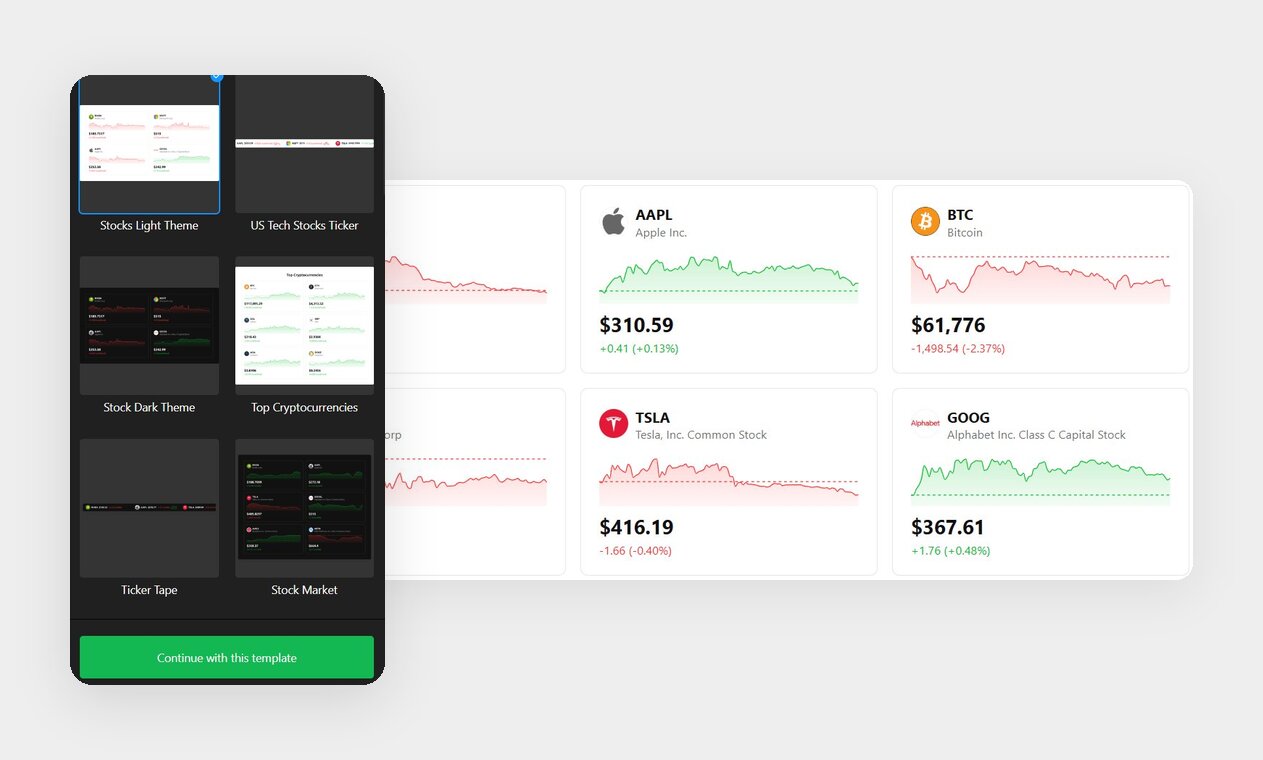
Popular options
- Stocks Light Theme / Stock Dark Theme — neutral starting points that match most websites.
- US Tech Stocks Ticker / Ticker Tape — pre-built scrolling strips for a header band.
- Top Cryptocurrencies — a crypto-focused grid if that’s your audience.
Templates only set your defaults — every color, layout, and asset is editable afterward, so don’t overthink this pick. Click “Continue with this template” to move on.
Step 2: Add your assets
Next, open the Assets tab. This is where you build your watchlist. Click Add Asset to open the search panel, where you can filter by All, Stocks, Forex, or Crypto and search the alphabetical catalog.
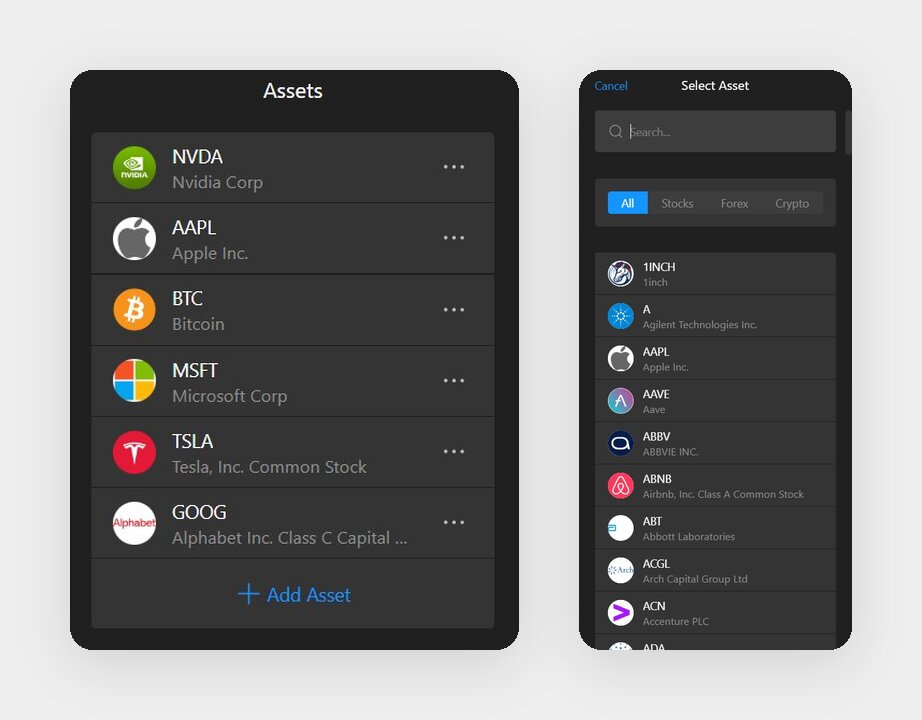
You can mix asset types freely in a single widget — a few tech stocks alongside Bitcoin and a currency pair is perfectly fine.
Step 3: Choose your layout
Now switch to the Layout tab and pick how the assets are arranged. This is the step that takes the longest — take your time, because the layout drives everything about how the widget reads on the page.
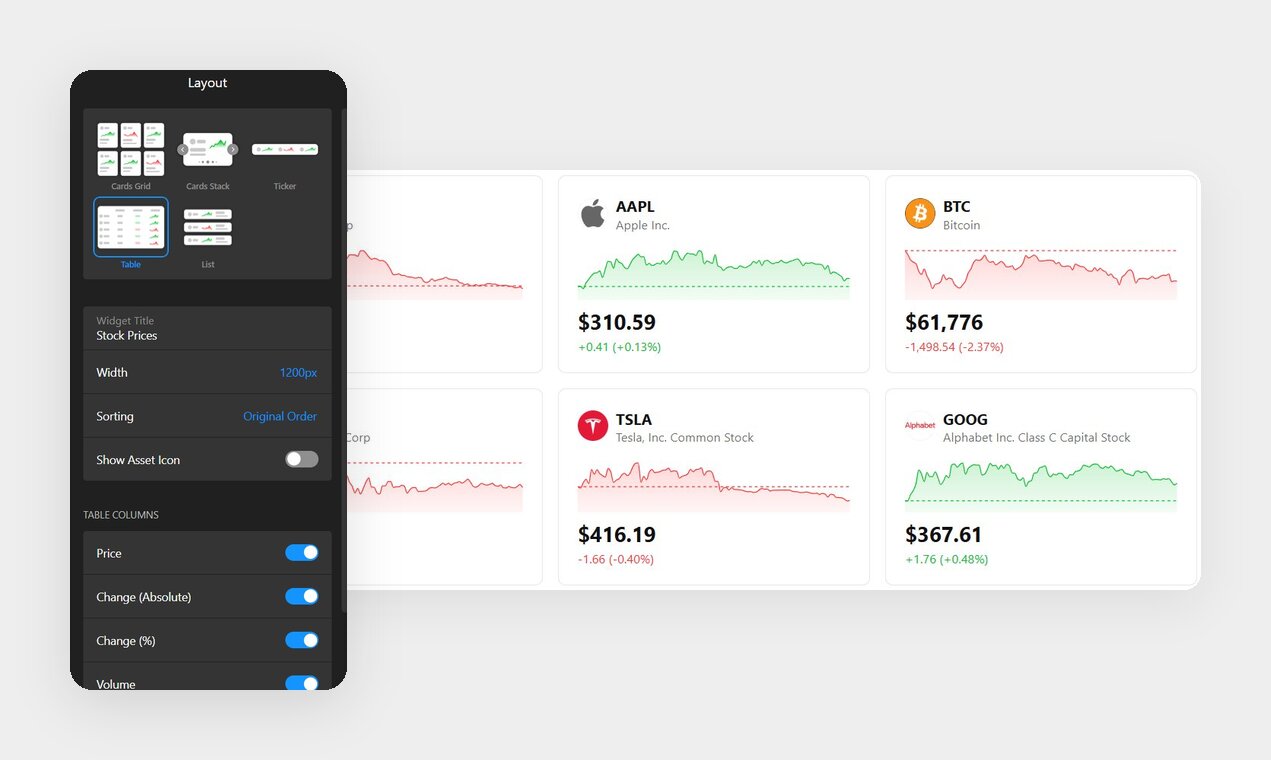
Five layouts available
- Cards Grid — a multi-column grid of asset cards with price, change, and a mini-chart.
- Cards Stack — one card at a time in a swipeable carousel with pagination dots.
- Ticker — a scrolling marquee, with an Inline or Topbar display mode and a Scroll Speed slider.
- Table — sortable columns including a Volume field, best for a dedicated markets page.
- List — compact vertical rows that suit a sidebar.
If you’re unsure, the Ticker layout works for roughly 80% of website headers — it’s compact, draws the eye through motion, and degrades gracefully on mobile. Reach for the Table only when comparison is the actual goal, since it needs horizontal room to breathe.
Step 4: Set your display options
With a layout chosen, fine-tune what each asset shows. The common controls — Show Asset Icon, Show Mini Chart, and Price Change Format (Value, Percentage, or both) — appear for every layout. The Ticker layout adds a Scroll Speed slider and the Topbar toggle; the Table layout lets you toggle individual columns.
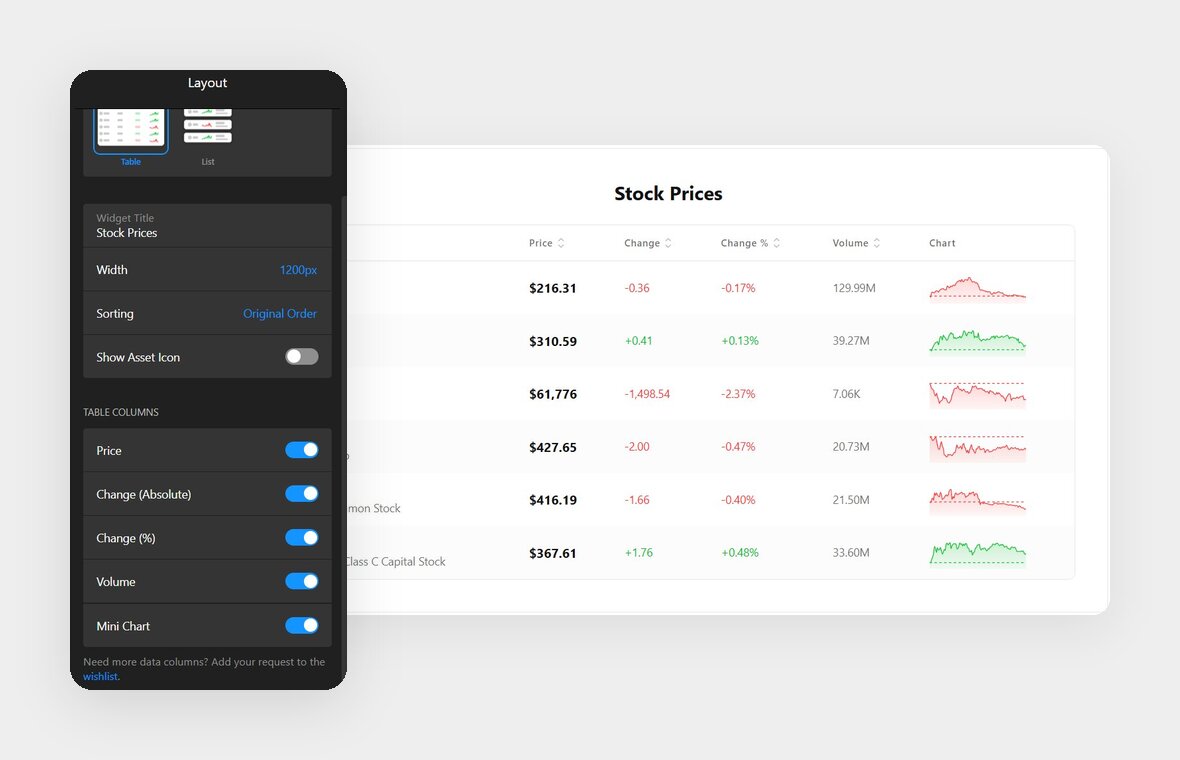
Table columns
- Price — the current quote.
- Change (Absolute) — the dollar move.
- Change (%) — the percentage move.
- Volume — trading volume, the one extra data field beyond price and change.
- Mini Chart — the inline sparkline.
That’s the full set of data fields the widget offers. There’s no market cap, P/E ratio, or day range — if you were planning to show fundamentals, this is the moment to adjust expectations.
Step 5: Style the theme
Open the Theme tab and click Customize Theme to align the widget with your branding.
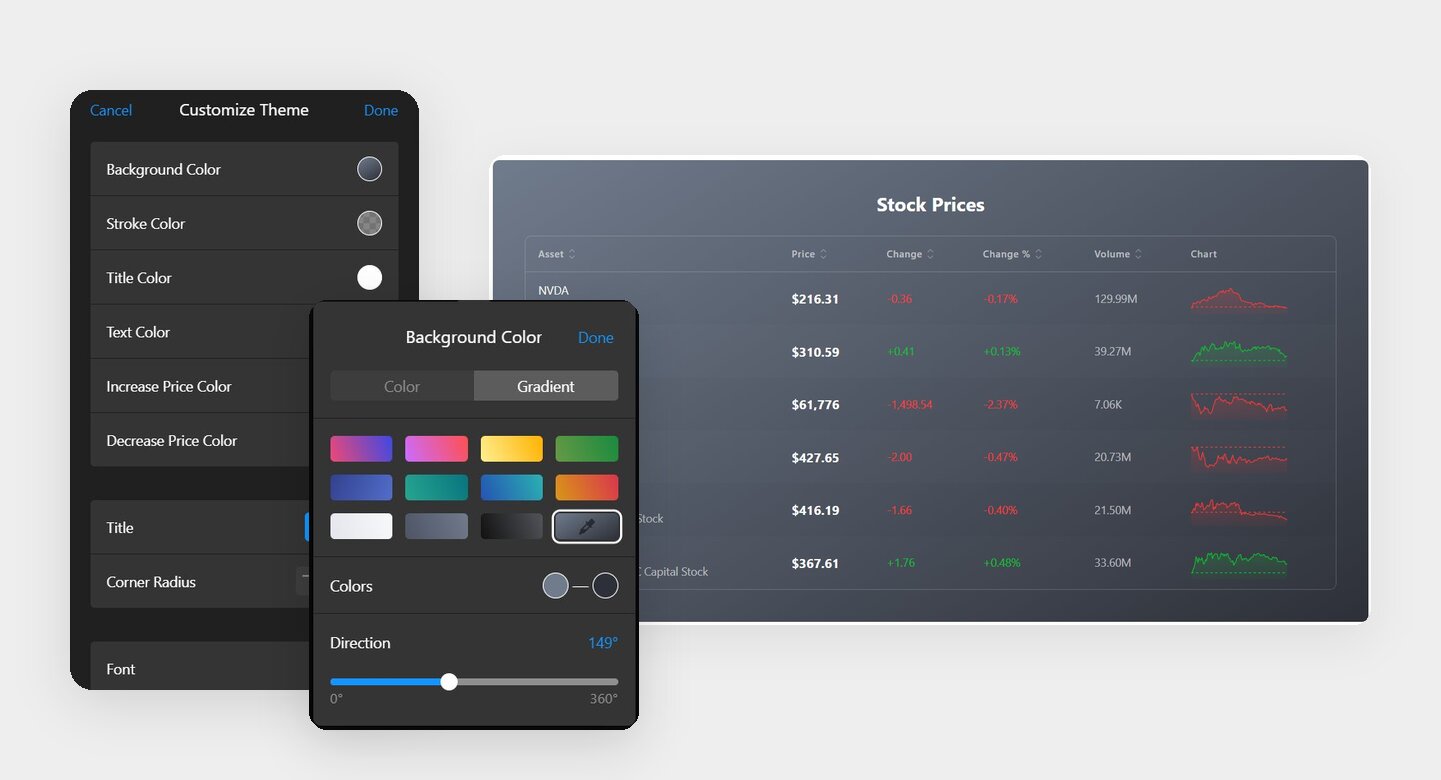
Customizable elements
- Background & stroke colors
- Inscrease/decrease price parameters
- Widget title size and color
- Corner radius
- Font family and text color
Custom CSS and Custom JS fields are also available, in case you’re comfortable with coding and want finer control.
Step 6: Adjust language and settings
In the Settings tab, you can set the interface Language, use Edit Texts to reword any interface strings, and open the Custom CSS or Custom JS editors.
Step 7: Get the code and add it to your website
When the widget looks right, click “Add to website for free” to generate your installation code, then paste that snippet wherever you want the ticker to appear. The code works on any platform that accepts a custom HTML block, including WordPress, Shopify, Wix, Squarespace, and Webflow. Setup steps vary slightly per platform — follow the links for the CMS-specific walkthrough.
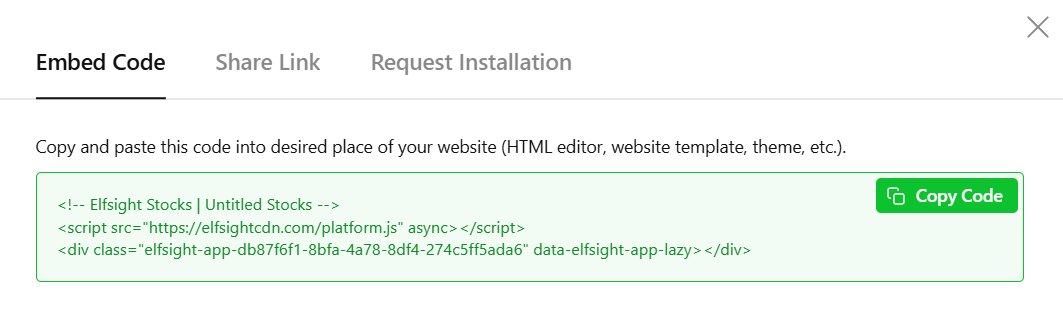
On WordPress, the most common destination: open your page in the Block Editor, add a Custom HTML block, paste the code, and publish. That’s the whole installation.
Troubleshooting quick check
- Widget not appearing: Confirm the code went into a Custom HTML block, not a standard Paragraph or Text block.
- Shows up after refresh only: On themes with AJAX navigation, the platform script may need to load in the page <head>.
- Old version still showing: Clear your caching plugin or CDN cache after pasting.
- Scrollbars inside the widget: The embed container is too narrow — widen the HTML block until they disappear.
Other Ways to Add a Stock Ticker to Your Website
The widget isn’t the only route, and depending on your needs, a different method may suit you better.
Embeddable widget from a financial data portal
Several market-data websites offer free, copy-paste ticker widgets you can drop onto a page.
- Open the data portal’s widget builder and select a ticker or symbol list widget.
- Select the symbols and a basic color scheme.
- Copy the generated embed snippet.
- Paste it into a custom HTML block on your page.
Manual iframe or market-data API
If you have development resources, you can build a ticker yourself. Some people search for free stock ticker codes for website use and assemble them from a market data API and a charting library.
- Sign up for a market-data API and get an API key.
- Write code to fetch quotes and handle the refresh interval.
- Render the values with a charting library or your own markup.
- Embed the result via an iframe or inline script.
Optimization Tips for Your Stock Ticker
You’ve got a working widget — these are the adjustments that separate one that just runs from one that earns its spot on the page.
- Keep the watchlist tight. Five to ten relevant assets read far better than a wall of fifty. A focused list signals editorial judgment; an exhaustive one signals you dumped every symbol you could find.
- Add a delayed-data disclaimer nearby. A short line such as “Quotes may be delayed and are for informational purposes only” protects you as a publisher and sets honest expectations, since the widget isn’t a real-time trading feed.
- Re-check your assets periodically. Tickers get renamed or delisted — crypto especially — so glance at the widget every so often to confirm it still shows what you intended.
- Match the Width to its container. A 1200px ticker belongs in a full-width strip; drop the same width into a sidebar, and you’ll get overflow or scrollbars. Size it to the slot it lives in.
Frequently Asked Questions
Can I add a stock ticker to any website builder?
Will the stock ticker display correctly on mobile?
How current is the stock market data?
Which assets can the stock quote widget for website show?
Can I customize how the stock ticker looks?
Conclusion
Adding a stock ticker to your website comes down to three decisions: where it lives, which of the five layouts fits that spot, and which assets make your watchlist. Once those are settled, the build is a no-code flow: pick a template, add your assets, style it, and paste a single snippet. The widget covers stocks, forex, and crypto across a curated catalog, updates automatically, and stays within clear bounds: it’s market context for credibility, not a trading terminal.
If you’ve mapped out your placement and assets, the next step is to open the Stocks widget editor and build it — or browse the full feature list first to confirm it fits.