Elementor AI Chatbot plugin
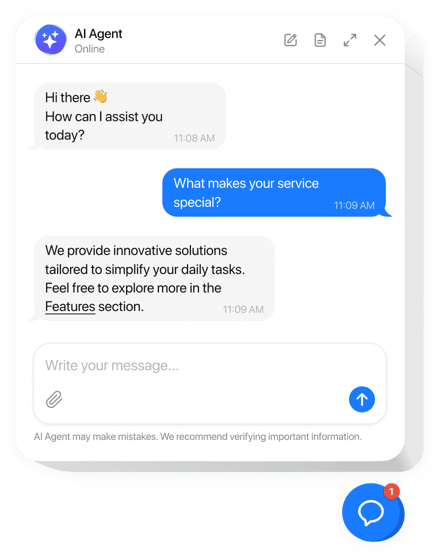
Create your AI Chatbot widget
Why People Love Elfsight
Our AI Chatbot for Elementor is like having a tireless teammate on your website. It answers questions in real time, guides visitors through your content, and keeps conversations flowing even while you’re offline. It’s the easiest way to give your audience the fast, personal support they expect.
Did you know?
According to IBM, chatbots can cut customer service costs by up to 30% while improving satisfaction. That’s efficiency and happier visitors all in one go.
Try it free today – give your visitors instant answers and free yourself from repetitive tasks.
Key Features of the AI Chatbot
- 24/7 instant replies – From FAQs to product details, your chatbot answers around the clock so no one feels ignored.
- Personalized personality – Choose the chatbot’s tone of voice and style to match your brand — friendly, professional, or playful.
- No coding required – If you can paste text, you can set this up. It’s built for everyone, not just developers.
- Lead capture built in – Collect emails, phone numbers, or feedback while chatting, so you can build stronger connections.
- Flexible placement – Add it as a floating chat bubble in the corner or embed it inline on specific pages for full visibility.
- Conversation insights – Discover what visitors ask most often and use that knowledge to improve your content or offerings.
Test all features in the live editor — no signup needed.
How to Add the AI Chatbot to Elementor
Adding your chatbot to Elementor is quick and simple. Here’s how to do it step by step:
Method 1: Inline Chatbot
- Step 1. Go to the AI Chatbot widget page and click “Create Widget.”
- Step 2. Pick a template, set up the design, and customize the chatbot’s behavior in the visual editor.
- Step 3. Click “Add to Website for Free” and copy the embed code.
- Step 4. In your Elementor editor, drag in an HTML block where you’d like the chatbot to appear. Paste the code and publish.
Method 2: Floating Chatbot
- Step 1. In the widget editor, choose a floating layout to keep your chatbot visible as users scroll.
- Step 2. Customize the position (left or right corner), size, and colors.
- Step 3. Copy the embed code provided.
- Step 4. In Elementor, add the code into your website’s footer (via Theme Builder or a footer HTML widget). Save and publish — your chatbot will now float across all pages.
If you get stuck, the Help Center has detailed guides. You can also swap tips in our Community Forum, share feature ideas in the Wishlist, or check the Changelog for the latest updates.