WordPress Event Calendar plugin
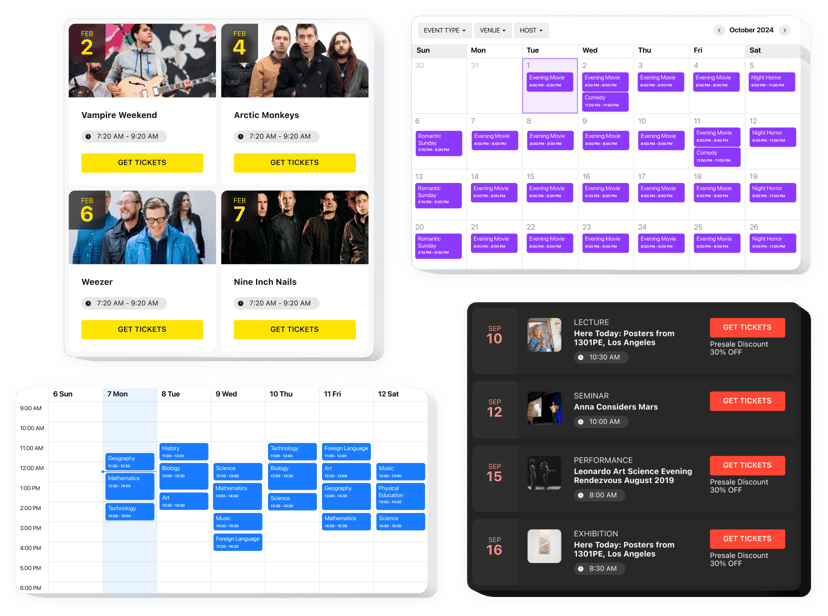
Create your Event Calendar plugin
Screenshots
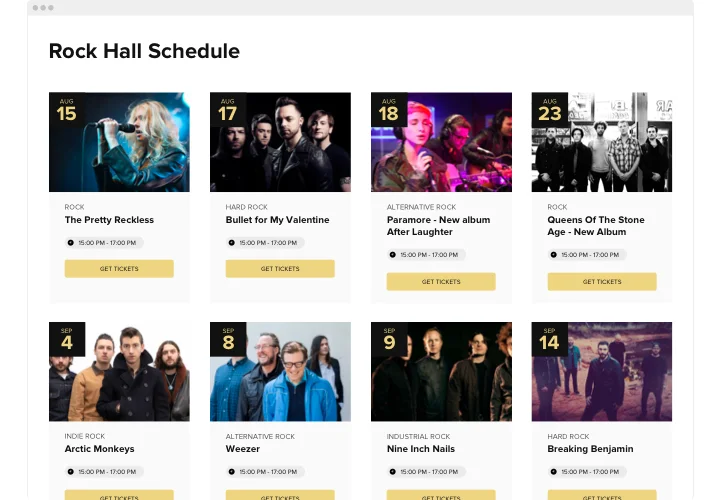

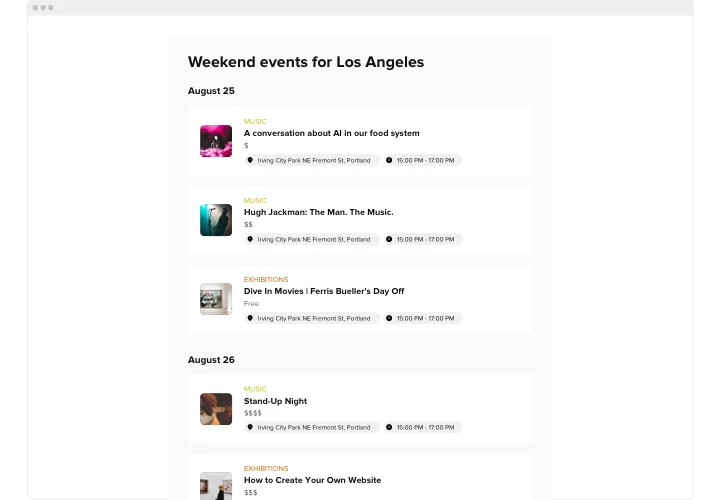
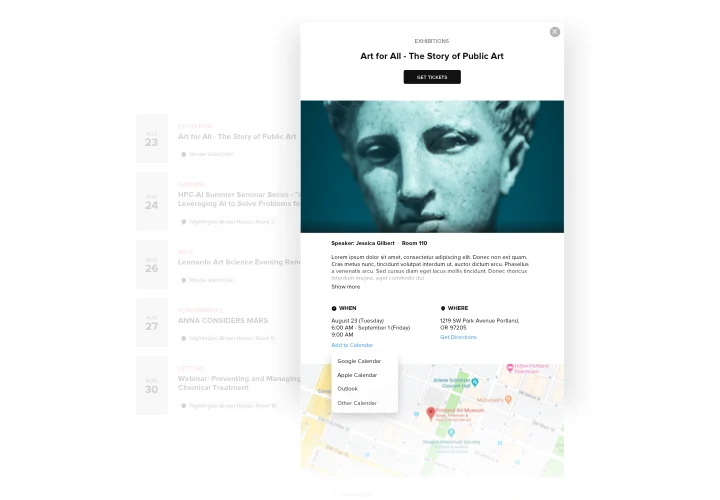

Why People Love Elfsight
The Elfsight Event Calendar helps you share upcoming happenings directly on your website – where your visitors already are.
Setup is quick and simple. You don’t need a developer, and you can add your calendar without plugins piled on top of plugins. Just a few clicks and your calendar is live. Think of it like pinning a sticky note on the fridge – everyone can see what’s coming up at a glance.
Did you know?
Eventbrite research shows that 89% of event-goers use search engines when deciding to attend an event. So, the more visible your schedule is, the more likely people are to attend.
Give your audience the clarity they want – integrate the Elfsight Calendar plugin for free today.
Key Features of the WordPress Calendar Widget
Here’s what makes this Calendar a practical favorite:
- Multiple event types: From recurring classes to one-off events, you can display them all in one place.
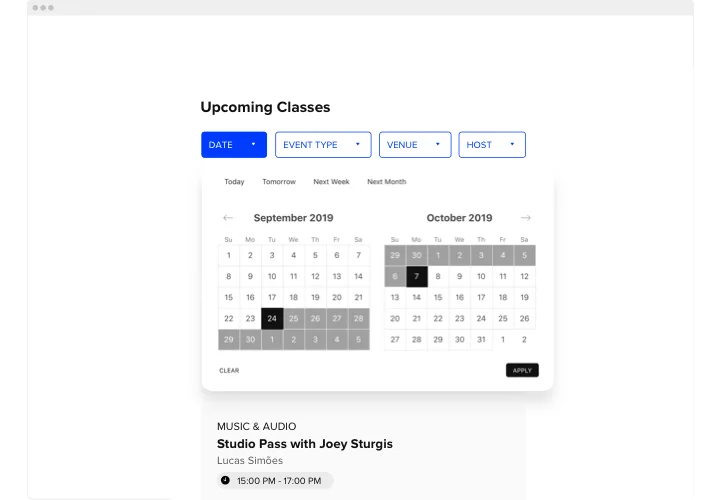
- Layout variety: Choose from month view, agenda, or list – so visitors can scan quickly or dig into details.
- Customization options: Adjust fonts, colors, and layout to match your WordPress design perfectly.
- Interactive features: Add event images, links, and descriptions to give visitors the full picture.
- Filter and categories: Let people sort by type, date, or venue so they can find what’s relevant fast.
- Mobile-friendly design: Events look sharp on phones, tablets, and desktops – no extra tweaking required.
- Easy setup: If you can paste a snippet into WordPress, you can run this calendar.
Try all features in the live editor without registration for free now.
How to Add the Events Calendar to a WordPress Page
So, how do you set it up? Adding the Event Calendar to WordPress is straightforward.
Method 1: Inline Calendar
Great if you want to display the calendar right on a page like “Events” or “Classes.”
- Select a Template: Open the Elfsight editor and pick your favorite calendar layout.
- Personalize the Widget: Customize with your events, categories, and design.
- Generate the Code: Click “Add to website” and copy the installation code provided.
- Embed on Your Website: In WordPress, open the page editor, add a Custom HTML block, paste the snippet, and update the page.
Method 2: Floating Event Calendar
Perfect if you want visitors to see the calendar no matter where they scroll.
- Pick a Template: Select a floating layout, like a side panel or sticky footer.
- Customize the Widget: Add your events, adjust position and other settings to your liking.
- Generate the Code: When you’re done with customization, copy the code snippet from the editor.
- Embed the Code: Paste it into your WordPress theme just before the closing
</body>tag to show it on every page.
Need help along the way? Visit our Help Center, check our blog guide on how to add a Calendar to your WordPress website, or share your ideas in the Wishlist. Stay updated with new features by following the Changelog.