
Webflow Sales Notifications widget
Show purchase alerts on your Webflow website to highlight real customer activity, build urgency, and motivate visitors to act faster.
Create Widget for Free
No credit card needed
Trusted by over 3,000,000 small business, agencies and top global brands worldwide
Create Webflow Orders Notifications widget
Develop your Sales Notification widget and install it to your Webflow website for free.
Embed Sales Notification into Webflow with the Elfsight widget
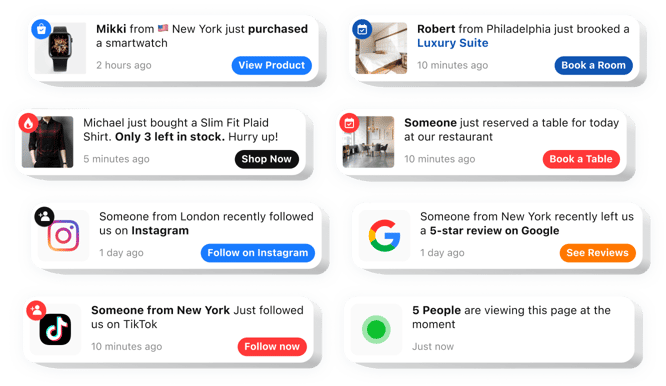
The Sales Notification widget is a smart solution to increase engagement and drive sales on your website. It presents real-time notifications of sales activity to build buyer assurance and inspire visitors to place an order. This no-code tool fits into your website seamlessly and is fully flexible to match your brand’s style. It enhances conversions, building urgency and inspiring faster decisions.Enhance the visibility of your real-time sales and interactions to build customer confidence with updates.
This powerful tool not only fosters trust by highlighting recent activity but also encourages visitors to take action through targeted alerts. Below is a comprehensive list of its key features:
- Quick and easy setup. The app is swift to set up, requiring no technical expertise, allowing immediate deployment on your website.
- Cohesive appearance. Complete personalization to reflect your website’s visual identity, ensuring a cohesive experience.
- Dynamic sales alerts. Live updates on active purchases provide visitors with a sense of ongoing sales.
- Time-sensitive offers. Limited availability messages and countdown timers build urgency and push quicker purchase decisions.
- Adaptable appearance. Easily adaptable layouts, so you can adjust all the elements to align with your brand identity.
- Versatile notifications. From customer activity to inventory updates, the app keeps customers updated.
- Highly customizable design. Easily to customize templates, fonts and colors to match your brand identity.
- Multiple notification types. From recent purchases to restocks, it keeps customers engaged.
How to add Sales Notification into my Webflow website?
To place the notifications widget on your website, complete these quick steps:
- Access the editor and pick out a template that aligns with your website style.
- Personalize the widget by altering its layout, text, visuals, and adding features like a badge.
- Store your changes and collect the provided HTML code.
- Insert the code into your website’s CMS and confirm the changes.
- You’re done! Your Webflow Sales Notification widget is now working.
For complete instructions, check out our article on how to create a Sales Notification widget.
In case you have to deal with any inconveniences as you embed the widget into your website, simply contact our Customer Support team. We will be happy to help you add and manage your Sales Notification widget.
Which Webflow plans support custom embeds?
CMS, Business, and Ecommerce plans support custom HTML and JavaScript embeds.
Does the Sales Notification work with Webflow CMS collections?
Elfsight widgets can be embedded inside CMS collection templates, allowing them to appear dynamically across CMS pages.
What activities can be shown in Notifications widget for Webflow?
Elfsight can display purchases, bookings, reviews, sign-ups, or new followers as subtle popups across your Webflow pages to boost credibility.
Is there a limit on the number of popups?
You can configure multiple notifications in the widget and cycle them to showcase continuous activity.
Can I adjust notification timing?
You can set when the first popup appears, how long it stays visible, and the delay between messages for smoother interaction.
Do notifications include animation options?
Yes, effects like fade-in, slide, bounce, or zoom are available to help popups stand out on your Webflow website.
Can I choose different positions for mobile?
Yes, desktop and mobile positions can be set independently to ensure proper placement on all screen sizes.
Can users close notifications?
Yes, a close button can be enabled in the Elfsight editor so visitors can hide popups on their Webflow websites if they prefer.
Is random display order supported?
Elfsight can shuffle notification messages to create variety and avoid repetition.
Can popups link to specific URLs?
Yes, each notification can redirect to a chosen page, such as a product or offer, and clicks can be tracked.
Pricing
14-day money back guarantee. Risk-free, you can cancel at anytime.
Elfsight Apps
Cross-platform solution
From $0 / month
start with a free plan
Unlimited domains
Free support
Free of charge installation support
Totally customizable
Special deal for multiple apps