
Facebook Page LinkedIn Feed widget
Create your LinkedIn Feed widget
Display LinkedIn Feed from Your Facebook Business Page for Free!
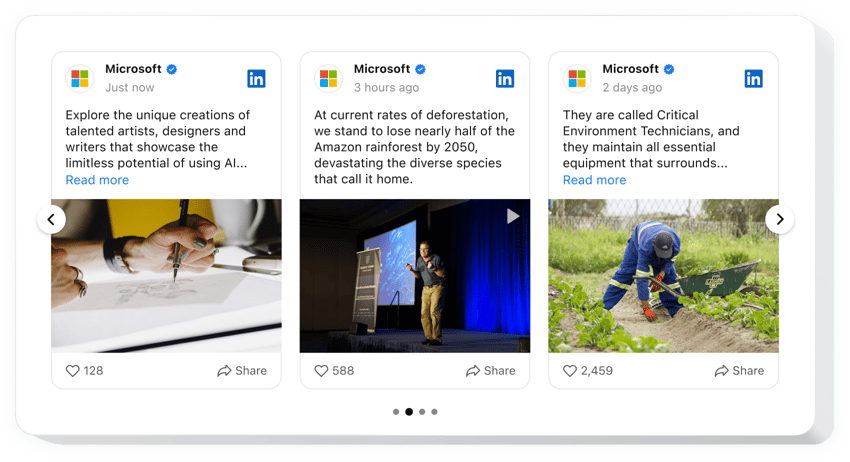
The code-free LinkedIn Feed widget lets businesses collect posts, images, videos, and updates from their LinkedIn Page and make them easily accessible from a Facebook Business Page. No coding or technical skills are required.
Create a feed style that meets your website aesthetics and experiment by mix-matching custom attributes, templates, layouts, and post styles. Once your widget is ready, connect it to your Facebook Business Page using a Share Link, so visitors can open your LinkedIn content with a single click. And finally, enjoy the increased trust and better engagement rate.
- Elevate your networking capabilities with the LinkedIn company page.
Spark fresh relationships in the world of commerce and expand lead generation by utilizing content from your LinkedIn profile. - Grow your professional audience.
Increase exposure for your LinkedIn content by making it available directly from your Facebook Business Page. - Amplify the authenticity of your business.
Give an extra layer of credibility and trustworthiness to your brand by sharing the most recent LinkedIn activity directly on the website page.
Connect your LinkedIn Feed to your Facebook Business Page and make it easy for visitors to discover your latest professional content.
Are there any other tools for Facebook Page that I can use on my website?
Yes, absolutely! Elfsight offers many widgets that work with Facebook Business Pages through Share Links and Action Buttons. No matter what type of business you have or the specific niche you work in, there are always opportunities to display your strengths. Here are some ideas:
- To create any other social media app for your Facebook Page website, such as LinkedIn Feed, try out the Pinterest Feed or Instagram Feed widget.
- Opt for the All-in-One Reviews or Google Reviews plugin to display valuable customer feedback.
- Embed the Form Builder widget to gather responses and facilitate communication with your Facebook Page users.
- Add the Countdown Timer plugin to foster engagement and create a sense of scarcity within your audience.
These examples merely scratch the surface of the vast range of additions that can cater to your business needs. Begin with the code-free LinkedIn Feed plugin to return later and explore the remaining assortment of widgets in our catalog to add to your website page!
How can I add LinkedIn Feed to my Facebook Page without coding?
Create and customize your LinkedIn Feed widget in the Elfsight editor, then copy the widget’s Share Link from the installation settings. Add this link to an Action Button on your Facebook Business Page, allowing visitors to open your LinkedIn Feed in one click.
Do I need to know how to code or have programming skills to use the LinkedIn Feed on Facebook Page?
No. The widget is fully code-free. Create your LinkedIn Feed in the visual editor, customize its appearance, copy the Share Link, and connect it to your Facebook Business Page without writing any code.
These are just several of the plenty of widget features:
- Add various forms of content: blog posts, images, videos, etc.
- Filter feed posts by keywords, hashtags, or URLs.
- Call-to-action buttons for boosting numbers on your company’s LinkedIn feed.
- Eye-catching popup effect for grabbing people’s attention to your LinkedIn content.
- Easy customization options with no need to write code: pre-made templates, color scheme generator, five layout designs, post styles, Custom CSS, and more.
How can I add LinkedIn Feed on my Facebook Page website?
Connecting your LinkedIn Feed to your Facebook Business Page only takes a few minutes.
- Create your LinkedIn Feed widget.
Open the Elfsight editor, choose a template, connect your LinkedIn Page, and customize the widget. - Copy your Share Link.
Open the installation settings in your Elfsight dashboard, switch to the Share Link tab, and copy your widget link. - Add the link to your Facebook Business Page.
Open your Facebook Business Page, choose the Action Button option, select an appropriate button type, and paste the Share Link. - Save and test.
Save the button and verify that visitors can successfully open your LinkedIn Feed from your Facebook Page.
If you have any difficulties with how to add the widget, please contact our support team. Our specialists are longing to help you with all the issues you might have with the code-free LinkedIn Feed plugin for Facebook Page websites.