
Did you know?98% of consumers read online reviews for local businesses before making a decision, making visible social proof one of the most influential factors in conversions.
Your Google reviews already build trust for your business – but your website visitors never see them. They land on your pages without seeing the feedback that convinced others to choose you.
By embedding reviews directly into your Elementor website, you bring real customer feedback directly into the moment it matters most: when someone is deciding whether to contact you, book a service, or make a purchase.
The Elfsight Google Reviews widget lets you display reviews from your Google Business profile in a clean, customizable layout that fits seamlessly into your Elementor design. You can filter which reviews appear, match the widget to your brand, and keep everything up to date automatically – without coding or manual copying.
- How to add Google reviews to WordPress Elementor step by step;
- Why embedding reviews directly on your website increases trust and conversions;
- Alternative ways to display reviews and their limitations;
- Practical tips to optimize your reviews for better results.
Now that you understand the value of adding Google Reviews to your Elementor website, let’s take a quick look at how you can do it using a no-code solution from Elfsight.
Quick Start: Add Google Reviews to Elementor
Elfsight offers an intuitive way to add Google reviews to WordPress Elementor without any coding. You can easily customize a review showcase to match your website’s style and branding.
- Open the Elfsight editor and choose the Google Reviews template to start your widget.
- Connect your Google Business profile using your location or place URL.
- Customize the layout, filters, and design to match your website.
- Click “Add to website for free“, copy the provided code, and paste it into your Elementor page.
Create your Google Reviews widget now in the live editor!
Why Add Google Reviews to Your Elementor Website
If you’ve already collected reviews on Google, embedding them on your Elementor website turns that feedback into a powerful conversion tool. Instead of sending visitors to your Google listing, you bring trust directly to your own pages.
⭐ Build trust instantly with real customer feedback
When visitors land on your page, they’re deciding whether your business is credible. They trust other customers more than marketing copy. Showing authentic Google reviews directly on your website immediately boosts your business’s credibility and reduces skepticism.
📈 Increase conversions at key decision points
When reviews appear next to your services, pricing, or contact forms, they help remove hesitation. Instead of searching elsewhere for validation, users get the reassurance they need right where they are. This makes them more likely to take action.
🔄 Keep your website content fresh automatically
Manually adding testimonials takes time and quickly becomes outdated. Unlike static testimonials, the Google Reviews syncs with your profile and updates regularly, so your website always shows the latest feedback.
⏱️ Increase time on page and exploration
If users leave your website to check reviews on Google, they might not come back. Embedding reviews keeps them in your environment, keeping them focused on your offer rather than distractions. Reading through multiple reviews, visitors naturally spend more time on your website. This increases the chances they’ll explore additional pages or take action.
🎯 Strengthen your brand credibility
A consistent stream of positive feedback signals reliability and professionalism. Over time, this builds stronger brand perception compared to generic marketing claims.
Core Features of Google Reviews Widget
Before setting it up, it helps to understand what the widget can actually do.
Below is a breakdown of its key capabilities and how they translate into practical use on your Elementor website.
| Feature | Practical Use |
| Automatic review sync | Keeps your website updated with the latest Google reviews |
| Review filtering | Display only relevant or high-rated reviews |
| Multiple layout options | Adapt reviews to homepage, sidebar, or landing pages |
| Star rating display | Reinforces credibility visually at a glance |
| Custom styling | Match widget design to your Elementor theme |
| Carousel & grid formats | Control how users browse and consume reviews |
| Responsive design | Ensures proper display across mobile and desktop |
| AI-generated review summary | Highlights key themes and sentiments across reviews, helping visitors quickly understand overall feedback |
| Review translation | Automatically translates reviews into the visitor’s language for better accessibility and global reach |
For the complete feature breakdown, visit the widget features page.
Now let’s walk through the full setup process.
Step-by-Step: How to Add Google Reviews to WordPress Elementor
Here’s how to go from configuring your widget to embedding it seamlessly into your Elementor page.
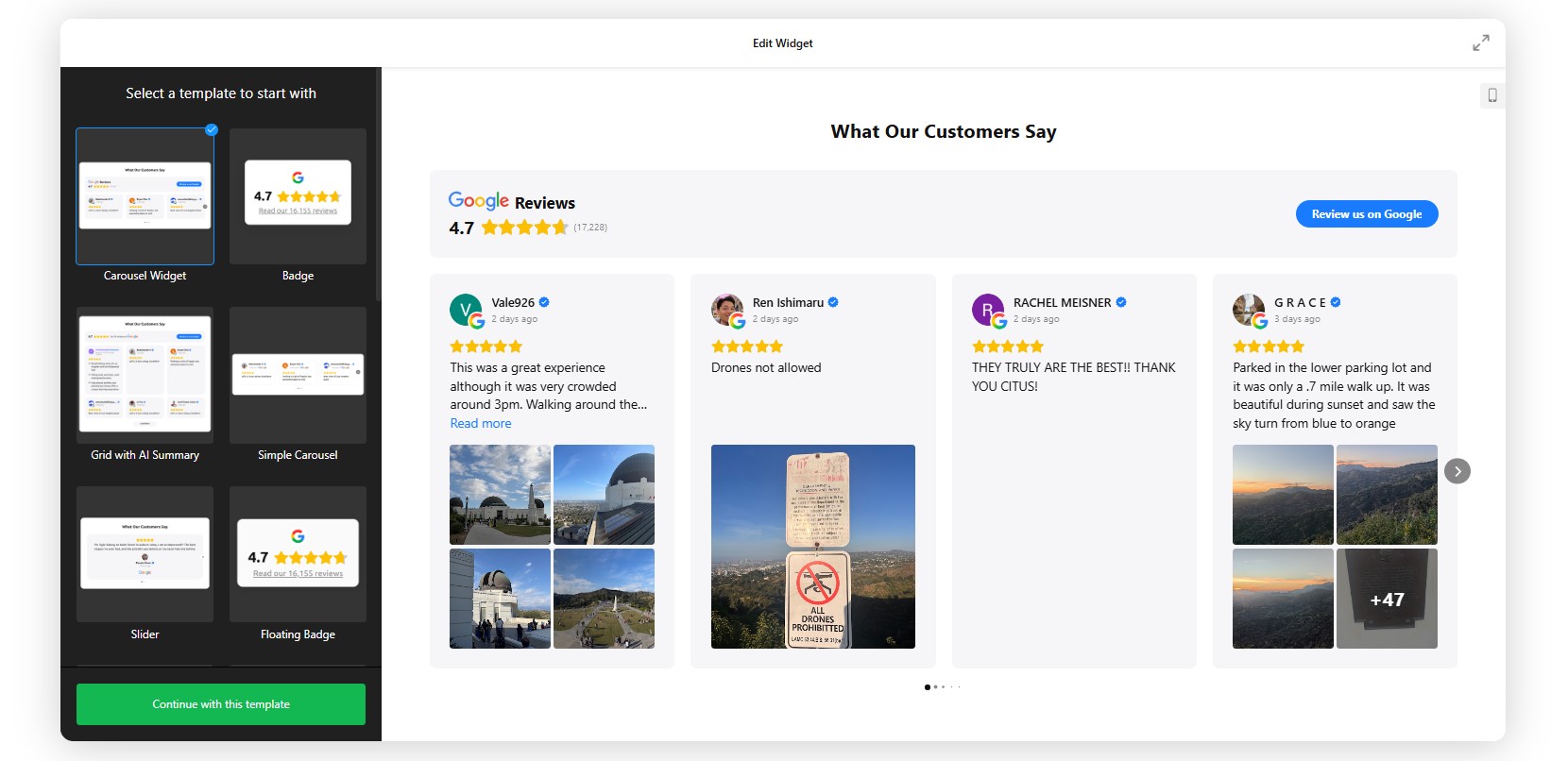
Step 1: Choose a Template in the Editor
Start by opening the Elfsight editor. You’ll see a variety of ready-made templates, including grids, sliders, badges, and lists. Choose a template based on where you plan to place the reviews on your website. For example, a grid or carousel works well for a homepage section, a compact list or badge fits better in a sidebar, and a slider with larger cards is ideal for landing pages. Don’t worry too much about getting it perfect at this stage – you can fully customize the layout later.
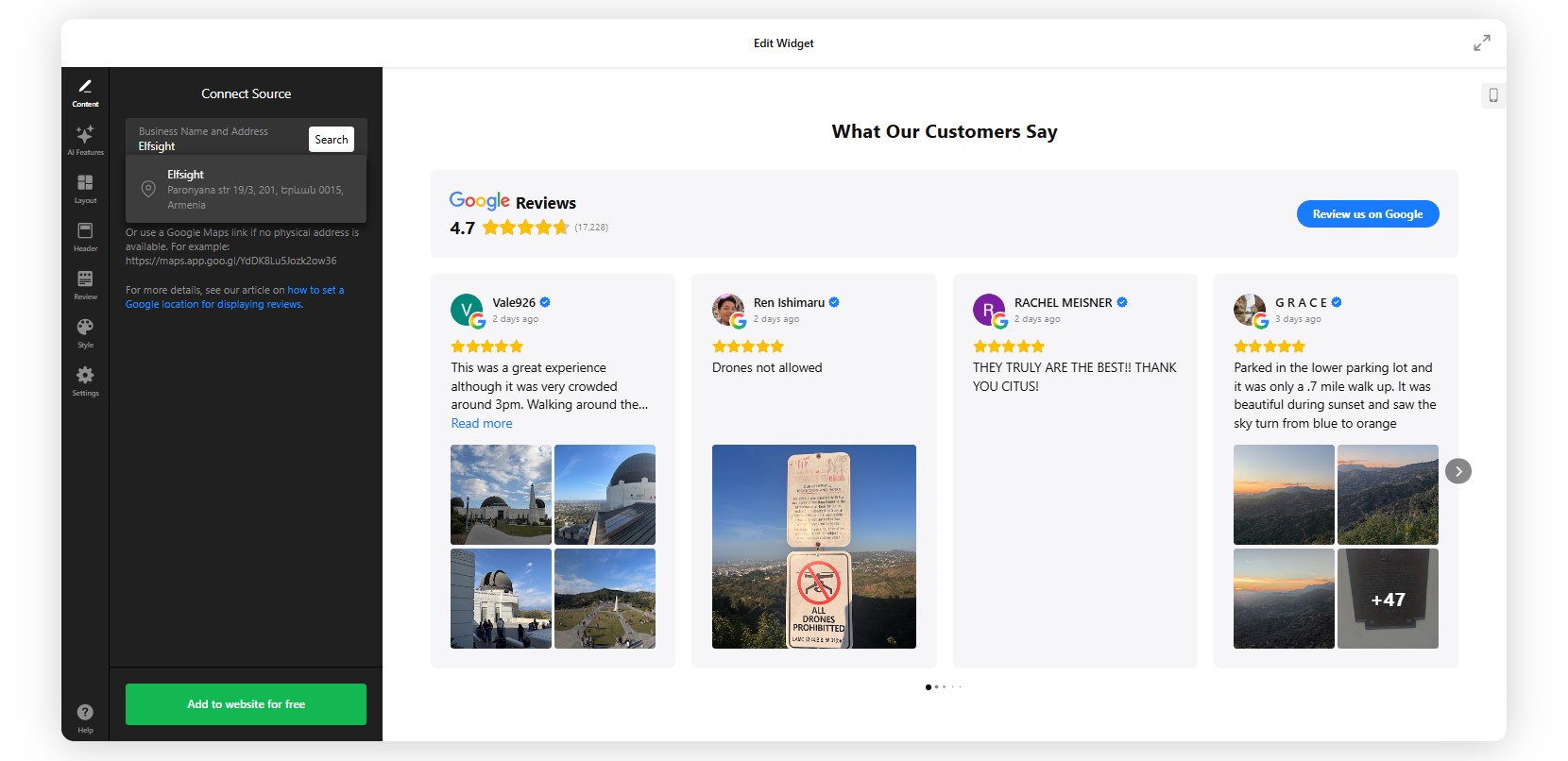
Step 2: Connect Your Google Business Profile
Next, go to the Source tab and add your Google Business listing. Paste your Google Maps link or business name. Once connected, the widget will automatically pull reviews from your profile.
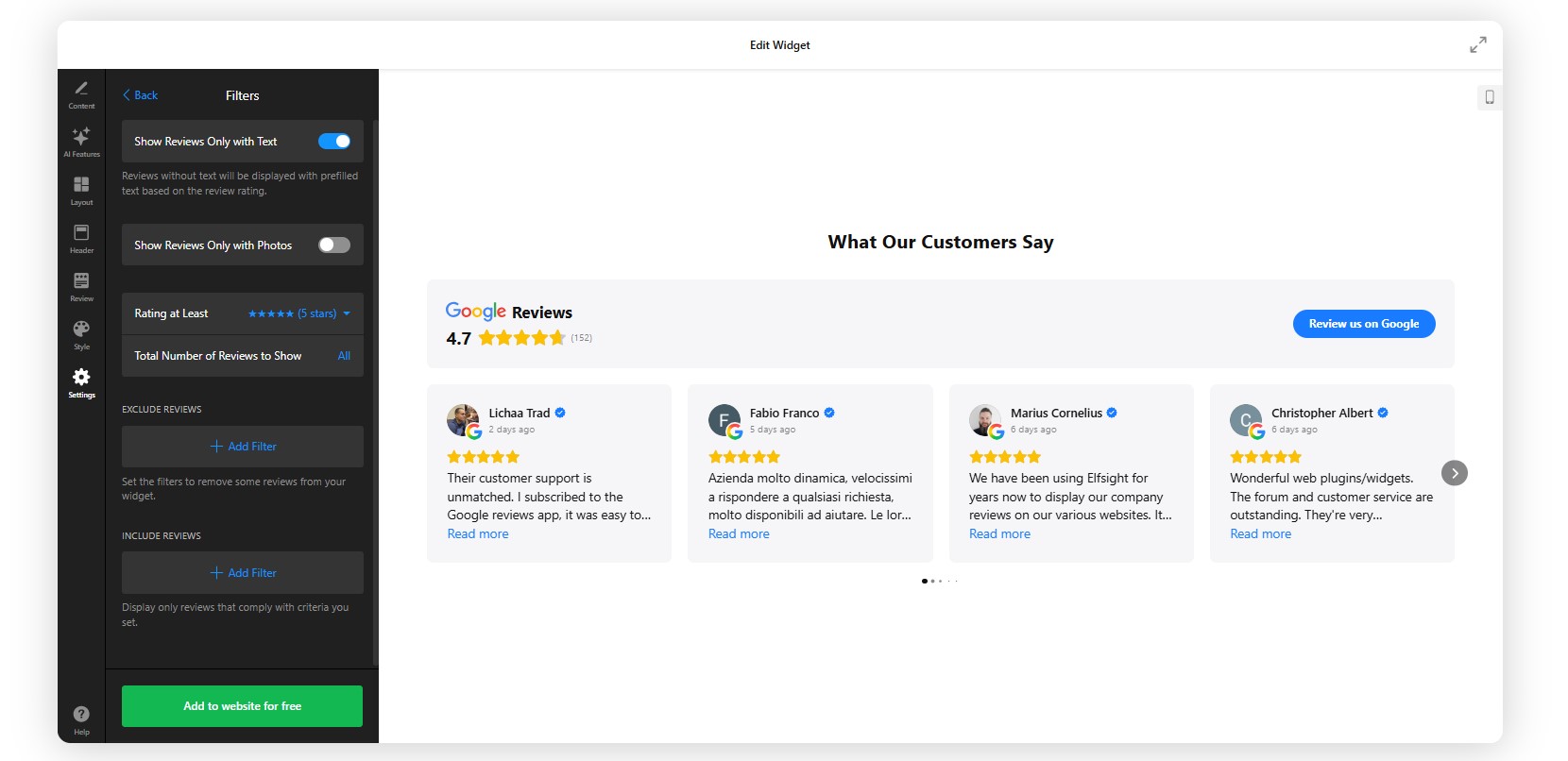
Step 3: Filter and Control Which Reviews Appear
Not all reviews need to be displayed. Elfsight gives you control over what visitors see. You can choose to display only high ratings, such as 4-star and 5-star reviews, filter reviews by specific keywords like “fast delivery” or “support,” and exclude reviews that don’t include text or aren’t relevant.
This helps you highlight the most persuasive feedback while keeping your widget clean and focused.
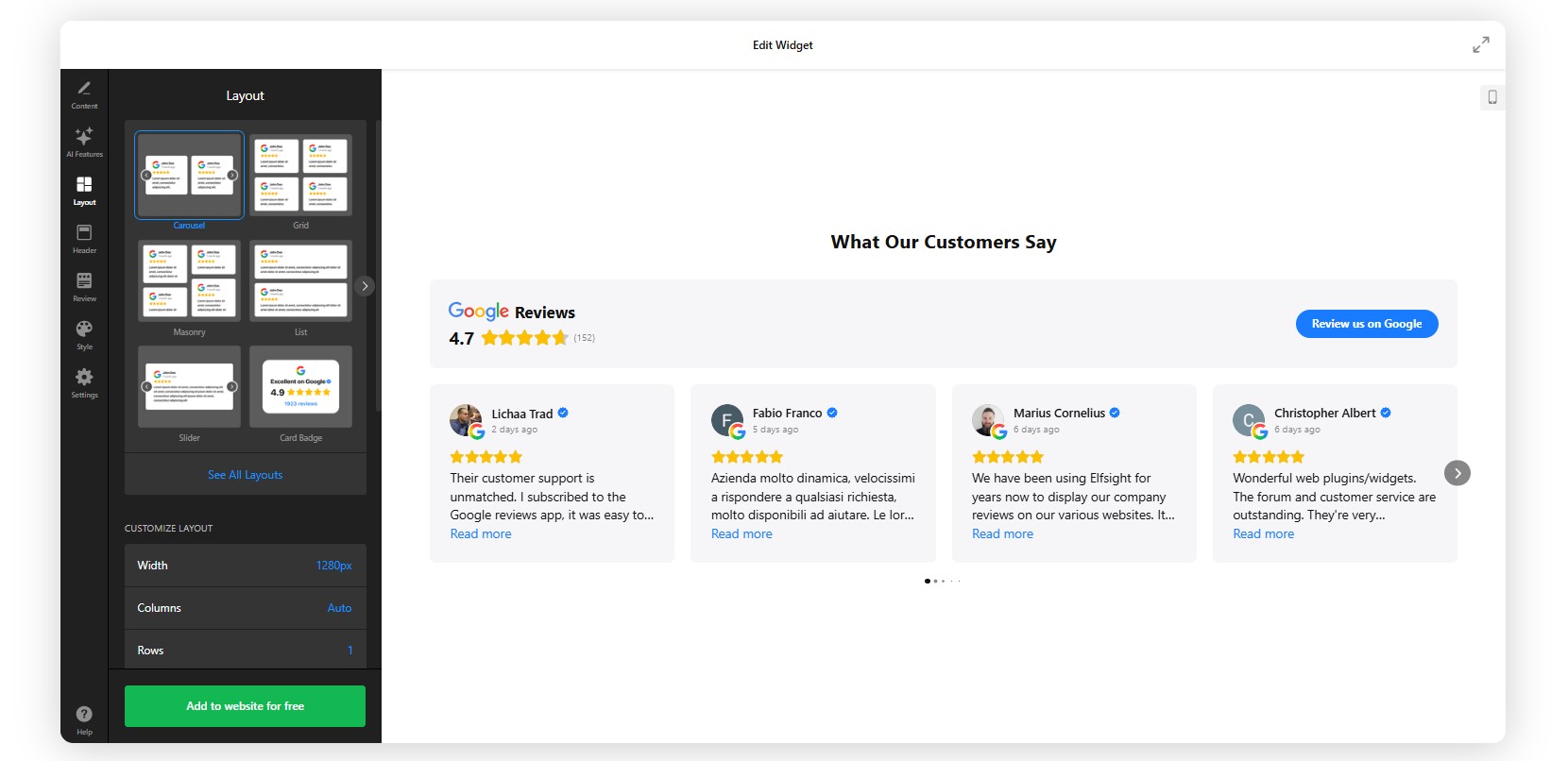
Step 4: Customize Layout and Content
Now move to the Layout and Appearance settings to adjust how your reviews are displayed. You can switch between formats like Grid, List, Masonry, Carousel, Badge, or Slider, control how many reviews appear at once, and choose which elements to show – such as reviewer names, photos, star ratings, and dates.
✅For Elementor websites, a clean grid or slider usually works best. It integrates naturally with most page layouts and keeps the section visually balanced.
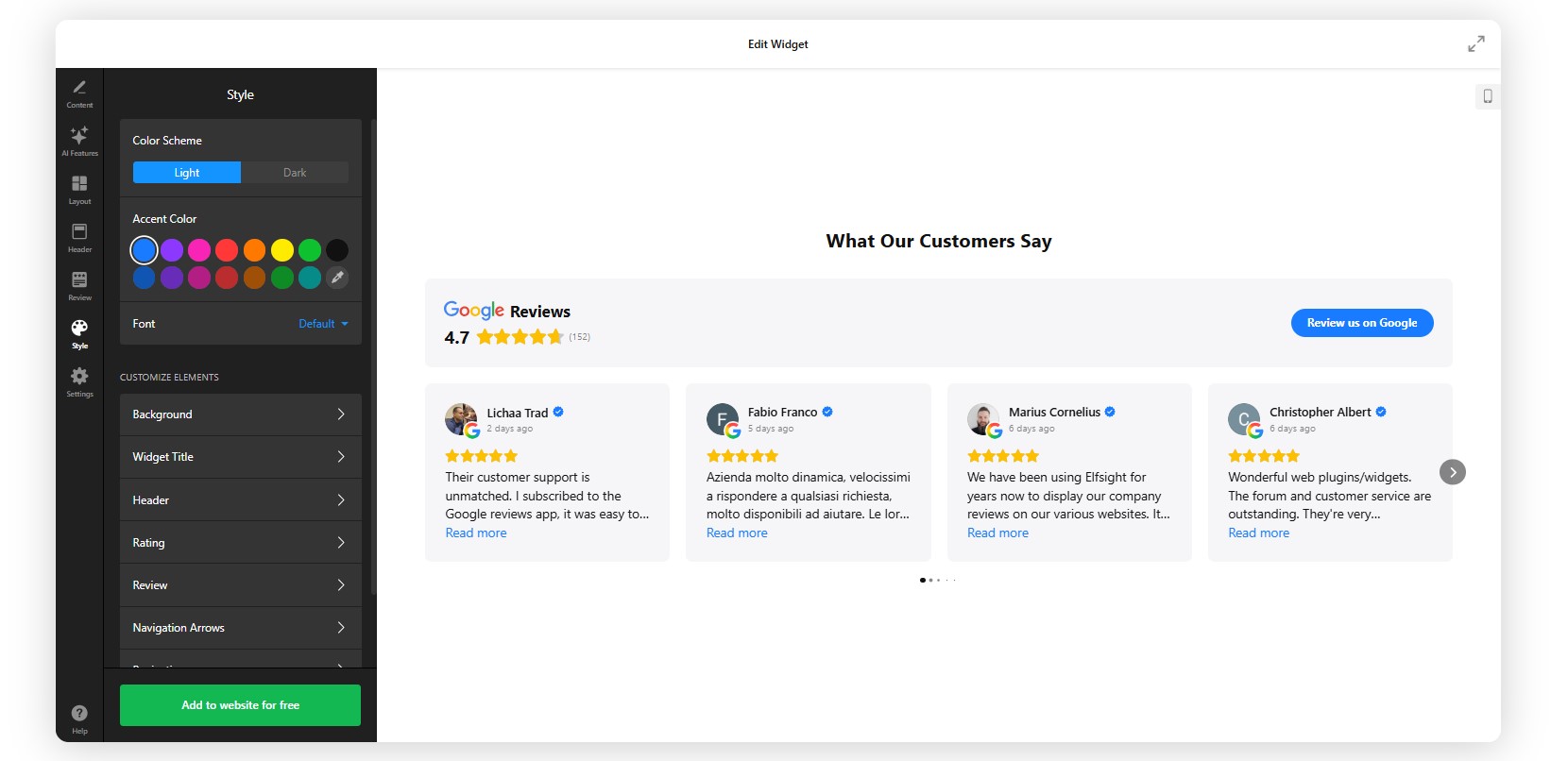
Step 5: Match the Widget to Your Elementor Design
To make the reviews feel like part of your website (not an add-on), customize the visual style. This includes colors for backgrounds, text, and star ratings, as well as fonts, spacing, and card styles.
Step 6: Get the Embed Code
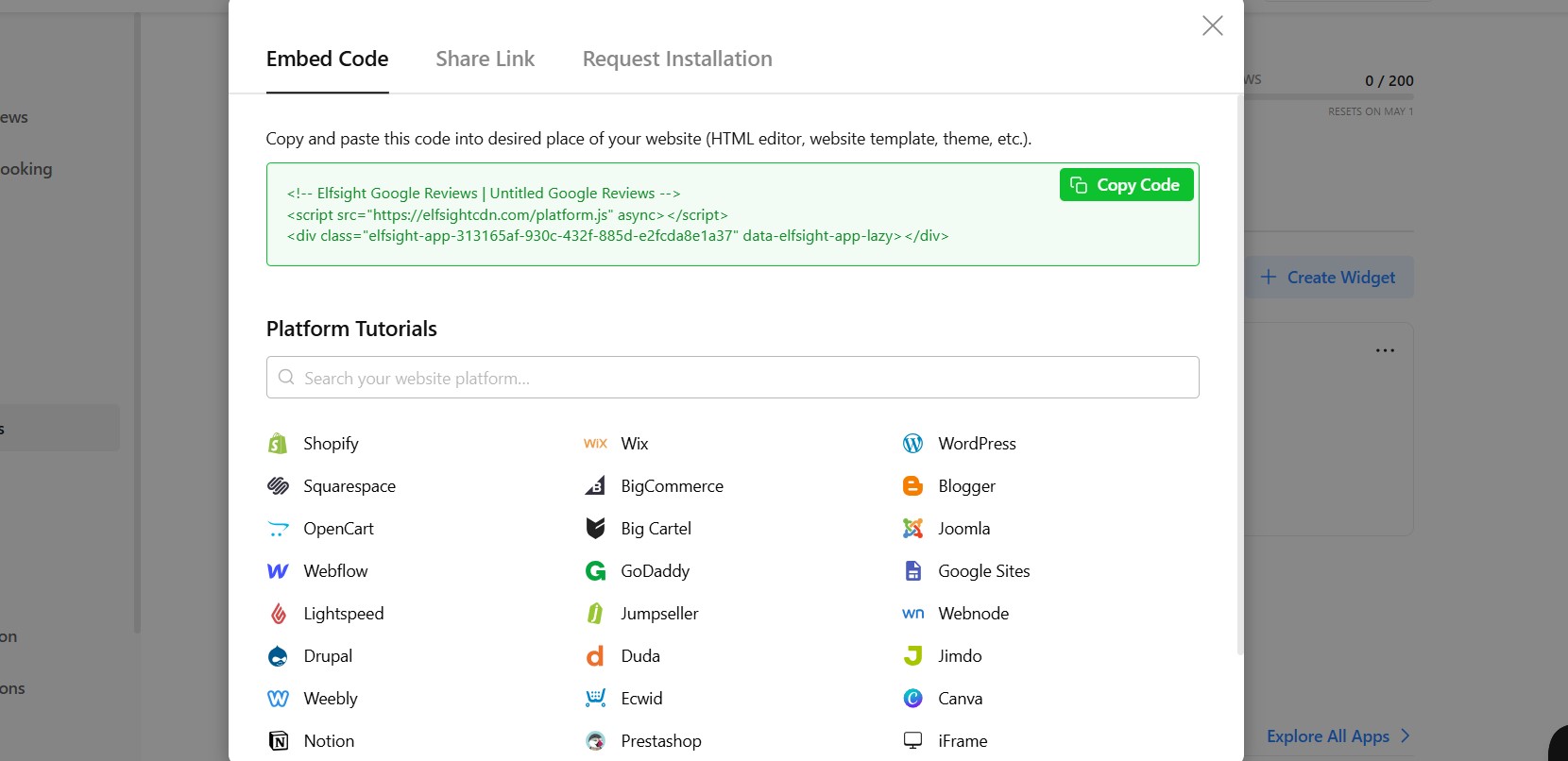
Once everything looks right, click “Add to website for free”. You’ll get a code snippet that includes a container element and a script that loads your reviews. Copy the entire code snippet; it’s ready to use without any additional setup.
Step 7: Add Google Reviews to Elementor
Now it’s time to place the widget on your website.
- Open your WordPress dashboard
- Go to the page where you want the reviews to appear
- Click Edit with Elementor
- Drag the HTML widget into your layout
- Paste the embed code into the HTML field, and update the page.
Once published, your Google reviews will appear instantly and continue updating automatically in the background.
Troubleshooting Quick Check
If something doesn’t work as expected:
- Widget not showing: Make sure you pasted the code inside the HTML widget (not the text editor).
- Layout looks broken: Check if the widget is inside a narrow column – expand the section width.
- Reviews not loading: Confirm your Google Business link is correct.
- New reviews missing: Updates may take up to 24 hours to sync.
Once set up, your reviews will automatically update with no need to manually manage testimonials again.
Other Ways to Display Google Reviews
While Elfsight offers a seamless solution, there are other ways to add Google Reviews to an Elementor website. Let’s go over the most viable alternative methods you can consider, along with setup instructions and limitations for each.
Google Maps Embed
One of the ways to show reviews is by embedding your business listing directly from Google Maps.
- Open your business on Google Maps
- Click Share → Embed
- Copy iframe code
- Paste into Elementor
Manual Testimonials
Another option is manually copying reviews from Google and adding them as text blocks inside Elementor.
- Copy reviews manually
- Paste into Elementor
- Format as text blocks
Before choosing a method, it’s important to compare them based on what matters most – automation, flexibility, or ease of use.
Comparison of Methods to Add Google Reviews
The table below compares the Elfsight widget with other commonly used methods, highlighting the major pros and cons of each option.
| Feature | Elfsight Widget | Maps Embed | Manual |
| Auto updates | Yes | No | No |
| Customization | High | Low | Medium |
| Filtering | Yes | No | No |
| Ease of use | Easy | Easy | Medium |
| Maintenance | None | None | High |
As you can see, each method has its strengths depending on your technical skills and customization needs. However, Elfsight remains the most accessible and feature-rich option for most users.
Next, let’s explore some practical tips to help you get the most out of your review widget integration.
Optimization Tips for Your Google Reviews Widget
Once you’ve chosen the method to display Google Reviews in Elementor, the next step is to optimize your widget’s layout, visibility, and performance. Below are practical tips to help you fine-tune your customer feedback display and ensure it brings maximum impact to your business website.
- Place Reviews Where Decisions Happen
Not all placements are equal. Reviews work best when they appear right before action. Add them close to forms, pricing pages, service descriptions, or booking sections.
This is where users hesitate and where social proof removes doubt.💡 Instead of placing reviews only on a separate “Testimonials” page, bring them into high-intent sections of your website.
- Choose the Right Layout for Your Content
Different layouts solve different problems. A carousel works well when you want to showcase multiple reviews without overwhelming the page, allowing visitors to browse at their own pace. A grid layout, on the other hand, is better suited for demonstrating volume and building credibility through quantity. More compact formats, like badges, are useful for reinforcing trust without taking up too much space. - Show Only High-Impact Reviews
More reviews ≠ better results.
Focus on reviews that mention clear outcomes, describe real experiences, or highlight specific benefits, as they tend to be more persuasive. You can filter reviews by rating or keywords to highlight only the most persuasive ones. - Keep the Widget Visually Native
If the widget looks visually disconnected from the rest of your Elementor layout, it can reduce perceived trust. Matching colors, typography, and spacing ensures that reviews feel like a natural part of your website rather than an external element. - Use Continuous Visibility for Trust
Instead of showing reviews only once, keep them visible throughout the user journey. Integrate them into multiple sections or use a floating element that stays on screen as users scroll. This reinforces credibility without interrupting the browsing experience. - Balance Quantity and Readability
Too many reviews can overwhelm users. A moderate number of visible reviews keeps the content easy to scan, while options like sliders or expandable sections allow users to explore more if they choose. - Let Reviews Update Automatically
Finally, keeping your reviews updated automatically ensures your website always reflects current customer sentiment. Fresh, regularly updated feedback signals that your business is active and trusted, without requiring ongoing manual effort.
With these tips, you’ll ensure your customer feedback display looks great and performs well. Next, let’s explore a real example of how Google Reviews can be effectively used on a business website.
Real-World Example: Accounting Business Builds Trust and Increases Conversions with Reviews
Alejandro runs an accounting business at aidenstartup.com, where clarity, trust, and professionalism are critical for converting visitors into clients. While the website already explained services well, it lacked visible proof that others had successfully worked with the business.
Before using Elfsight
- Limited customization options for key website elements
- Difficulty improving engagement and conversion rates
- No effective way to showcase real customer feedback
With the Google Reviews widget
“We found Elfsight while searching for no-code solutions to speed up website development… These widgets were easy to integrate, matched our branding, and saved us hours of development time.” – Alejandro
By adding Google Reviews directly to the website, Alejandro introduced visible, third-party validation into the user journey. Instead of asking visitors to trust the brand at face value, the website now presents real customer feedback as part of the experience.
The reviews are integrated alongside other interactive elements like timelines and social links, creating a more complete and credible presentation without complicating the layout.
The result: stronger trust signals across the website, improved engagement on landing pages, smoother mobile experience, and increased lead conversions for both Alejandro’s business and his clients. Read the full case study here.
Frequently Asked Questions
Where should I place Google reviews on my Elementor website?
Why does my widget show 'No reviews found' even though my business has reviews?
Why do I see example or default reviews instead of my own?
Why does the Google Reviews widget look different on mobile?
Can Google reviews replace testimonials?
Conclusion
Adding Google Reviews widget website turns passive feedback into a visible trust signal, exactly where decisions happen.
Instead of sending visitors to your Google listing, you bring real customer experiences directly into your pages. That means fewer doubts, stronger credibility, and more conversions at the moments that matter most.
If you want a simple, flexible way to add Google reviews to your Elementor website, a dedicated widget gives you everything in one place: automatic updates, full design control, and seamless integration with your layout.
It takes just a few minutes to set up, but the impact on trust and performance lasts much longer.