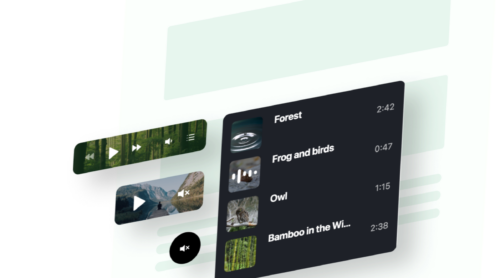
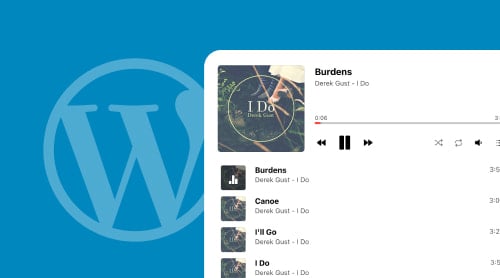
According to MRC Data, brand-fit background music encourages 41% of customers to stay longer and 39% to return to a business.
Whether you run a boutique, a portfolio website, a restaurant, or a creative agency, adding ambient audio creates an atmosphere that resonates with your brand. Music sets the emotional tone, guides visitor behavior, and transforms a static browsing experience into something memorable. For Squarespace website owners, integrating background music can differentiate your online presence and keep visitors engaged with your content longer.
The Elfsight Background Music widget offers a no-code solution to embed looped ambient audio on your Squarespace website. With customizable playback options, multiple audio sources, and flexible player layouts, you can create the perfect soundscape for your brand in minutes.
- How to set up background music on Squarespace without coding
- Instructions for embedding music on specific pages or across your entire website
- Key features that make background audio effective for visitor engagement
- Alternative solutions including Squarespace’s native audio blocks
- Best practices for optimizing music playback on Squarespace
Quick Start: Add Background Music to Squarespace
If you prefer hands-on implementation over theory, here’s the streamlined process to get your background music live in minutes:
- Open the background music editor and select a template.
- Add your tracks & customize the music player.
- Click “Add to Website” to get the embed code.
- Paste the code into your website’s backend and publish.
🚀 Create your background music player now in the live editor!
Why Add Background Music to Your Squarespace Website
🎵 Create an immersive brand atmosphere
Background music instantly communicates your brand’s personality and mood. Whether you run a spa, boutique, or creative studio, the right soundscape reinforces your visual identity and helps visitors connect emotionally with your offerings.
🕑 Increase time spent on your website
Websites with ambient audio keep visitors engaged longer. Music creates a comfortable browsing environment that encourages exploration, reducing bounce rates and increasing the likelihood of conversions.
🎉 Set the mood for special occasions
Seasonal music transforms your website for holidays, product launches, or special events. From festive tracks during Christmas to upbeat tunes for sales campaigns, audio adds a dynamic layer that static content alone cannot achieve.
🎨 Enhance user experience without disruption
When implemented thoughtfully, background music complements your content rather than competing with it. Visitors can control playback, adjust volume, or pause the audio, ensuring the experience remains user-friendly and accessible.
Core Features of the Background Music Widget
Below is a breakdown of the widget’s core capabilities and how each feature translates into practical functionality for your Squarespace website.
| Feature | Practical Use |
|---|---|
| Multiple audio sources | Upload files directly or link tracks from SoundCloud, YouTube, Vimeo, Google Drive, Amazon S3, and more |
| Unlimited tracks | Create extensive playlists that loop continuously or shuffle for variety |
| Autoplay option | Start music automatically when visitors land on your page (subject to browser permissions) |
| Floating and embedded layouts | Position the player discreetly in a corner or integrate it seamlessly into your page content |
| Customizable player controls | Show or hide playlist, progress bar, track info, and playback buttons based on your design preferences |
| Dark and light themes | Match the player appearance to your Squarespace website’s color scheme with pre-built themes or custom colors |
| Loop and shuffle | Keep the music playing continuously or randomize track order for a dynamic listening experience |
| Mobile-responsive | Ensure the player works smoothly across all devices and screen sizes |
For the complete feature breakdown, visit the background music features page.
Step-by-Step: Adding Background Music to Squarespace
Now let’s walk through the complete setup process, from configuring your music player in the Elfsight editor to embedding it on your Squarespace website.
Step 1: Access the Background Music editor
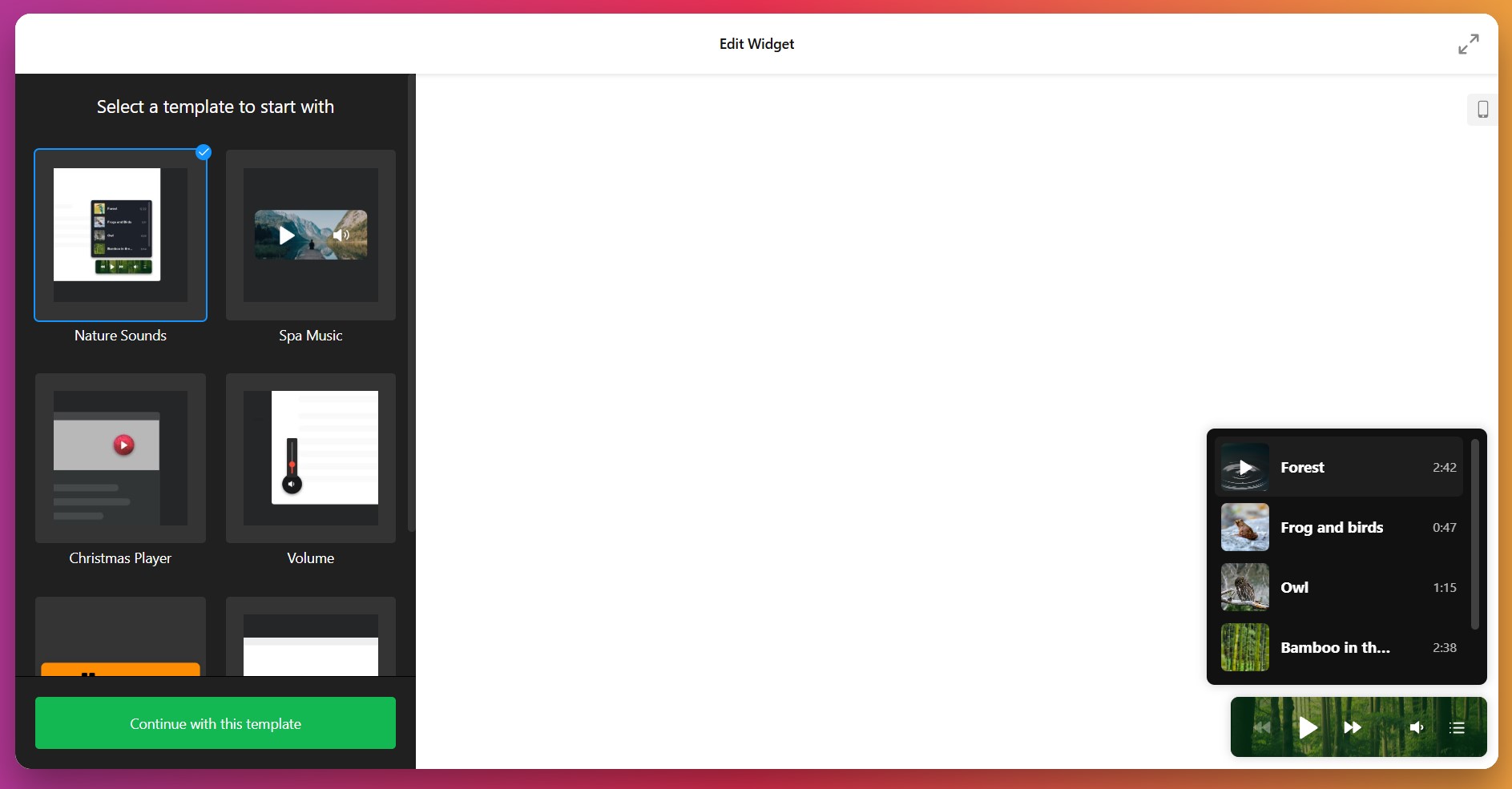
Navigate to the Elfsight Background Music widget editor and browse the template gallery. Select a pre-designed template that aligns with your website’s aesthetic & goals and click “Continue with this template” to begin customization.
Step 2: Add your audio tracks
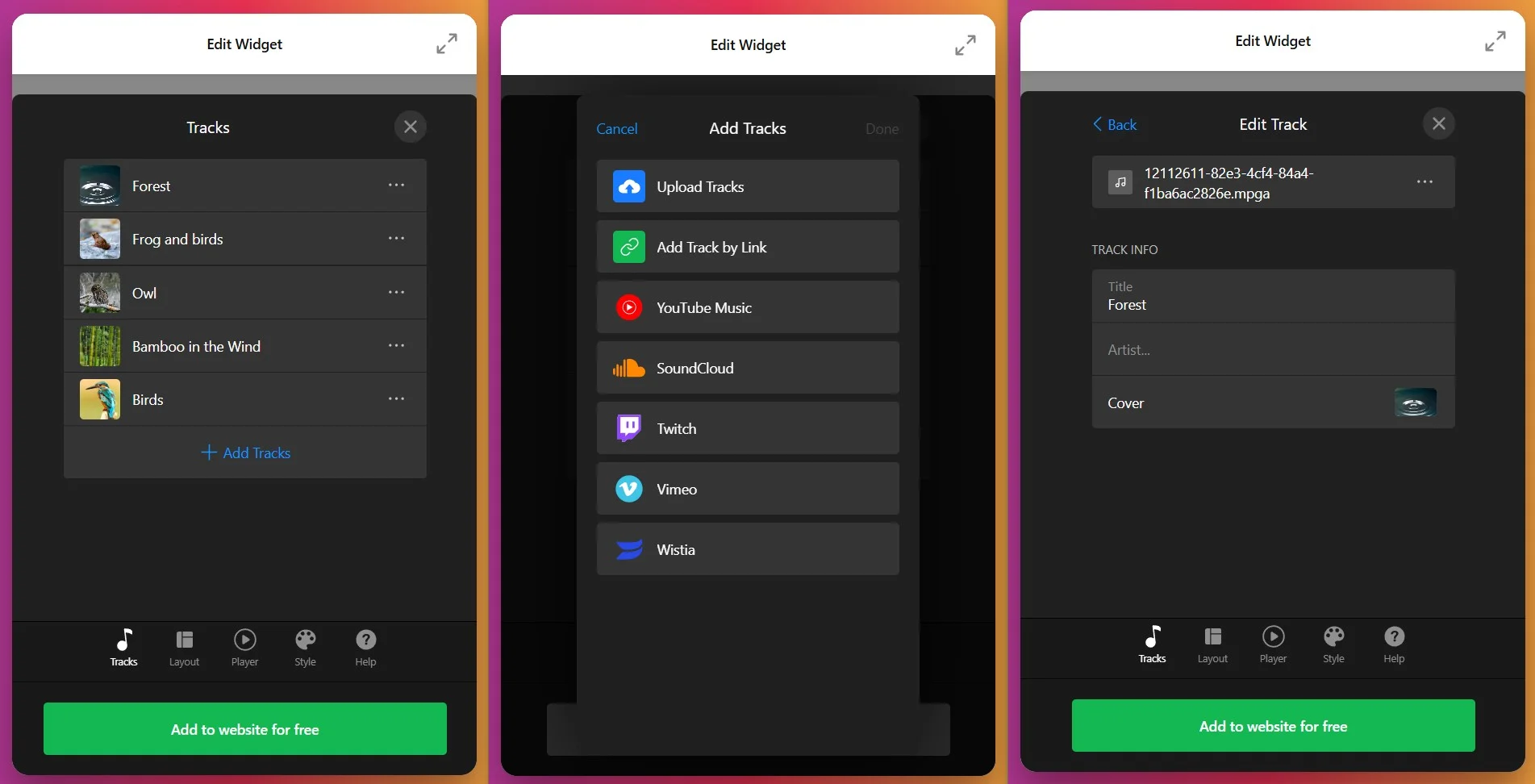
Upload audio files directly from your device or paste URLs from external platforms. Elfsight supports all standard audio formats (MP3, M4A, WAV, AAC, etc.) and integrates with SoundCloud, YouTube, Vimeo, Google Drive, Amazon S3, Dropbox, and Shoutcast/Icecast streams. Add as many tracks as you need to create your playlist.
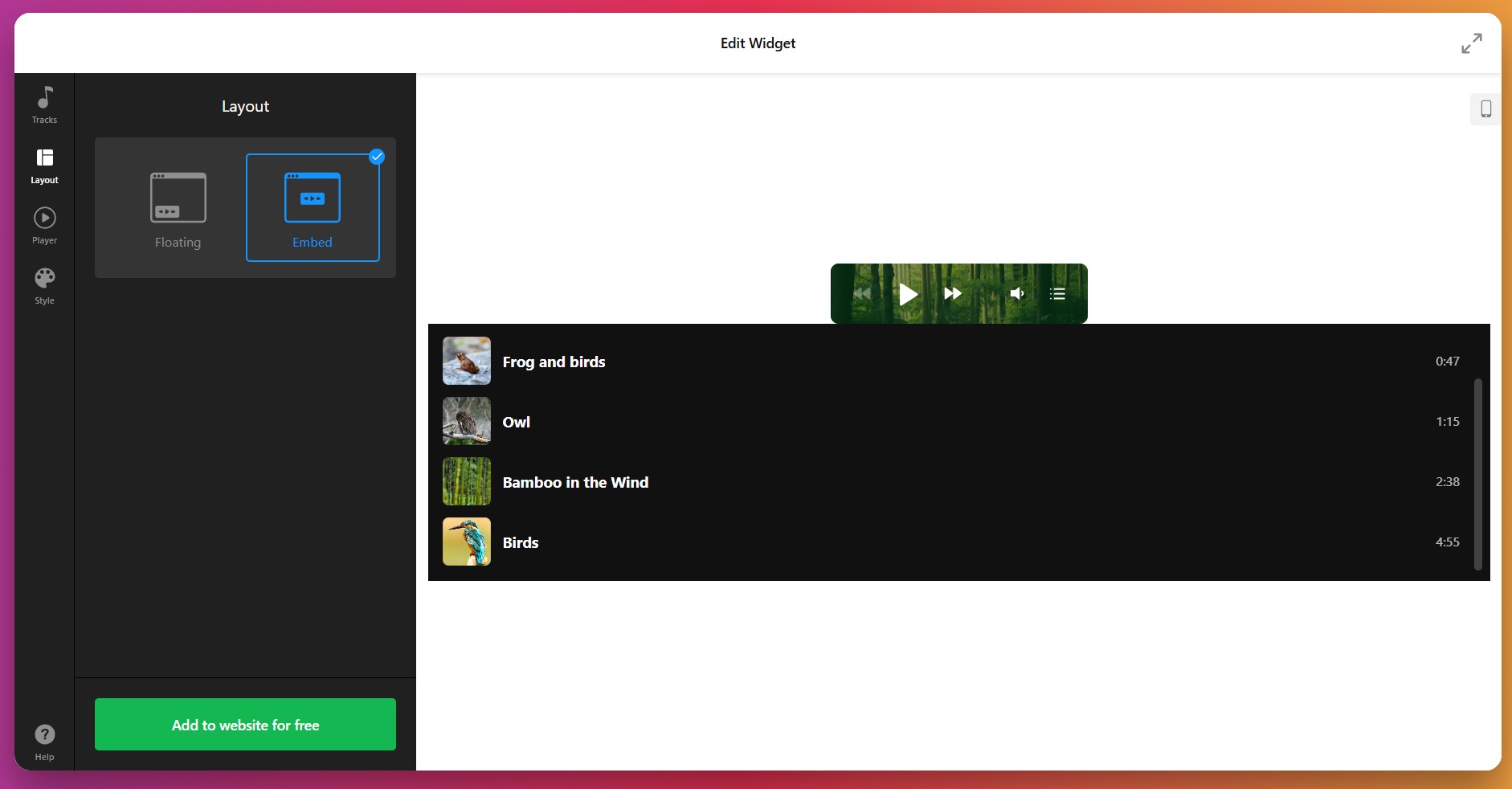
Step 3: Choose your player layout
Select between two layout options: Floating or Embed. The Floating layout creates a compact, movable player that stays visible as visitors scroll, ideal for unobtrusive background audio. The Embed layout integrates directly into your page content, displaying full track information and album artwork for a more prominent presentation.
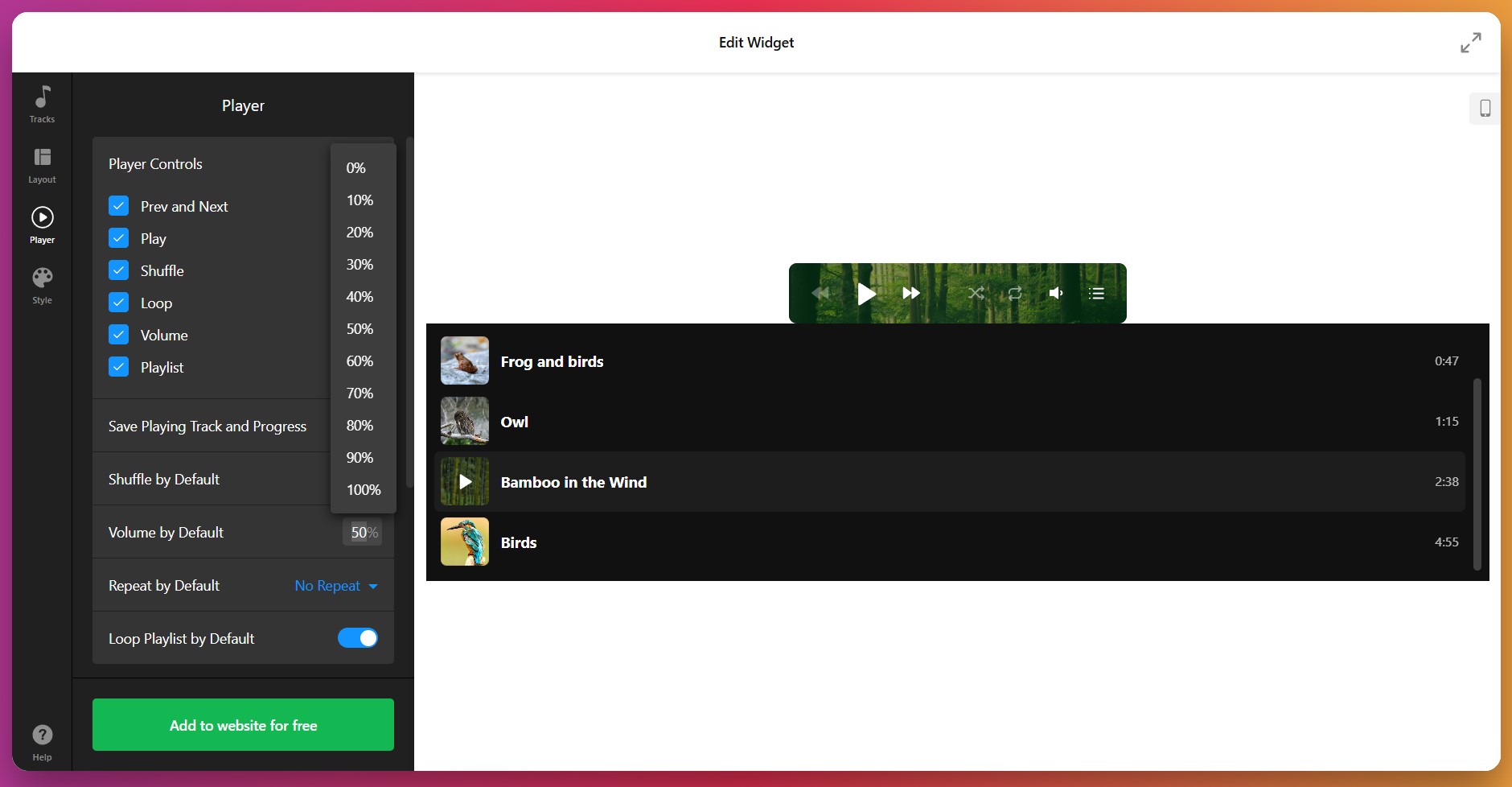
Step 4: Configure playback settings
Enable or disable autoplay, loop, and shuffle options based on your preferences. Configure whether the playlist should be visible or hidden. Customize which player controls appear, such as the play/pause button, skip forward/back, volume, and playlist toggle.
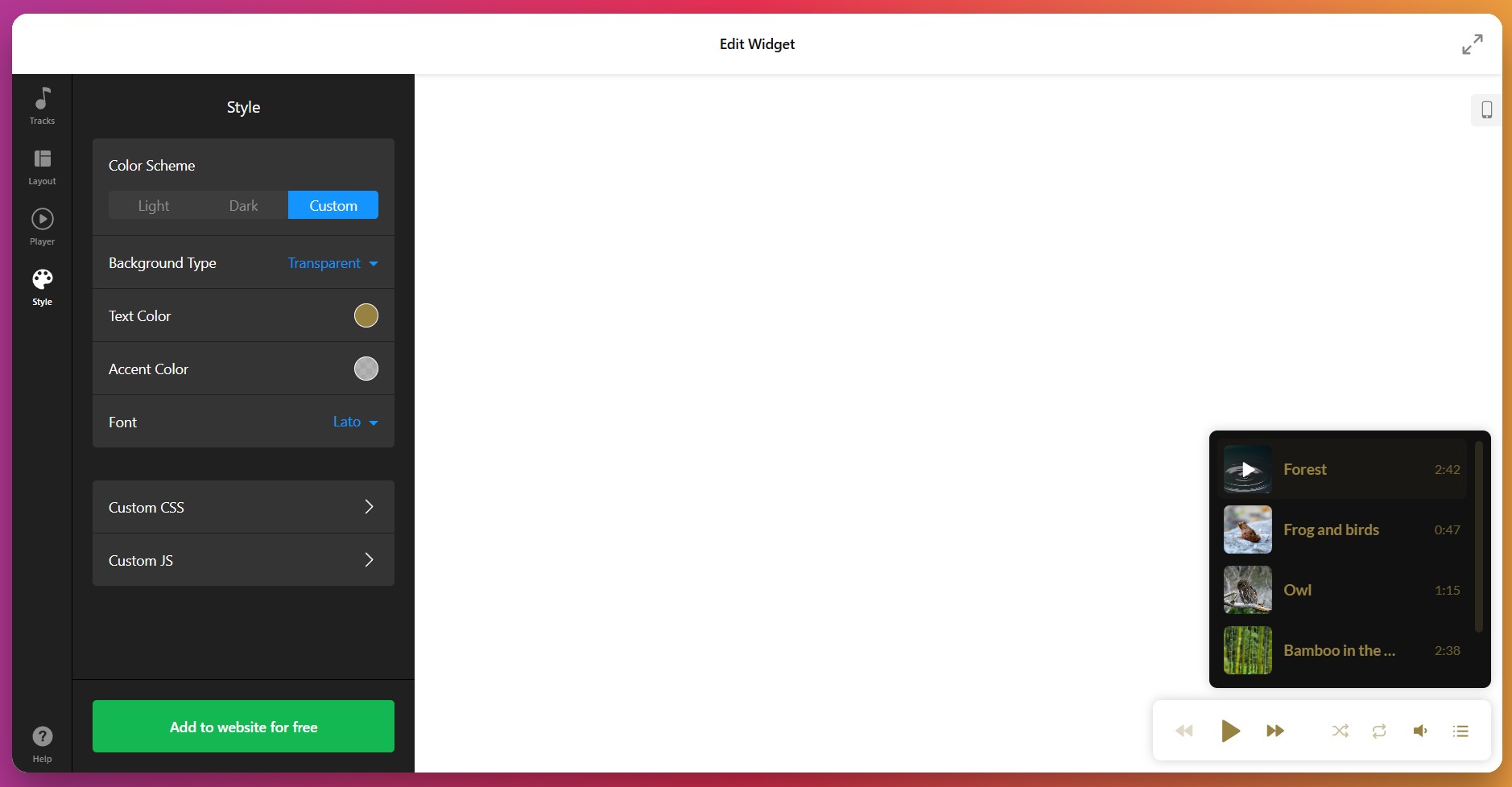
Step 5: Customize the player appearance
Select from pre-built Dark or Light themes, or create a custom color scheme that matches your Squarespace website. Upload a custom background image, adjust element colors (background, accent, text), and fine-tune the player’s visual details. Hide or show track information like artist name, title, and progress bar based on your design preference.
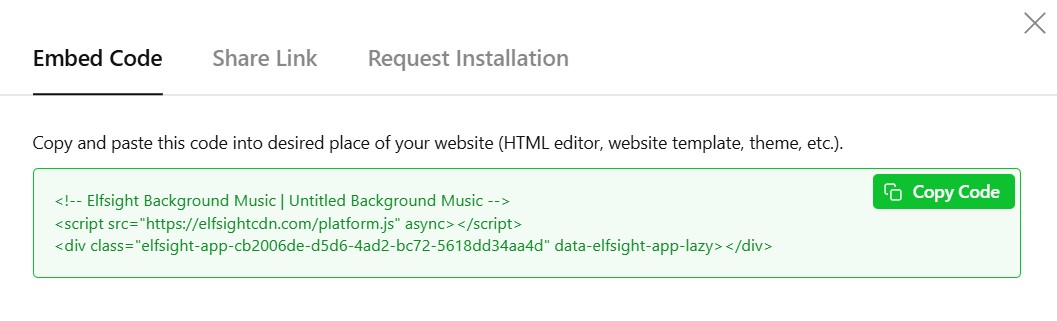
Step 6: Generate and copy the embed code
Click “Add to Website” to generate the installation code. Copy the HTML snippet to your clipboard. You’ll paste this code into your Squarespace website in the next step.
Step 7: Embed the player on Squarespace
Method 1 — Specific page (Squarespace 7.1):
Available on Core, Plus, and Advanced plans (formerly Business and Commerce):
- In the left-hand menu, click Website → Pages and select the target page.
- Click Edit above the section where you want to add the widget.
- Click the Add block button and select Code.
- Click the Edit icon and paste the installation code into the Content popup.
- Click Save / Publish.
Method 2 — All pages (site-wide background music):
- In the left-hand menu, click Website → Pages.
- Navigate to Settings (gear icon) for the specific page you want to customize, or go to Website Tools → Code Injection for site-wide installation.
- Add the code via Code Injection → Header or Footer.
- Click Save and Publish.
Troubleshooting Quick Check
- Player not appearing: Confirm you used a Code block (not Rich Text). Verify the embed code wasn’t trimmed or modified during paste. Check that your Squarespace plan supports custom code (Basic plans have limitations).
- Extra padding below player: Squarespace’s Fluid Engine editor sometimes adds unwanted spacing. Add this CSS snippet before the installation code:
<style>.sqs-block-code { margin-bottom: 0 !important; }</style>or switch to the Classic Editor for that section. See the Squarespace padding fix guide. - Autoplay not working: Browser autoplay policies block sound-enabled autoplay by default. Users must interact with the page first (click, tap, etc.). Test in different browsers and consider adding a “Click to play” visual cue.
- Player only appears after a page refresh: This is due to Squarespace’s SPA (Single Page Application) architecture. Place the first line of the installation code (the platform script) in Code Injection → Header to fix this. See this troubleshooting article.
- Music stops when navigating between pages: If you embedded the player on a single page, the audio resets on page navigation. For continuous playback across your entire website, use the site-wide installation method (Code Injection).
Native Solutions to Add Audio to Squarespace
While the Elfsight Background Music widget offers the most comprehensive customization, Squarespace provides several built-in methods for adding audio. Here’s what each approach offers and its limitations.
Squarespace Audio Block
Squarespace’s native Audio block allows you to embed a single audio file directly into your page content.
- Navigate to the page where you want to add audio.
- Click the + icon to add a new block.
- Select Audio from the block menu.
- Upload an MP3 or M4A file from your computer, or add a URL from a cloud storage platform.
- Customize the player appearance and click Save.
SoundCloud Block (Autoplay)
For SoundCloud-hosted tracks, you can enable autoplay using Squarespace’s SoundCloud block.
- Go to your SoundCloud track and click Share → Embed tab.
- Check Enable automatic play in the embed settings.
- Copy the embed code.
- In Squarespace, add a Code block to your page.
- Paste the SoundCloud embed code and save.
Manual HTML/CSS Audio Implementation
Developers can add custom HTML audio players using Squarespace’s Code Injection or Code blocks.
- Create your custom HTML5 audio player code.
- Navigate to Settings → Advanced → Code Injection for site-wide implementation.
- Paste your custom code in the Header or Footer section.
- Save and publish.
Elfsight Audio Player Widget
If you need more control over individual track presentation with download buttons and detailed metadata, consider the Elfsight Audio Player widget as an alternative to Background Music.
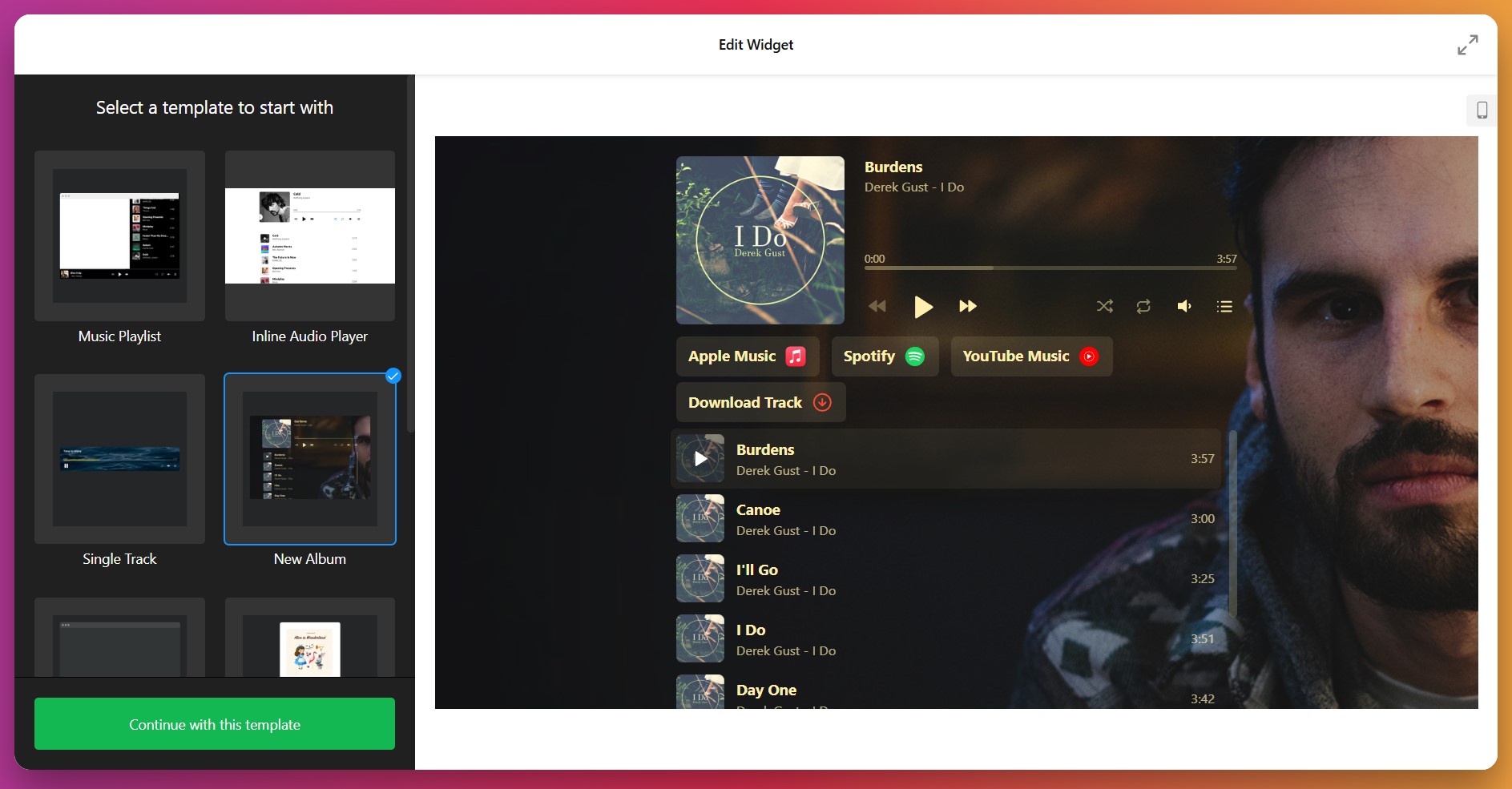
Unlike Background Music (designed for ambient, continuous playback), the Audio Player is optimized for showcasing music collections, podcasts, audiobooks, or sound libraries where users actively engage with specific tracks. It offers prominent album artwork, detailed track information, and built-in download/purchase buttons—perfect for musicians, podcasters, and content creators who want visitors to interact directly with their audio content.
Comparison: Elfsight vs. Native Squarespace Solutions
Here’s how the Elfsight Background Music widget stacks up against Squarespace’s native options and manual implementation across the features that matter most:
| Feature | Elfsight Background Music | Squarespace Audio Block | SoundCloud Block | Manual HTML |
| Multiple track playlists | Yes | No | Single track | If coded |
| Autoplay | Yes | No | SoundCloud only | If coded |
| Loop and shuffle | Yes | No | No | If coded |
| Customizable design | Yes | Limited | No | Full control |
| No coding required | Yes | Yes | Yes | No |
| Works across all pages | Yes | No | No | If configured |
| Mobile-responsive | Yes | Yes | Yes | Depends on code |
| Multiple audio sources | Yes | Limited | SoundCloud only | If coded |
The Elfsight Background Music widget combines the simplicity of native blocks with the power and flexibility of custom code, offering the best of both worlds without technical complexity.
📝 Optimization Tips for Your Background Music Player
Once your music player is live, these best practices will help you maximize engagement while maintaining excellent user experience and website performance.
- Keep volume moderate. Set the initial volume to 20-30% to avoid startling visitors. Loud audio can be intrusive and drive users away immediately.
- Provide visible playback controls. Always give visitors the option to pause, skip, or adjust volume. Forced audio with no control creates a negative user experience.
- Test autoplay across browsers. Chrome, Safari, and Firefox handle autoplay differently. Test your implementation on multiple browsers and devices to understand behavior. Consider adding a “Click to start music” button if autoplay is unreliable.
- Match audio to your brand. Choose tracks that reinforce your website’s mood and purpose. A spa should play calming ambient music, while a fitness website might use energetic beats. Consistency strengthens brand identity.
- Optimize file sizes for performance. Large audio files slow page load times. Compress audio files to 128-192kbps for background music (higher bitrates are unnecessary for ambient playback). This reduces bandwidth usage and improves page speed.
- Consider mobile data usage. Autoplay audio consumes mobile data. Be mindful of users on limited data plans. Consider disabling autoplay on mobile devices or providing a clear notice that audio will play.
Frequently Asked Questions
How do I add music to Squarespace without a paid plan?
Can I add background music to all pages on Squarespace?
Does background music work on mobile devices?
How many audio files can I add to my Background Music widget?
What audio file formats does Elfsight support?
Will background music affect my Squarespace website's loading speed?
Conclusion
Adding background music to your Squarespace website creates an immersive brand experience that static content alone cannot achieve. Whether you’re setting the mood for a seasonal promotion, creating ambiance for a portfolio, or building a unique atmosphere for your online store, ambient audio keeps visitors engaged longer and reinforces your brand identity.
The Elfsight Background Music widget offers a powerful, no-code solution for Squarespace users on Core, Plus, and Advanced plans. With unlimited tracks, customizable layouts, and flexible playback options, you can create the perfect soundscape in minutes. Start transforming your Squarespace website today with the power of audio.
Source cited: PR Newswire