Privacy Policy Generator

Create a free privacy policy for your website, online store or app: tell the generator what data you collect and which laws apply, edit the text and copy or download it. No sign-up — it’s all done in your browser.
January 2026

Formatted with Elfsight

Need visitors to accept cookies too? Add a consent banner with the Cookie Consent widget. See Cookie Consent →

Before you go

Need visitors to accept cookies too? Add a consent banner with the Cookie Consent widget.

See Cookie Consent →90+ widgets for your websiteReviews, forms, chats, social feeds and more — no coding, styled to your site.Browse widgets →
Or share this free tool:

Disclaimer. Elfsight is not a law firm and does not provide legal advice. This generator only formats a generic template: it comes without any warranty that it is complete, accurate, up to date or suitable for your business or the privacy laws that apply to you. You are solely responsible for the final text of your privacy policy — for making sure it describes what you actually do with personal data, approving it and complying with the law. Have a qualified lawyer review it before you publish it. Using this tool does not create a lawyer–client relationship, and Elfsight accepts no liability for any use of the template or the text you create with it.

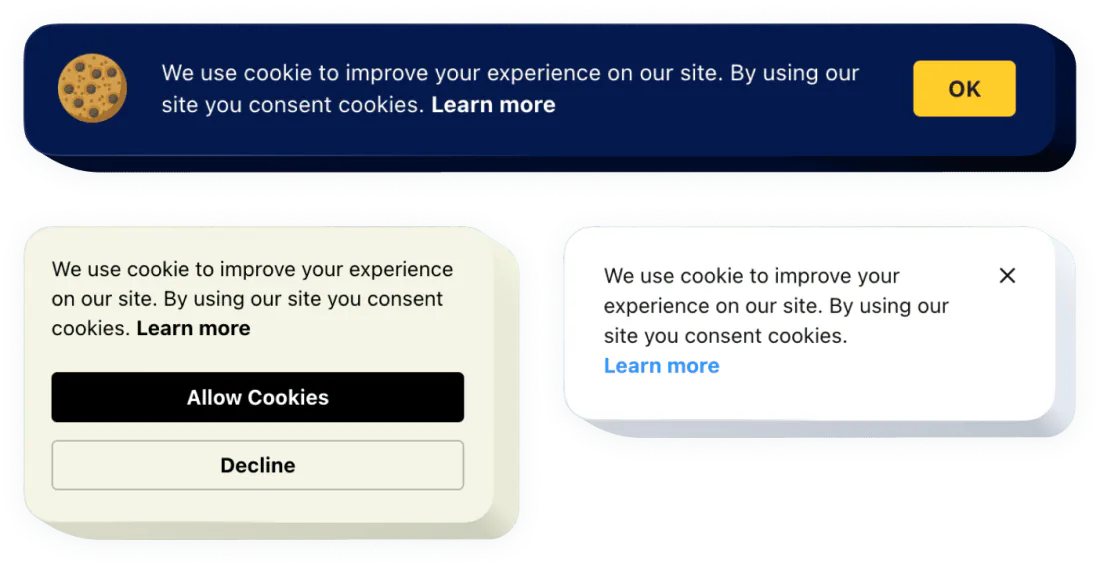
Cookie Consent widget

Ask for cookie consent, not just explain it

Your privacy policy explains cookies; a cookie banner asks visitors for consent. Inform visitors about cookies with clear consent options and transparent data practices — no coding needed.
  • Clear options to accept or decline cookies

  • Bar or box layout, in the position you choose

  • Your colors, font size and icon

How to add the privacy policy to your website

Pick your platform. Link to the policy from the footer of every page and from every form that collects personal data, such as contact, sign-up and checkout forms.

WordPress

  1. In the generator above, open the Text tab and click Copy — headings and paragraphs keep their formatting when you paste.

  2. In your dashboard, go to Pages → Add New and enter the title Privacy Policy.

  3. Paste the text into the editor. In the page settings sidebar, set a short URL (slug), e.g. privacy-policy, then click Publish.

  4. Link it from the footer: in a block theme, open Appearance → Editor, select the footer and add the page to its Navigation block; in a classic theme, add the page to the footer menu in Appearance → Menus.

  5. Then go to Settings → Privacy and choose the page as your privacy policy page — WordPress and many plugins link to it from there.

Official guides:Create pagesNavigation block

Shopify

  1. In the generator above, open the Text tab and click Copy — headings and paragraphs keep their formatting when you paste.

  2. In your Shopify admin, go to Settings → Policies and open Privacy policy.

  3. Paste the text, replacing anything already there, and click Save. Shopify links saved policies in the checkout footer automatically.

  4. Add it to your store’s footer: go to Online Store → Navigation, open the Footer menu, click Add menu item, choose Policies → Privacy policy and save.

Official guides:Store policiesEditing menus

Wix

  1. In the generator above, open the Text tab and click Copy — headings and paragraphs keep their formatting when you paste.

  2. In the editor, open Pages & Menu, click Add Page, choose a blank page and name it Privacy Policy. You can hide it from the main menu.

  3. Add a Text element to the page and paste the policy into it.

  4. In the site footer, add a text element that says Privacy Policy, select it, click the link icon, choose Page and select your terms page.

  5. Click Publish.

Official guides:Adding a pageTerms in your site’s footer

Squarespace

  1. In the generator above, open the Text tab and click Copy — headings and paragraphs keep their formatting when you paste.

  2. Open the Pages panel, click + next to Not linked and add a blank page called Privacy Policy — not linked pages stay out of the main menu.

  3. Add a Text block and paste the policy. In the page’s settings, set the URL slug, e.g. /privacy-policy.

  4. Link it from the footer: in version 7.1, edit the footer, add a text block with the words Privacy Policy and link them to the page; in version 7.0, drag the page into the footer navigation if your template has one.

Official guides:Adding pagesPage settingsText blocks

Webflow

  1. In the generator above, open the Text tab and click Copy — headings and paragraphs keep their formatting when you paste.

  2. In the Designer, open the Pages panel, create a new page named Privacy Policy and click Create. The name becomes the URL; change it in the page’s Slug field if you like.

  3. Drag a Rich Text element onto the page and paste the policy into it.

  4. In your footer component, add a Link to the new page, then publish the site.

Official guides:Pages panelPage URLs

Any website

  1. In the generator above, open the HTML tab and click Copy — or download the .html file.

  2. Create a new page on your site, e.g. /privacy-policy/, using your usual page template.

  3. Paste the HTML into the page’s main content area and upload or publish it.

  4. Add a link to it in the footer of every page: <a href="/privacy-policy/">Privacy Policy</a>, and next to your sign-up or checkout button.

Official guides:Creating links (MDN)

Why your website needs a privacy policy

If your site collects any personal information — a name in a contact form, an email for a newsletter, an IP address in analytics — you usually need a privacy policy.

  • Privacy laws such as the GDPR in the EU and the UK and the CCPA in California require you to tell people what you collect and why.

  • Google Analytics, ad platforms, app stores and payment providers ask you to have one.

  • It builds trust: visitors see what happens to their data before they fill in a form.

  • It’s the place to explain cookies, newsletters and the services you share data with.

What a privacy policy should cover

A good privacy policy answers the questions a visitor would ask, in plain language:

  • Who you are and how to contact you.

  • What personal information you collect, and how.

  • Why you use it and, in the EU and UK, on what legal basis.

  • Who you share it with: hosting, analytics, payment and email providers.

  • How you use cookies and similar technologies.

  • How long you keep the data and how you protect it.

  • What rights people have and how to use them.

  • How you’ll tell people about changes.

The generator covers each of these — turn on the parts that match your site.

GDPR and CCPA in short

GDPR
CCPA
Where
The European Union and, as the UK GDPR, the United Kingdom
California, USA
Who it applies to
Organizations that offer goods or services to people there or monitor their behavior
For-profit businesses that meet certain thresholds, such as revenue or the number of California consumers
Key rights
Access, correction, deletion, restriction, objection, portability
To know, delete, correct and opt out of the sale or sharing of data
Cookies
Consent before non-essential cookies (with the ePrivacy rules)
A way to opt out of sharing data for targeted ads

Where

GDPR

The European Union and, as the UK GDPR, the United Kingdom

CCPA

California, USA

Who it applies to

GDPR

Organizations that offer goods or services to people there or monitor their behavior

CCPA

For-profit businesses that meet certain thresholds, such as revenue or the number of California consumers

Key rights

GDPR

Access, correction, deletion, restriction, objection, portability

CCPA

To know, delete, correct and opt out of the sale or sharing of data

Cookies

GDPR

Consent before non-essential cookies (with the ePrivacy rules)

CCPA

A way to opt out of sharing data for targeted ads

Not sure which laws apply to you? Ask a lawyer — the answer depends on where your business and your visitors are.

Privacy policy, terms and cookie consent

A privacy policy explains what you do with personal data. Terms and conditions set the rules for using your site and buying from you. A cookie banner asks visitors for consent to cookies before they are set. Most websites need all three, linked from the footer.

Before you publish: a quick checklist

  • The policy matches what your site actually collects — check your forms, analytics, ads and plugins.

  • Every service you share data with is covered: hosting, email, analytics, payments.

  • The contact email works and someone answers it.

  • The policy is linked from the footer and from every form that collects personal data.

  • If you use non-essential cookies, a cookie banner asks for consent.

  • You have terms and conditions too.

  • A lawyer has reviewed the final text.

How to create your privacy policy

  1. Enter your details

    Company name, website, a contact email for privacy questions and the date.

  2. Describe your site

    Turn on what your site does: forms, accounts, orders, newsletter, analytics, ads, cookies and embedded content.

  3. Choose the laws

    Add the GDPR section if you have visitors from the EU or UK, and the CCPA notice if it applies to you.

  4. Edit, review and publish

    Adjust the text, have a lawyer review it and publish it on a page linked from your footer and forms.

Frequently asked questions

More Business Tools