YouTube IFrame Player API reference ↗
developers.google.com/youtube/iframe_api_referenceYouTube IFrame Player API reference ↗
Load https://www.youtube.com/iframe_api once and create players in onYouTubeIframeAPIReady.
Control playback with playVideo, pauseVideo, seekTo, mute and loadVideoById.
React to onStateChange and onError to track plays and skip broken videos.
The IFrame API needs no key; listing channel or playlist videos needs the YouTube Data API with a key and quotas.
<div id="player"></div>
<script src="https://www.youtube.com/iframe_api"></script>
<script>
  let player;
  function onYouTubeIframeAPIReady() {
    player = new YT.Player("player", {
      videoId: "VIDEO_ID",
      playerVars: { playsinline: 1, rel: 0 },
      events: { onReady: e => e.target.mute().playVideo() }
    });
  }
</script>playVideo() / pauseVideo()
Does
seekTo(seconds)
Does
mute() / unMute()
Does
loadVideoById(id)
Does
getCurrentTime()
Does
onReady, onStateChange (playing, paused, ended), onError. Use them to track views or start the next video.
For a gallery, playlist or channel feed on marketing pages, the API is a lot of code to maintain.
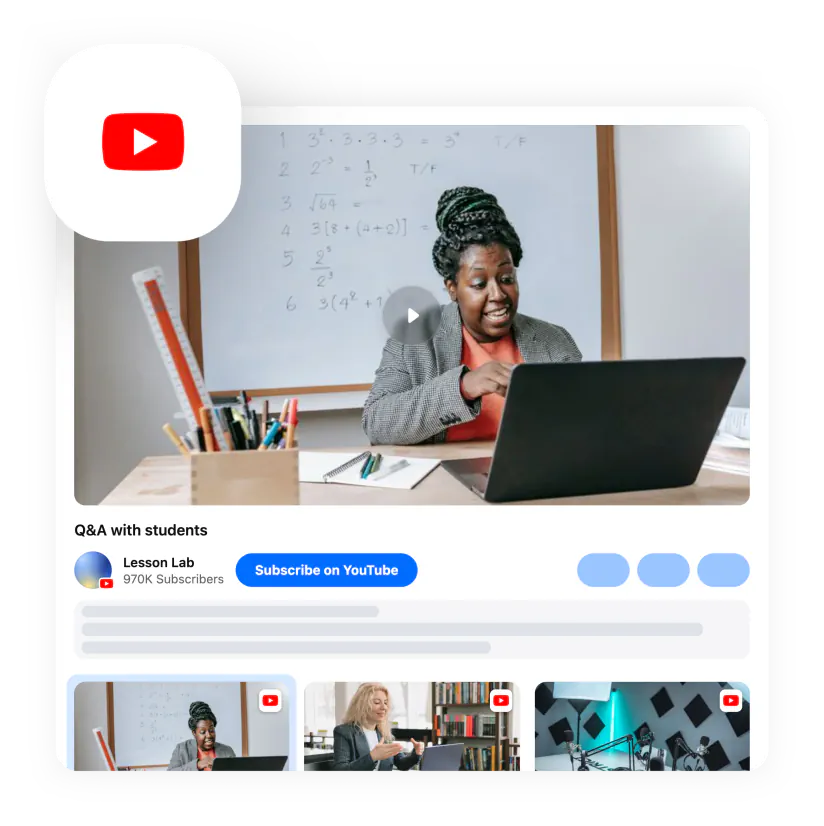
The IFrame API is a single script. When it finishes loading, it calls a global function named onYouTubeIframeAPIReady — create your players there. Load the script once per page, even if you have several players, and create each player on its own element.
const players = {};
function onYouTubeIframeAPIReady() {
  document.querySelectorAll("[data-yt]").forEach((el) => {
    players[el.id] = new YT.Player(el.id, {
      videoId: el.dataset.yt,
      playerVars: { rel: 0, playsinline: 1 }
    });
  });
}-1
Constant
Meaning
0
Constant
Meaning
1
Constant
Meaning
2
Constant
Meaning
3
Constant
Meaning
5
Constant
Meaning
Listen to onStateChange and compare event.data with these constants.
<div id="player"></div>
<button id="play">Play</button>
<script>
  let player;
  function onYouTubeIframeAPIReady() {
    player = new YT.Player("player", { videoId: "VIDEO_ID", playerVars: { controls: 0 } });
  }
  document.getElementById("play").onclick = () => {
    const s = player.getPlayerState();
    s === YT.PlayerState.PLAYING ? player.pauseVideo() : player.playVideo();
  };
</script>
Hiding YouTube’s controls means you take responsibility for accessible controls — keyboard support and labels.
events: {
  onStateChange: (e) => {
    const title = e.target.getVideoData().title;
    if (e.data === YT.PlayerState.PLAYING) gtag("event", "video_start", { video_title: title });
    if (e.data === YT.PlayerState.ENDED)   gtag("event", "video_complete", { video_title: title });
  }
}2
Meaning
What to do
5
Meaning
What to do
100
Meaning
What to do
101 / 150
Meaning
What to do
Listen to onError and skip to the next video in your list when an error occurs.
The IFrame API controls playback of videos you already know. To list a channel’s uploads or a playlist’s videos, you need the separate YouTube Data API — with an API key, daily quota limits and caching on your side. That’s the part most custom galleries underestimate.
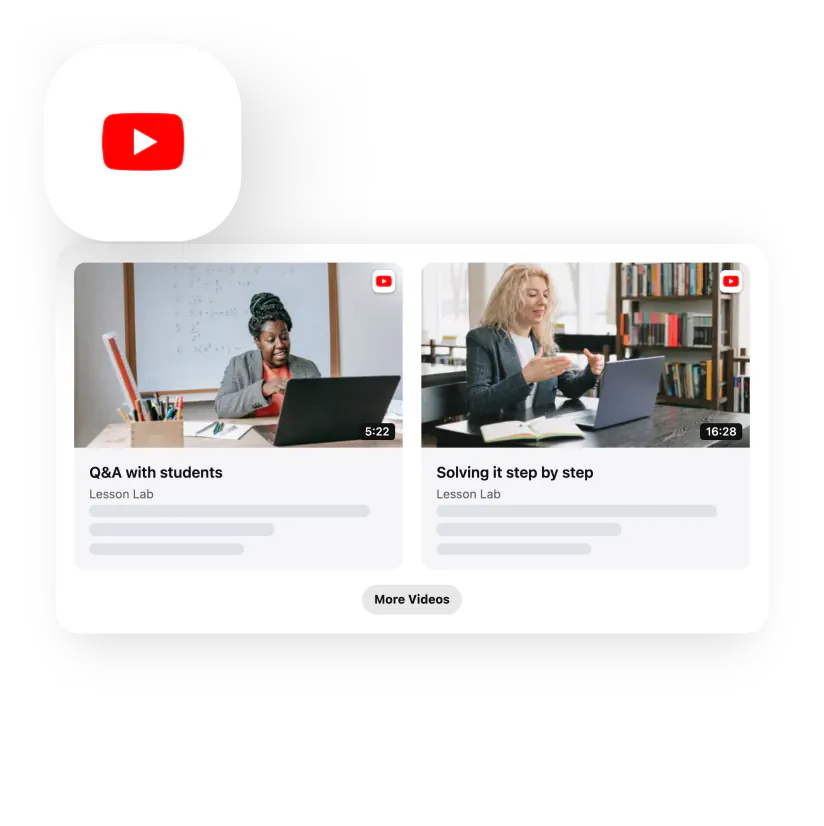
A common use case: one player, a list of your product videos next to it, and analytics for each play. Create the player once, render your list as buttons with data-id attributes, and call loadVideoById on click. On ENDED, load the next ID in your list so the playlist continues. Send video_start and video_complete events to analytics with the video title. Everything else — thumbnails, titles, the order of videos — comes from your own data, which is exactly the part the Data API or a gallery widget provides.
On this page